
TABLE OF CONTENTS
The WiiM Bar is a 3.0.2-channel soundbar designed for cinematic audio and high-fidelity music streaming. Supporting Dolby Atmos, DTS, and Dolby Digital, it can easily be grouped with other WiiM devices to expand into a 5.1.2 surround sound system.
This tutorial will walk you through the step-by-step setup guide to get your WiiM Bar up and running.
What You'll Need
- A WiiM Bar
- A smartphone or tablet
- Wi-Fi connection
- A TV and other audio input devices you want to connect to the WiiM Bar
- (Optional) A WiiM Sub Pro and other WiiM devices for surround sound system setup
- (Optional) Ethernet connection
Step-by-Step Setup Guide
1. Unbox the WiiM Bar
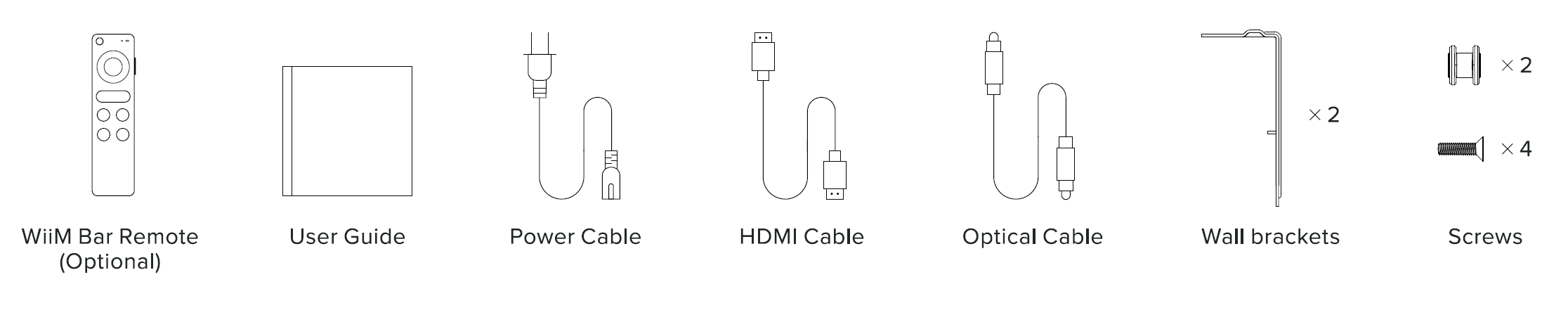
Open the box, and you'll find the following items inside.
2. Place the WiiM Bar
- Desktop Placement: Put the WiiM Bar on a table directly in front of your TV.Note: Make sure the front and top speakers are not blocked to ensure optimal sound performance. Also, ensure the WiiM Bar does not block TV remote IR receiver.
- Wall Mounting: Mount the WiiM Bar under the TV using the included wall brackets and screws. For detailed instructions, see the included User Guide.
3. Connect the WiiM Bar to the TV and other Audio Input Devices
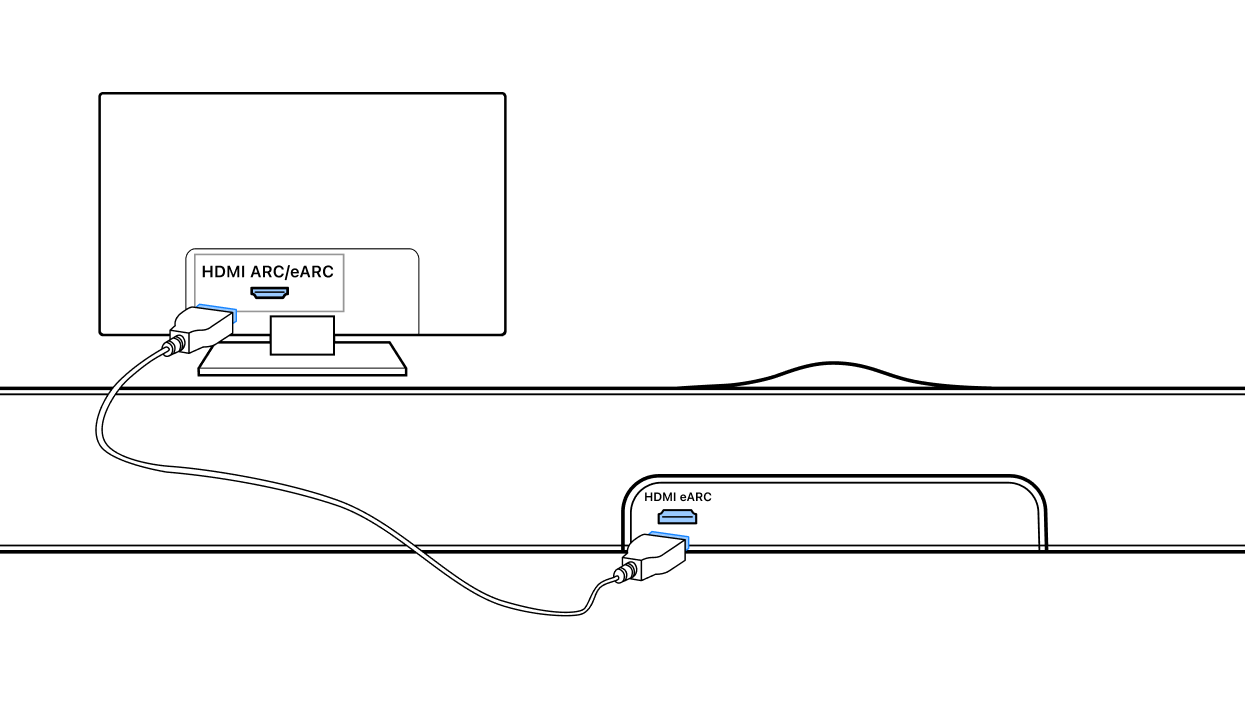
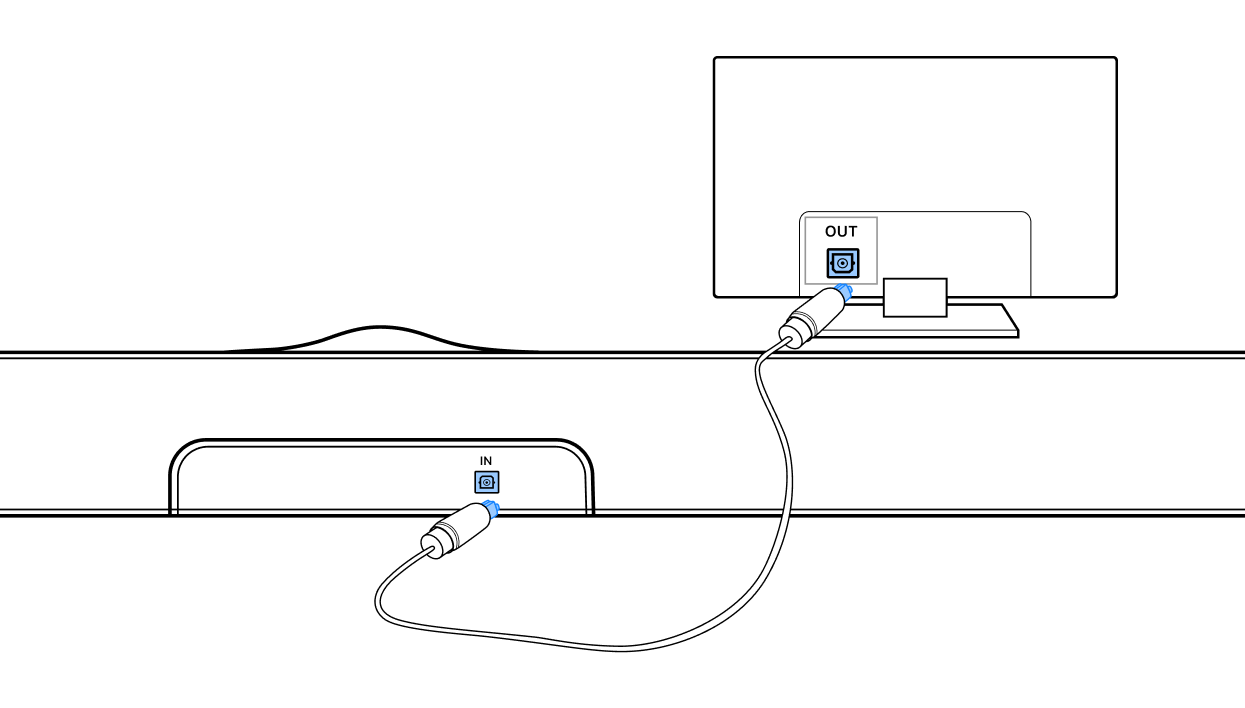
Connect the WiiM Bar to your TV and other audio input devices (e.g., CD player or PC) via HDMI eARC, Optical In, or Line In.
- Via HDMI eARC:
- Via Optical In:
- Via Line In:
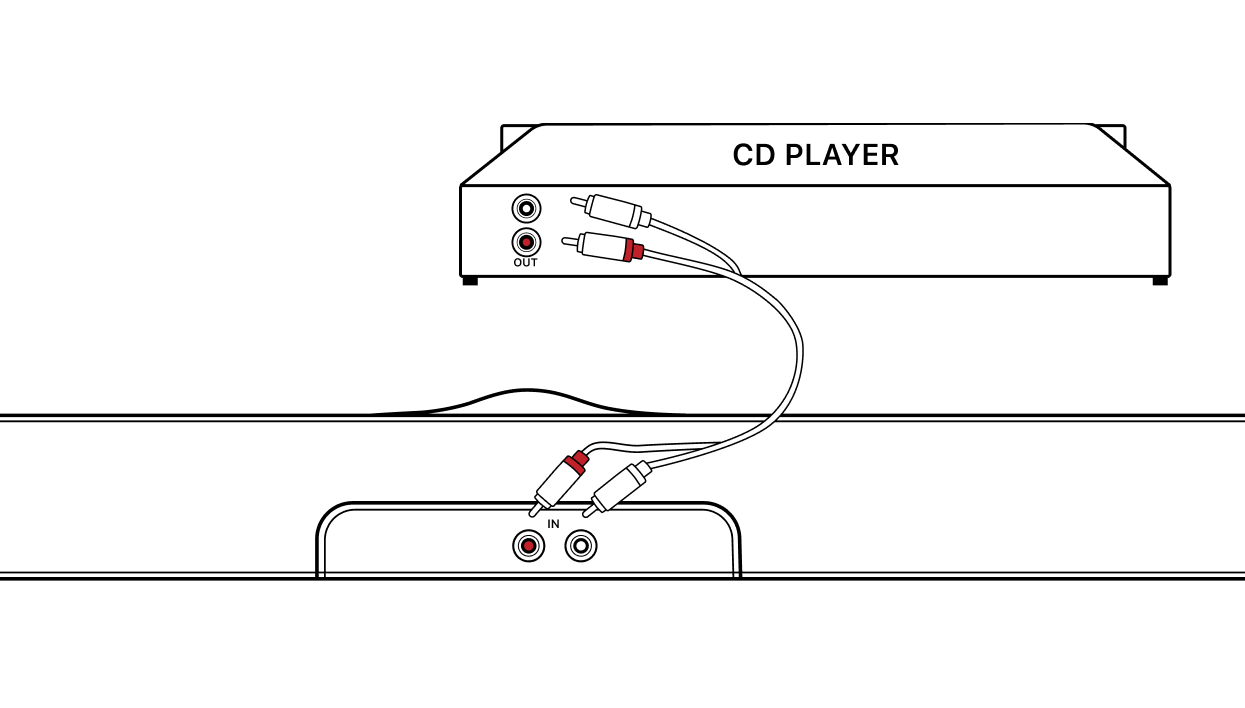
For detailed instructions, see How to Use Audio Input Ports of the WiiM Bar.
4. Power on the WiiM Bar
Connect the WiiM Bar to a power source using the provided power cable. The WiiM Bar will automatically power on and enter Wi-Fi setup mode.

Once in Wi-Fi setup mode, the LED indicator will begin flashing white slowly.
If the WiiM Bar does not enter setup mode automatically, press and hold the Play button on the device for 3 seconds to trigger it manually.
5. Download the WiiM Home App
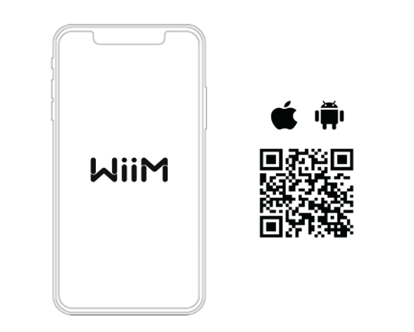
Use your smartphone or tablet to scan the following QR code to download the WiiM Home app. The app will be used to set up and control your WiiM Bar.
6. Set Up the WiiM Bar through the WiiM Home App
- Open the WiiM Home app on your smartphone or tablet.
- When your device appears in the app, tap Set Up to start the process.
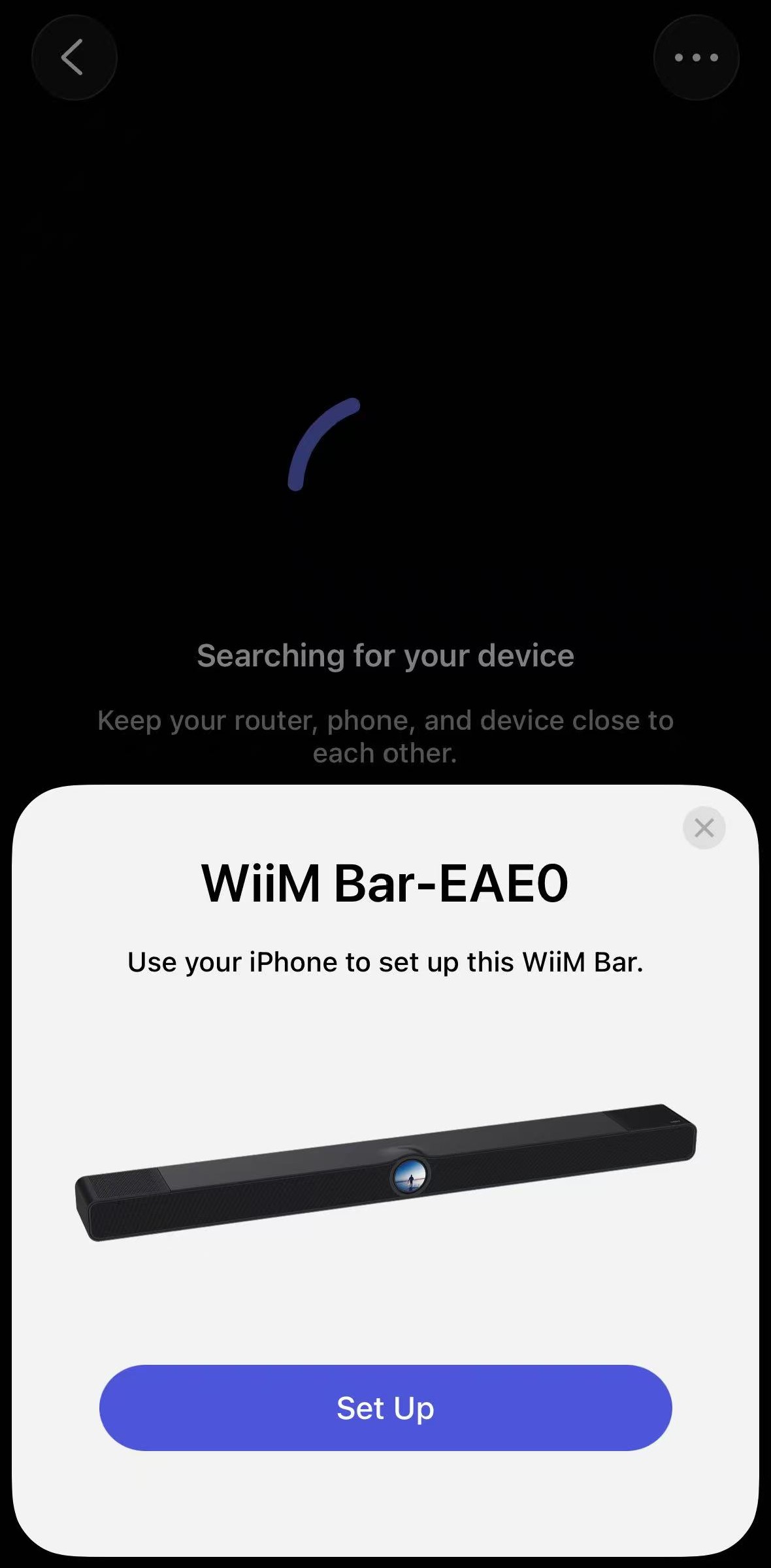 Tip: If your WiiM Bar doesn't appear automatically, go to the Devices tab and tap Add Device in the top-right corner to trigger the setup page.
 - Follow the on-screen instructions to complete the setup process. During setup, you'll connect the WiiM Bar to the Wi-Fi network, check for firmware updates, and pair the WiiM Bar Remote.
For more information on the WiiM Bar Remote, see How to Set Up Your WiiM Bar Remote.
7. Start Enjoying the WiiM Bar
Your WiiM Bar is now ready.
Simply turn on your TV to enjoy immersive sound for movies, shows, sports, and gaming, with clear dialogue and rich detail.
You can also stream music from the WiiM Home app or other music services to your WiiM Bar.
Expand the WiiM Bar to a 5.1.2 Surround Sound System
You can pair the WiiM Bar with a WiiM Sub Pro and other WiiM devices (such as two WiiM Sound units acting as surround speakers) to expand it into a complete 5.1.2 surround sound system for a truly cinematic experience.
For detailed instructions, see Expanding WiiM Bar into a Complete 5.1.2 Surround Sound System.
Tips and Troubleshooting
- Playback Issues: If you experience playback issues (e.g., network streaming dropouts), see General Troubleshooting Guide for WiiM Playback Issues for solutions.
- HDMI No Sound: If you hear no sound when using the HDMI input, see Troubleshooting No Sound Issues with HDMI TV Input on WiiM Devices for solutions.
- Wi-Fi Connection: Ensure your Wi-Fi signal is strong in the location where you set up the WiiM Bar for a stable streaming experience.
- Ethernet Connection (Optional): For added stability, you can connect the WiiM Bar to your network with an Ethernet cable instead of Wi-Fi.
- Device Not Connecting: If the WiiM Bar is not connecting to your Wi-Fi, try restarting your router and the WiiM Bar. For details, see Troubleshooting: How to Resolve Wi-Fi Connection Issues During WiiM Setup.
- Device Not Found: If the WiiM Bar is not found in the WiiM Home app, see Troubleshooting: WiiM Device Not Found in WiiM Home App.