
TABLE OF CONTENTS
Overview
The WiiM Bar serves as the core of a 5.1.2 surround setup. It supports 3.0.2 channels on its own, and by adding a WiiM Sub Pro, and Surround Left and Surround Right speakers, you can expand it into a complete 5.1.2 surround sound system for a truly cinematic experience.
This article will walk you through the steps to set up a 5.1.2 surround sound system.
What You Need for a 5.1.2 Surround Sound System
- 1 x WiiM Bar
- 1 x WiiM Sub Pro
- 2 x WiiM Sound/Sound Lite, or 1 xWiiM Streamer/WiiM Streaming AmplifierFor example, use two WiiM Sound speakers as the Surround Left and Surround Right channels. Alternatively, connect two passive speakers to a WiiM Amp and use them as the surround channels.
- A TV with an HDMI ARC/eARC port.
- A Wi-Fi/Ethernet network
- A mobile device with the WiiM Home app installed.
Set Up a 5.1.2 Surround Sound System
Step 1: Place Speakers Properly
For optimal sound, place all speakers according to the diagram below.
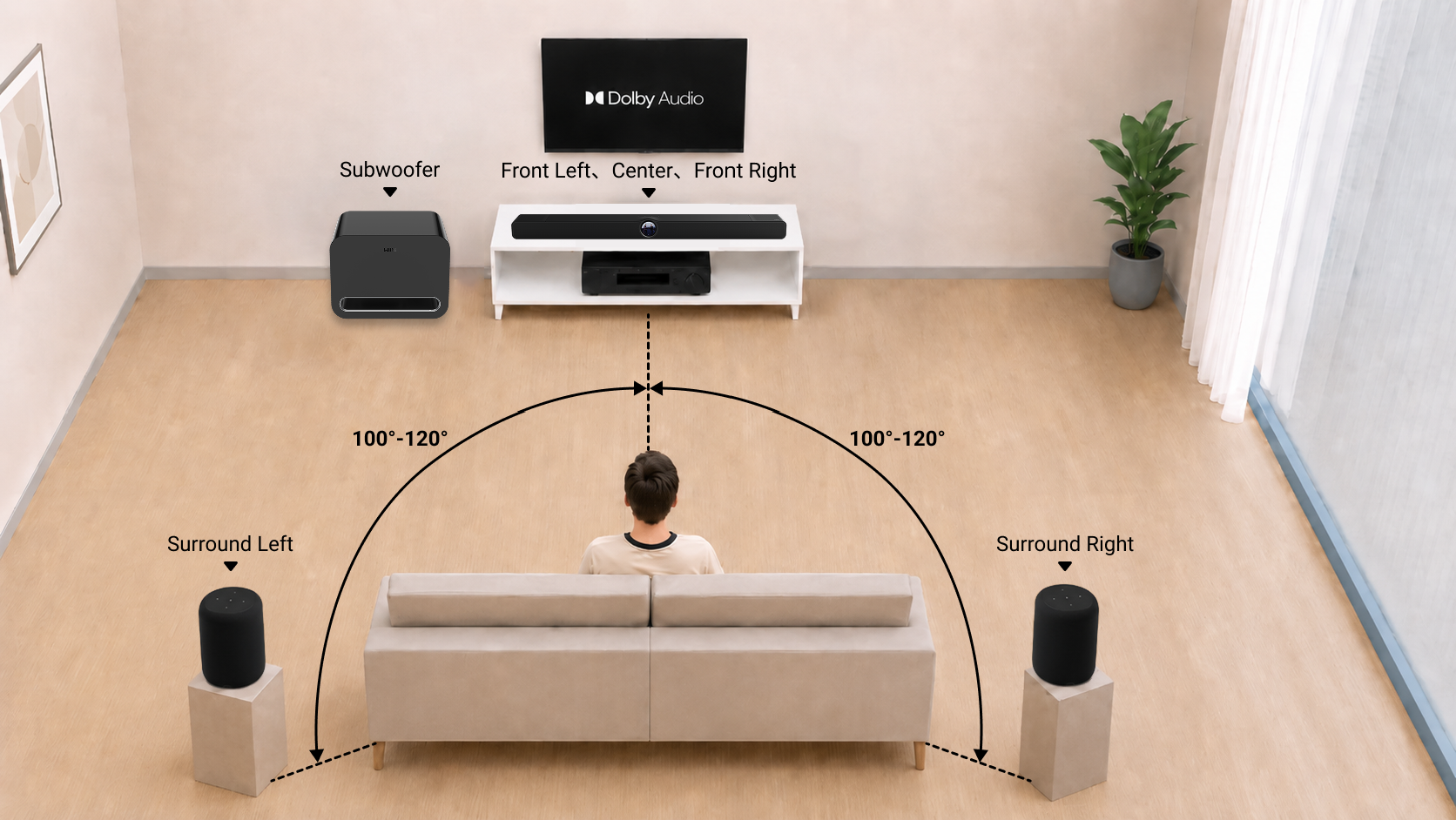
Step 2: Connect the WiiM Bar to the TV
Connect the WiiM Bar to the TV via the HDMI ARC/eARC port. Make sure to use the HDMI port labeled "ARC/eARC". Using another HDMI port will not produce sound.
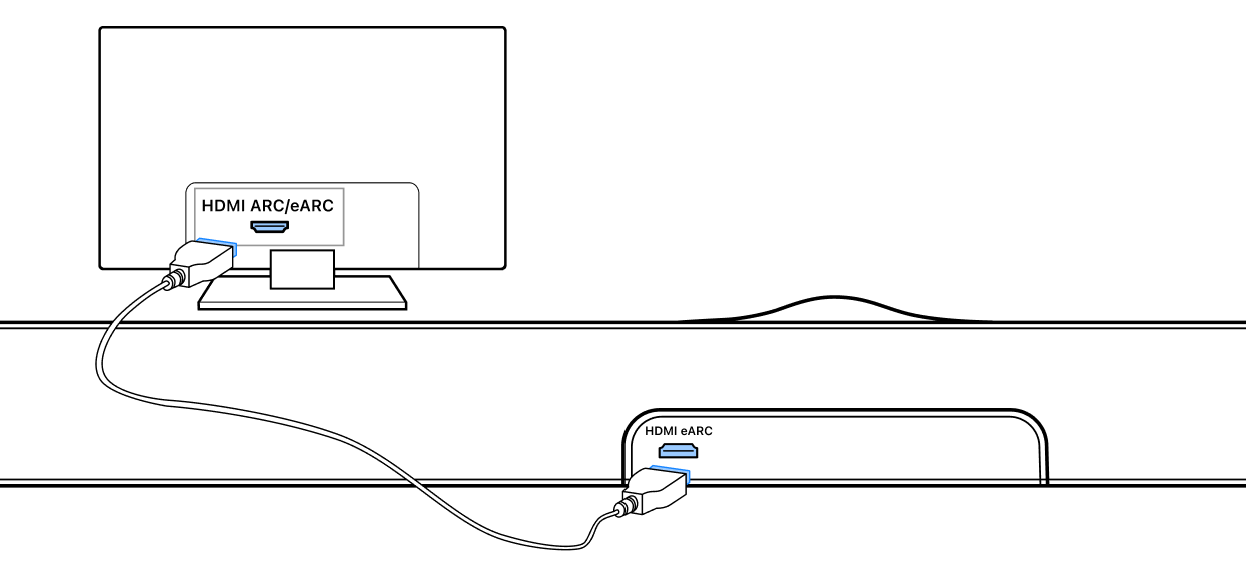
If the TV has no HDMI ARC/eARC, connect via the Optical port.
Step 3: Set Up the WiiM Devices
Set up the WiiM Bar, WiiM Sub Pro, and other WiiM devices using the WiiM Home app and connect them to the same network.
When setting up the WiiM Sub Pro, make sure to connect it to the WiiM Bar via wireless or wired connection mode. For details, see How to Set Up Your WiiM Sub Pro.
Step 4: Add Surrounds in the WiiM Home App
- Open the WiiM Home app on your mobile device.
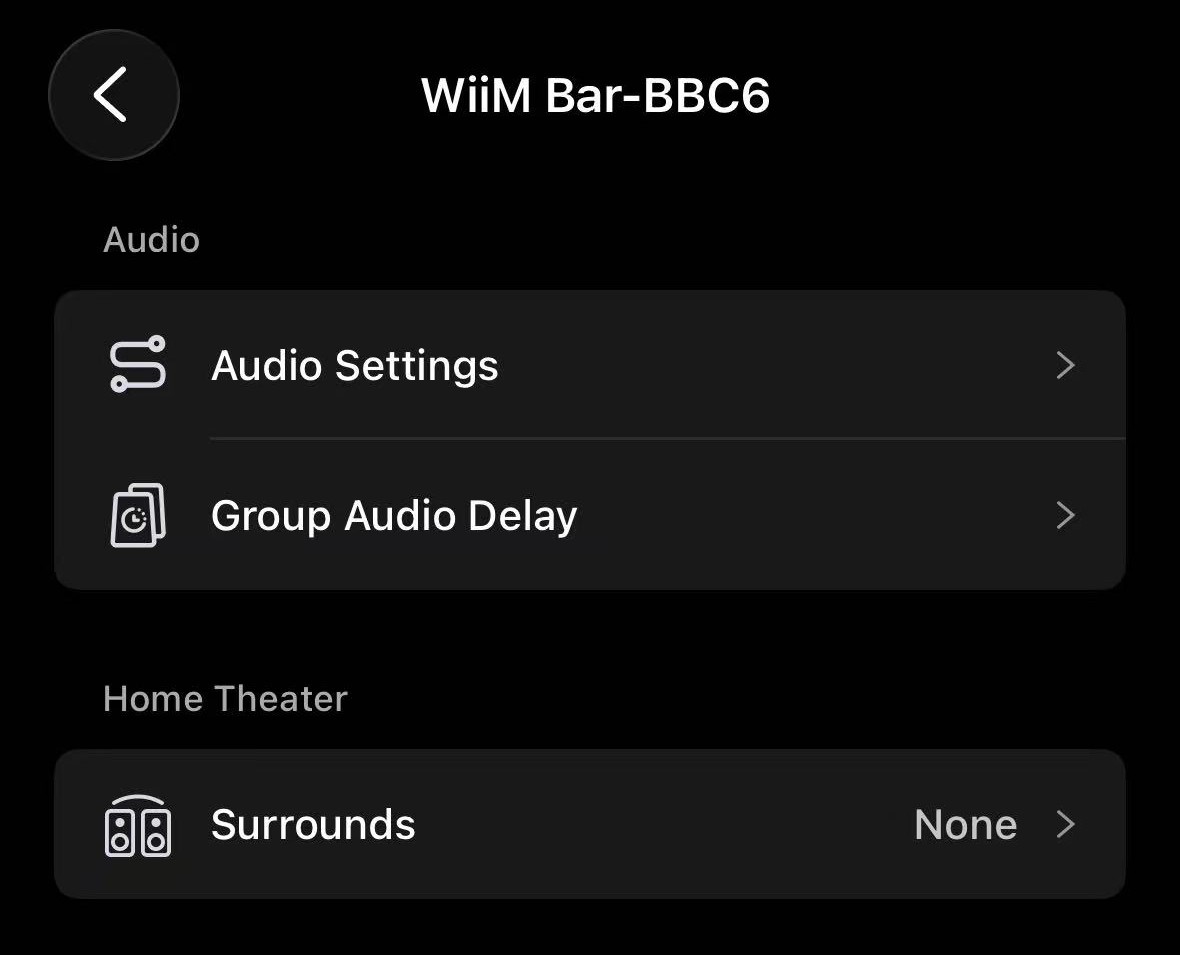
- Go to the Devices tab > WiiM Bar's Device Settings
 > the Home Theater section.
 - Tap the Surrounds setting.
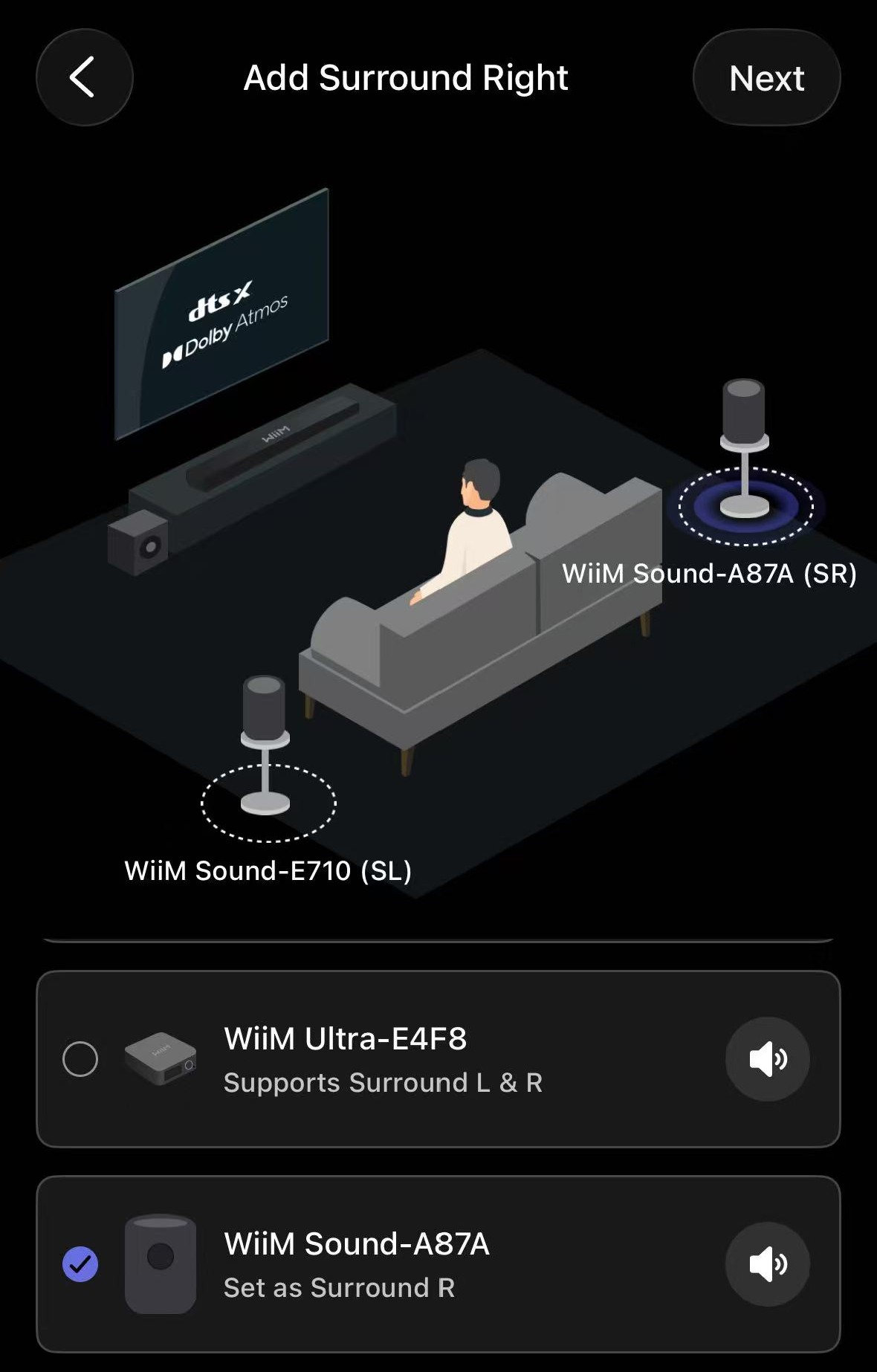
- Select the Surround Left (SL) and Surround Right (SR) speakers, then tap Next.Tip:
- Choose two WiiM Sound/Sound Lite speakers or one WiiM streamer/streaming amplifier.
- Tap the volume icon
 next to each surround speaker to confirm you've selected the correct speaker.
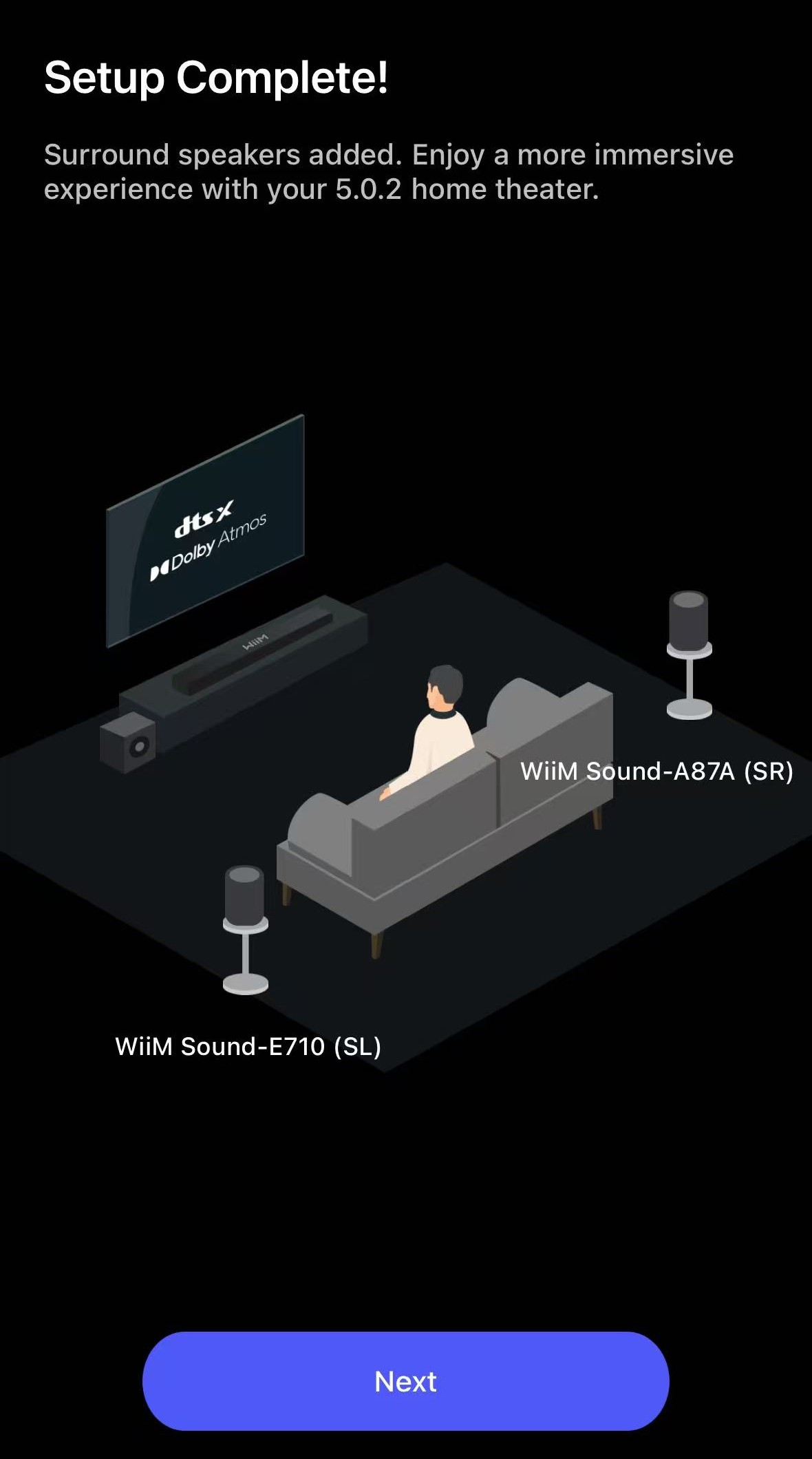
- When the Setup Complete page appears, tap Next to check the surround speaker connections.
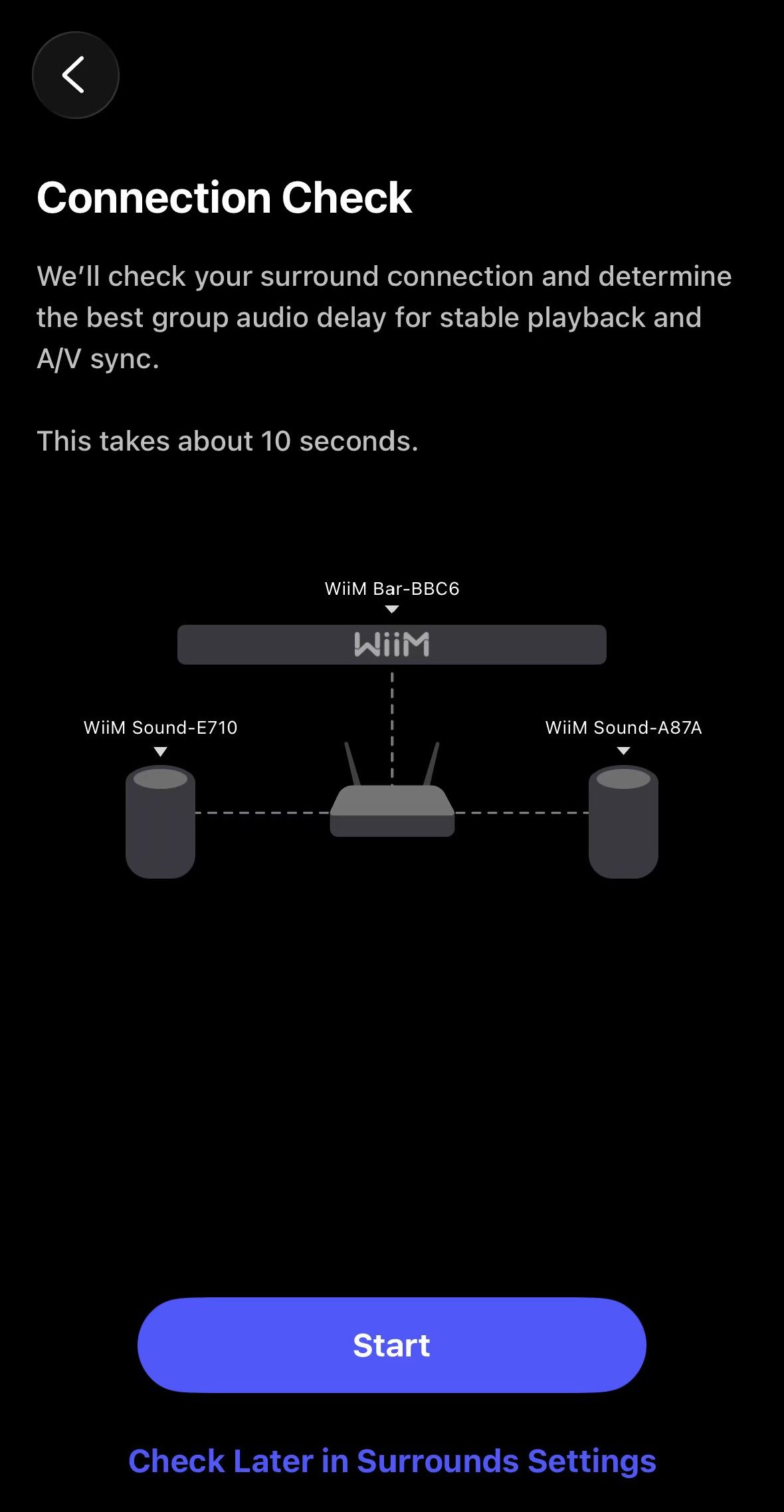
- Tap Start to check the surround speaker connections. You can also skip this step and check them later.
Once the 5.1.2 surround sound system is created, it is enabled automatically. Play audio on the TV and enjoy a truly cinematic experience.
Select a Sound Mode to Enhance Audio
The WiiM Bar offers four Sound Modes specifically for Dolby and DTS—Music, Movie, Voice, and Night—so you can quickly optimize audio for different content and listening environments. For details, see Understanding Dolby and DTS Sound Modes on Your WiiM Bar.
Simply select your preferred sound mode using the WiiM Bar Remote.
Manage the Surround Speakers
Once the surround speakers have been added, you can manage them at any time from the Surrounds settings in the WiiM Home app. For example, you can check their connections or remove them.
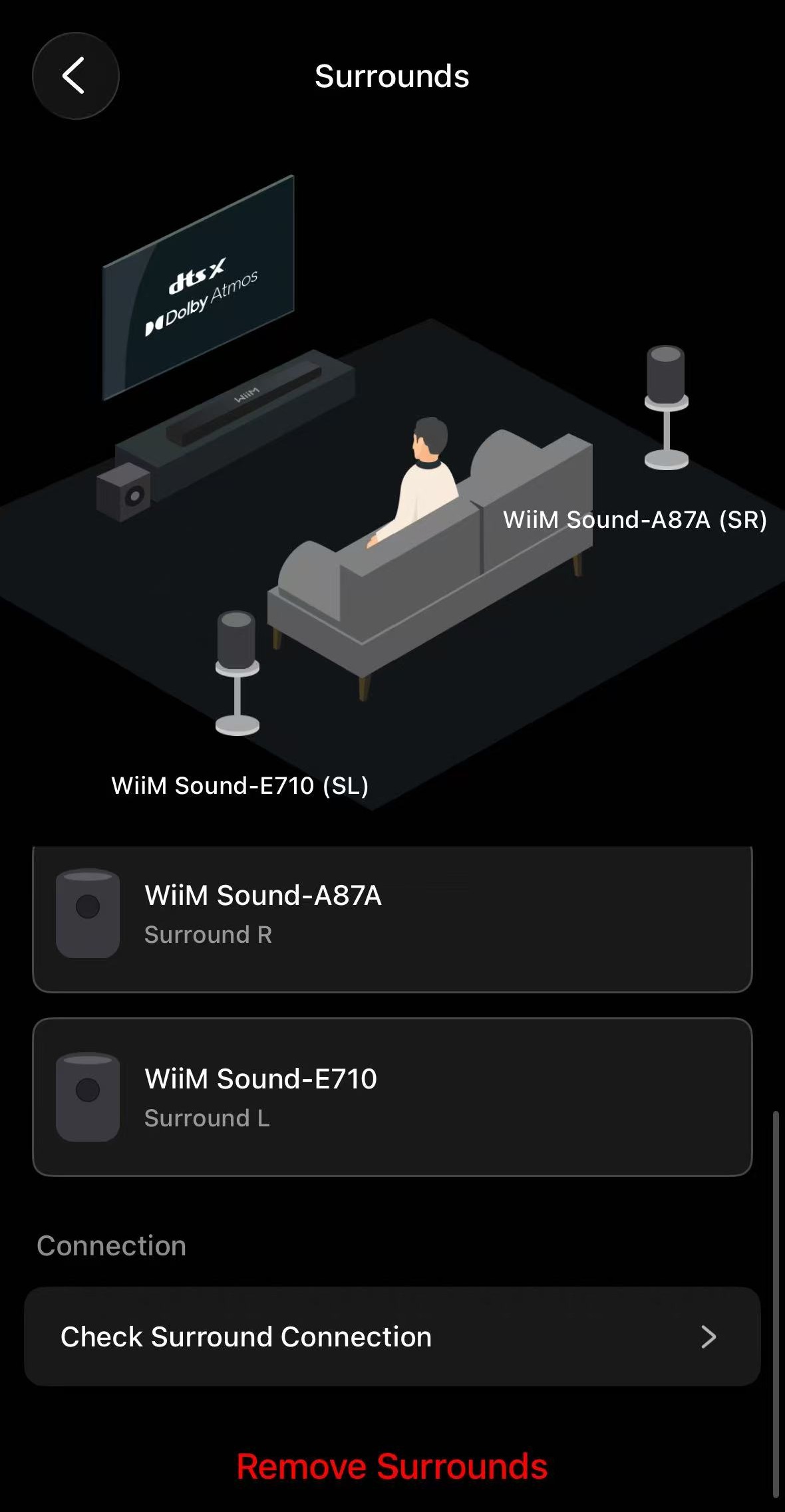
Check Surround Connections
We recommend checking the surround connections to ensure stable playback. If any connection is poor, refer to the recommended network setup in How to Keep Surround Playback Stable.
Remove the Surround Speakers
If you want to remove paired surround speakers from the WiiM Bar, simply tap Remove Surrounds.
You can then select new WiiM devices as your surround speakers.
Troubleshooting
If you encounter surround playback issues, please refer to How to Keep Surround Playback Stable for solutions.