
TABLE OF CONTENTS
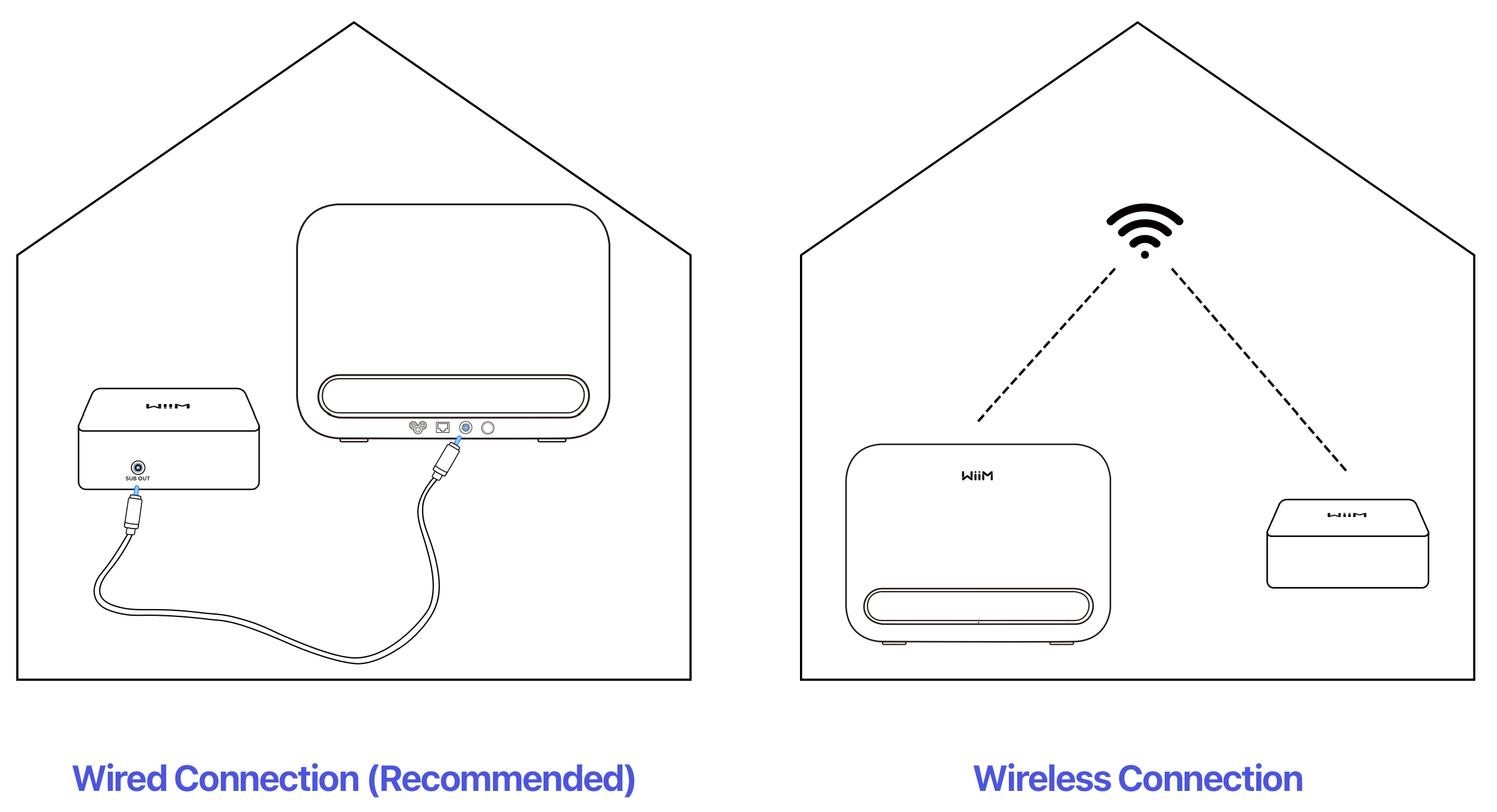
Connection Mode
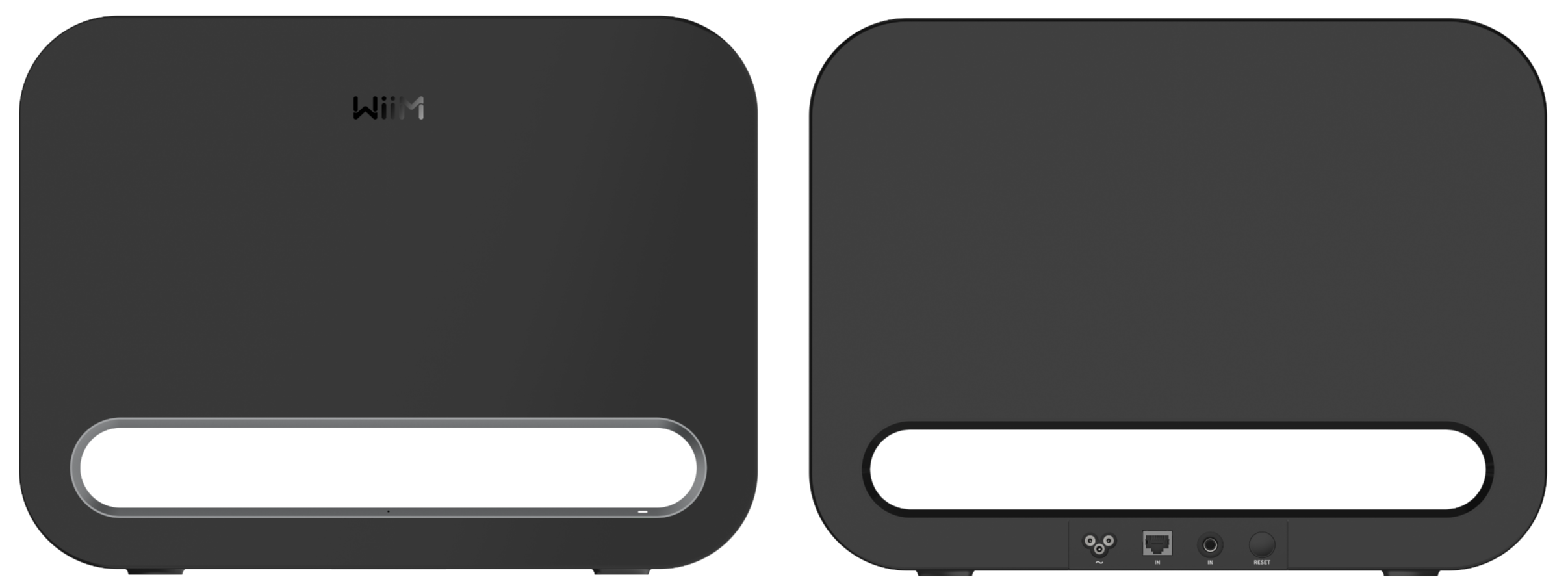
The WiiM Sub Pro is a wireless smart subwoofer designed to deliver deep, distortion-free bass to your audio system. The WiiM Sub Pro seamlessly integrates with WiiM devices to unlock wireless streaming capabilities and smart features for a personalized listening experience. It can also connect to specific WiiM devices or third-party audio systems via an RCA cable, offering flexible installation options.
This tutorial will walk you through the step-by-step setup guide to get your WiiM Sub Pro up and running.
What You'll Need
To integrate the WiiM Sub Pro with your WiiM system, you'll need:
- A WiiM Sub Pro
- A WiiM device
- A smartphone or tablet
- Wi-Fi connection
- (Optional) Ethernet connection
Step-by-Step Setup Guide
1. Unbox the WiiM Sub Pro
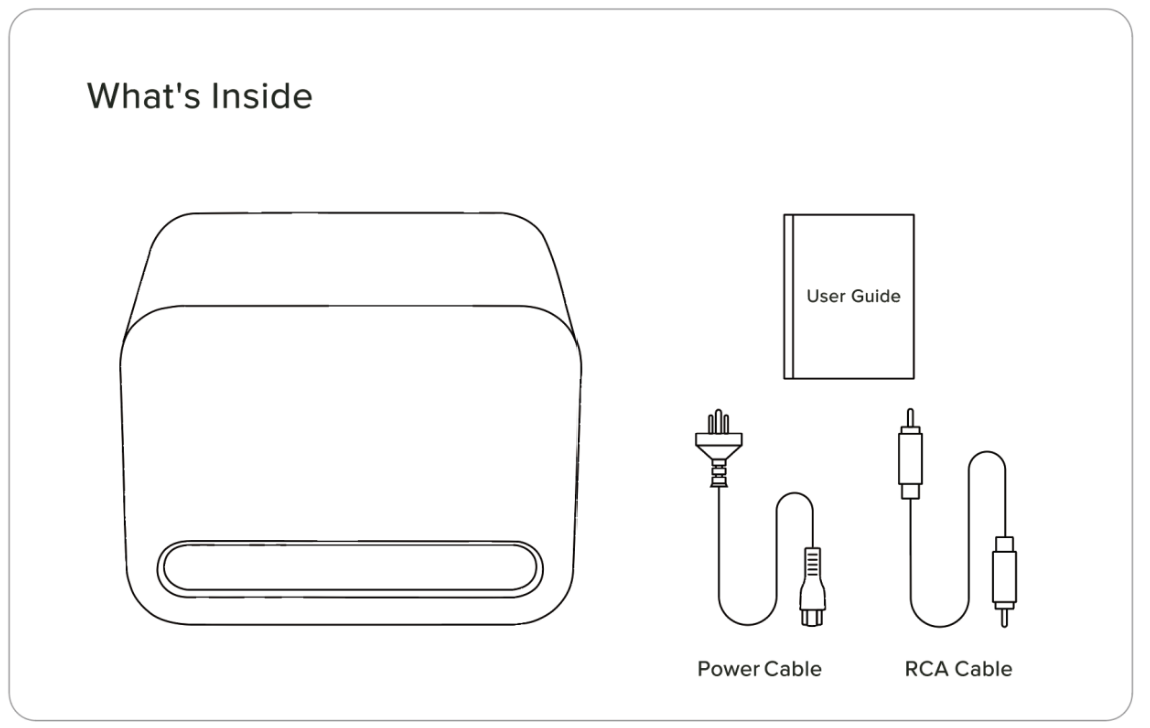
Open the box, and you'll find the following items inside.
2. Place the WiiM Sub Pro Properly
Start with the WiiM Sub Pro near your main speakers or soundbar, or try a corner for stronger bass. Adjust its position until the bass sounds balanced at your usual listening position.
For placement tips and reference diagrams, see the guide that matches your setup:
- Stereo setup: Tutorial: Tuning Subwoofer Settings on WiiM Devices for Optimal Sound Quality.
- Dolby 5.1 home theater: Setting Up a Dolby 5.1 Home Theater with WiiM Devices.
- WiiM Bar 5.1.2 surround sound: Expanding WiiM Bar into a Complete 5.1.2 Surround Sound System.
3. Power on the WiiM Sub Pro
Connect the WiiM Sub Pro to a power source using the provided power cable. The WiiM Sub Pro will automatically power on and enter Wi-Fi setup mode.
If the WiiM Sub Pro does not enter setup mode automatically, press and hold the Reset button on the back of the WiiM Sub Pro for 3 seconds to trigger it manually.
4. Download the WiiM Home App
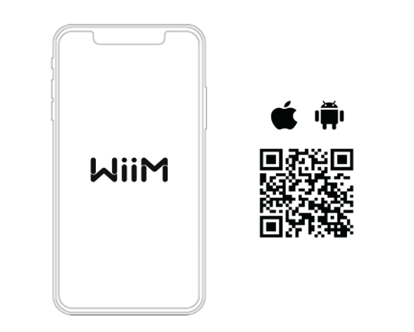
Use your smartphone or tablet to scan the following QR code to download the WiiM Home app. The app will be used to set up and configure the WiiM Sub Pro.
5. Set Up the WiiM Sub Pro through the WiiM Home App
- Open the WiiM Home app on your smartphone or tablet.
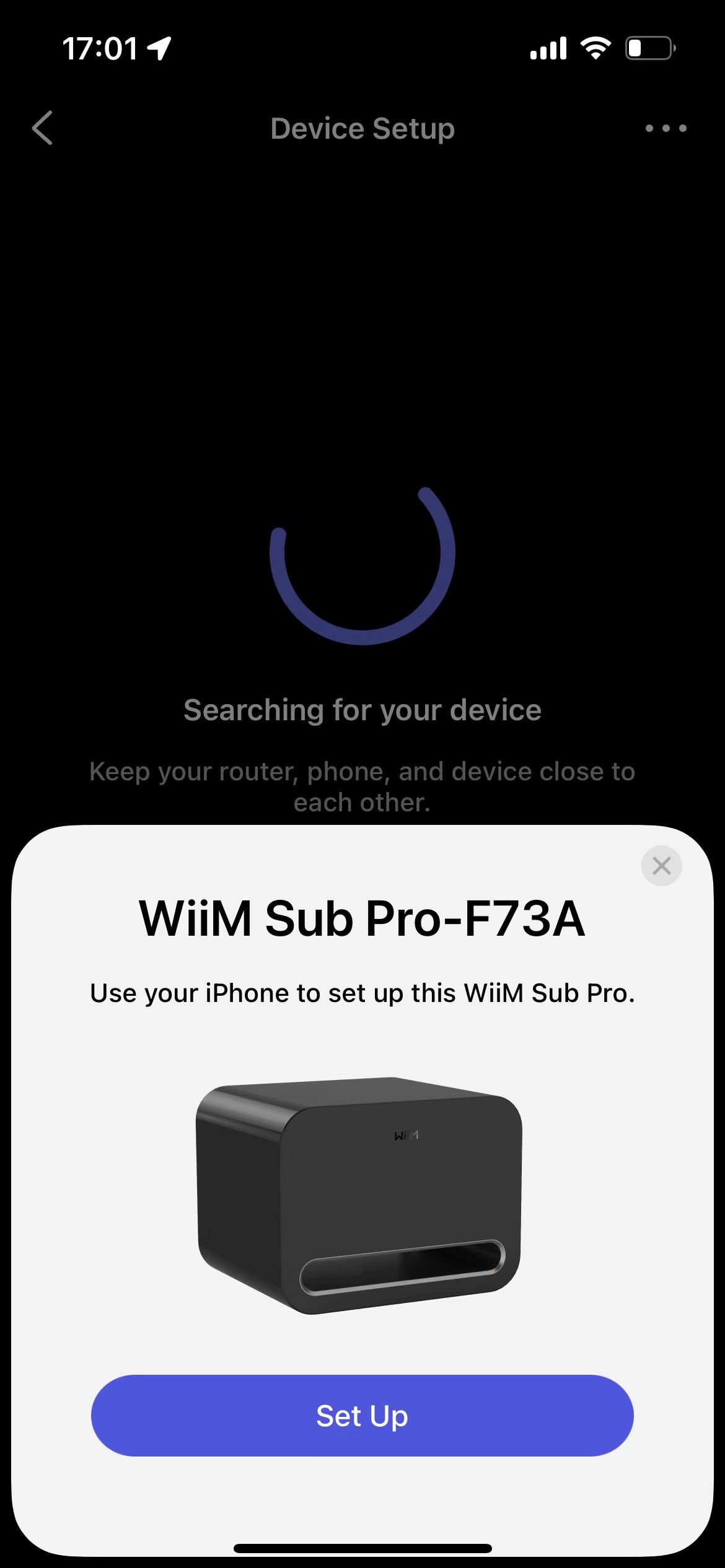
- When your device appears in the app, tap Set Up to start the process.
Note: If your WiiM device doesn't appear automatically, go to the Devices tab and tap Add Device in the top-right corner to trigger the setup page.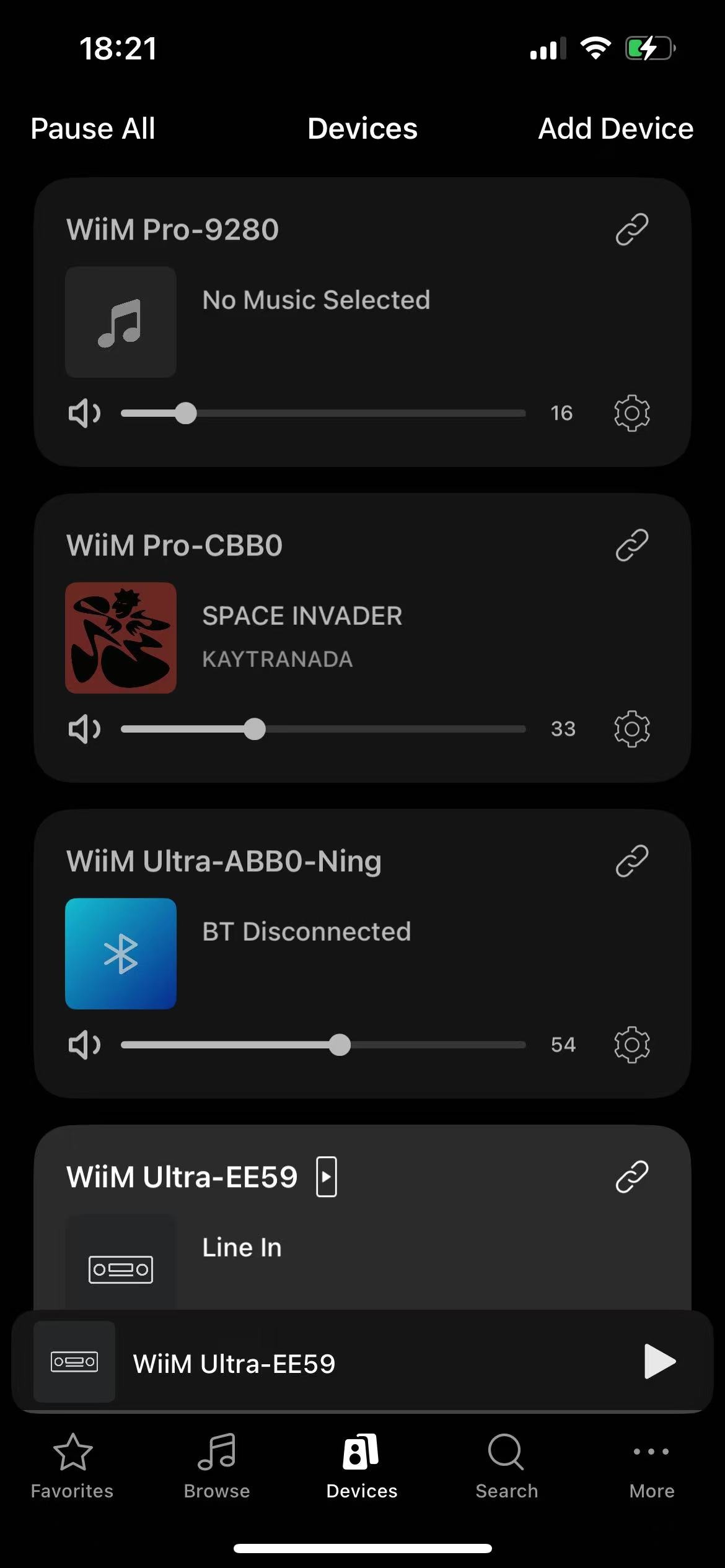
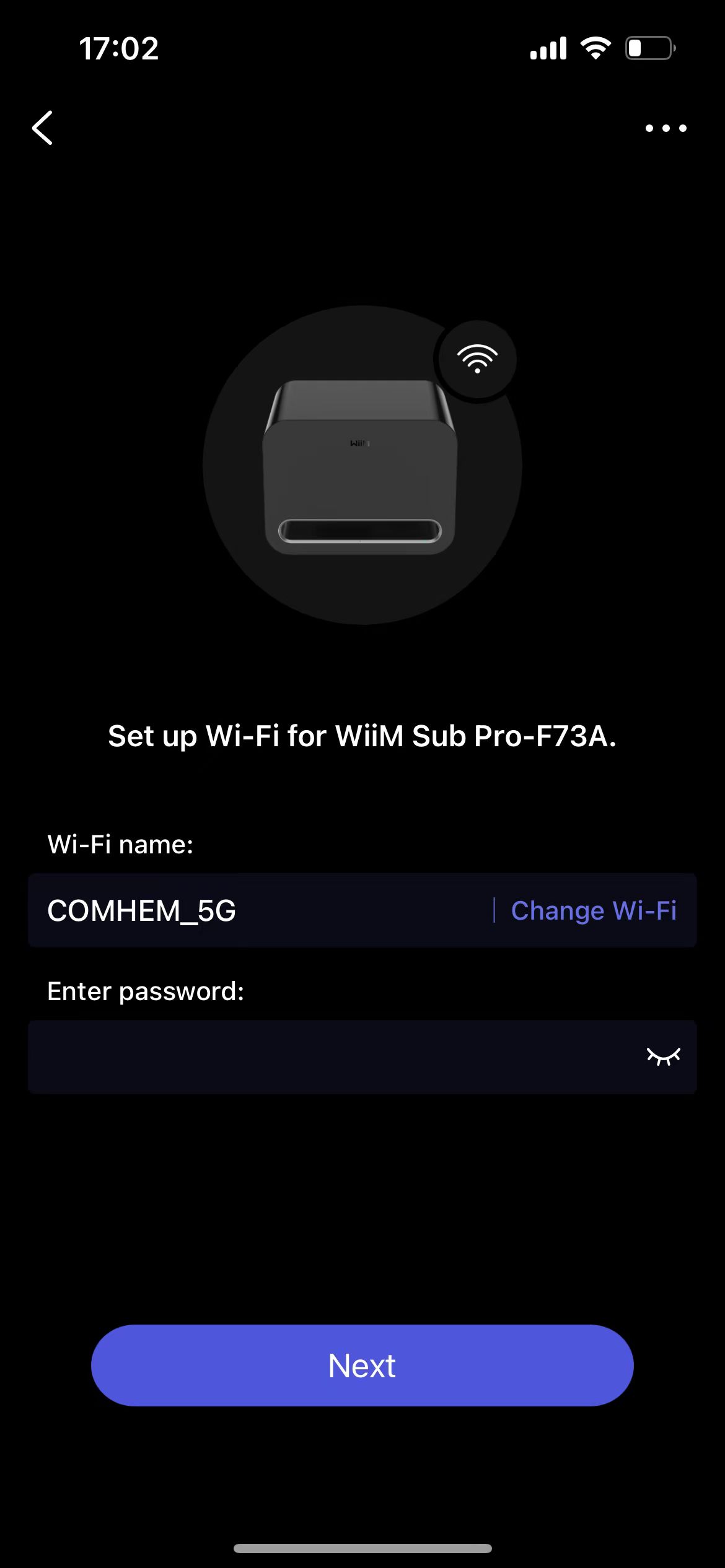
- Enter the Wi-Fi password and connect the WiiM Sub Pro to the same Wi-Fi network as your WiiM device.
- Check and update firmware.

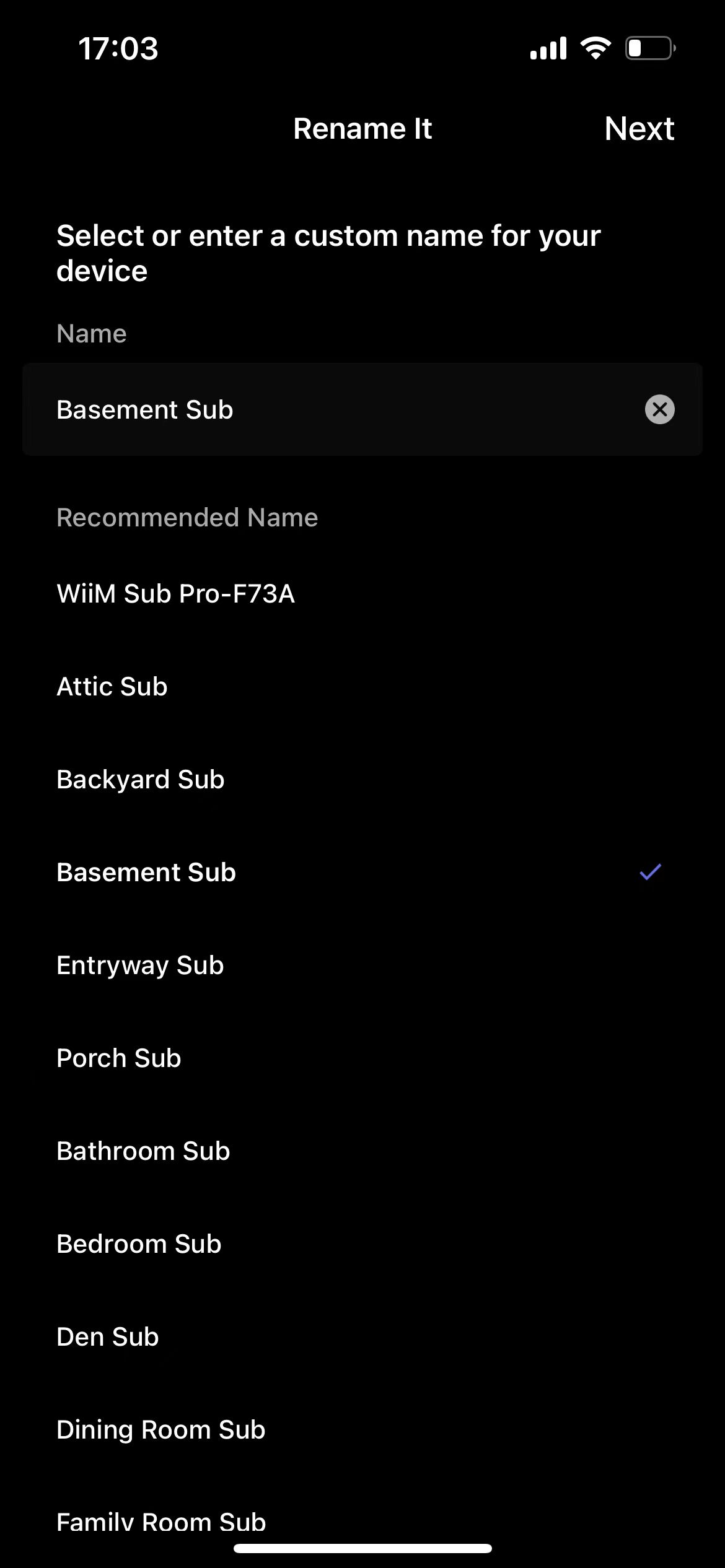
- Rename the WiiM Sub Pro.
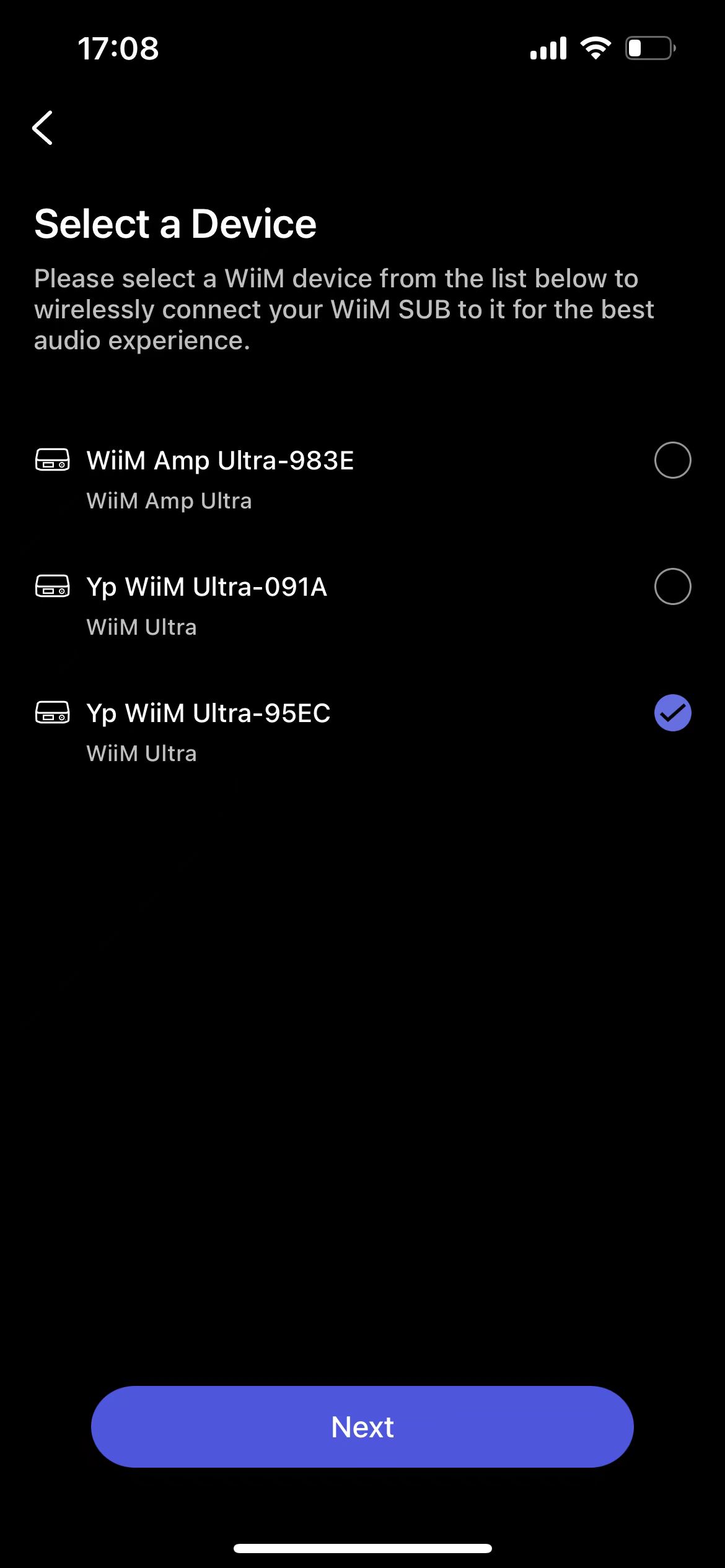
- Select the WiiM device you want to pair with the WiiM Sub Pro.
- Choose connection mode (wired or wireless) depending on your setup and preference. For details, see Connection Mode.
- Wired Mode: If your WiiM device has a Sub Out port, you can use an RCA cable to connect the WiiM Sub Pro and select wired mode.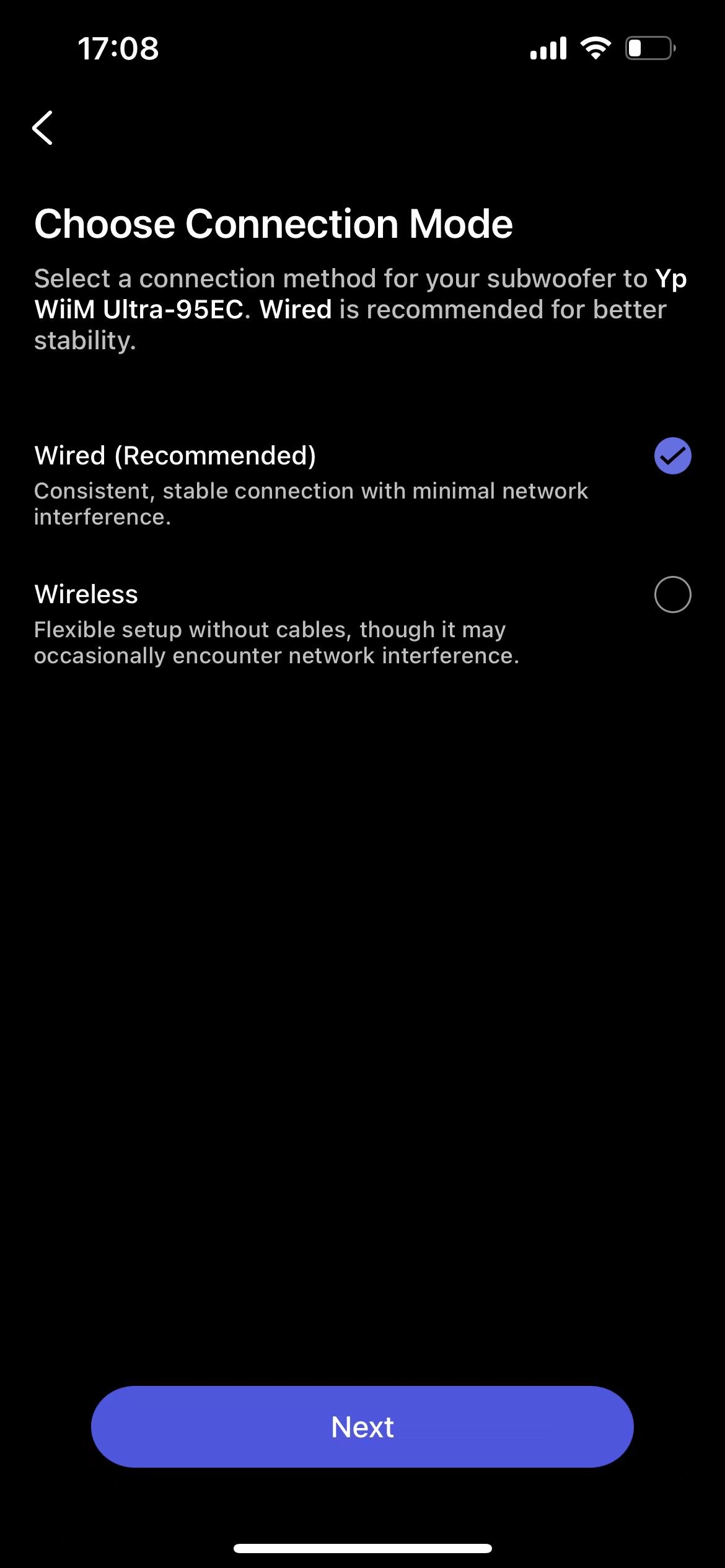
- Wireless Mode: This connection mode is available for all WiiM devices except the WiiM Vibelink Amp.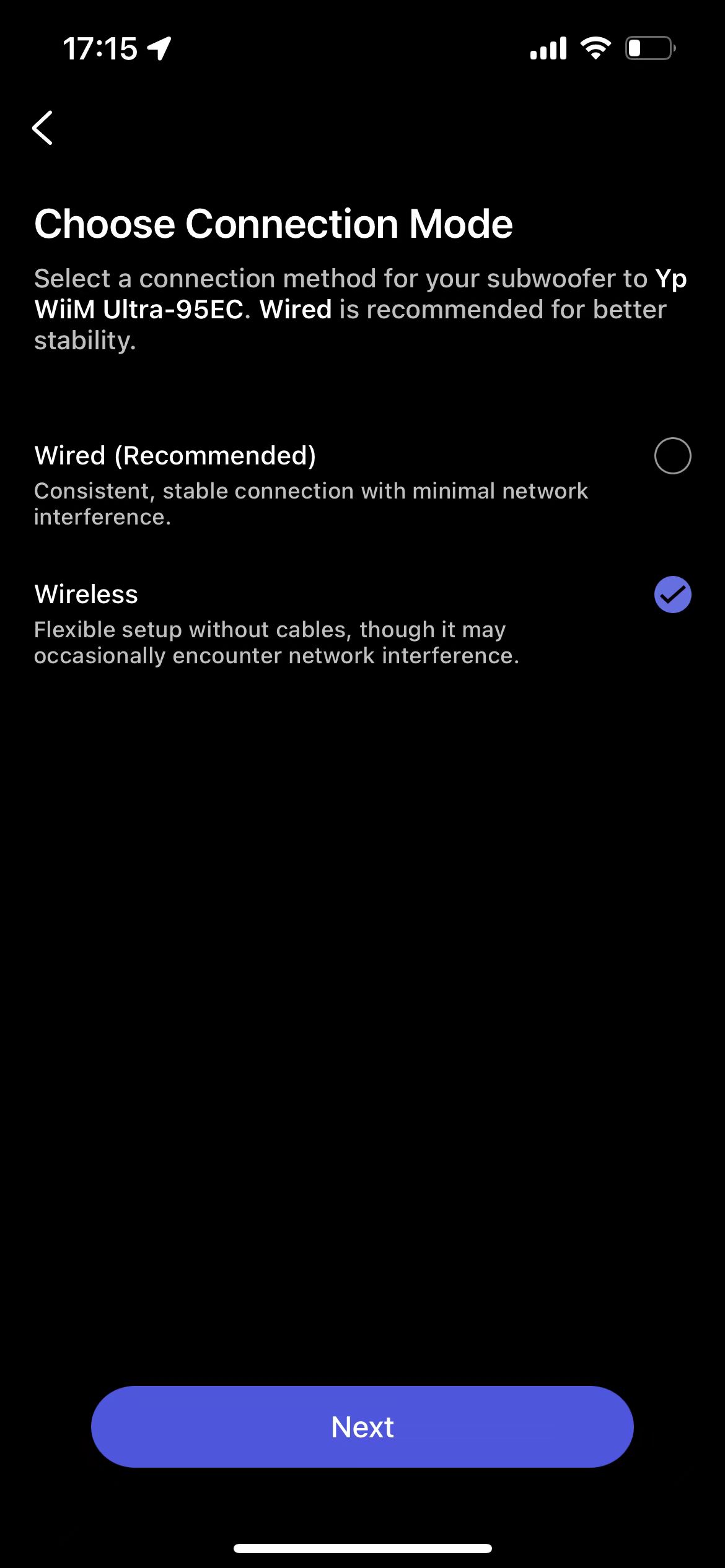
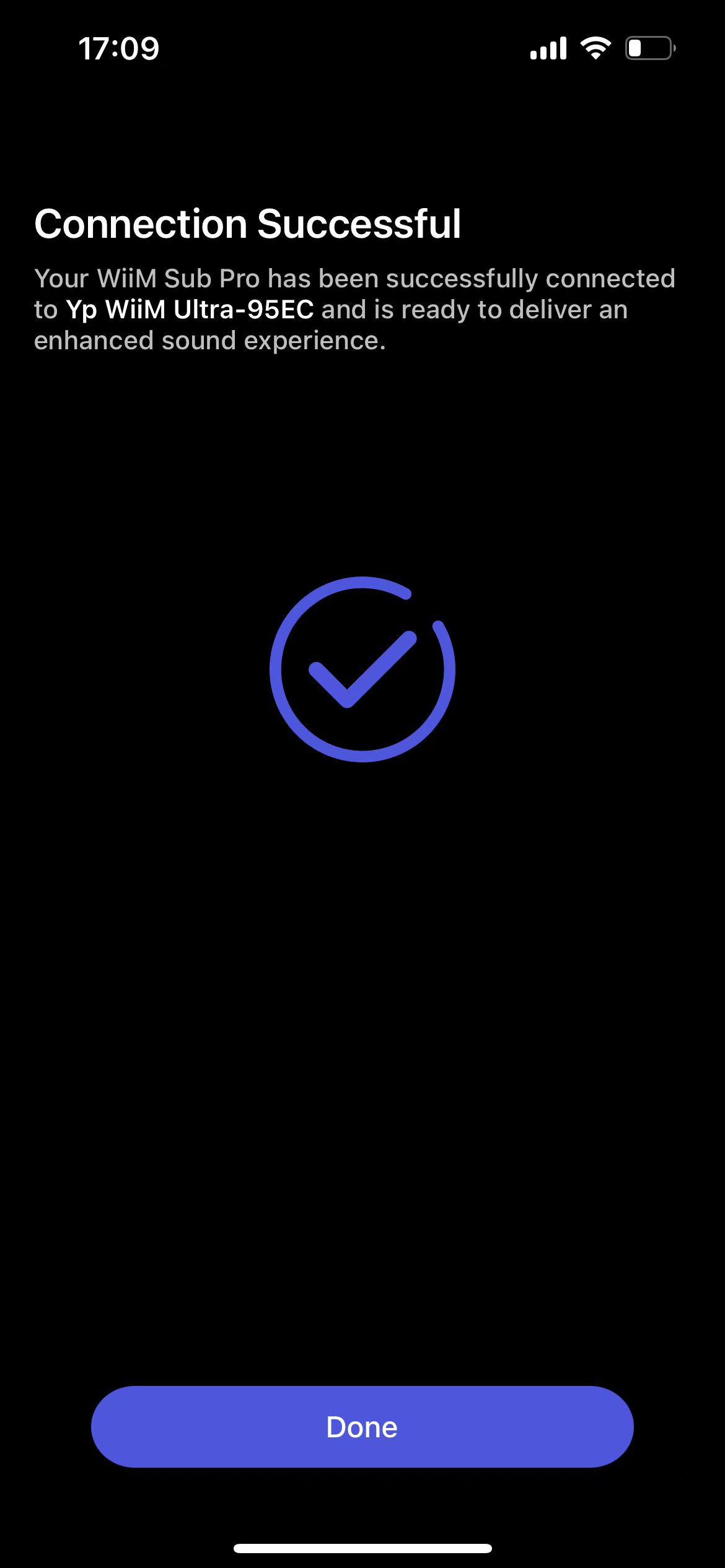
- Complete the setup process.
6. Play Music and Enjoy Deep Bass
Now, stream music to the paired WiiM device or directly play music from its connected audio input device. The WiiM Sub Pro will deliver deep, immersive bass for an enhanced listening experience.
Tune Your WiiM Sub Pro
After setup, fine-tune your WiiM Sub Pro for balanced bass that blends smoothly with your main speakers. Use the following guides:
- Audio path and DSP settings: For details on the audio path, audio settings, Sound Mode, and Subwoofer RoomFit™, see WiiM Sub Pro Audio Path and DSP Functions.
- Subwoofer tuning: For general tips on adjusting your subwoofer for optimal sound, see Tutorial: Tuning Subwoofer Settings on WiiM Devices for Optimal Sound Quality.
Manage WiiM Sub Pro Pairing
After successfully pairing your WiiM Sub Pro, you can manage its pairing directly through the WiiM Sub Pro's Device Settings, such as unpairing the WiiM Sub Pro, moving the pairing to a different WiiM device, or switching the connection mode (wired or wireless) on the same device.
For details, see How to Manage Your WiiM Sub Pro Pairing and How to Pair a WiiM Subwoofer in the WiiM Home App.
Tips and Troubleshooting
- Wi-Fi Connection: Ensure your Wi-Fi signal is strong in the location where you set up the WiiM Sub Pro for a stable streaming experience.
- Ethernet Connection (Optional): For added stability, you can connect the WiiM Sub Pro to your network with an Ethernet cable instead of Wi-Fi.
- Device Not Connecting: If the WiiM Sub Pro is not connecting to your Wi-Fi, try restarting your router, WiiM Sub Pro, and WiiM device. For details, see Troubleshooting: How to Resolve Wi-Fi Connection Issue.
- No Sound Issue: If the WiiM Sub Pro isn't producing sound, refer to the relevant steps in Troubleshooting: How to Resolve Subwoofer No Sound Issues.
- Device Not Found: If the WiiM device is not found in the WiiM Home app, see Troubleshooting: WiiM Device Not Found in WiiM Home App.
Limitations (Wireless Mode Only)
Currently, when the WiiM Sub Pro is used in wireless mode, it may not produce bass during the following types of music playback:
- Alexa multi-room music
- Roon Ready
- LMS
- Google Cast
Note: Google Cast is now supported in wireless mode with WiiM Sound, WiiM Sound Lite, WiiM Bar, WiiM Ultra, and WiiM Amp Ultra. Make sure the paired WiiM device is running the latest firmware. Support for other WiiM products will be added in future updates.