
TABLE OF CONTENTS
Overview
The WiiM Bar Remote is a Bluetooth Low Energy (BLE) remote designed to control your WiiM Bar.It combines a sleek, modern design with seamless functionality to elevate your smart audio experience, featuring the following key capabilities:
- 360° Wireless Coverage: Enjoy full coverage from anywhere in the room to easily manage playback.
- Alexa Voice Support: Use voice commands for easier playback control (Alexa must be signed in via the WiiM Home app first).
- Instant Sound Modes: Switch between 4 preset sound modes to quickly adjust your audio based on your listening scenarios.
WiiM Bar Remote Controls
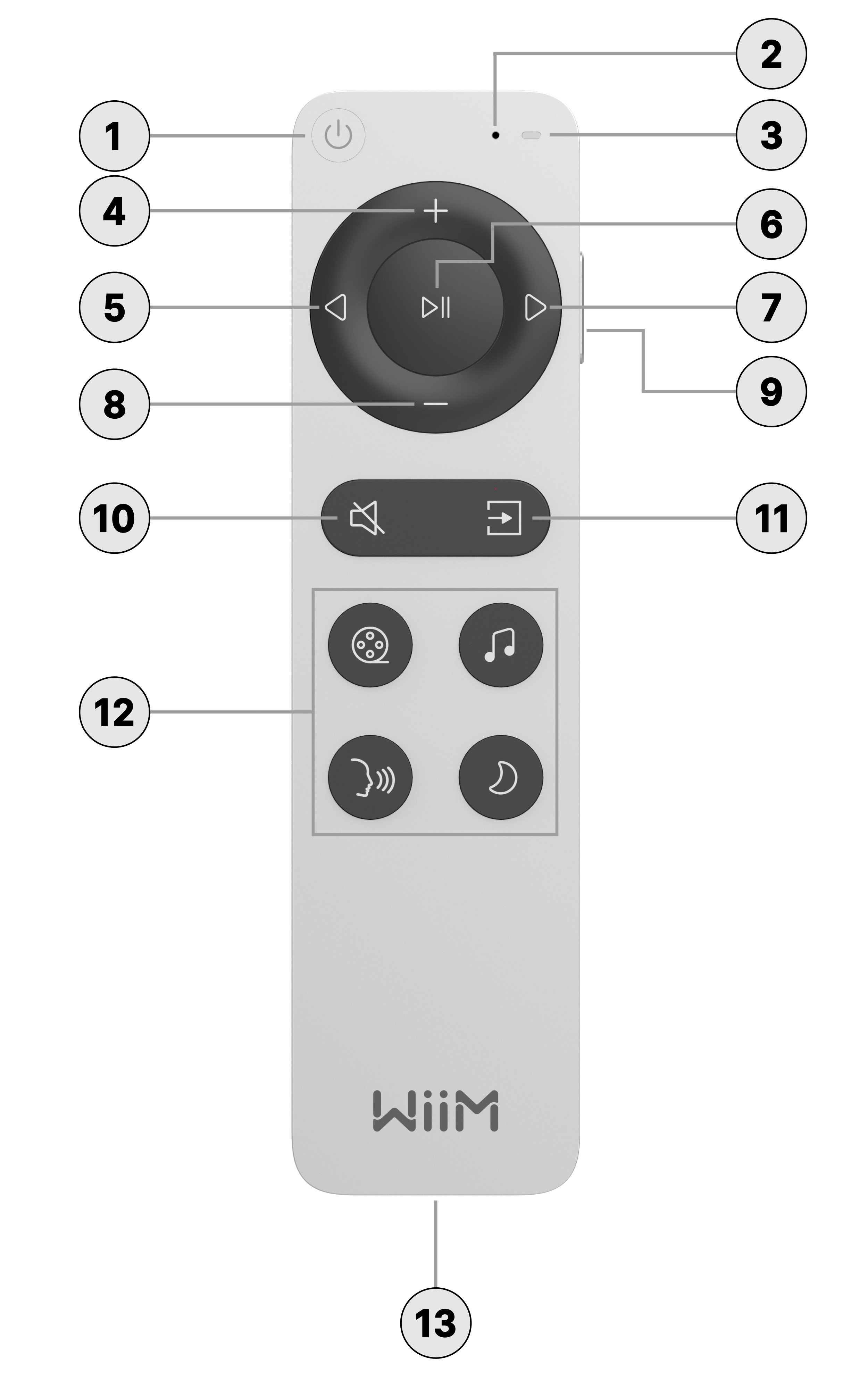
Each control on the WiiM Bar Remote is explained below:
 | Standby | Press to put the WiiM Bar into standby mode. |
 | Microphone | Capture voice commands. |
 | LED Indicator | Display the operational status of the WiiM Bar Remote. See LED Status Lights for details. |
 | Volume Up | Press to increase the volume. |
 | Previous | Press to go to the previous track or restart the current track. |
 | Play / Pause | Press to start or pause the current playback. |
 | Next | Press to go to the next track. |
 | Volume Down | Press to decrease the volume. |
 | Alexa Voice Control | Located on the right-hand side of the remote; press and hold to give Alexa voice commands. |
 | Mute/Unmute | Press to mute or unmute the speakers. |
 | Source Switch | Press to change the input source. |
 | Sound Modes | Instantly switch to four sound modes based on your listening scenarios: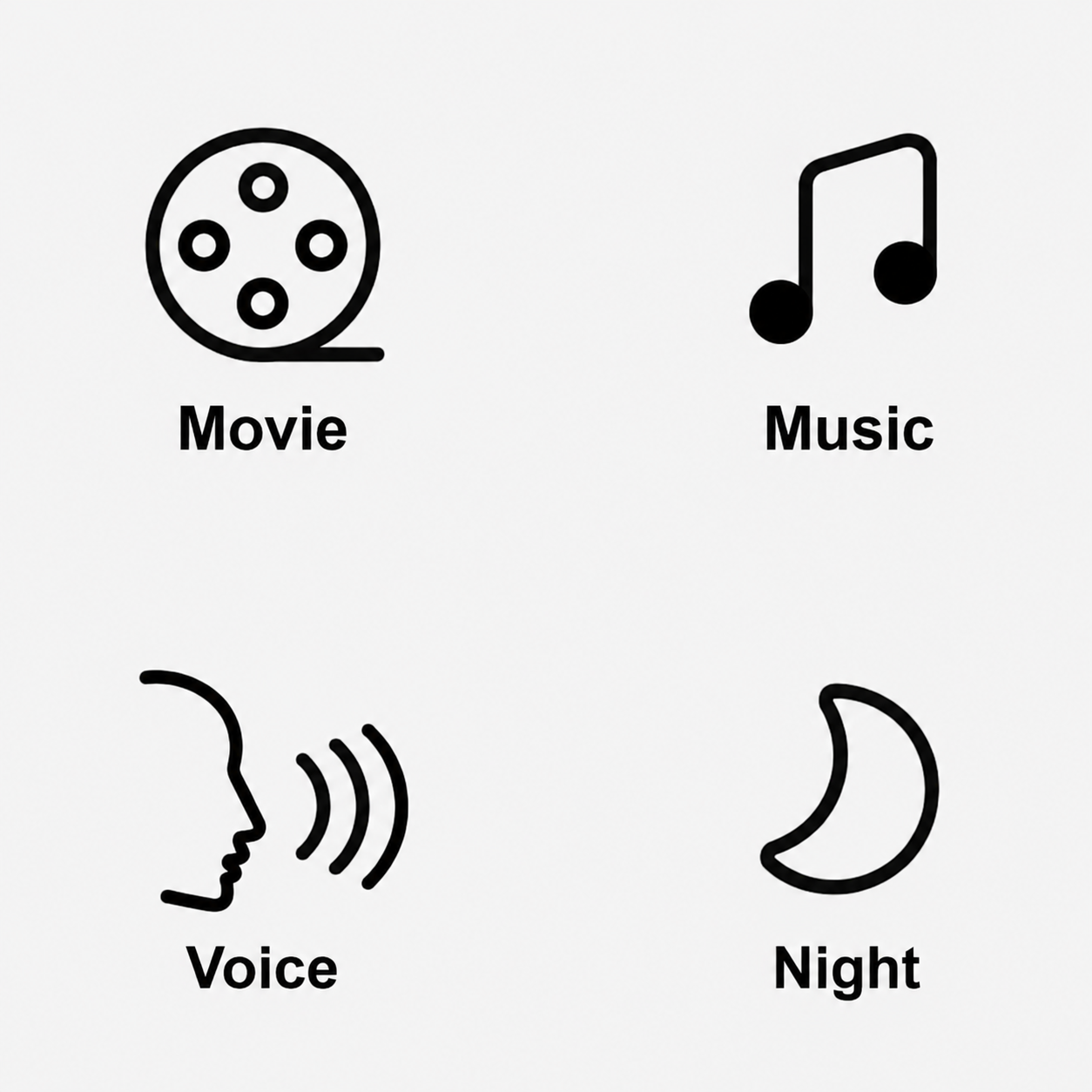 See Understanding Dolby Sound Modes on Your WiiM Bar for details. See Understanding Dolby Sound Modes on Your WiiM Bar for details. |
 | USB-C Port | Connect a USB-C cable to this port to charge the remote. |
LED Status Lights
The LED indicator displays the operational status of the WiiM Bar Remote:
| Operation/State | LED Color/Pattern |
|---|---|
| Charging in progress | Slow flashing green |
| Charging completed | Solid green |
| Button press (when paired) | White LED lights up when pressed and turns off when released. |
| Button press (when not paired) | Orange LED lights up when pressed and turns off when released. |
| Ready for pairing | Slow flashing white |
| Pairing in progress | Fast flashing white |
| Pairing successful | White LED lights up for 10 seconds, then turns off. |
| Pairing failed | Red LED lights up for 10 seconds, then turns off. |
| Low battery (< 20%) | Slow flashing red 6 times after each operation |
Set Up the WiiM Bar Remote
Before using the WiiM Bar Remote to control your WiiM Bar, you need to pair it first with your WiiM Bar using the WiiM Home app.
Instructions:
- Press and hold the Source Switch and Mute buttons simultaneously for 2 seconds to put the WiiM Bar Remote into pairing mode. When the LED indicator on the remote starts to flash white slowly, release the buttons.
- Open the WiiM Home app on your smartphone or tablet.
- Navigate to the Devices tab > WiiM Bar's Device Settings
 > Remote.
 - When the corresponding pop-up appears, tap Pair Your Remote to start pairing. Follow the on-screen instructions to finish the pairing process.
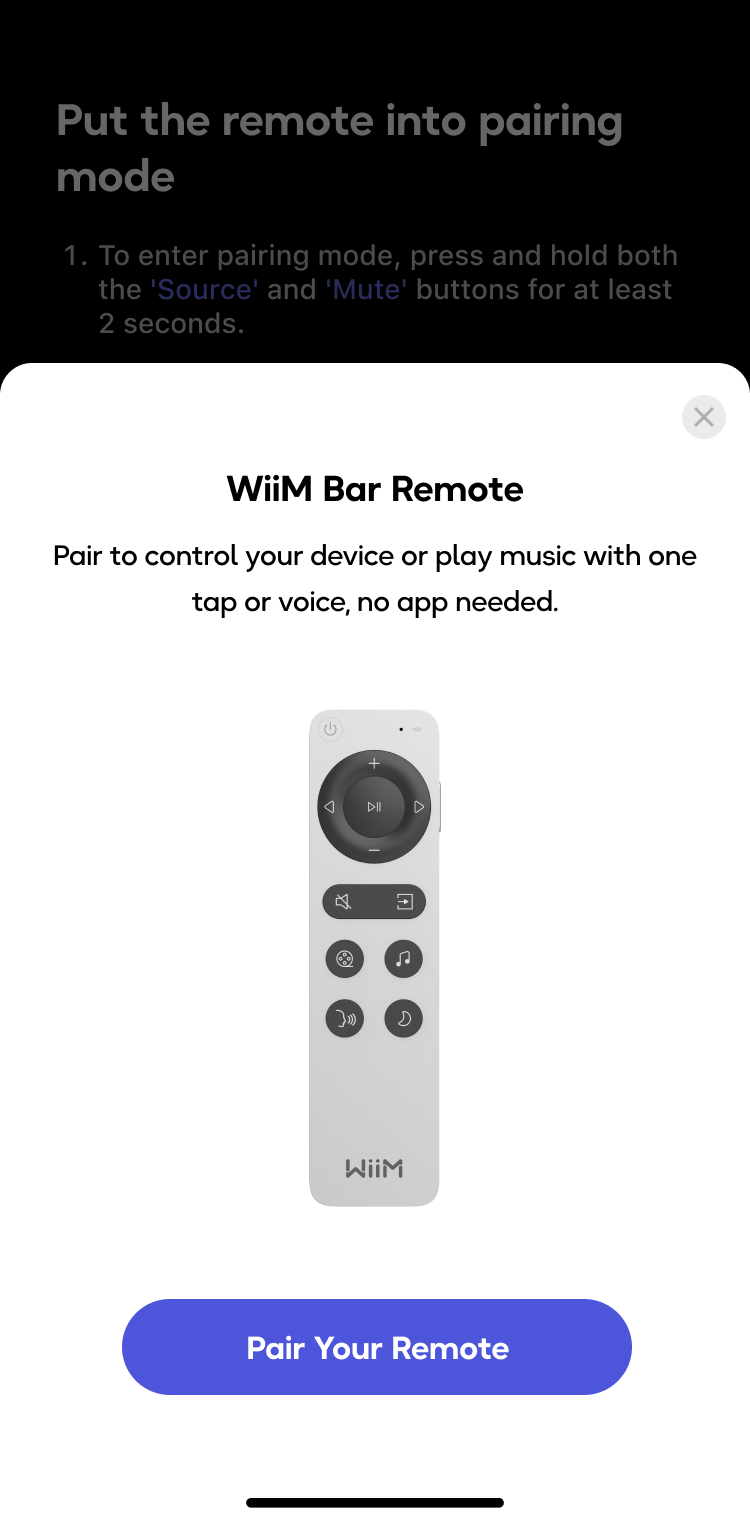
Tip: Once Bluetooth pairing is successful, the white LED will light up for 10 seconds and then turn off. You are now ready to use the WiiM Bar Remote to control your WiiM Bar.
Alexa Voice Control
Use the WiiM Bar Remote to give Alexa voice commands for hands-free music playback control.
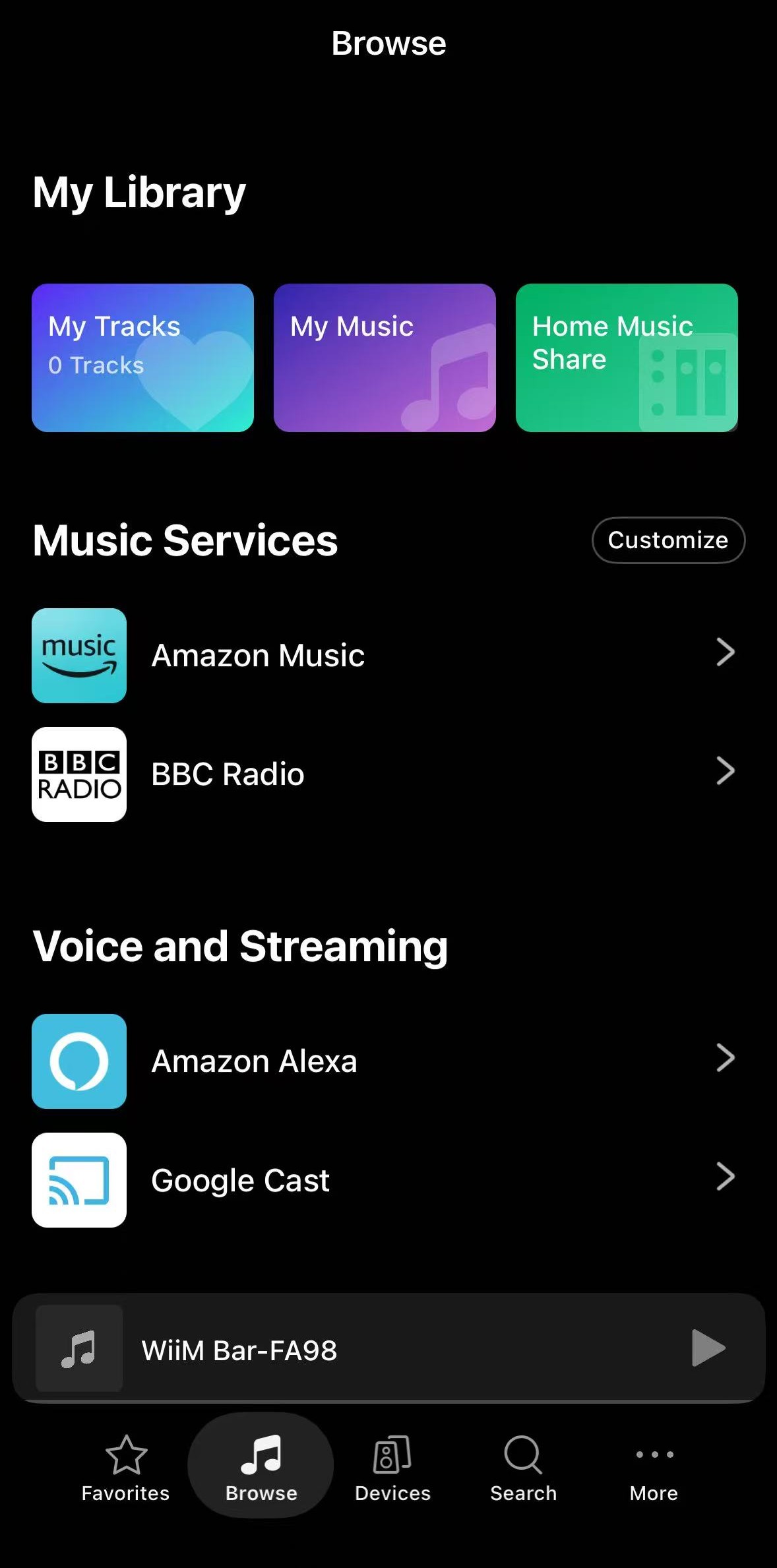
- Sign in to Amazon Alexa from the WiiM Home app. For details, see How to Use Alexa with Your WiiM Device.
- Press and hold the Alexa Voice Control button
 on the right-hand side of the remote to give Alexa voice commands. For more details, please check the tutorial here.
For example, you can try any of the following Alexa commands:- "Play daily lift from Spotify"
- "Play my soundtrack from Amazon Music"
- "Volume 5"
- "My daily brief"
- "Play ESPN radio"
- "Play Pandora"
- Once you have finished giving your command, release the Alexa Voice Control button
 , and Alexa will process your command.
FAQ
- What can I do if my WiiM Home app can't find the WiiM Bar Remote?
- Ensure the WiiM Bar Remote has enough power.
- Press any button to check if the LED flashes.
- Try pairing the WiiM Bar Remote with your WiiM Bar again.
- What can I do if my device does not respond to voice commands?
- Please make sure other buttons on the WiiM Bar Remote work.
- Make sure you've signed in to your Alexa account in the WiiM Home app.
- Move closer to the paired WiiM Bar.
- Try issuing some short Alexa commands to test if it responds.
- Besides Alexa, does it support Siri or Google voice assistant?
No. The WiiM Bar Remote only supports Alexa. - Can one WiiM Bar Remote be paired with multiple WiiM Bar units at the same time?
No. The WiiM Bar Remote can only be paired with one WiiM Bar at a time. To use it with a different WiiM Bar, you have to re-pair the remote. - How can I reset the WiiM Bar Remote?
Press and hold the Source Switch and Mute buttons simultaneously for 2 seconds to enter pairing mode. Then, repeat the pairing process in the WiiM Home app.
Troubleshooting
If you are experiencing pairing failures or control issues with your WiiM Bar Remote, see WiiM Bar Remote Troubleshooting.