
TABLE OF CONTENTS
The WiiM Bar features three distinct audio input ports:
- HDMI eARC
- Optical In
- Line In
You can connect devices like TVs, PCs, CD players, or turntables to your WiiM Bar via these input ports for high-quality playback with reduced latency.
Supported Audio Format and Quality for HDMI eARC and Optical In
The following table shows the supported audio formats and quality for the HDMI eARC and Optical In ports on the WiiM Bar:
| Ports | Supported Audio Formats | Supported Audio Quality |
|---|---|---|
| HDMI eARC | PCM, Dolby Digital, Dolby Digital Plus, Dolby Atmos, DTS, DTS-HD, and DTS:X | Up to 24-bit/192 kHz |
| Optical In | PCM, Dolby Digital, Dolby Digital Plus, DTS | Up to 24-bit/192 kHz |
How to Use the HDMI eARC Port
The HDMI eARC port on the WiiM Bar is typically used to connect to a TV for digital audio input.
- Use an HDMI cable to connect the HDMI eARC port on your WiiM Bar to the HDMI ARC/eARC port on your TV.Note: Ensure you use the HDMI ARC/eARC port on your TV. Other HDMI ports won't transmit sound to the WiiM Bar.
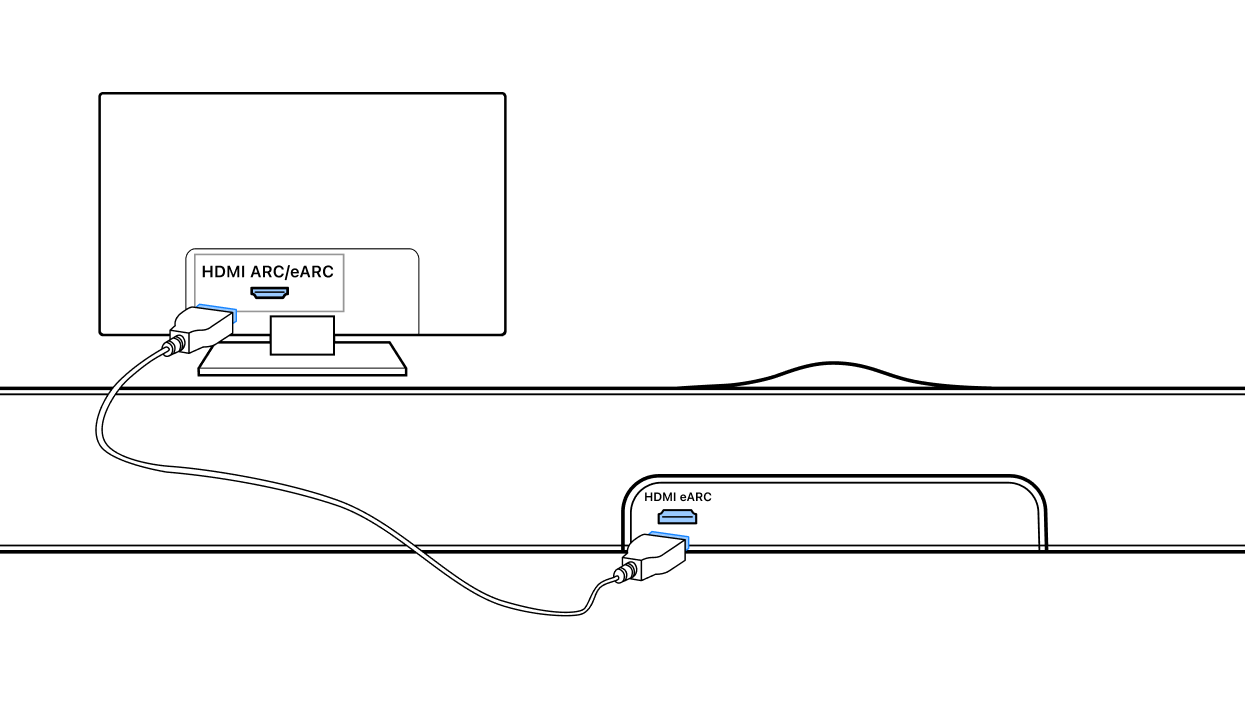
- Go to the TV settings, enable the HDMI ARC/eARC function and set your TV's audio output to your WiiM Bar.
- Set the WiiM Bar's source input to HDMI eARC. For details, see How to Select Audio Input on Your WiiM Device.
- Start playing content on your TV, and the audio will play through your WiiM Bar.
If you encounter no sound issues with your TV, refer to HDMI eARC Troubleshooting.
How to Use the Optical In Port
If your TV lacks an HDMI ARC/eARC port, connect the WiiM Bar to the TV via the Optical In port.
- Use an optical cable to connect the Optical In port on your WiiM Bar to the Optical Out port on a TV.
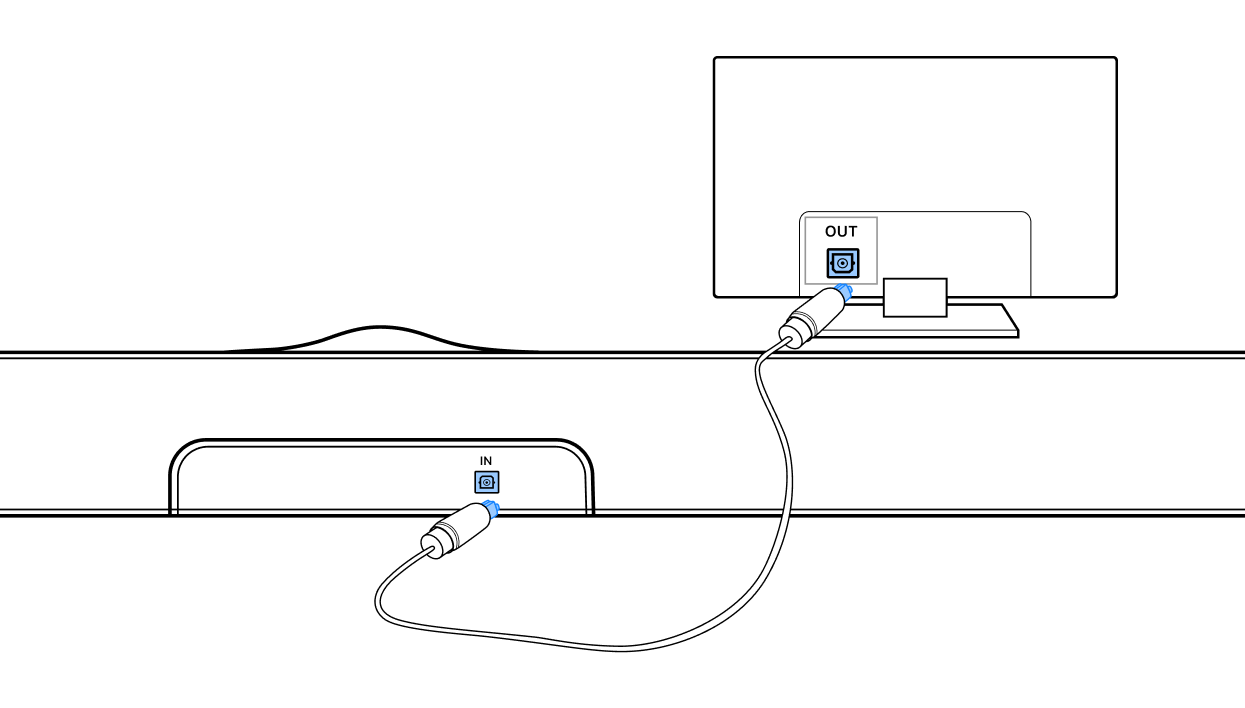
- Go to the TV settings, set your TV's audio output to your WiiM Bar.
- Set the WiiM Bar's source input to Optical In. For details, see How to Select Audio Input on Your WiiM Device.
- Start playing content on your TV, and the audio will play through your WiiM Bar.
How to Use the Line In Port
The Line In port on the WiiM Bar is typically used to connect a CD player, a turntable with a built-in preamp, or a PC to receive analog audio input.
This example shows how to use the Line In port to connect a CD player:
- Use an RCA cable to connect the Line In port on your WiiM Bar to the Line Out port on a CD player.
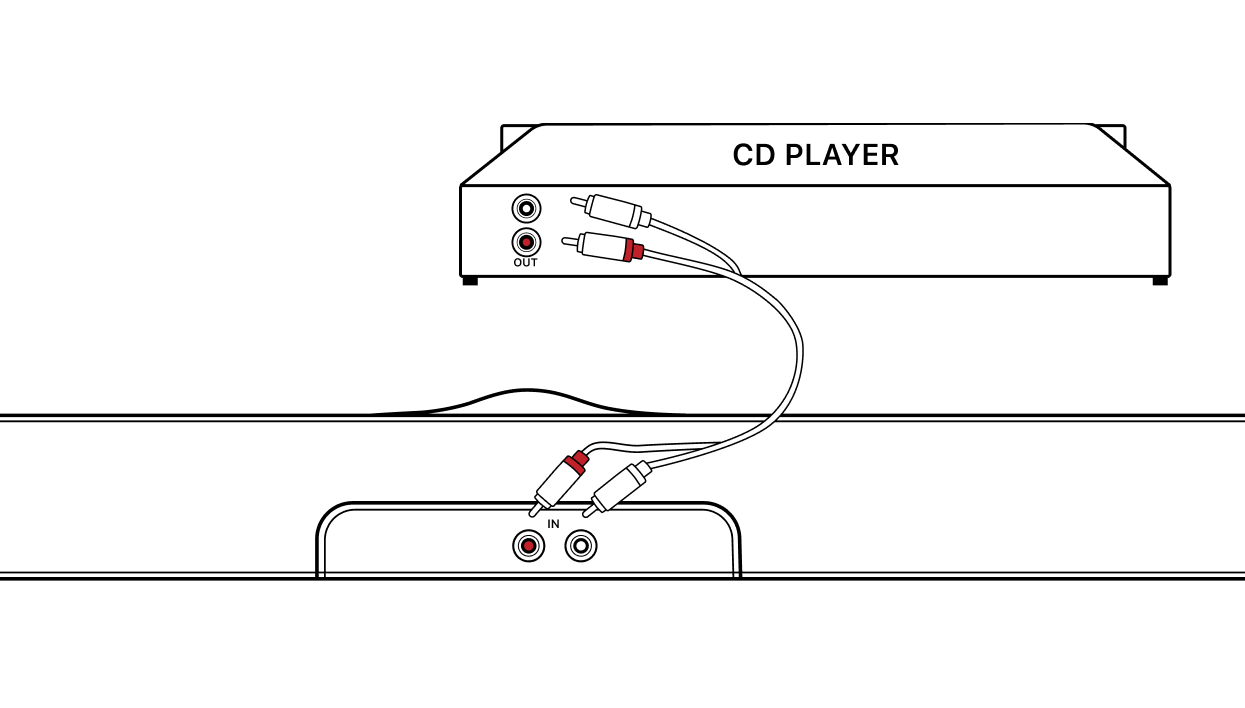
- Set the WiiM Bar's source input to Line In. For details, see How to Select Audio Input on Your WiiM Device.
- Start playback on your CD player, and the audio will play through your WiiM Bar.
WiiM Bar Home Theater Setup
The WiiM Bar features a 3.0.2-channel configuration on its own and supports Dolby Digital, Dolby Digital Plus, Dolby Atmos, and DTS. Simply connect the WiiM Bar to your TV to enjoy immersive audio for movies, TV shows, and gaming.
You can expand the system up to 5.1.2 channels by adding a WiiM Sub Pro and other WiiM devices as surround speakers. This creates a truly cinematic home theater experience.
For detailed instructions, see Expanding WiiM Bar into a Complete 5.1.2 Surround Sound System.
HDMI eARC Troubleshooting
- When connecting your TV to your WiiM Bar via an HDMI cable, ensure you use the HDMI ARC/eARC port on your TV or Blu-ray player. Other HDMI ports won't transmit sound to the WiiM Bar.
- If you experience no sound, ensure that the HDMI ARC/eARC output on your TV is activated. For details, see Troubleshooting No Sound Issues with HDMI TV Input on WiiM Devices.
- If there are control issues between your TV and your WiiM Bar, verify that HDMI-CEC control is enabled on your TV.
- If your TV lacks an HDMI ARC/eARC port, use the optical connection to connect with your WiiM Bar.