
TABLE OF CONTENTS
WiiM devices offer incredible versatility, allowing you to play music via various audio sources. To enjoy sound from your preferred source, you need to select the correct audio input.
This guide will show you how to quickly switch and manage audio inputs on your WiiM device.
Automatically Select Audio Input Using Auto-Sensing
With the auto-sensing feature, the WiiM device can automatically play audio from the connected input when a signal is detected, offering a seamless and convenient listening experience.
Auto-sensing is available for the following input ports, depending on the available ports on your WiiM device:
- Optical In
- HDMI ARC
- Line In
- Aux In
To enable auto-sensing, follow these steps:
- Open the WiiM Home app.
- Navigate to the Devices tab.
- Tap the Device Settings icon
 of your WiiM device.
 - Select Audio Input and enable Auto-Sensing for your available inputs.
- Scenario 1: If the HDMI ARC input is selected or an HDMI cable is connected, Optical auto-sensing won't work.
- Scenario 2: If the device is playing from Optical In and you connect an HDMI cable, HDMI ARC auto-sensing will take priority and switch the device to the HDMI ARC input.
Manually Select Audio Input
Method 1: Via WiiM Home App
- Option 1: Go to the Browse tab, then select an input in the Source Input section.
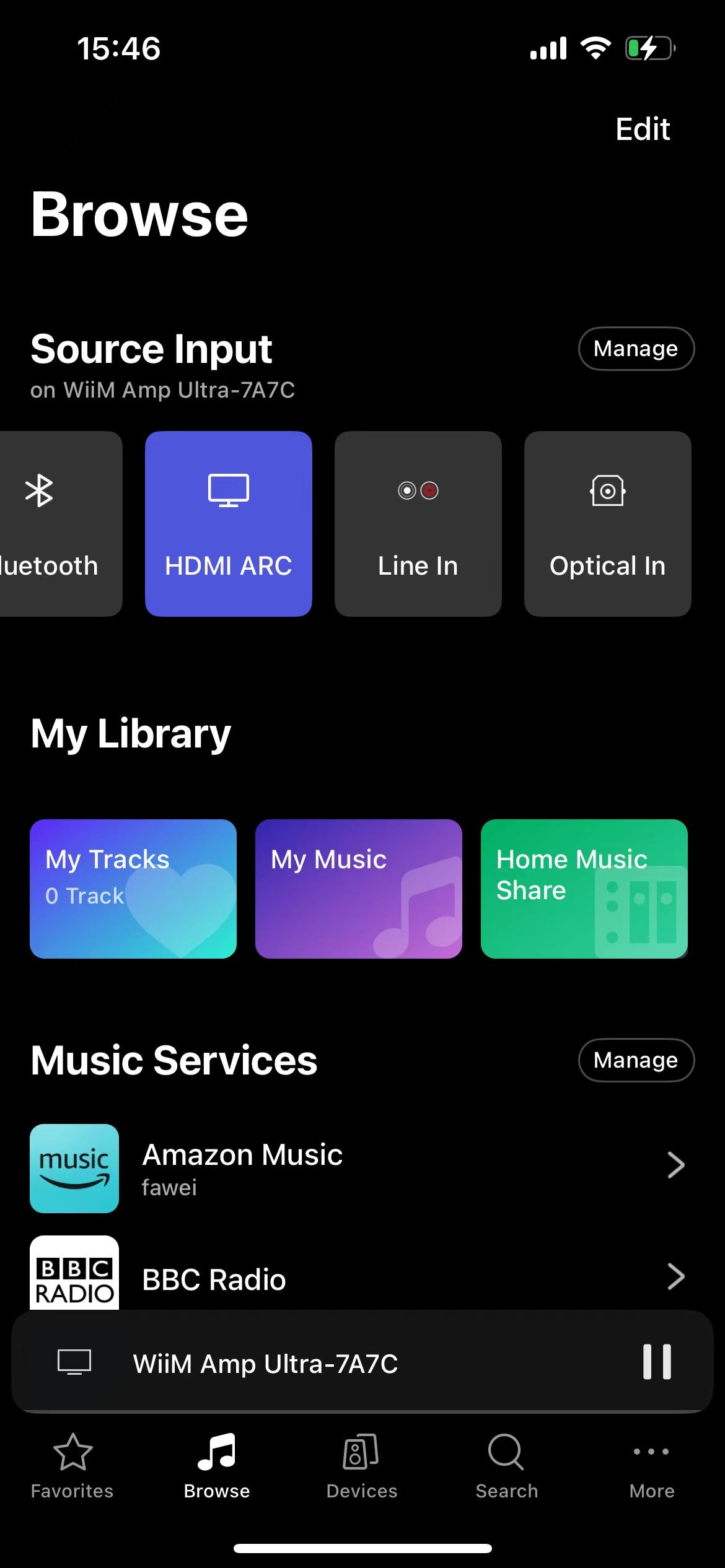
- Option 2: Go to the Devices tab > Devices Settings > Audio Input, then select an input.

Method 2: Via the WiiM Remote
If your WiiM device is paired with a WiiM Remote (e.g., WiiM Voice Remote, WiiM Voice Remote 2, or WiiM Bar Remote), simply press the Source switch button  on the remote to cycle through the available audio inputs.
Method 3: Via WiiM Device's Built-in Screen
If your WiiM device has a built-in screen (e.g., WiiM Amp Ultra, WiiM Ultra, WiiM Sound, or WiiM Bar), select an input using the on-screen menu.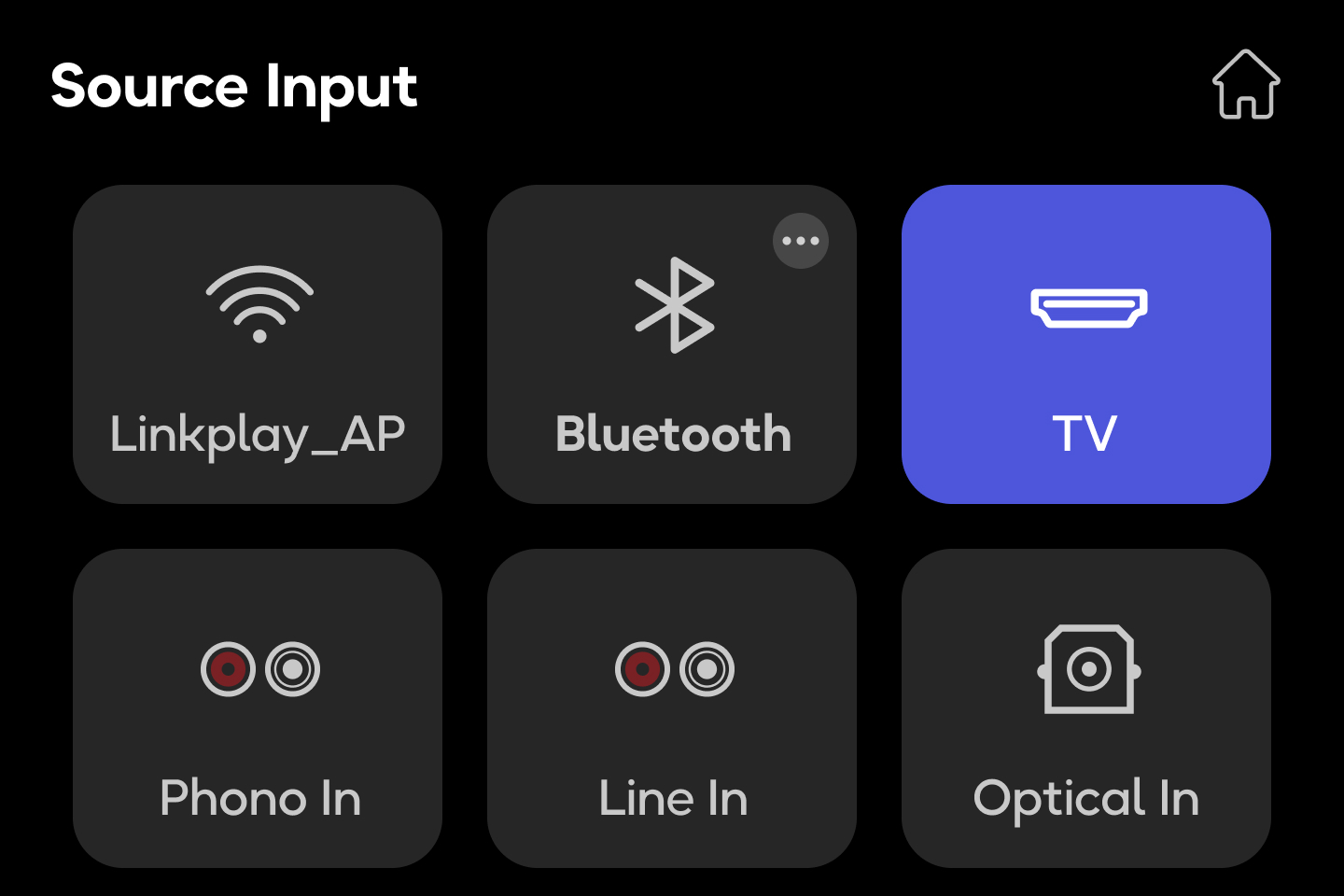
Edit Input Sources
To make switching between input sources more convenient, you can manage which sources are visible—keeping your most frequently used inputs easy to access.
For detailed instructions, see Manage Input Sources in the WiiM Home App's Browse Tab.