
If both your phone and WiiM device are online but the WiiM Home app cannot find the device, they may be connected to different local networks.
The same Wi-Fi name does not always mean the same local network.
This issue is common in homes that use a mesh system, Wi-Fi extender, second router, guest network, or IoT network.
What Do Mesh Systems and Wi-Fi Extenders Do?
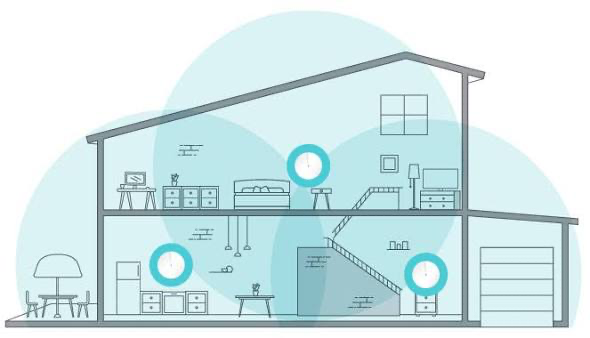
Mesh Networks
A mesh network uses one main node and one or more satellite nodes to extend Wi-Fi coverage. When set up correctly, all nodes normally share the same local network. Your phone should be able to find your WiiM device regardless of which mesh node it is connected to.
If a satellite node did not join the main mesh correctly, or if two separate mesh systems are active in the same home, your phone and WiiM device may end up on different networks.
Repeaters and Extenders
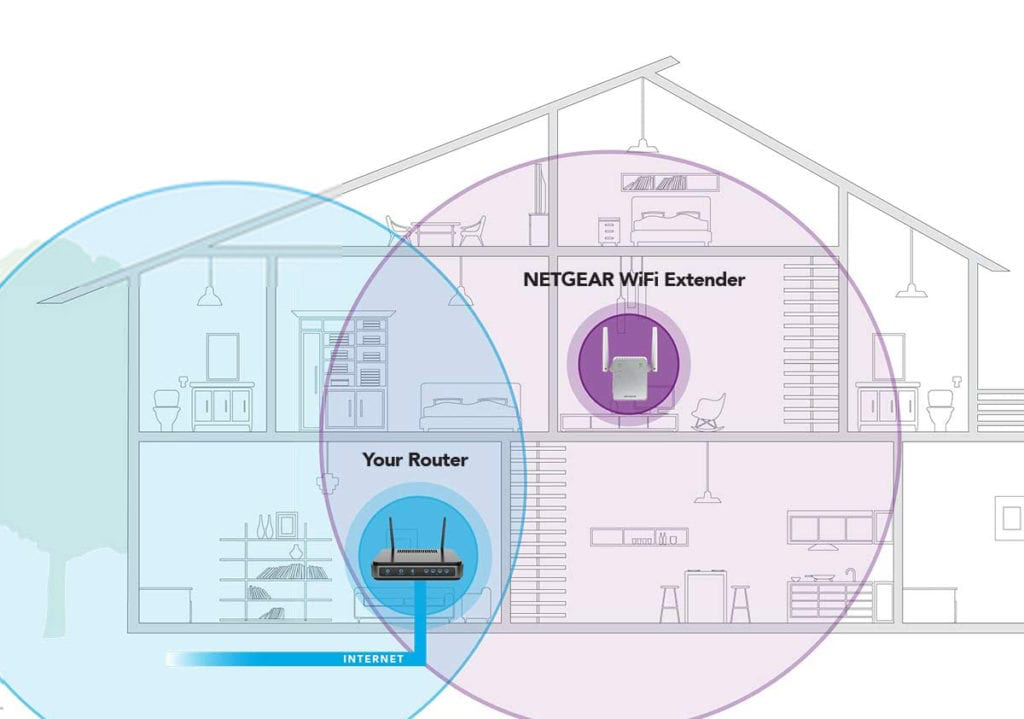
A Wi-Fi repeater or extender increases the coverage of an existing Wi-Fi network.
- AP, Bridge, or Repeater mode: Usually extends the main network while keeping your phone and WiiM device on the same local network.
- Router or WISP mode: Creates a separate local network. Even if it uses the same Wi-Fi name and password as the main router, devices connected to each network may not be able to find one another.
Start With These Quick Checks
1. Scan Again Near Your WiiM Device
- Bring your phone close to your WiiM device.
- Make sure your phone is connected to your primary home Wi-Fi—not a guest network or cellular data.
- Fully close the WiiM Home app, reopen it, and scan for the device again.
If the WiiM device appears and disappears as you move through your home, check your mesh nodes, old routers, and Wi-Fi extenders.
2. Compare the Default Gateways
Find the IP address and default gateway for both your phone and WiiM device. You can usually find this information in your phone's Wi-Fi details and in the WiiM Home app's device information page or your router's client list.
[Screenshot: IP addresses and default gateways for the phone and WiiM device]
- If the default gateways match—for example, both are
192.168.1.1—the devices are more likely to be on the same local network. - If the default gateways differ—for example, one is
192.168.1.1and the other is192.168.50.1—the devices are usually connected to different networks.
The default gateway is only a useful clue, not definitive proof. If the gateways match but the app still cannot find the device, check for a guest network, client isolation, or VLAN settings.
Common Scenarios and Solutions
Scenario 1: A Mesh Node Did Not Join the Network Correctly
What you may notice
- A mesh node appears offline, disconnected, or not paired.
- The WiiM device frequently goes offline near that node.
- The device disappears from the app when your phone connects to another node.
What to do
- Open your mesh system's management app and confirm that the node shows as online or connected.
- Check the node's power, Ethernet cable, and distance from the main node.
- If necessary, remove the affected node and add it to the current mesh again by following the manufacturer's instructions.
- Reset only that node if pairing still fails and the manufacturer specifically recommends a reset. Do not reset every mesh node at the same time.
[Screenshot: Mesh node showing online or connected]
Scenario 2: Two Networks Use the Same Wi-Fi Name
What you may notice
- An old router and a new router, or two separate mesh systems, are active at the same time.
- The same Wi-Fi name appears throughout your home.
- The WiiM device appears and disappears as your phone moves between rooms.
What to do
- Temporarily turn off the old router, old mesh system, or unused extender.
- Check whether the duplicate Wi-Fi network disappears and whether the WiiM Home app can now find the device.
- Keep one system as your primary home network. Give any separate network a different Wi-Fi name.
- Forget the old network on your phone and WiiM device, then reconnect both to the primary network.
Scenario 3: A Second Router or Extender Is in Router/WISP Mode
What you may notice
- Your phone can find the WiiM device only when connected to the second router or extender, or only when connected to the main router.
- Both networks use the same Wi-Fi name, but their default gateways are different.
What to do
- Sign in to the second router or extender's management page and record its current settings.
- If it is only being used to extend Wi-Fi coverage, change it to AP, Bridge, or Repeater mode.
- Save the changes and wait for the network to come back online, then reconnect your phone and WiiM device.
- If the router or extender does not support these modes, connect your phone and WiiM device to the same network.
[Screenshot: Router/AP/Bridge/Repeater/WISP operating mode]
Scenario 4: A Guest Network or Device Isolation Is Enabled
What you may notice
- Your phone or WiiM device is connected to a Guest network.
- Both devices can access the internet, but the app cannot find the WiiM device.
- Client Isolation, AP Isolation, or Wireless Isolation is enabled in the router settings.
What to do
- Connect both your phone and WiiM device to your primary home network.
- Check the isolation settings in your router or mesh management app.
- Disable isolation only on the home network used by your phone and WiiM device, or use a network that allows local devices to communicate.
- Do not disable your router's entire firewall or all security features just to troubleshoot this issue.
[Screenshot: Guest network and client isolation settings]
Scenario 5: An ISP Gateway, IoT Network, or VLAN Is Isolating the Device
Local discovery may also fail when:
- Both your ISP gateway and mesh router are operating as routers.
- Your WiiM device is connected to an IoT network while your phone is connected to the primary network.
- A wired WiiM device is connected to an IPTV, Guest, or dedicated VLAN port.
- An incompatible mesh node or extender is operating as a separate router.
Temporarily connect your phone and WiiM device to the same primary home network. If the app can then find the device, network isolation or routing is causing the issue.
If you need to keep an IoT network or VLAN, follow your router manufacturer's instructions to allow only the required local access and cross-network discovery. Do not open all traffic between VLANs. If you are unfamiliar with these settings, contact your router manufacturer, internet service provider, or network administrator.
Verify the Fix
- Reconnect your phone and WiiM device to the intended network.
- Confirm that the WiiM device is online. If you use a mesh system, also confirm that the relevant node is online.
- Fully close and reopen the WiiM Home app.
- Confirm that the device appears in the list, then try a basic action such as checking its status, playing, or pausing.
- If you use multiple mesh nodes, move your phone near another node and test again.
After saving network settings, wait one or two minutes before testing. Restart the affected device or node only if the settings are correct and the issue continues.
Still Can't Find Your Device?
When contacting support, provide the following information:
- The brands and models of your router, mesh nodes, and extenders.
- The IP address and default gateway of your phone and WiiM device.
- A description or simple diagram of how your network devices are connected.
- The online status of each mesh node.
- Screenshots and the approximate time when the app failed to find the device.
- The troubleshooting steps you completed and their results.
Before submitting screenshots, hide your Wi-Fi password, device serial number, and other sensitive information.