
TABLE OF CONTENTS
Overview
The WiiM Bar is primarily designed to enhance your TV experience through a simple HDMI ARC/eARC connection. By connecting it to your TV, you can enjoy immersive sound for movies, TV shows, sports, and gaming with clear dialogue and rich detail.
This guide will show you how to get your WiiM Bar up and running with your TV via HDMI ARC/eARC.
After HDMI ARC/eARC setup, you can expand your system to a home theater. For details, see WiiM Bar Home Theater Expansion (Up to 5.1.2).
Setup Instructions
1. Connect WiiM Bar to Your TV
Follow these steps:
- Use an HDMI cable to connect the HDMI eARC port on your WiiM Bar to the HDMI ARC/eARCport on your TV.Note: Ensure you use the HDMI ARC/eARC port on your TV. Other HDMI ports won't transmit sound to the WiiM Bar.
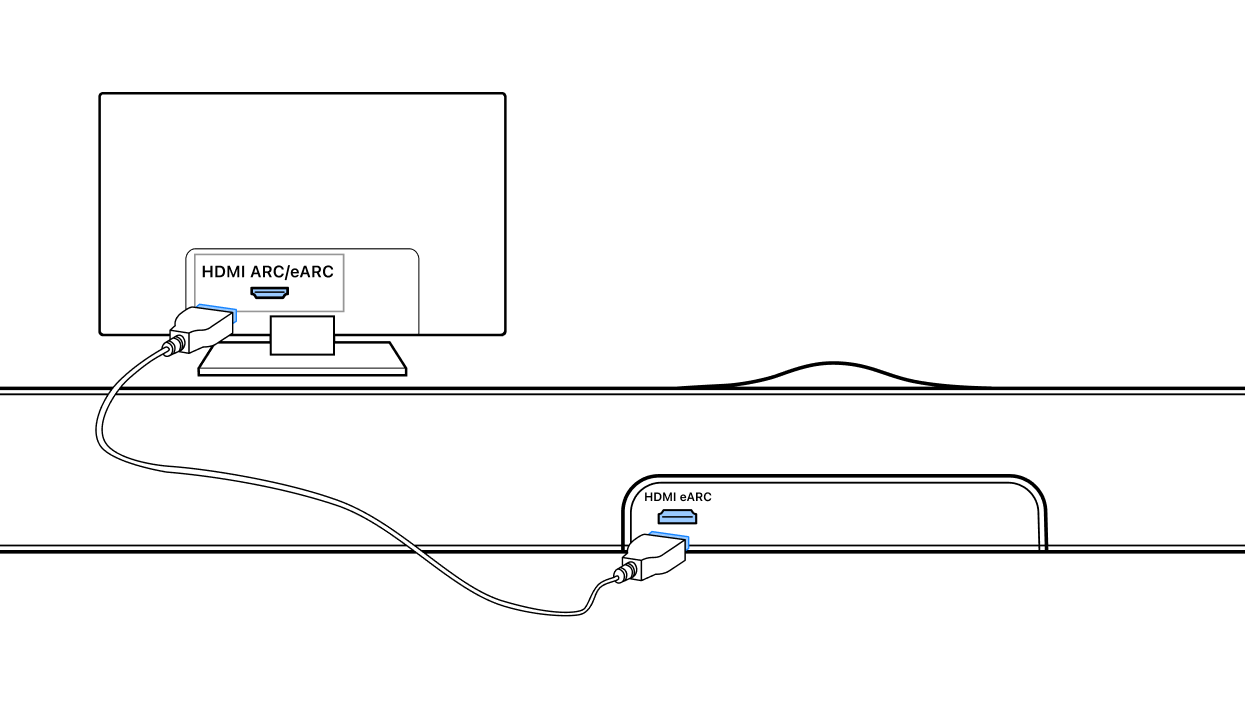
- Power on both the TV and the WiiM Bar.
2. Adjust TV Settings
To ensure proper HDMI audio output, configure your TV settings:
- Go to your TV's settings.
- Set your TV's Audio Output to your WiiM Bar.
- Enable HDMI-CEC.Note: This setting may have different names depending on the TV brand. See the below table for examples:
TV Brand HDMI-CEC Setting Name Samsung AnyNet+ LG Simplink Sony Bravia Sync - Set your TV's digital audio format to Auto or Pass Through.Note: If your TV offers both options, select Pass-Through.
3. Adjust Audio Video Sync
If you experience lip-sync delay or audio mismatch, you can usually correct it using your TV's Audio/Video Sync settings. The exact setting name may vary depending on your TV brand.
The table below provides the exact settings for typical TV brands.
| TV Brand | Setting Name |
|---|---|
| Sony | Enable A/V sync.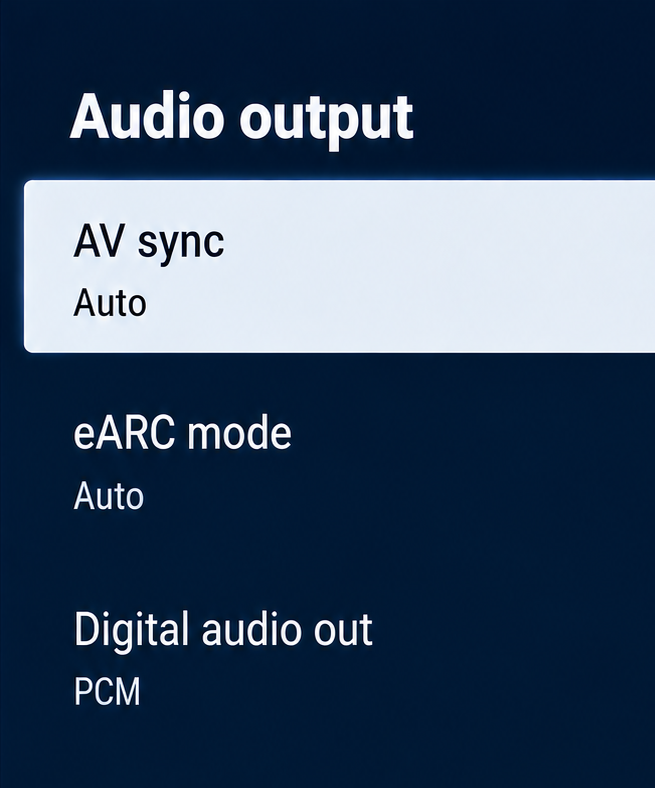 |
| LG | New model: Select Match Screen and Sound, then adjust HDMI (ARC) Device Delay.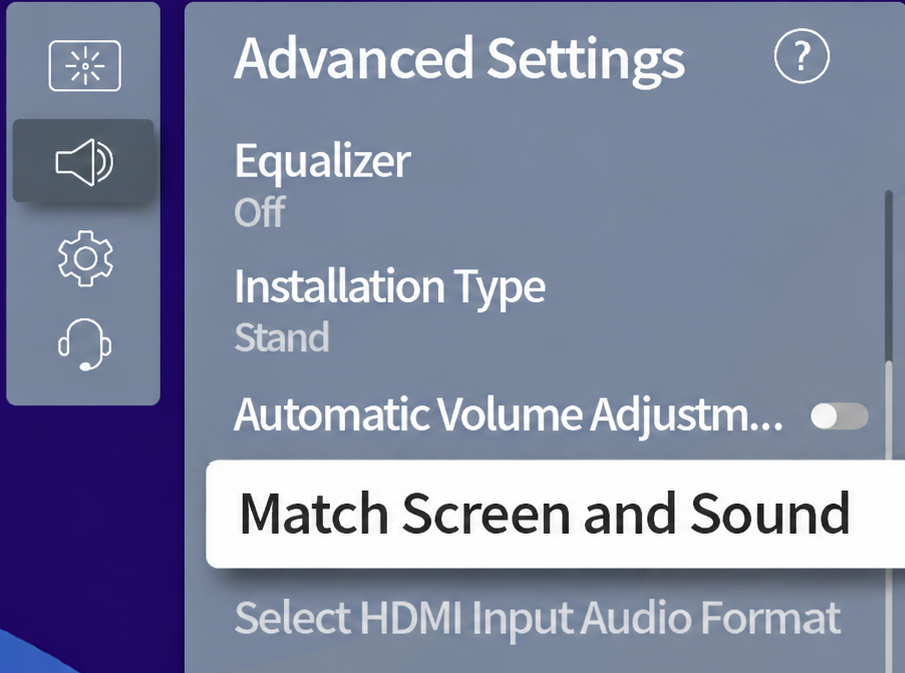 |
Old model: Enable AV Sync Adjustment.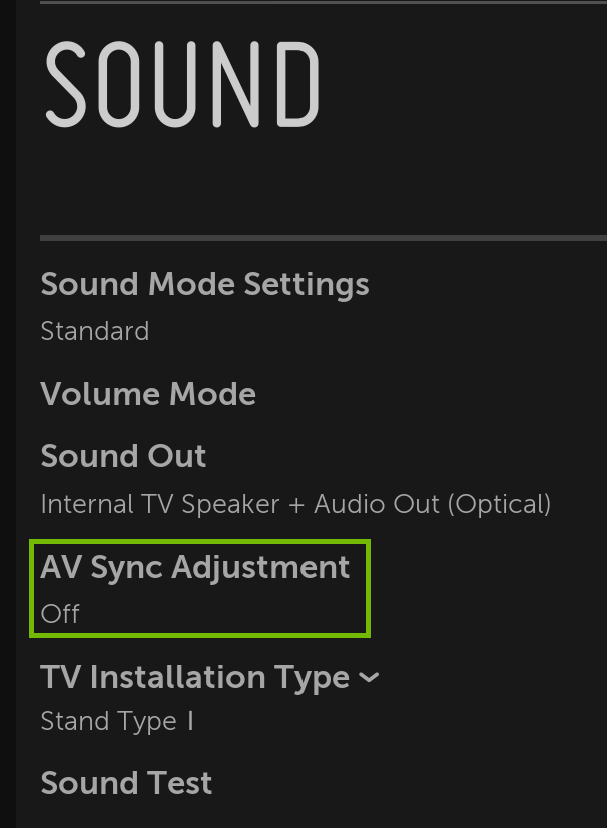 | |
| Samsung | Adjust Digital Output Audio Delay.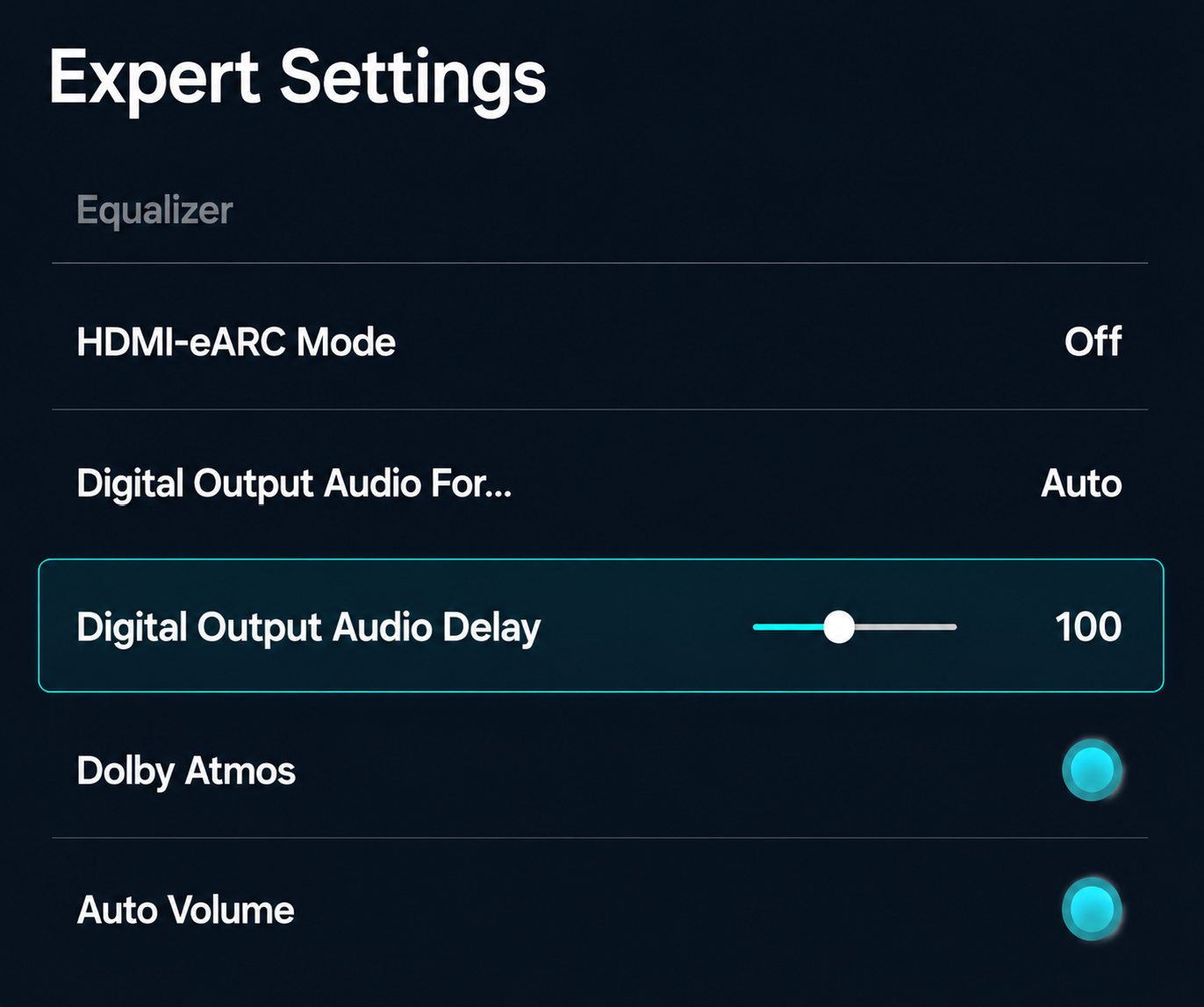 |
WiiM Bar Home Theater Expansion (Up to 5.1.2)
You can expand the setup up to 5.1.2 channels by adding a WiiM Sub Pro and other WiiM devices as surround speakers. This creates a truly cinematic home theater experience.
For detailed instructions, see Expanding WiiM Bar into a Complete 5.1.2 Surround Sound System.
Troubleshooting
- Ensure you use the HDMI ARC/eARC port on your TV. Other HDMI ports won't transmit sound to the WiiM Bar.
- If you experience no sound, ensure that the HDMI ARC/eARC output on your TV is activated. For details, see Troubleshooting No Sound Issues with HDMI TV Input on WiiM Devices.
- If there are control issues between your TV and your WiiM Bar, verify that HDMI-CEC control is enabled on your TV.
- If your TV lacks an HDMI ARC/eARC port, use the optical connection to connect with your WiiM Bar.