
TABLE OF CONTENTS
Overview
WiiM Sound is a high-quality audio device designed to deliver a customizable and optimal listening experience.
To achieve the best audio performance, you can adjust several key features using the WiiM Home app:
- RoomFit™
- Dynamic Bass
- Equalizer (EQ)
- Volume Control
Follow the steps below to configure these features to achieve the best sound for your space and preferences.
Step-by-Step Guide
Step 1: WiiM Sound Placement
Place the WiiM Sound on a stable surface in the center or near your listening area, ensuring there is enough space on both sides for even sound distribution. Avoid placing the device near walls or in corners.
Step 2: Volume Control
Keep the volume at a moderate, comfortable level suitable for your space.
Step 3: RoomFit™ Auto-Calibration
RoomFit™ is an automated technology that intelligently optimizes sound based on your room's layout, furniture, and acoustics. It ensures a balanced frequency response and prevents audio distortion caused by wall reflections, providing a more accurate listening experience without complex manual adjustments.
Instructions:
- Go to the Devices tab > Device Settings > RoomFit™.
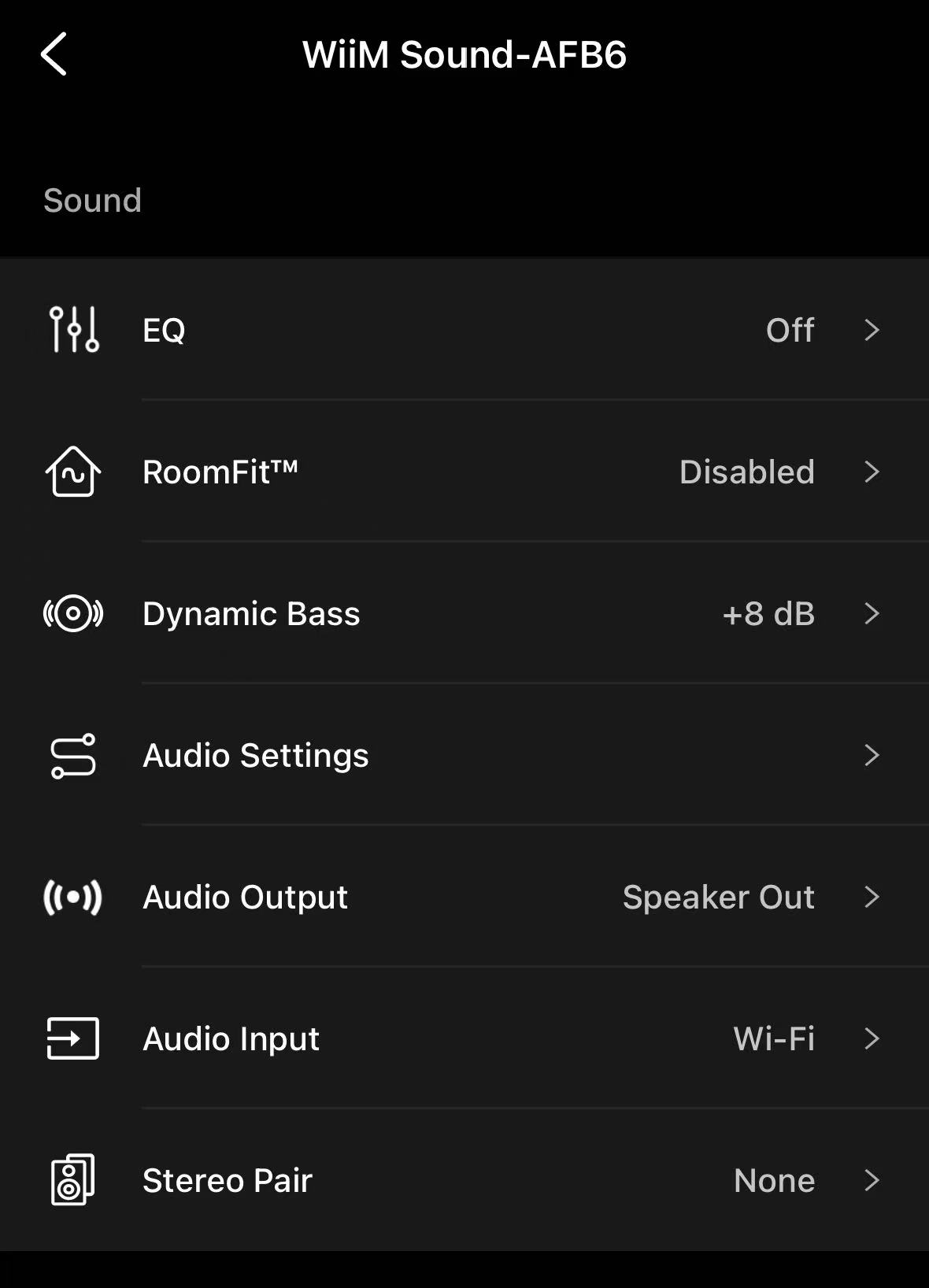
- Follow the on-screen instructions to complete the calibration.
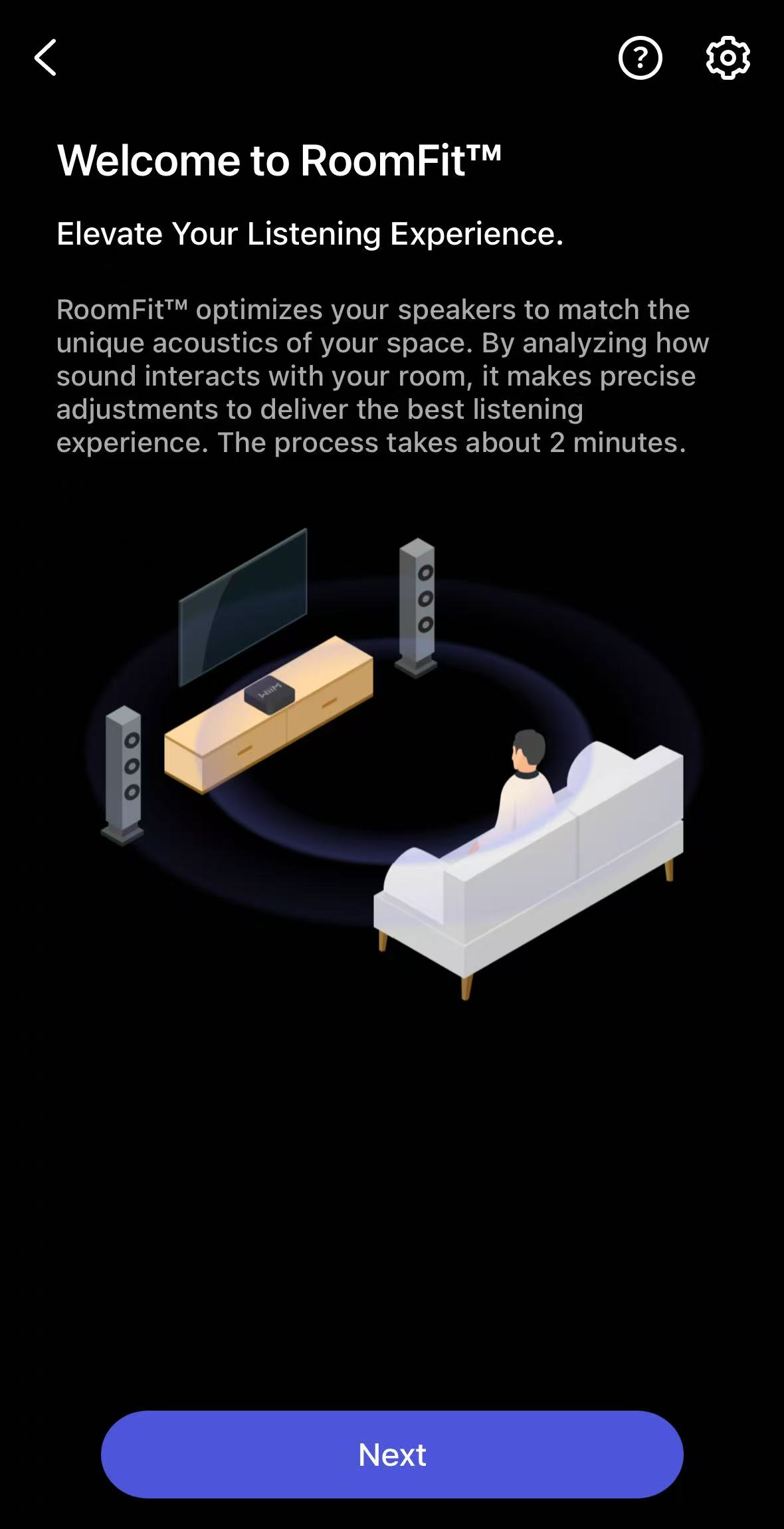
For detailed instructions, see How to Perform RoomFit™ to Calibrate Your WiiM Sound and WiiM Sound Lite for Your Room.
Step 4: Dynamic Bass
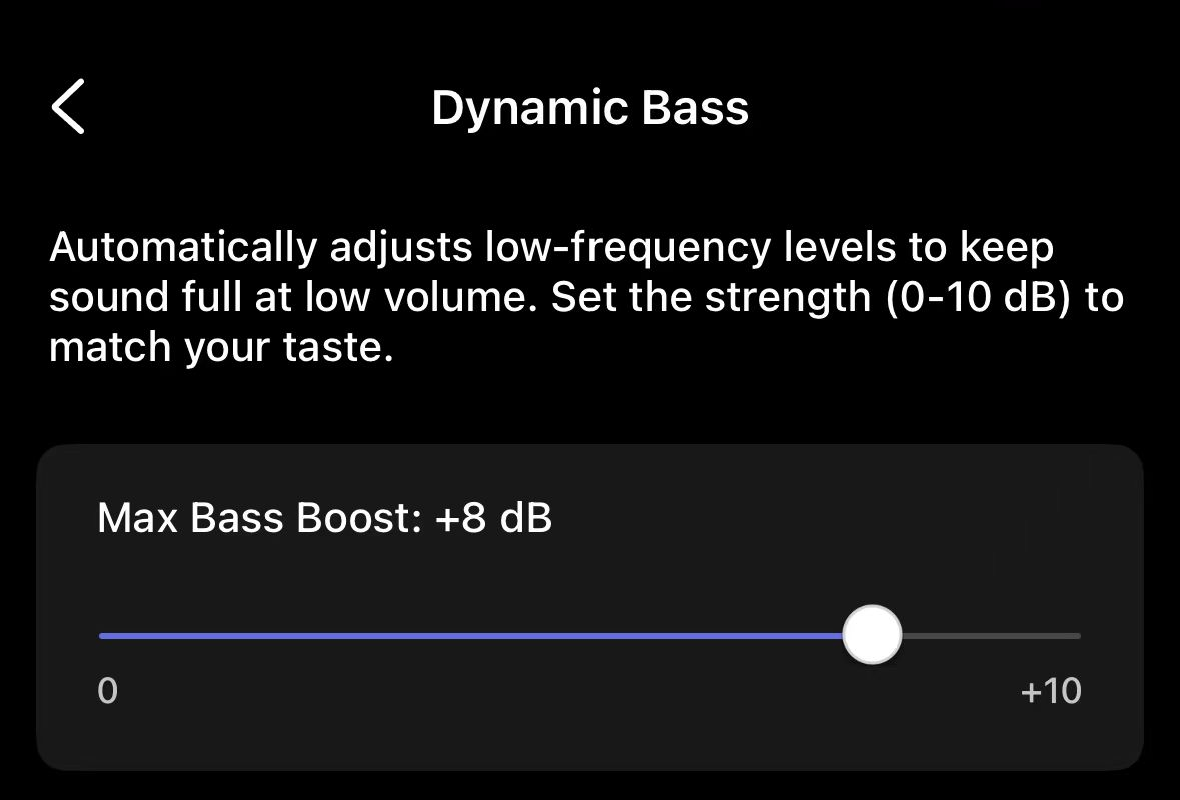
Dynamic Bass automatically adjusts bass gain based on your current volume level. It enhances the bass at low volumes for a richer sound and reduces the bass gain at high volumes to maintain frequency balance and prevent excessive distortion.
Instructions:
- Go to the Devices tab > Device Settings > Dynamic Bass.
- Adjust the Dynamic Bass setting to match your preference.
Step 5: Equalizer (EQ)
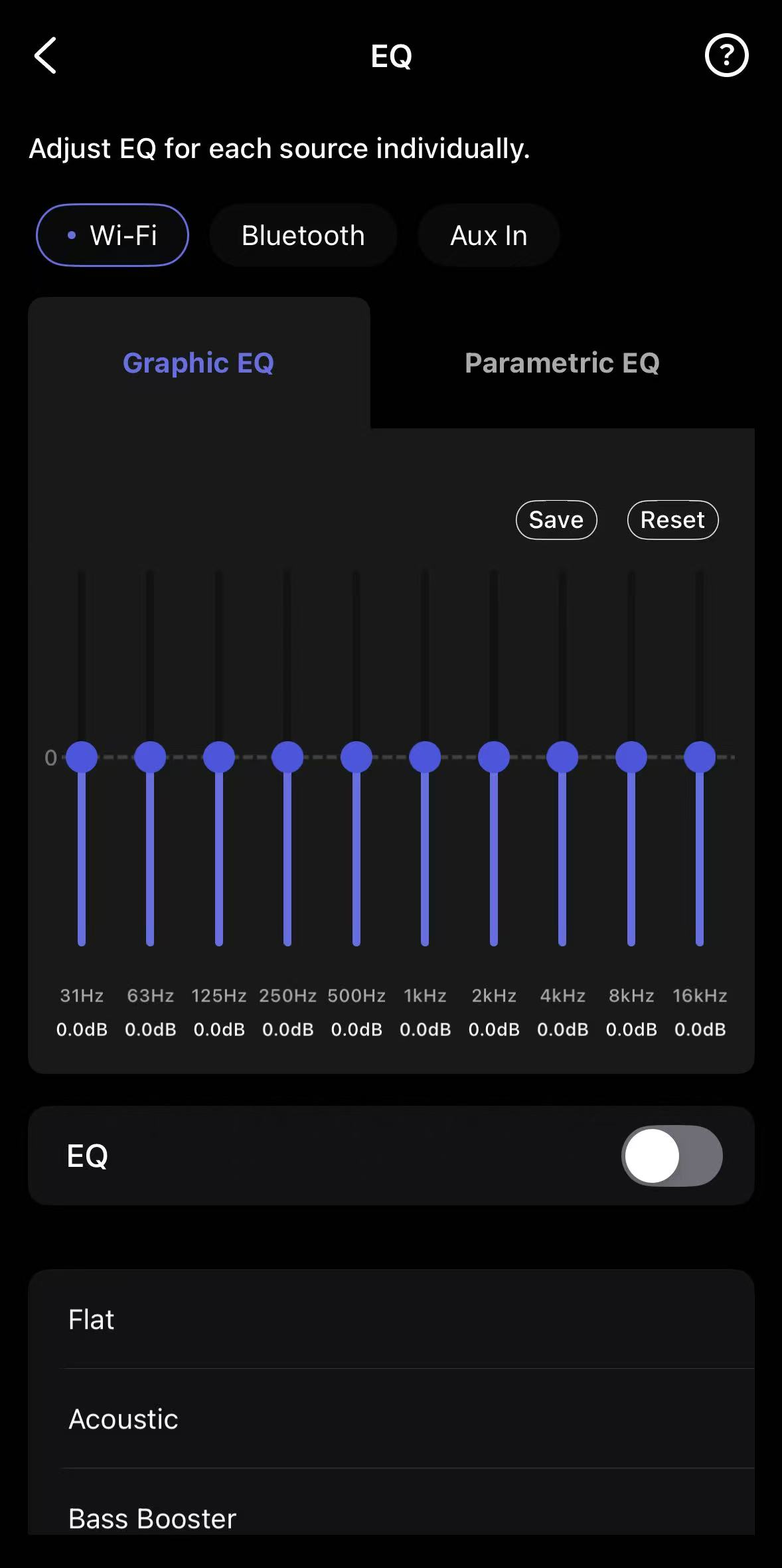
EQ is a powerful tool that allows you to customize specific frequencies. It provides multiple presets optimized for different music genres and scenarios, while also allowing you to fine-tune the bass, mid, and treble frequencies to your personal taste.
Instructions:
- Go to the Devices tab > Device Settings > EQ.
- Simply select an EQ preset, or manually adjust the low, mid, and high-frequency bands until the sound feels right to you.
For detailed instructions, see How to Use Per-Source EQ: A Comprehensive Guide.
Step 6: Test and Fine-Tune
To ensure your settings are perfect, play various types of audio, such as bass-heavy tracks, classical music, or dialogue-heavy content.
If you are not satisfied with certain frequency responses during the test, slightly re-adjust the EQ or try disabling Dynamic Bass.