
TABLE OF CONTENTS
Overview
Different input sources can have different audio characteristics. For example, TV audio may sound different from music streamed over Wi-Fi or audio from a CD player. With Per-Source EQ, you can create separate EQ settings for each source to better match its sound characteristics and your listening preferences.
Per-Source EQ supports two EQ types:
- Graphic EQ: Quickly adjust 10 fixed frequency bands or choose from preset EQ settings.
- Parametric EQ: Fine-tune custom frequency bands for more precise sound adjustment.
You can save, modify, delete, or assign custom EQ settings for each input source independently, without affecting other sources.
How to Use Graphic EQ
Graphic EQ provides intuitive controls for adjusting audio frequencies across 10 fixed frequency bands. It also offers 24 preset EQ settings tailored for various listening scenarios. It is ideal for quick, straightforward audio tuning.
For more information on preset EQ settings, see Introducing 24 Preset EQ Settings for Ultimate Audio Performance.
- Open the WiiM Home app on your mobile device.
- Go to the Devices tab > Device Settings
 > EQ.
> EQ. - Select an audio source you want to customize (e.g., Wi-Fi, Line In, Optical In, or HDMI ARC).Tip: To hear the effect of your EQ adjustments in real time, make sure your WiiM device is currently playing from the audio source you want to adjust (e.g., switch the TV to the HDMI ARC input if you are tuning HDMI ARC).
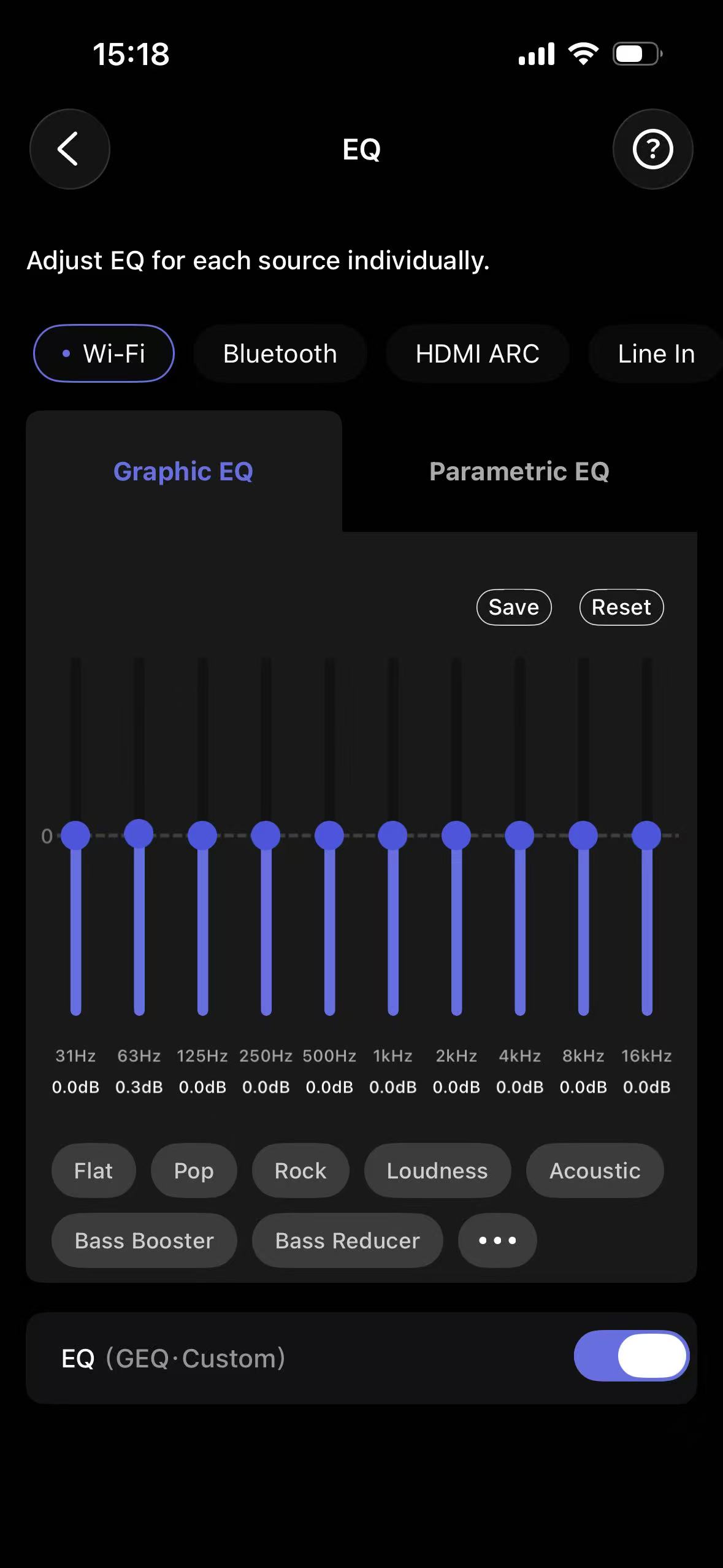
- Toggle on EQ.
- Adjust EQ settings using any of the following methods:
- Method 1:Select one of the preset EQ profiles based on your content and listening environment.Tip: Tap More (...) to view all preset EQ profiles.
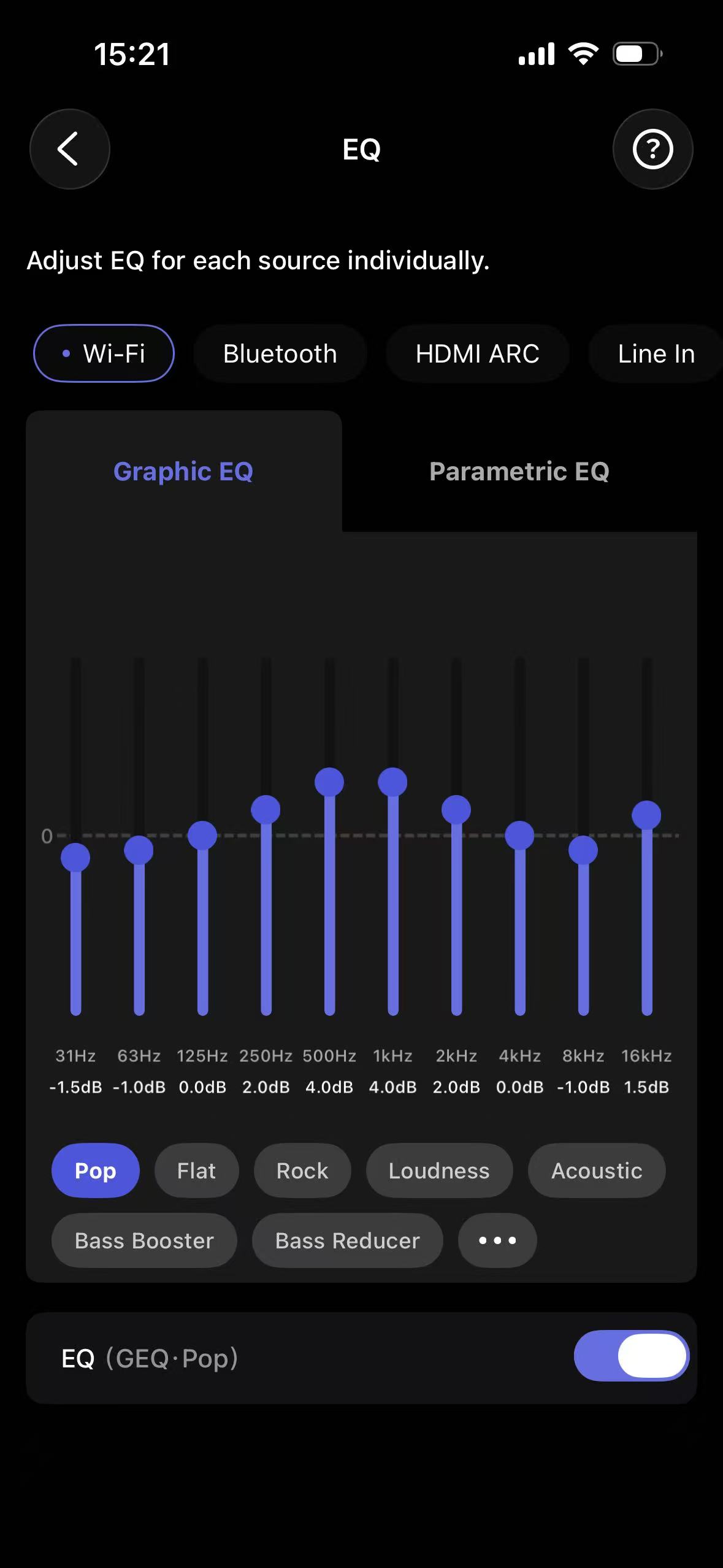
- Method 2: Use the sliders to adjust the gain levels for the 10 fixed frequency bands. If needed, tap Save to store your EQ settings with a custom name for future use or to apply them to other features (e.g., Presets).Tip: Select a preset EQ setting as a starting point, then fine-tune it to your preferences.
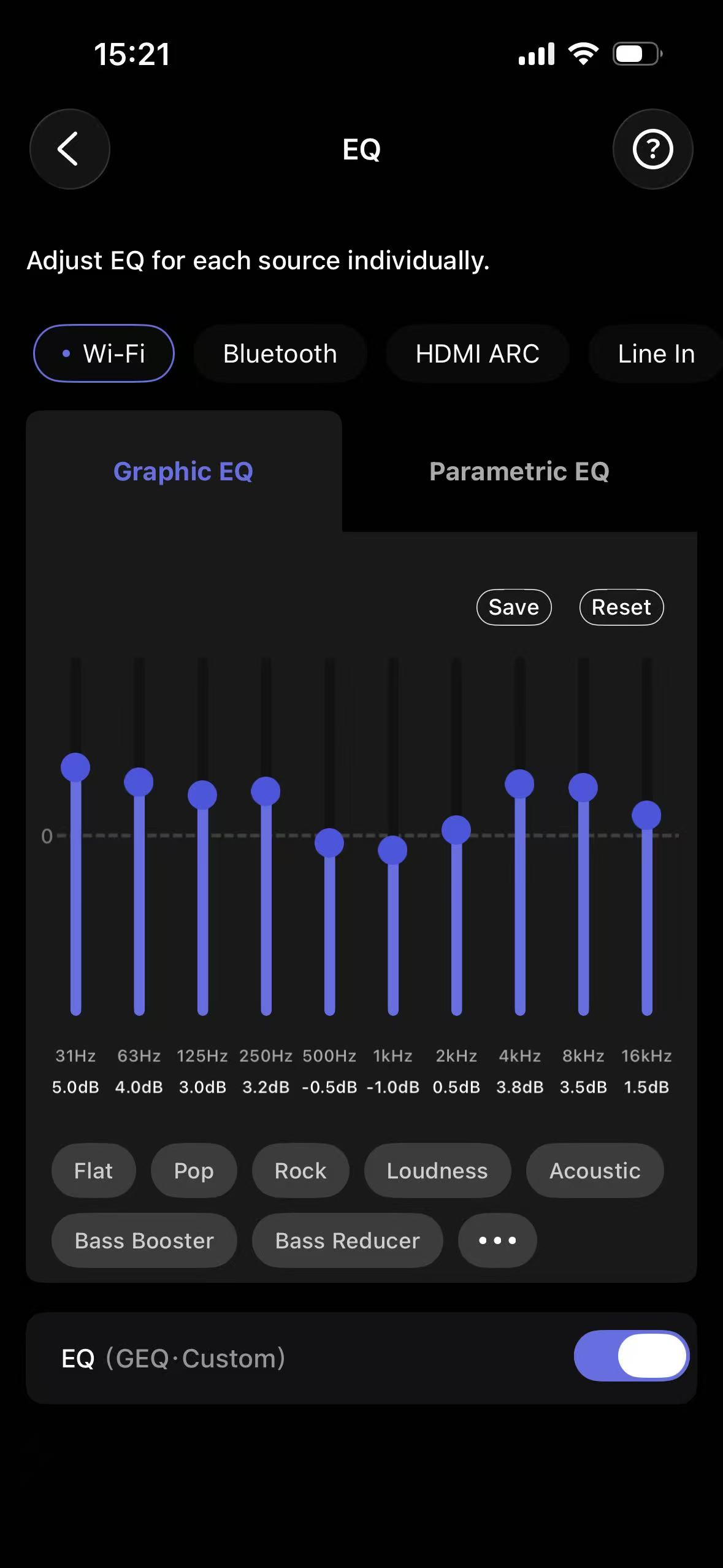
- Method 1:Select one of the preset EQ profiles based on your content and listening environment.
The EQ settings apply immediately to the selected input source.
How to Use Parametric EQ
Parametric EQ lets you define and adjust up to 10 custom frequency bands, giving you precise control over your sound. It’s ideal for detailed, professional-level audio tuning.
For detailed instructions, see How to Use Per-Source Parametric EQ: A Comprehensive Guide.
By following these instructions, you can effectively use the Per-Source EQ feature, allowing you to customize your audio experience according to your individual preferences and the unique characteristics of each audio source.