
TABLE OF CONTENTS
Overview
The Parametric EQ (PEQ), stands as a cornerstone in the realm of audio processing. This tool transcends the capabilities of traditional graphic EQs, which are limited by fixed frequency bands. In contrast, a Parametric EQ allows users to precisely adjust frequency bands to achieve highly customized sound tuning.
Now, with support for Per-Source Parametric EQ in the WiiM system, users can configure independent EQ settings for each audio source (e.g., Line In, Optical In, HDMI ARC, etc). This ensures that every audio source is optimized for its own sound characteristics and listening environment.
Whether you're a professional audio engineer fine-tuning specific input signals, or a music enthusiast looking to enhance each device's sound signature, the Per-Source Parametric EQ provides unmatched control and precision—making it an essential part of any serious audio setup.
Understanding the 4 Core Parameters
The Per-Source Parametric EQ supports up to 10 independent bands per input source. For each band, you will configure four essential parameters as described in the table below.
| Parameter | What It Does |
|---|---|
| Freq (Frequency) | Specifies the center frequency you want to target (in Hz). |
| Gain | Determines the level of boost (amplification) or cut (attenuation) applied to the selected frequency range. |
| Q (Quality Factor/Bandwidth) | Defines the bandwidth around the center frequency.
|
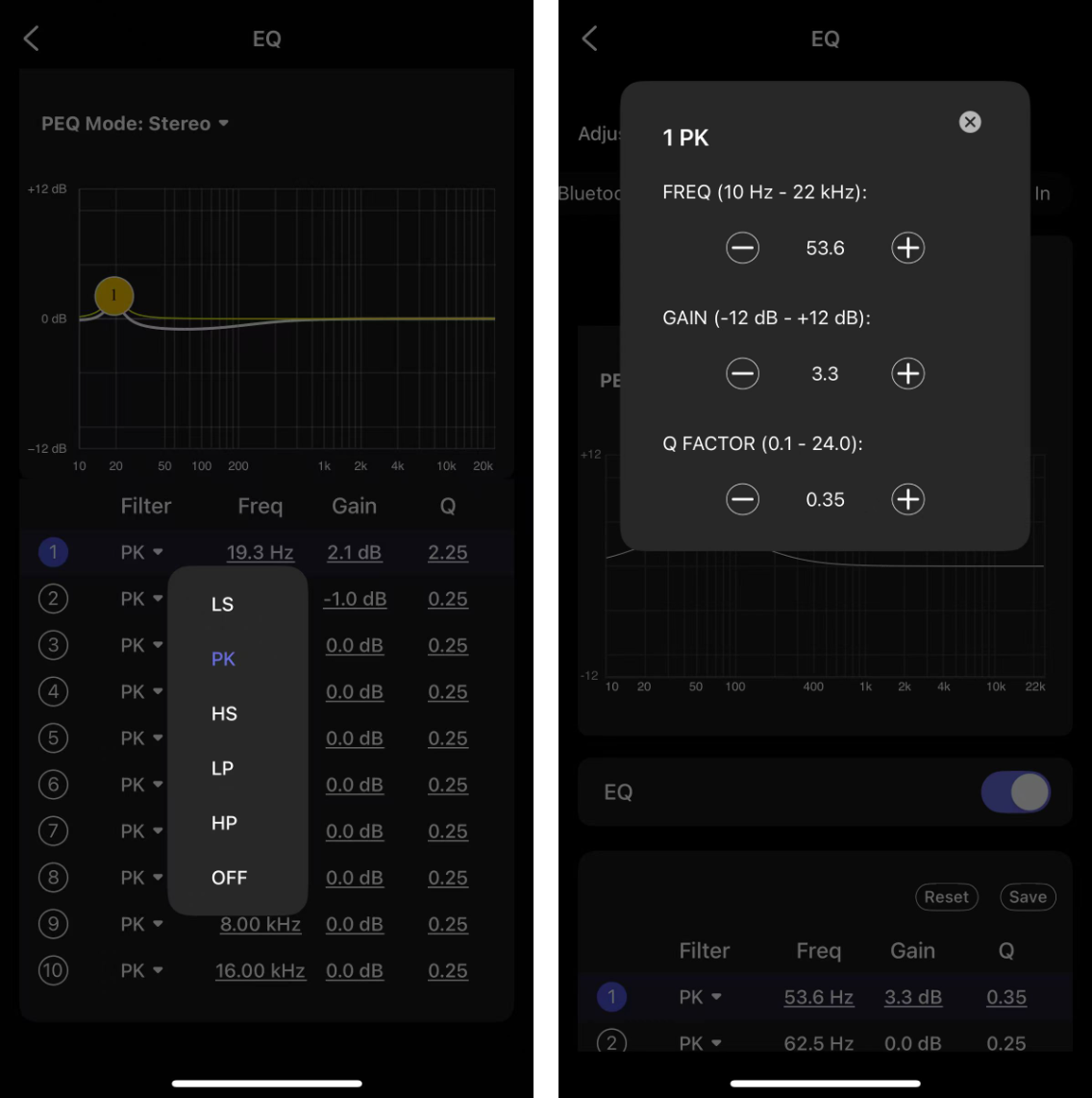
| Filter Type | Determines how the equalizer shapes the sound around the chosen frequency. Available options:
|
Step-by-Step Guide
- Open the WiiM Home app on your mobile device.
- Go to the Devices tab > Device Settings
 > EQ.
> EQ. - Select an audio source you want to customize, switch to the Parametric EQ tab, and select your preferred PEQ mode (Stereo or L/R).Tip: Choose Stereo to apply the same EQ to both channels, or L/R to adjust the left and right channels independently.
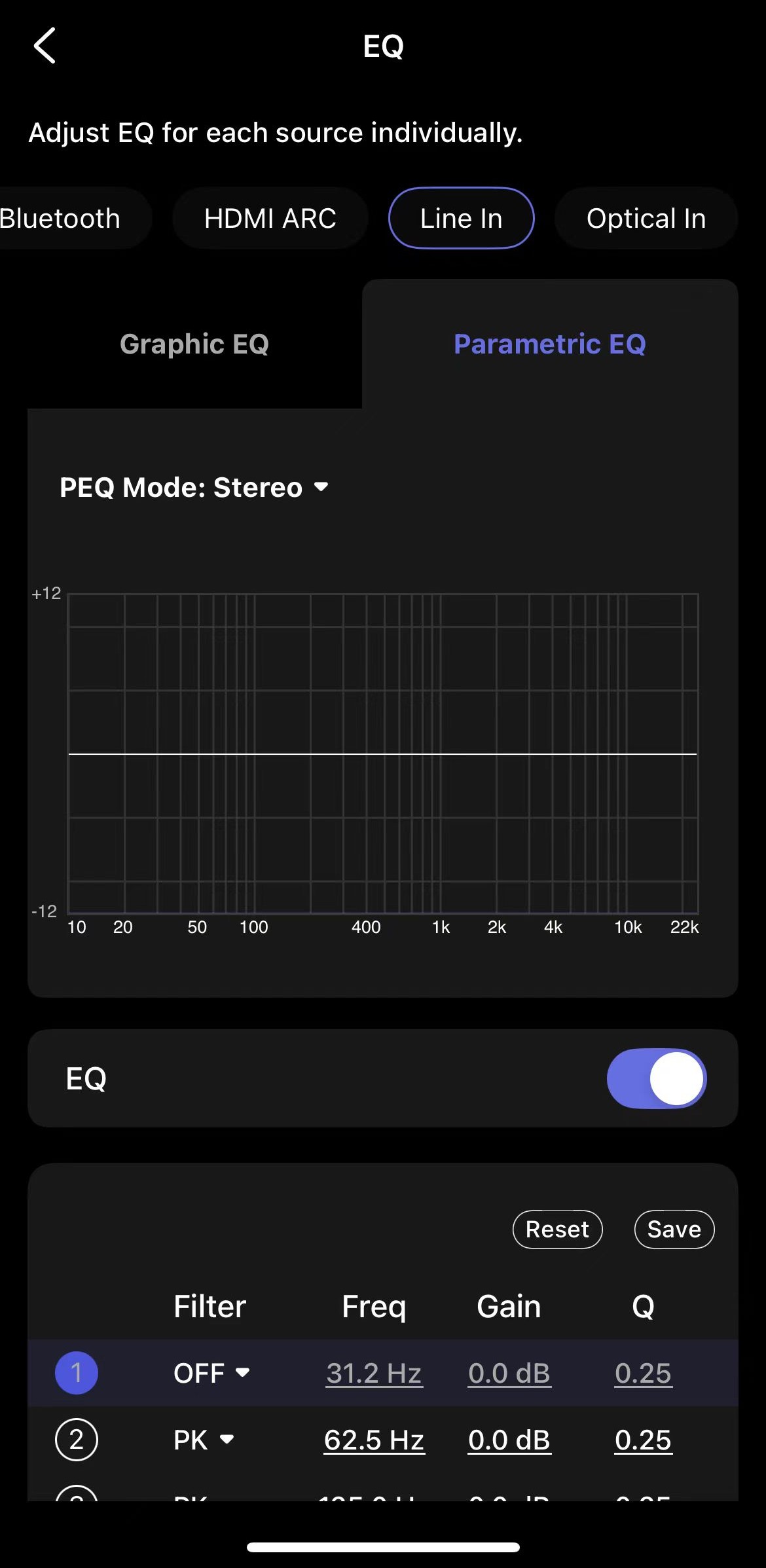
- Tune your EQ bands: Tap any band (1-10) to activate it, then tap any parameter field (Filter, Freq, Gain, or Q) to select or enter values manually.Note: We've integrated an advanced algorithm to prevent clipping issues, so high gain adjustments in the Graphic EQ or Parametric EQ won't cause clipping.Tip: When a band is selected, the corresponding numeric indicator will appear in the graph. You can drag the numeric indicator directly on the graph to visually adjust both Frequency and Gain in real-time.
- When finished, tap Save to store your custom profile for future use or for other functions, such as Presets.