
TABLE OF CONTENTS
Overview
Pop noise or stuttering may occur when WiiM devices (e.g., WiiM Mini, WiiM Pro, WiiM Pro Plus, WiiM Ultra, WiiM Vibelink Amp) output digital audio signals to certain external DACs, amplifiers, or speakers via Optical Out or Coax Out.
This guide will help you identify the specific causes of pop noise and apply the corresponding solution for a smoother audio experience.
Cause 1: Sudden volume changes
The audio signal level jumps instantly from zero to full (or vice versa) at the start or end of songs, causing a "pop" in the speakers.
Solution: Enable Fade-In & Fade-Out
- Open the WiiM Home app.
- Go to the Devices tab > Device Settings
 > Audio Settings.
 - Enable Fade-In & Fade-Out Effects.

Cause 2: Sample rate switching issues
External DACs may take time to lock onto a new sample rate, causing a brief burst of noise during transitions.
Solution 1: Adjust Sample Rate Switch Latency:
- Open the WiiM Home app.
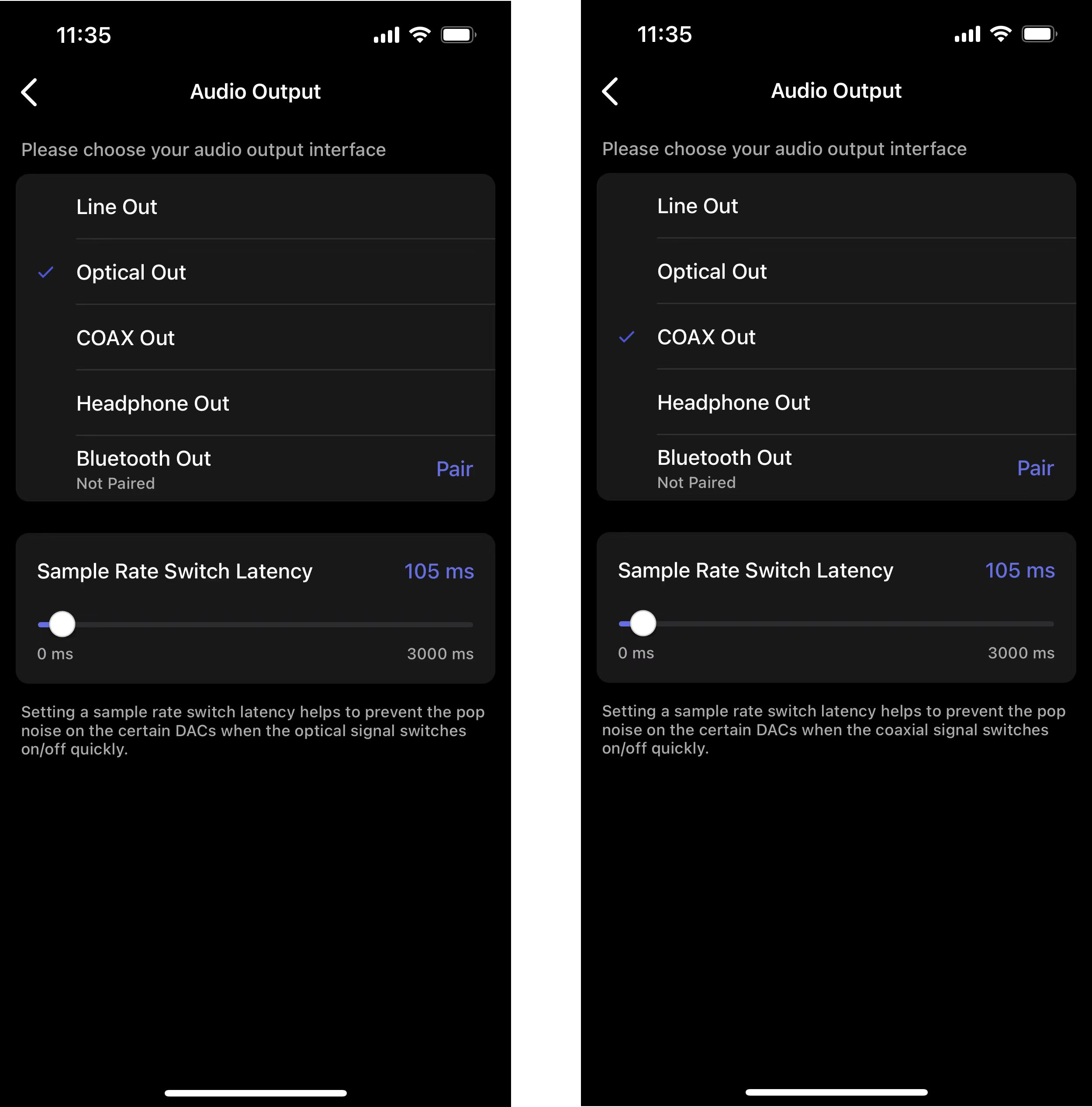
- Go to the Devices tab > Device Settings > Audio Output.
- Select Optical Out or COAX Out, and increase Sample Rate Switch Latency to give the DAC more time to adapt.
Solution 2: Use a Fixed Sample Rate:
- Open the WiiM Home app.
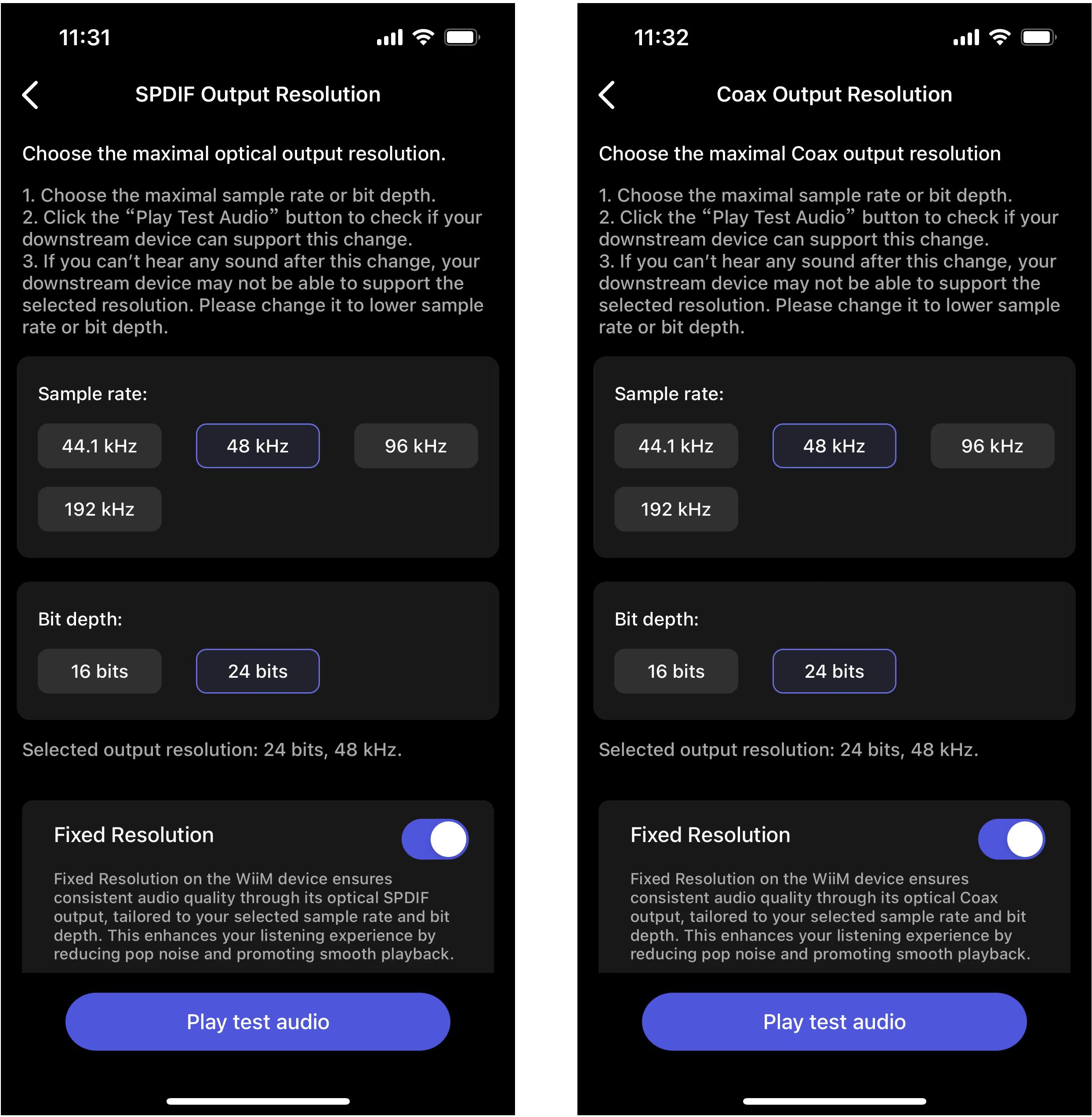
- Go to the Devices tab > Device Settings > Audio Settings.
- Enable Fixed Resolution for Optical Out or COAX Out.
Cause 3: Electrical Ground Loops
If noise occurs specifically on COAX Out, it may be due to an electrical potential difference between the WiiM device and your amplifier.
Solution: Connect an RCA Ground Bridge
Additionally connect a standard RCA cable between the Line Out of the WiiM device and the Line In of your amplifier. This connection acts as a "ground bridge" to stabilize the electrical signal and eliminate interference.
This solution is applicable for WiiM Pro/Pro Plus, WiiM Ultra, and WiiM Vibelink Amp.