
TABLE OF CONTENTS
Overview
SMB (Server Message Block), also known as Samba, is a network protocol for sharing files and other resources between devices on the same network.
With SMB support in the WiiM Home app, you can stream music from shared folders on your PC or NAS to a compatible WiiM device.
Note: WiiM supports SMBv2 and SMBv3. The WiiM Mini does not support SMB due to memory limitations.
Benefits of Playing Music via SMB
- Centralized Storage: Store your entire music library in one location for easy access and management.
- High-Quality Streaming: Enjoy lossless audio streaming with a stable and reliable connection.
- Local Playback: Stream your music locally without relying on an internet connection.
- Expandable Storage: Easily increase your storage capacity by adding more hard drives to your NAS or computer.
- Automatic Server Discovery: Find available SMB servers in the app and select a shared folder without entering its address manually.
- Playlist Support: Directly access and play .m3u8 and .pls playlist files. Learn more.
- Custom Album Artwork: Personalize your SMB music library with custom album covers displayed when you browse or play music in the WiiM Home app. Learn more.
Add an SMB Shared Folder
Add your SMB shared folder to the WiiM Home app before playing music from that folder.
Before You Begin
- Enable SMB file sharing for the folder containing your music on your computer or NAS.
- Connect your computer or NAS, phone or tablet, and WiiM device to the same local network.
- Have an account with read access to the shared folder ready, or enable guest access on the server.
Step-by-Step Instructions
- Open the WiiM Home app.
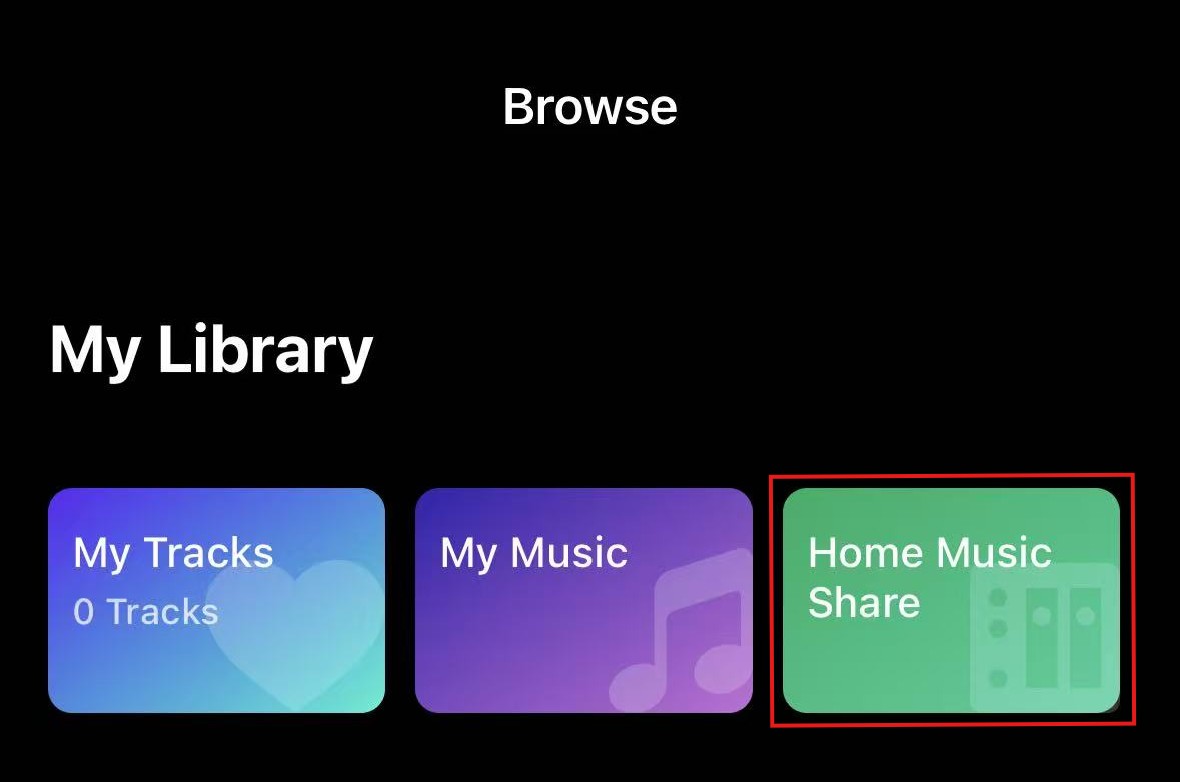
- Go to the Browse tab, tap Home Music Share.
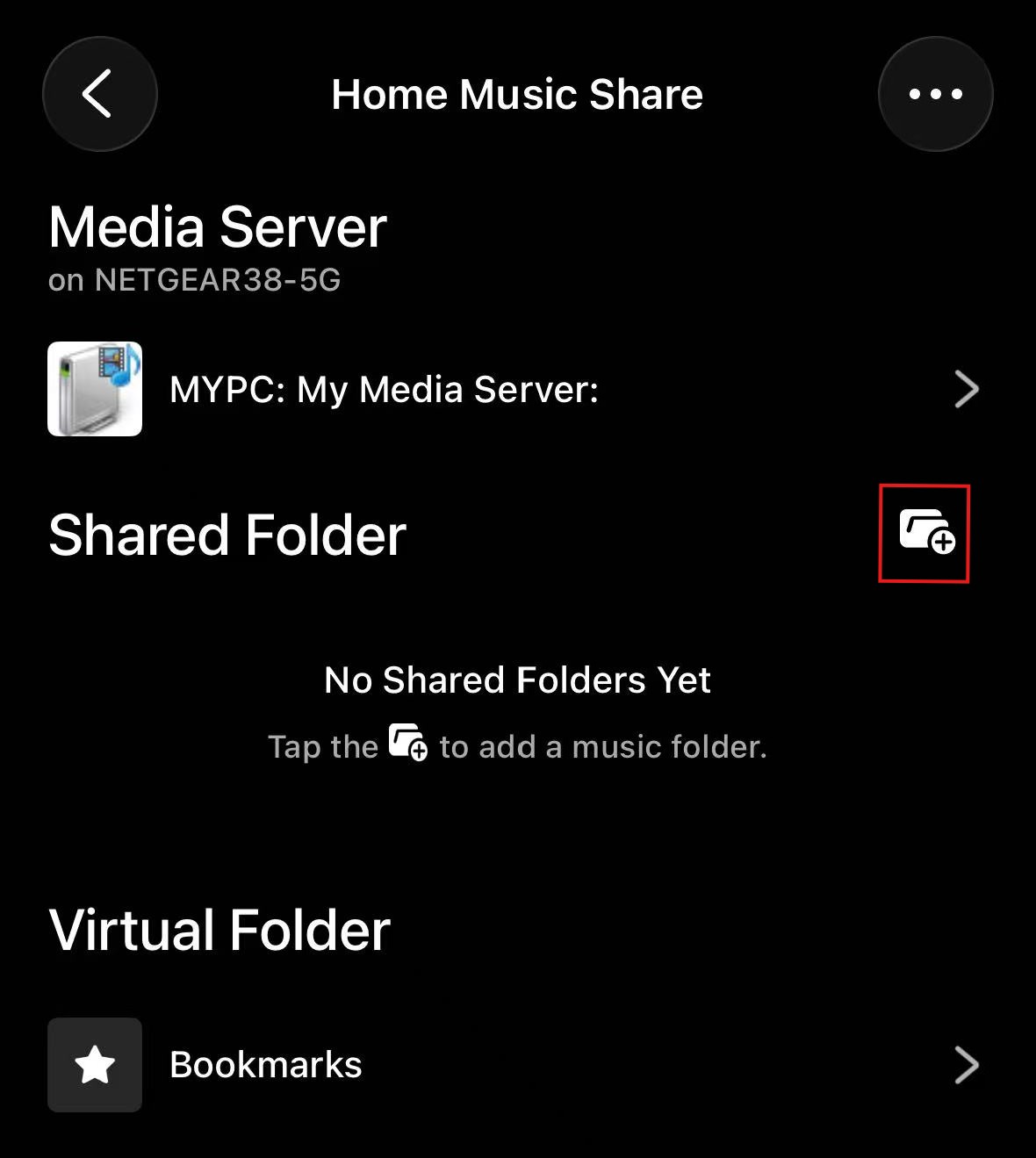
- Tap the
 icon next to Shared Folder.
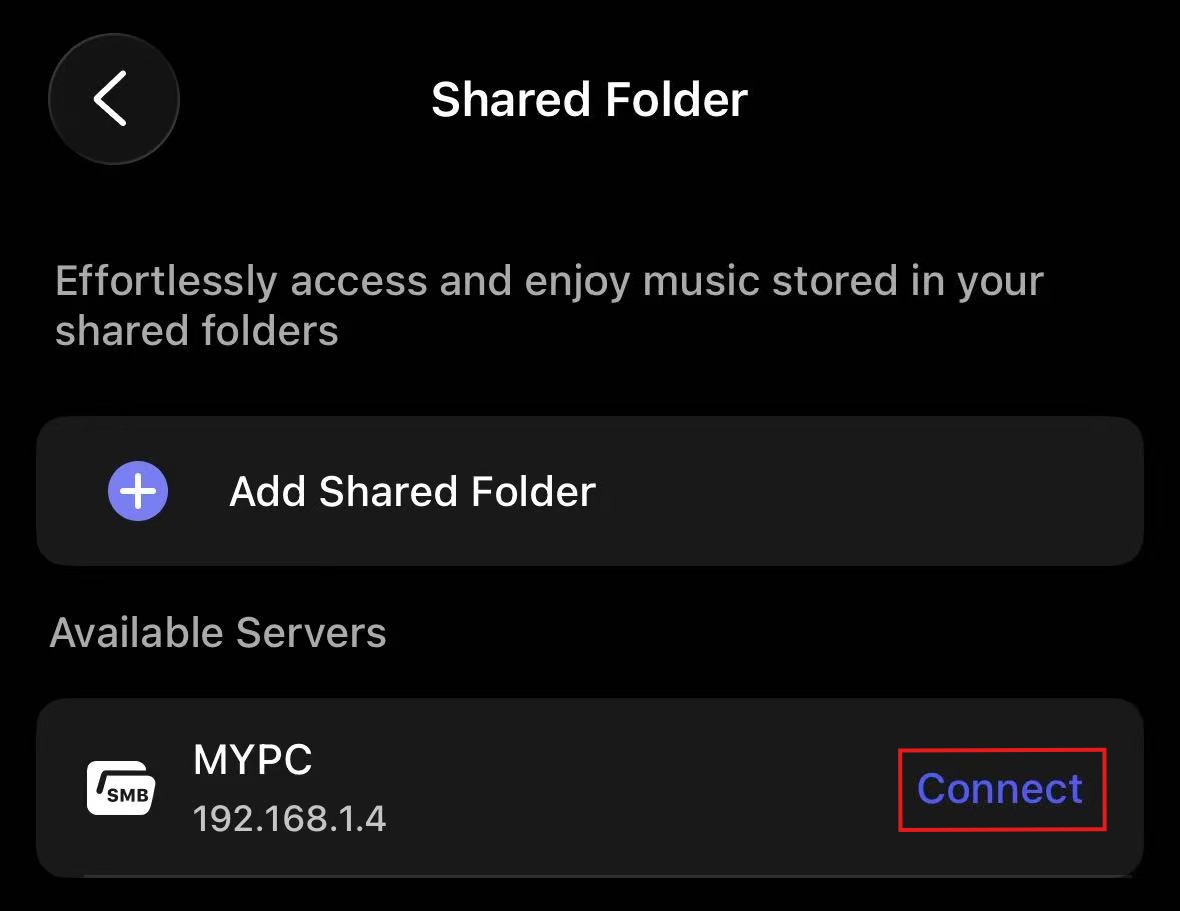
- The app automatically scans for SMB servers on your local network. When your server appears under Available Servers, tap Connect next to it.
Tip: If your SMB server does not appear, tap Add Shared Folder to enter the folder address and login credentials manually.
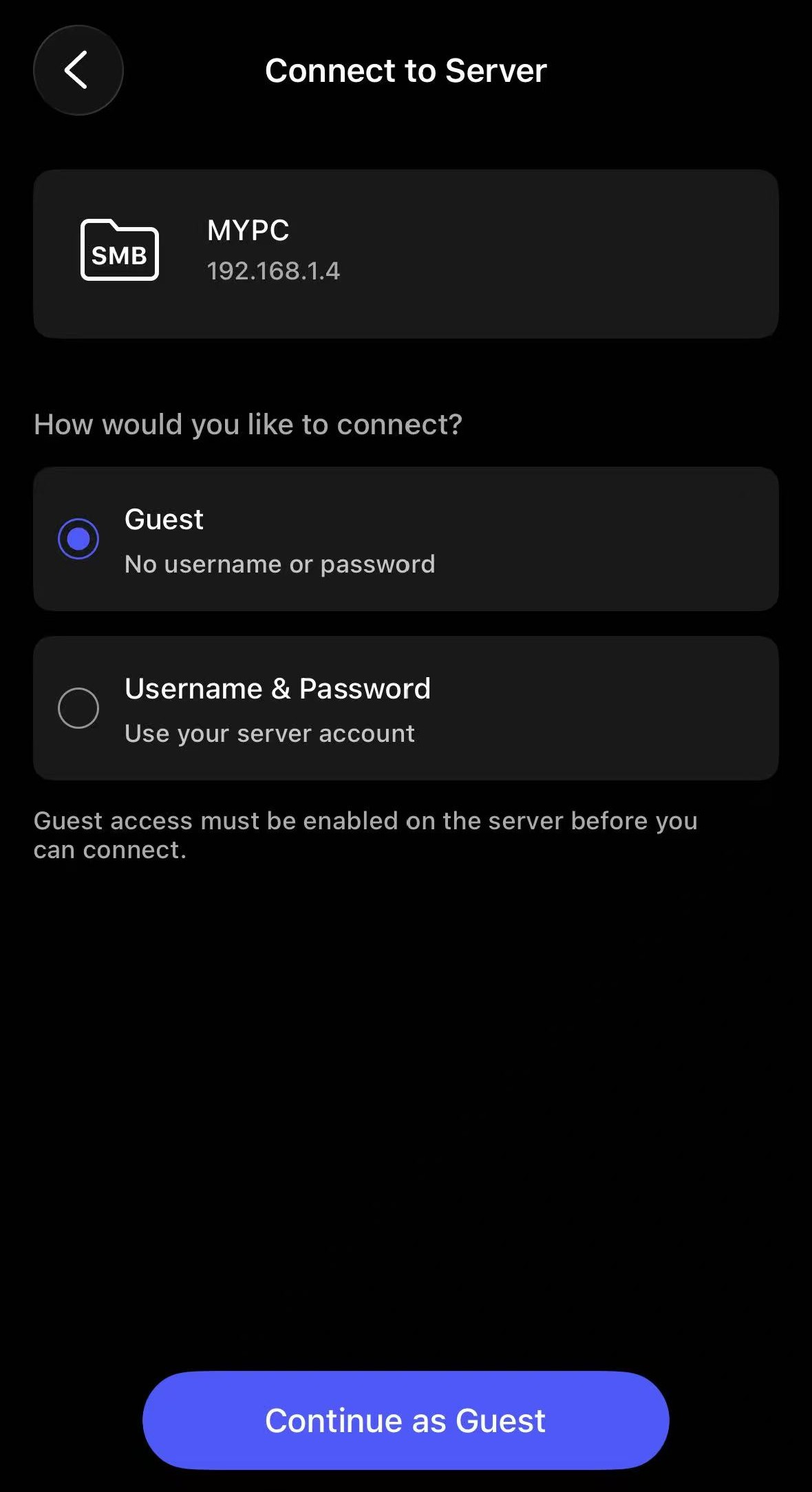
- Select a connection method on the Connect to Server screen:
- Guest: For servers that allow access without an account.
- Username & Password: For servers that require an account.
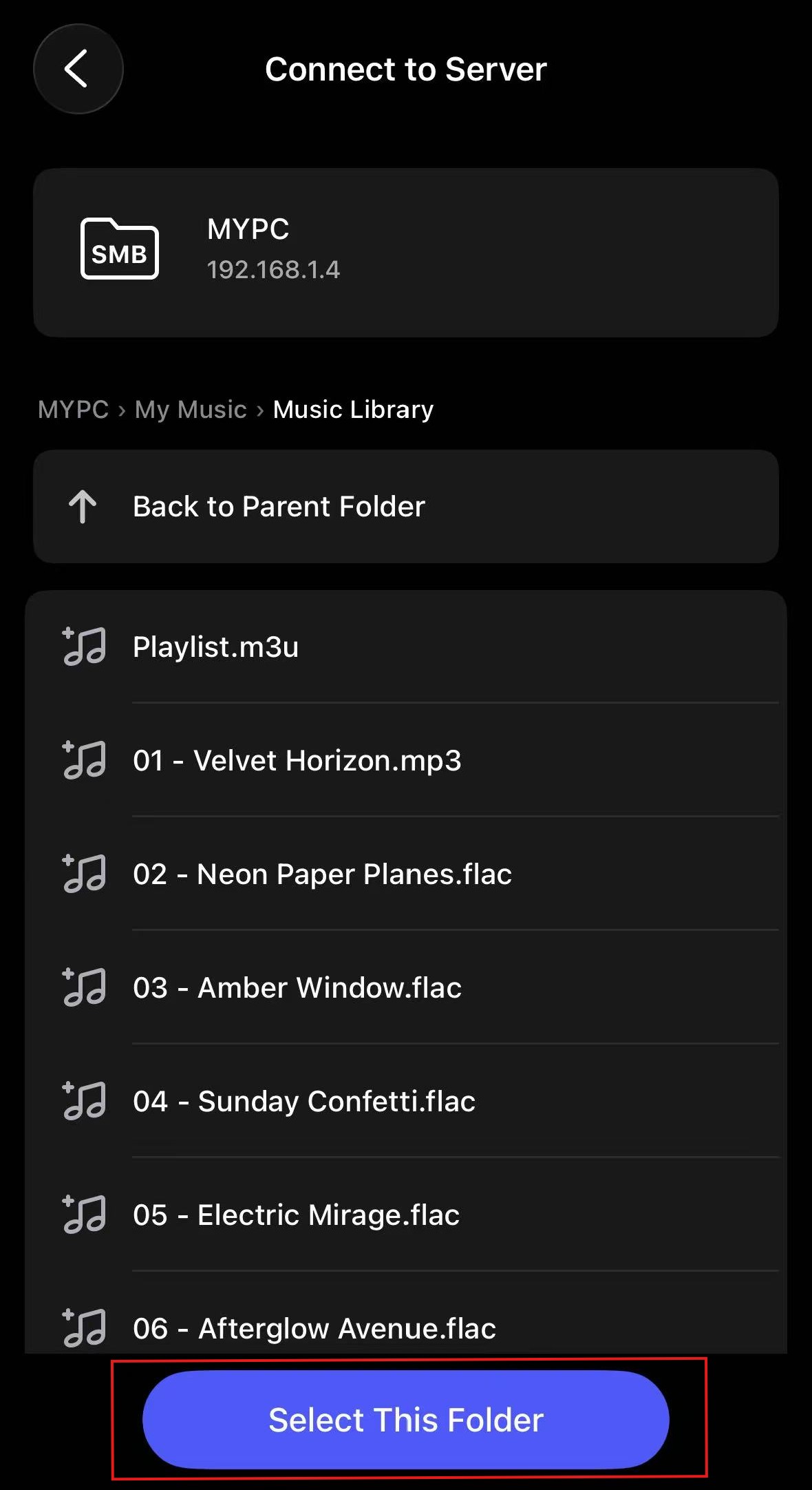
- Go to your music folder, then tap Select This Folder at the bottom to add it to Home Music Share.
Tip: Repeat the steps above to add other shared folders.
Play Music from the Added SMB Shared Folder
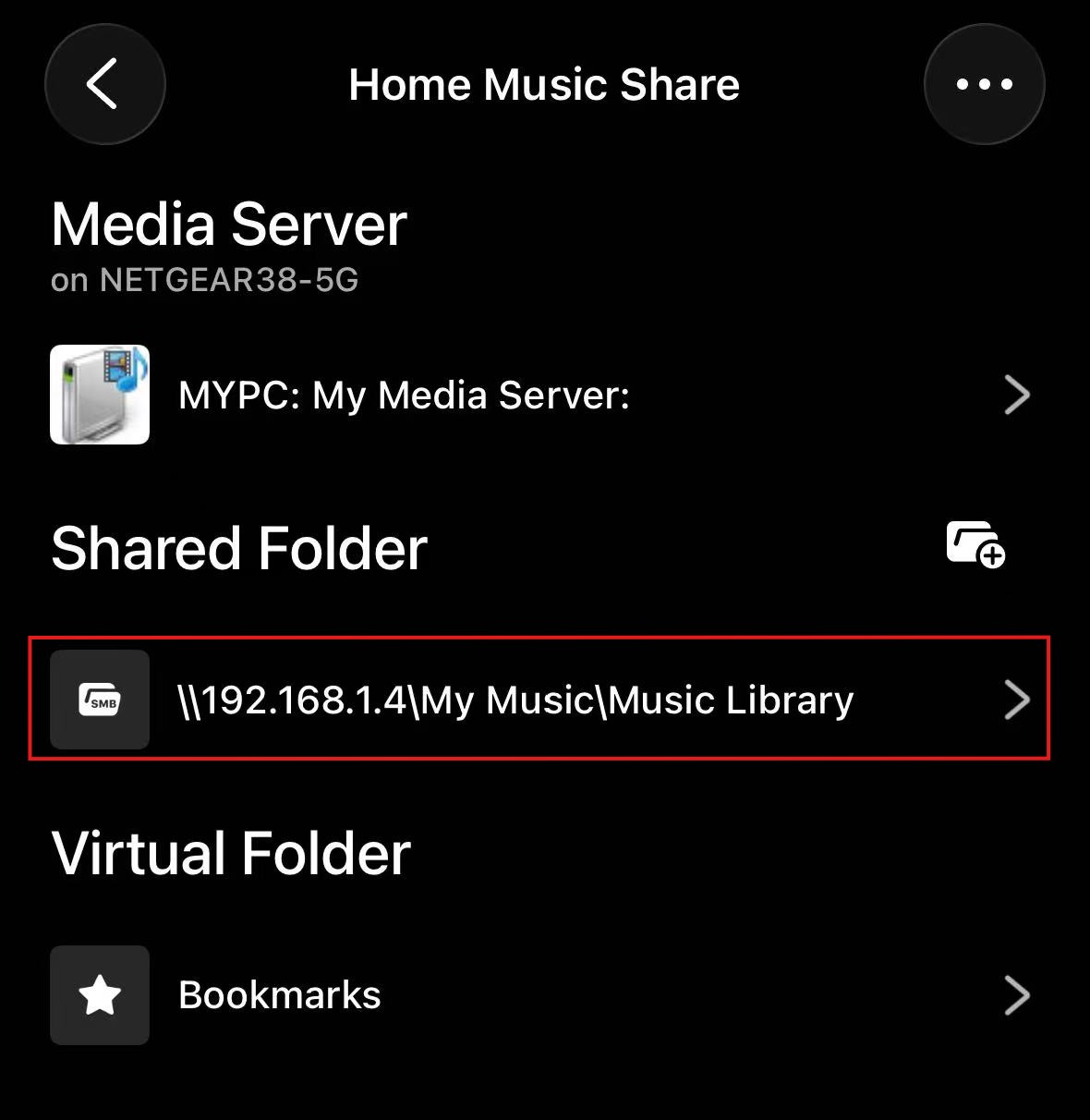
Once an SMB shared folder is added, you can access it from Home Music Share and play music from it anytime.
Replay Gain
In Home Music Share, tap three dots (…) in the top-right corner, then select Replay Gain Settings to normalize playback loudness across tracks.
For detailed instructions, see Use Replay Gain for USB, NAS, SMB, and DLNA Server.
Support for Playlist Files (.m3u8 & .pls)
WiiM devices support .m3u8 and .pls playlist files via SMB. You can open these files directly from your shared folder to play curated music collections or radio stations within the WiiM Home app.
Add Custom Album Artwork in Your SMB Music Library
You can add custom album artwork to your SMB music library. When you browse or play music in an album, the custom artwork will appear in the WiiM Home app, enhancing your listening experience.
For detailed instructions, see How to Add Custom Album Artwork in Your SMB Music Library.