
TABLE OF CONTENTS
Overview
Replay Gain keeps playback volume consistent across tracks or albums, reducing the need for manual volume adjustments. This guide explains how to use it in the WiiM Home app with TIDAL, Plex, Qobuz, Home Music Share, and My Music (Android only).
Depending on the music source, Replay Gain offers two main settings:
- Track Gain: Adjusts each track to a consistent playback level. Use it for playlists or shuffle playback.
- Album Gain: Adjusts the overall album level while preserving volume differences between its tracks. Use it when listening to a full album.
Use Replay Gain for TIDAL
- Open the WiiM Home app.
- Go to the Browse tab.
- Open TIDAL under Music Services and sign in if prompted.
- Go to Account > Replay Gain.
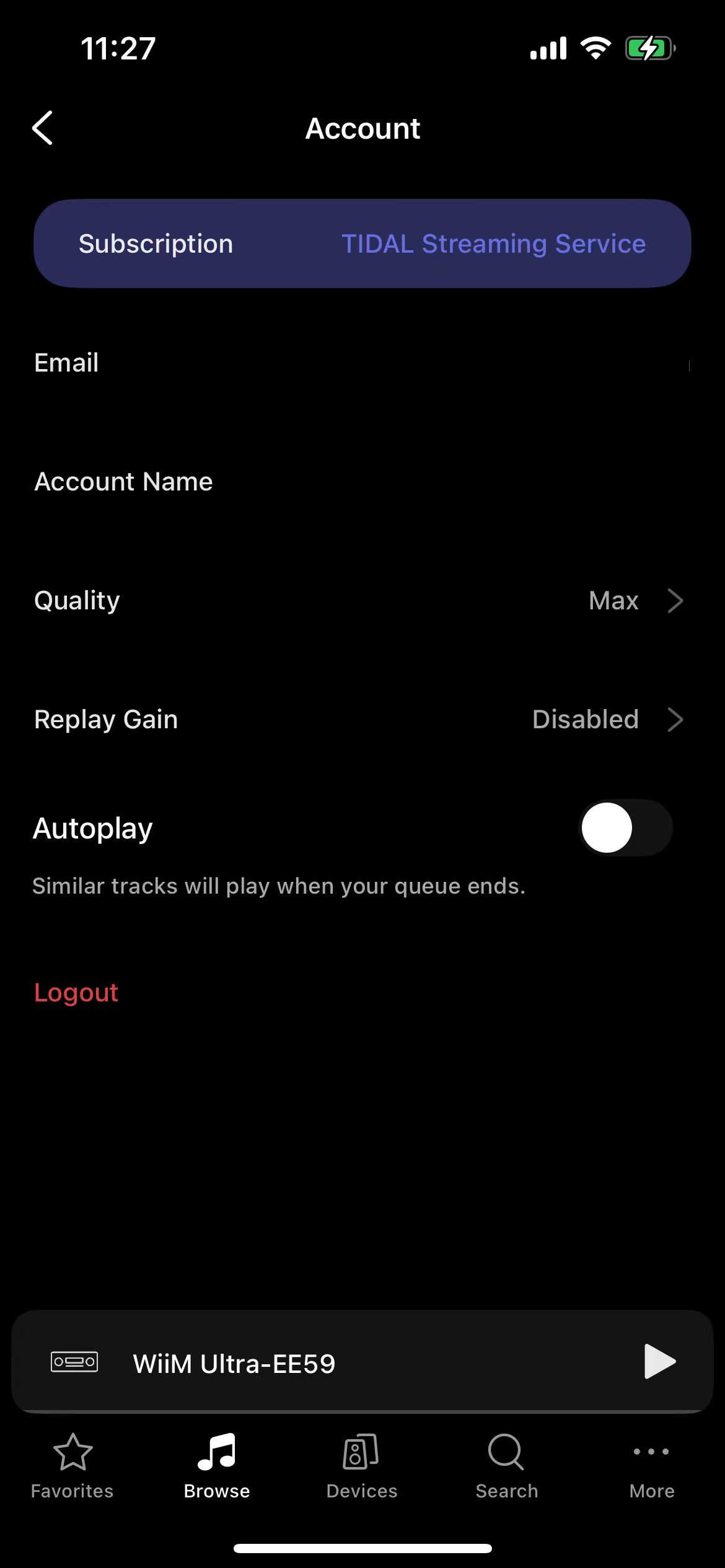
- Choose Track Gain or Album Gain.

- Select a track to start playback with the new setting.
Use Replay Gain for Plex
Note: On Plex Media Server, enable Analyze audio tracks for loudness and allow the server to finish analyzing your music. Loudness Leveling requires this analysis data.
- Open the WiiM Home app.
- Go to the Browse tab.
- Open Plex under Music Services and sign in if prompted.
- Tap the Settings icon
 in the top-right corner.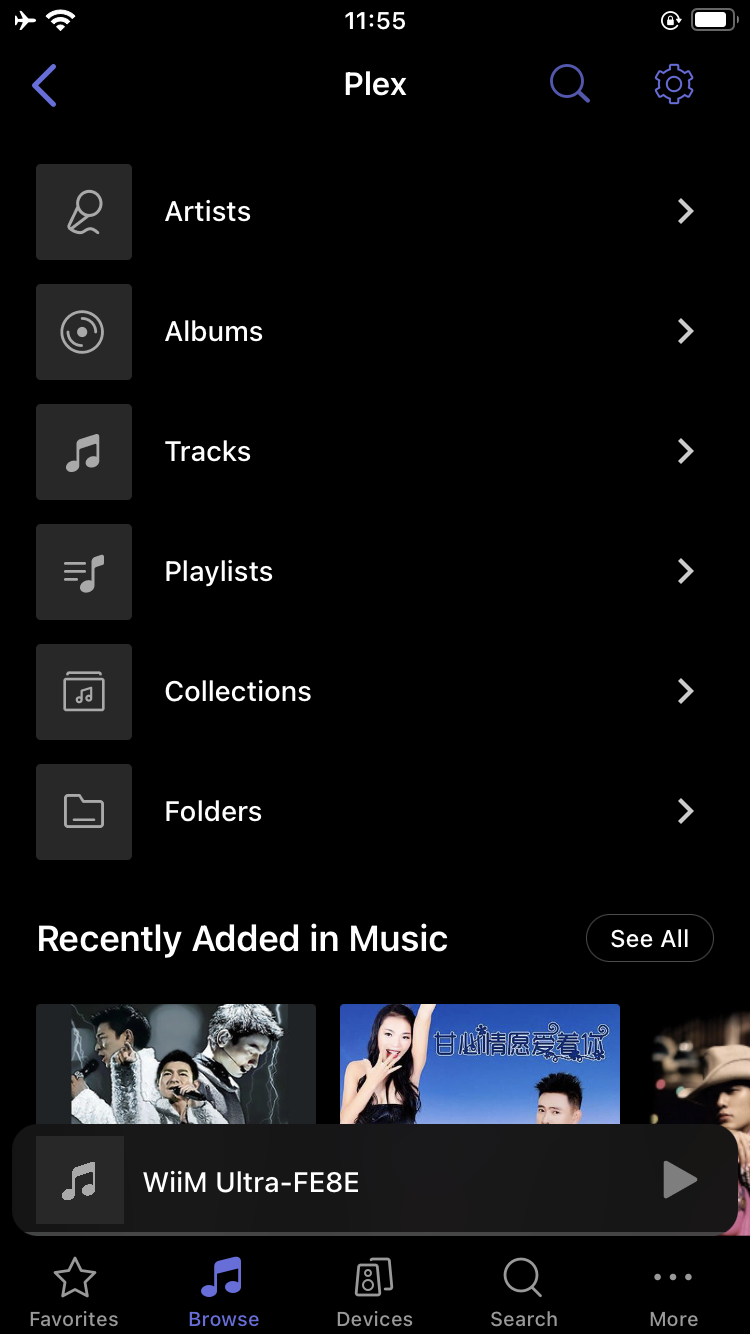
- Turn on Loudness Leveling. This keeps playback volume consistent across tracks.
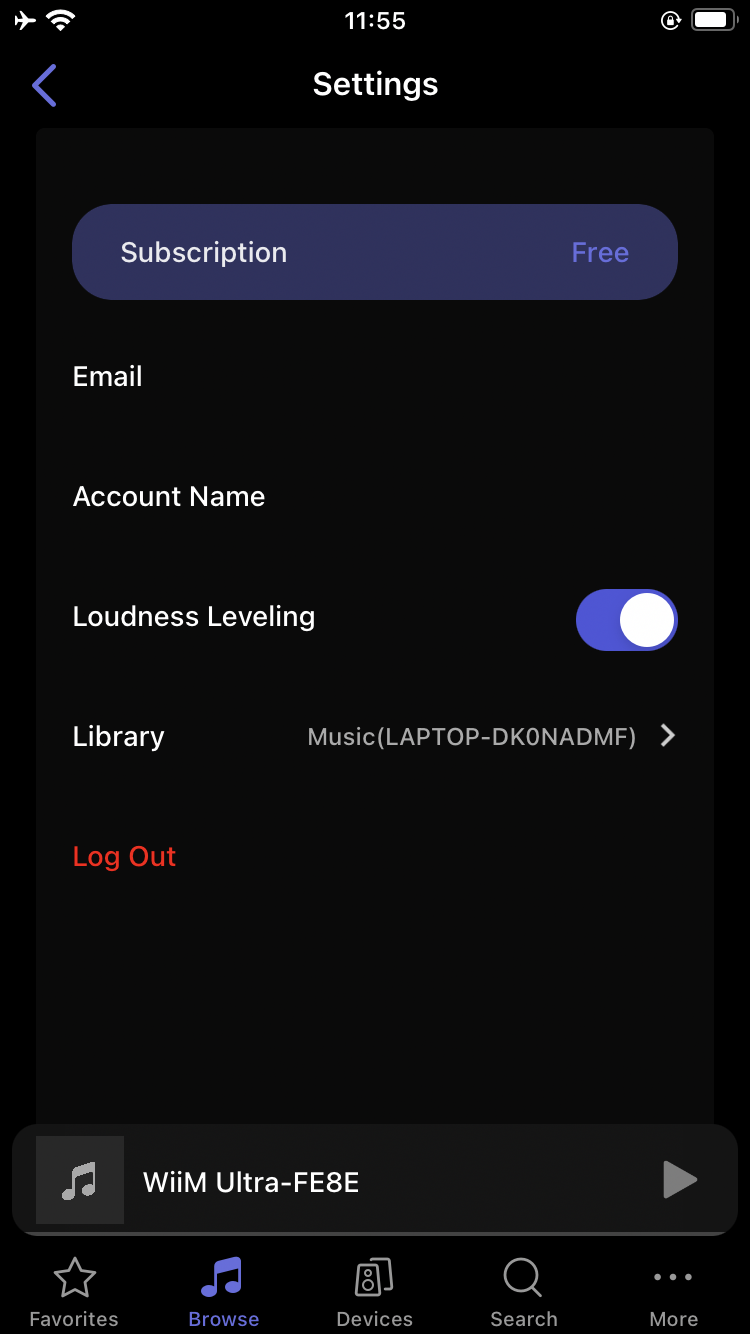
- Select a track to start playback with the new setting.
Use Replay Gain for Qobuz
- Open the WiiM Home app.
- Go to the Browse tab.
- Open Qobuz under Music Services and sign in if prompted.
- Tap the Settings icon in the top-right corner.

- Tap Replay Gain and select Track Gain.

- Select a track to start playback with the new setting.
Note: For Qobuz playback in the WiiM Home app, only Track Gain is available; Album Gain is not supported.
Use Replay Gain for USB, NAS, SMB, and DLNA Server
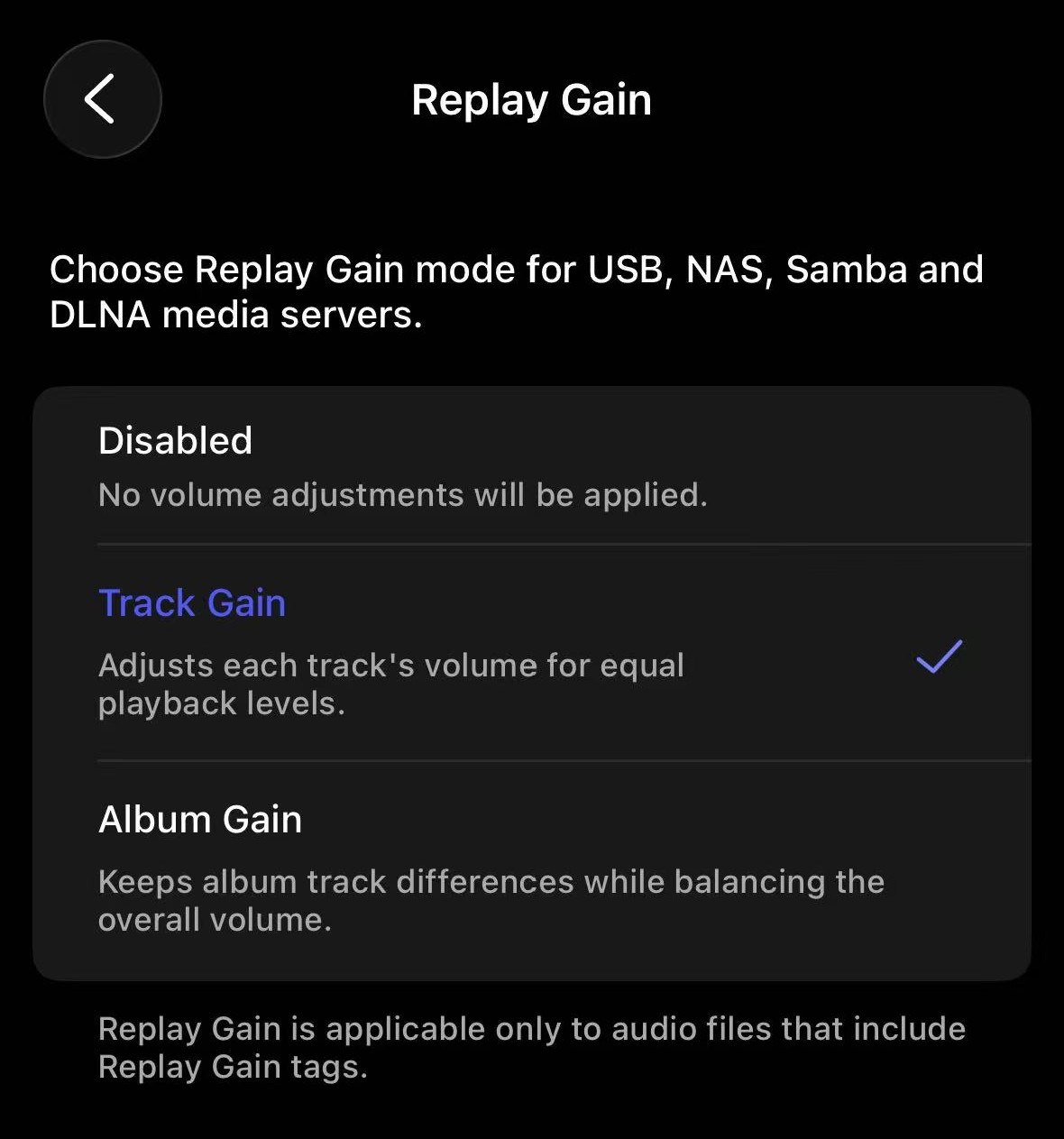
Use Replay Gain for music on USB drives, media servers, and SMB shared folders accessed through Home Music Share.
- Open the WiiM Home app.
- Go to the Browse tab.
- Tap Home Music Share under My Library.
- Tap three dots (…) in the top-right corner.
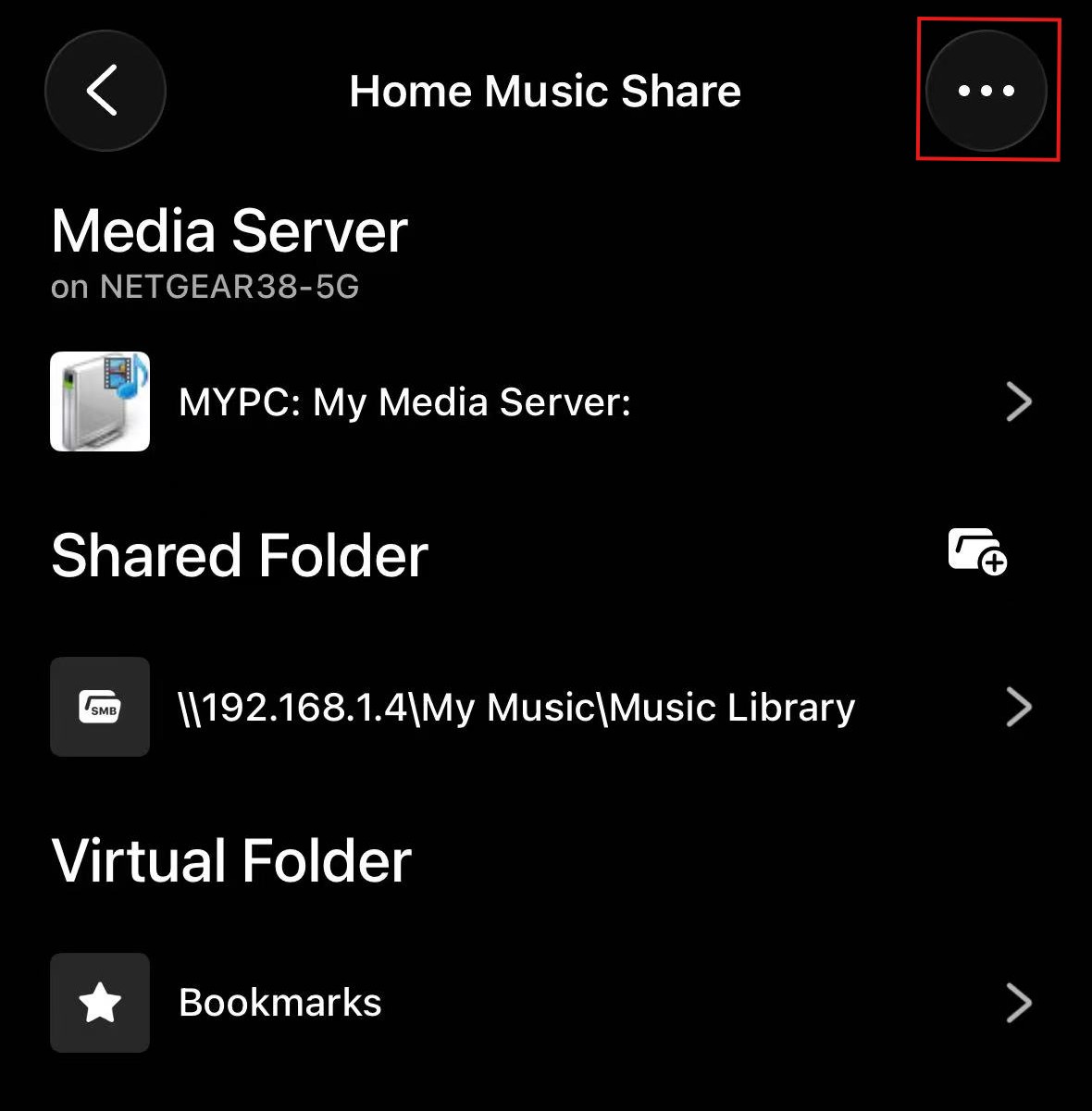
- Select Replay Gain and adjust its setting.
- Select a track to start playback with the new setting.
Use Replay Gain for My Music (Android Only)
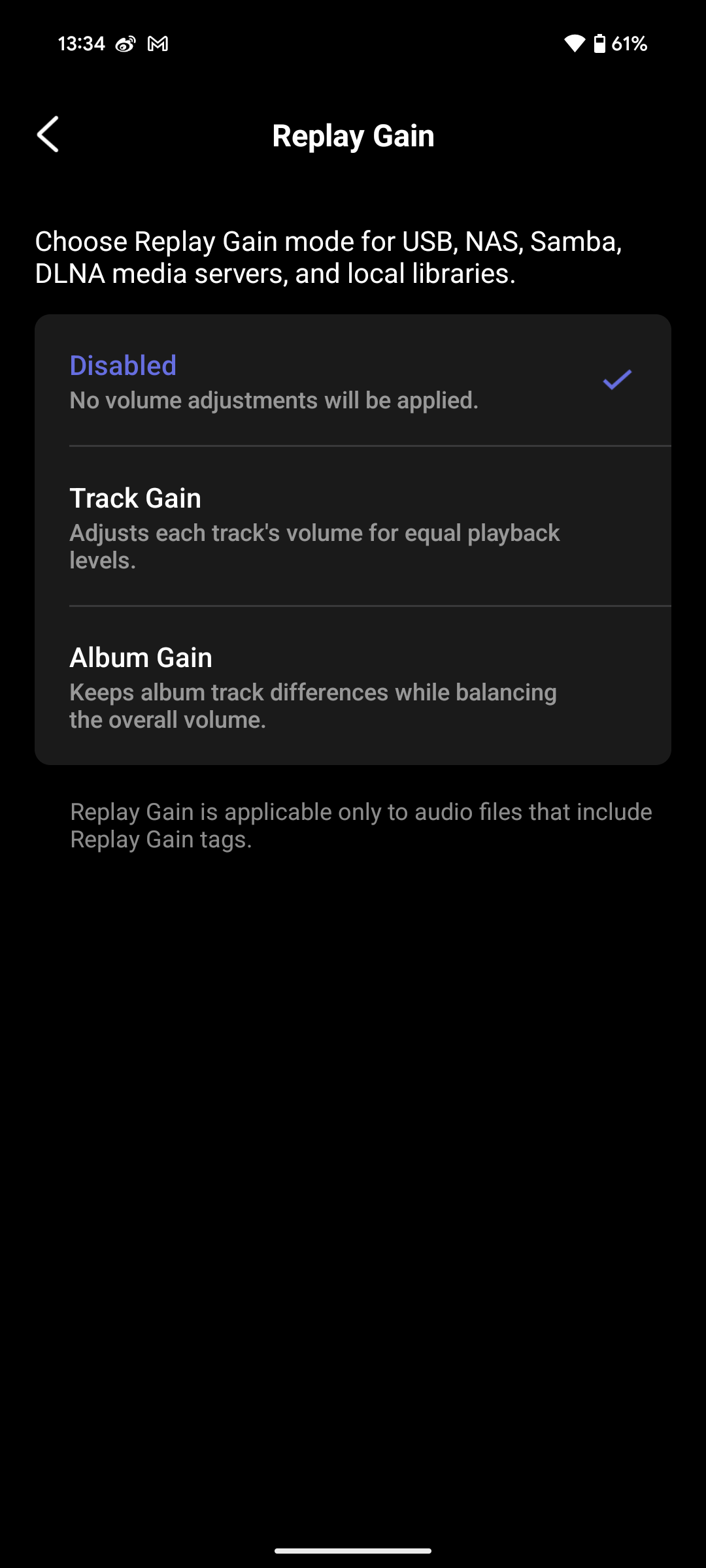
Use Replay Gain for music stored locally on your Android phone or tablet.
- Open the WiiM Home app.
- Go to the Browse tab.
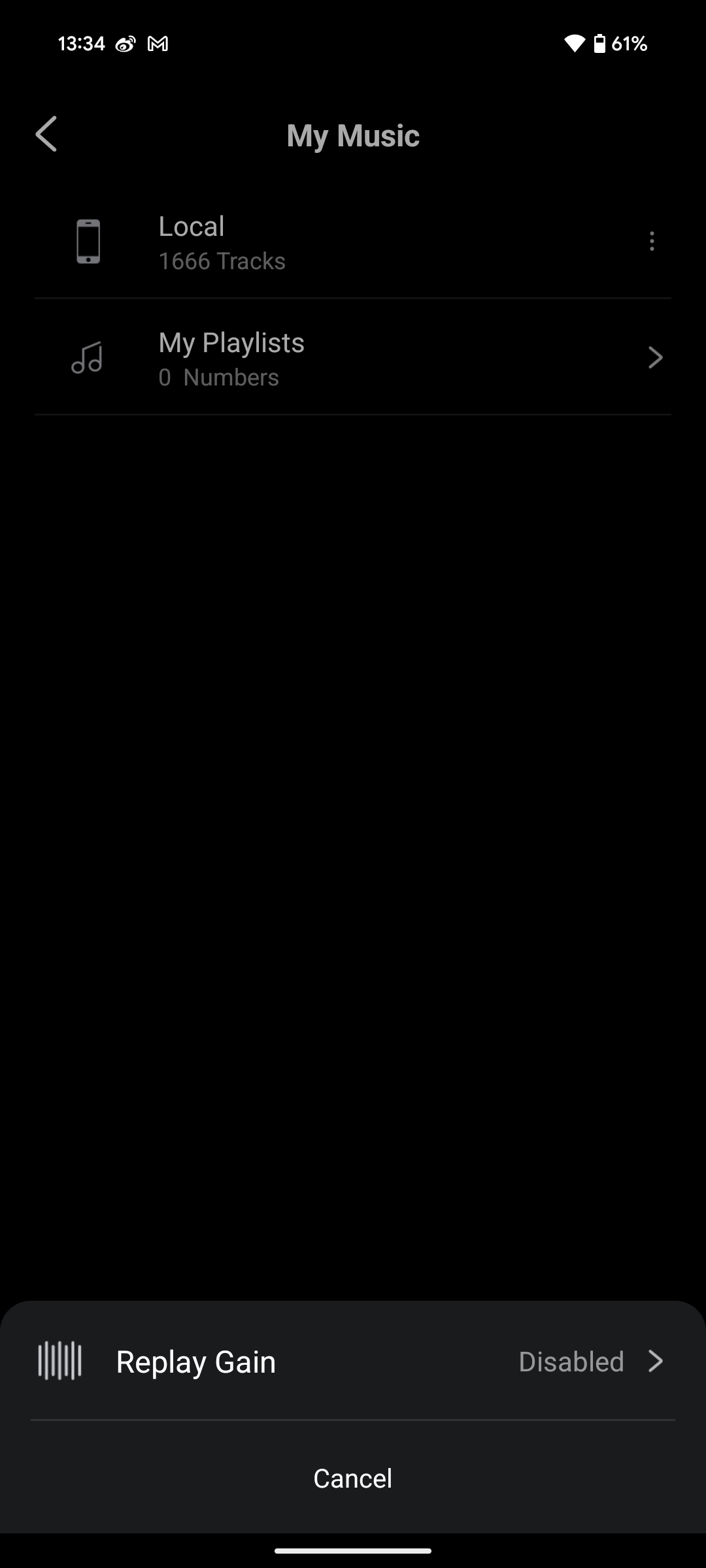
- Tap My Music under My Library.
- Tap Replay Gain at the bottom.
- Choose Track Gain or Album Gain.
- Select a track to start playback with the new setting.
Tips for Replay Gain
Note: Changes to Replay Gain do not apply automatically to the current playback. After changing the setting, reselect a track, playlist, or album and start playback to apply it.