
TABLE OF CONTENTS
The WiiM Amp or WiiM Amp Pro features three distinct audio input ports:
- Line In
- Optical In
- HDMI ARC
You can connect devices like CD players, TVs, PCs, or turntables, to your WiiM Amp or WiiM Amp Pro via these input ports for high-quality playback with approximately 50ms reduced latency.
Supported Audio Format and Quality for HDMI ARC and Optical In
The following table shows the supported audio formats and quality for the HDMI ARC and Optical In ports on both the WiiM Amp and WiiM Amp Pro:
| Device | Ports | Supported Audio Formats | Supported Audio Quality |
|---|---|---|---|
| WiiM Amp | HDMI ARC and Optical In | PCM | Up to 24-bit/192 kHz |
| WiiM Amp Pro | HDMI ARC and Optical In | PCM, Dolby Digital | Up to 24-bit/192 kHz |
Please note that neither the WiiM Amp nor the WiiM Amp Pro supports other TV audio formats like Dolby Atmos or DTS.
To ensure proper sound output and compatibility, set the audio format to PCM in your TV or Blu-ray player's settings when using the WiiM Amp.
How to Use the Line In Port
The Line In interface on the WiiM Amp and WiiM Amp Pro is typically used to connect to a CD player or PC to receive analog audio input.
This example shows how to use the Line In port to connect a CD player:
- Use an RCA cable to connect the Line In port on your WiiM Amp or WiiM Amp Pro to the Line Out port on a CD player.
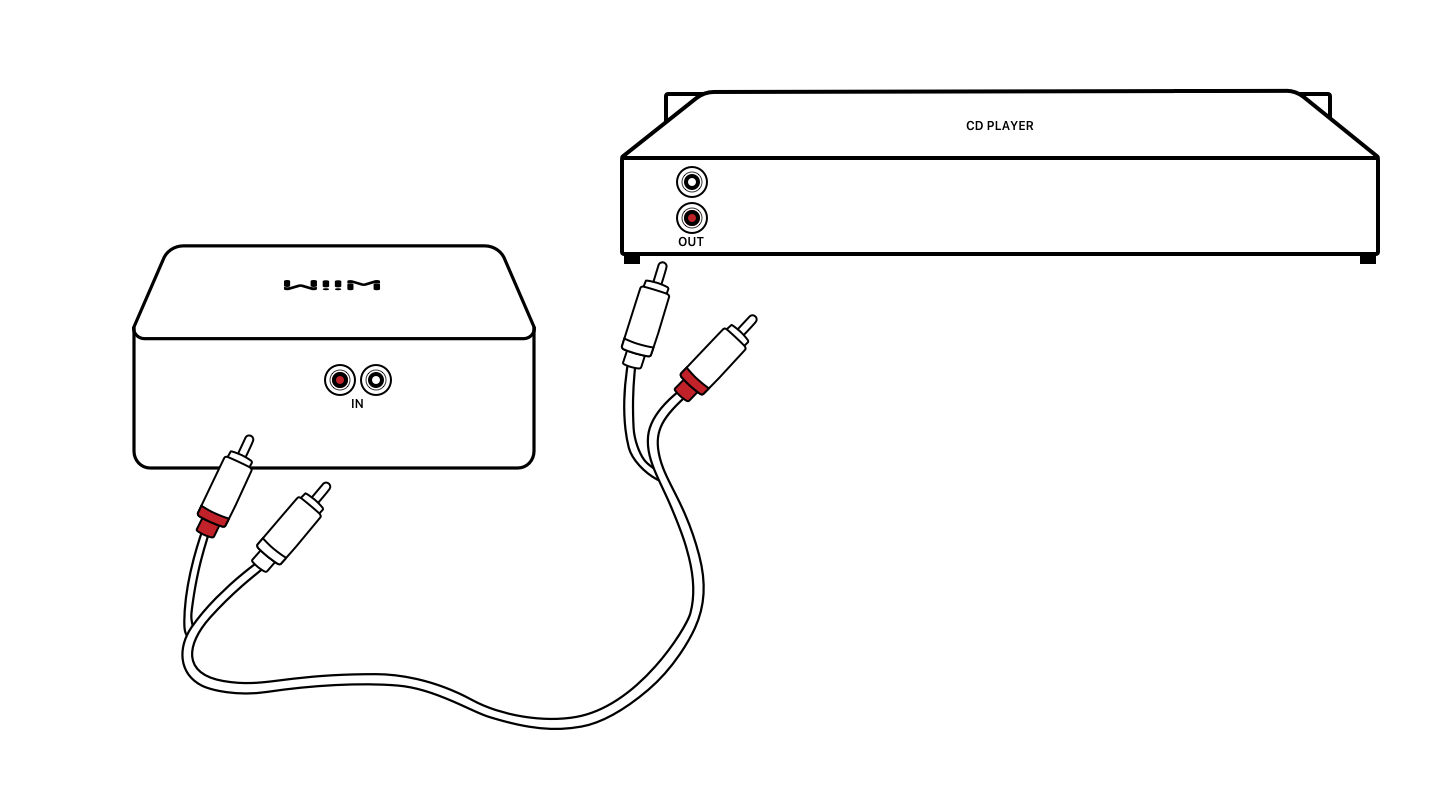
- Select the source input as Line In in the WiiM Home app, or enable Auto-sensing of Line In. For details, see How to Select Audio Input.
- Play music on the CD player. The music will stream to your WiiM Amp or WiiM Amp Pro.
Similarly, you can connect other audio devices to your WiiM Amp or WiiM Amp Pro via the Line In port in the same process.
How to Use the Optical In Port
The Optical In port on the WiiM Amp and WiiM Amp Pro is typically used to connect to a TV or PC to receive digital audio input.
This example shows how to use the Optical In port to connect a TV:
- Use an optical cable to connect the Optical In port on your WiiM device to the Optical Out port on a TV.
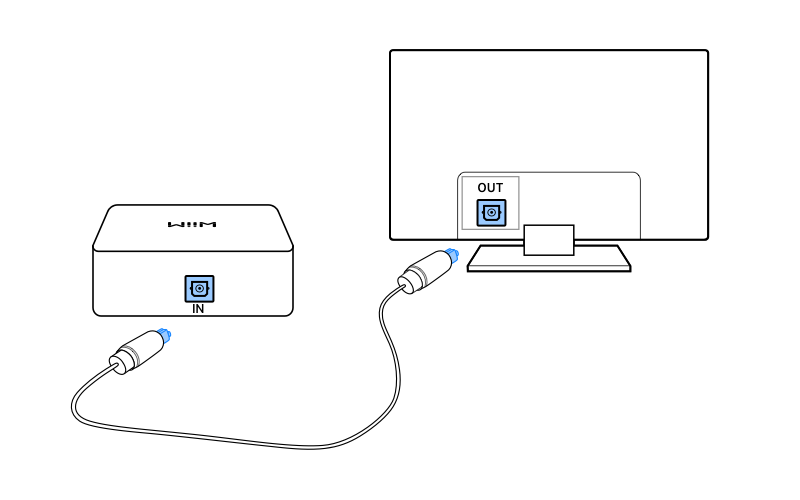
- Go to the TV settings, set your TV's audio output to select your WiiM Amp or WiiM Amp Pro.
- If you are using the WiiM Amp, set the TV's digital output audio format to the Stereo PCM format.
- Select the source input as Optical In in the WiiM Home app, or enable Auto-sensing of Optical In. For details, see How to Select Audio Input.
- The audio on the TV will play on your WiiM Amp or WiiM Amp Pro.
For instructions, see General Guide to Setting Digital Audio Output to PCM for Various TV Brands.
Similarly, you can connect other audio devices to your WiiM Amp or WiiM Amp Pro via the Optical In port in the same process.
How to Use the HDMI ARC Port
The HDMI ARC port on the WiiM Amp and WiiM Amp Pro is typically used to connect to a TV to receive digital audio input.
This example shows how to use the HDMI ARC port to connect a TV:
- Use an HDMI cable to connect the HDMI ARC port on your WiiM device to the HDMI ARCport on your TV.Note: Ensure you use the HDMI ARC port on your TV. Other HDMI ports won't transmit sound to the WiiM devices.
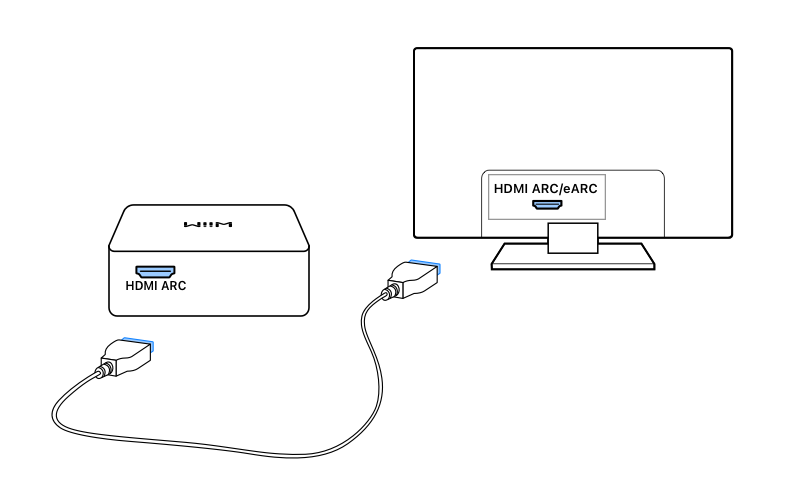
- Go to the TV settings, enable the HDMI ARC function and set your TV's audio output to select your WiiM Amp or WiiM Amp Pro.
- If you are using the WiiM Amp, set the TV's digital output audio format to the Stereo PCM format.
- Select the source input as TV in the WiiM Home app, or enable Auto-sensing of HDMI. For details, see How to Select Audio Input.
- The audio on the TV will play on your WiiM Amp or WiiM Amp Pro.
For instructions, see General Guide to Setting Digital Audio Output to PCM for Various TV Brands.
Similarly, you can connect other audio devices to your WiiM Amp or WiiM Amp Pro via the HDMI ARC port in the same process.
If you encounter no sound issues with your TV, refer to HDMI ARC Troubleshooting.
How to Use Audio Input Ports with Multi-room
The WiiM Amp and WiiM Amp Pro support all types of audio inputs—Wi-Fi/Ethernet, Bluetooth, Line In, Optical In, and HDMI ARC—as sources for your multi-room system. By connecting an audio source device (e.g., a CD player or TV) to your WiiM Amp or WiiM Amp Pro, you can stream audio to any other WiiM devices on the same network.
For detailed instructions, refer to the following articles:
- How to Play WiiM Multi-Room Music from Your CD Player, Turntable, or PC
- How to Stream TV Audio to Multiple Locations using WiiM Multi-room Audio Feature
How to Select Audio Input
Automatically Select Audio Input Using Auto-Sensing
The auto-sensing feature allows the WiiM Amp or WiiM Amp Pro to automatically play audio from the connected input when a signal is detected.
To enable auto-sensing, follow these steps:
- Open the WiiM Home App.
- Navigate to the Devices tab.
- Tap the Device Settings icon
 of your WiiM device.
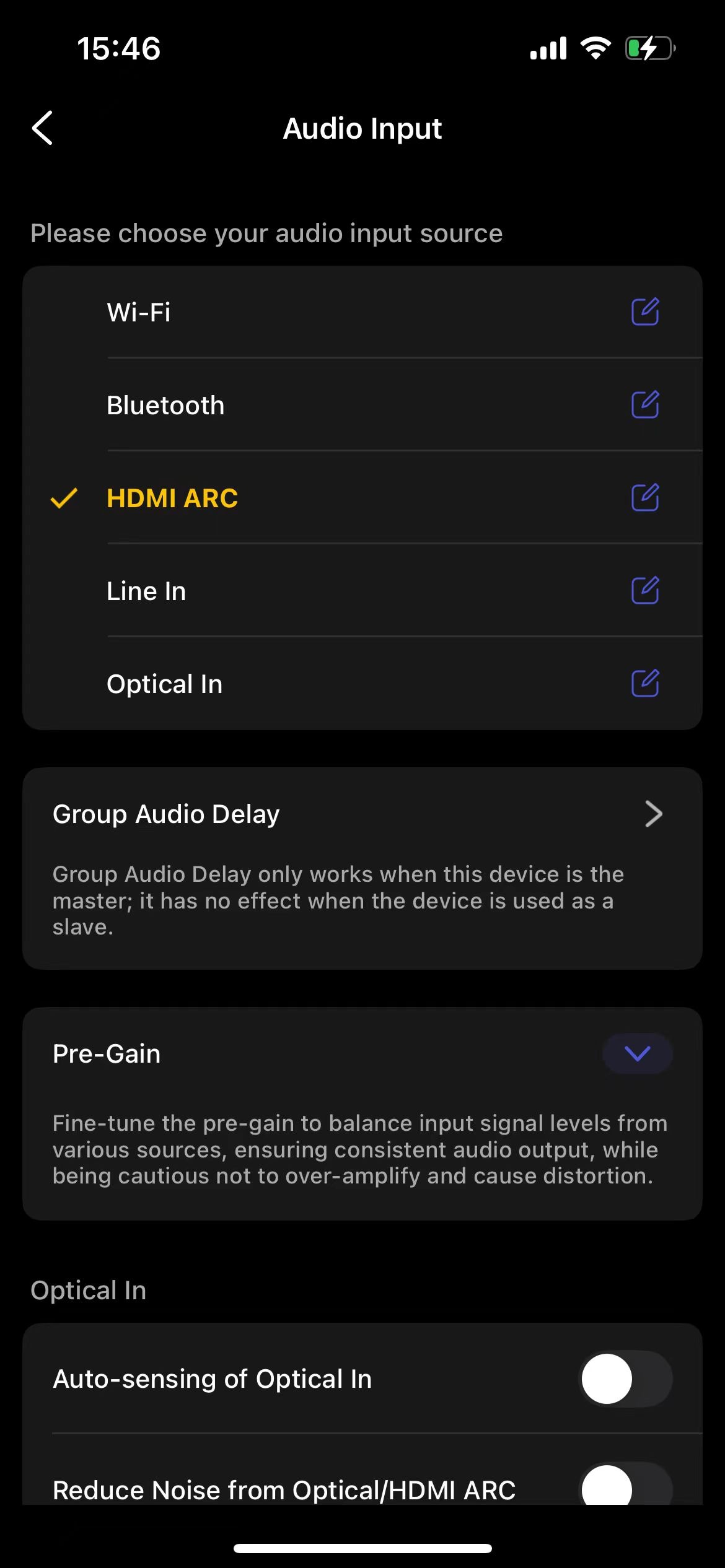
 - Select Audio Input and enable Auto-Sensing of Optical In, HDMI, and Line In.
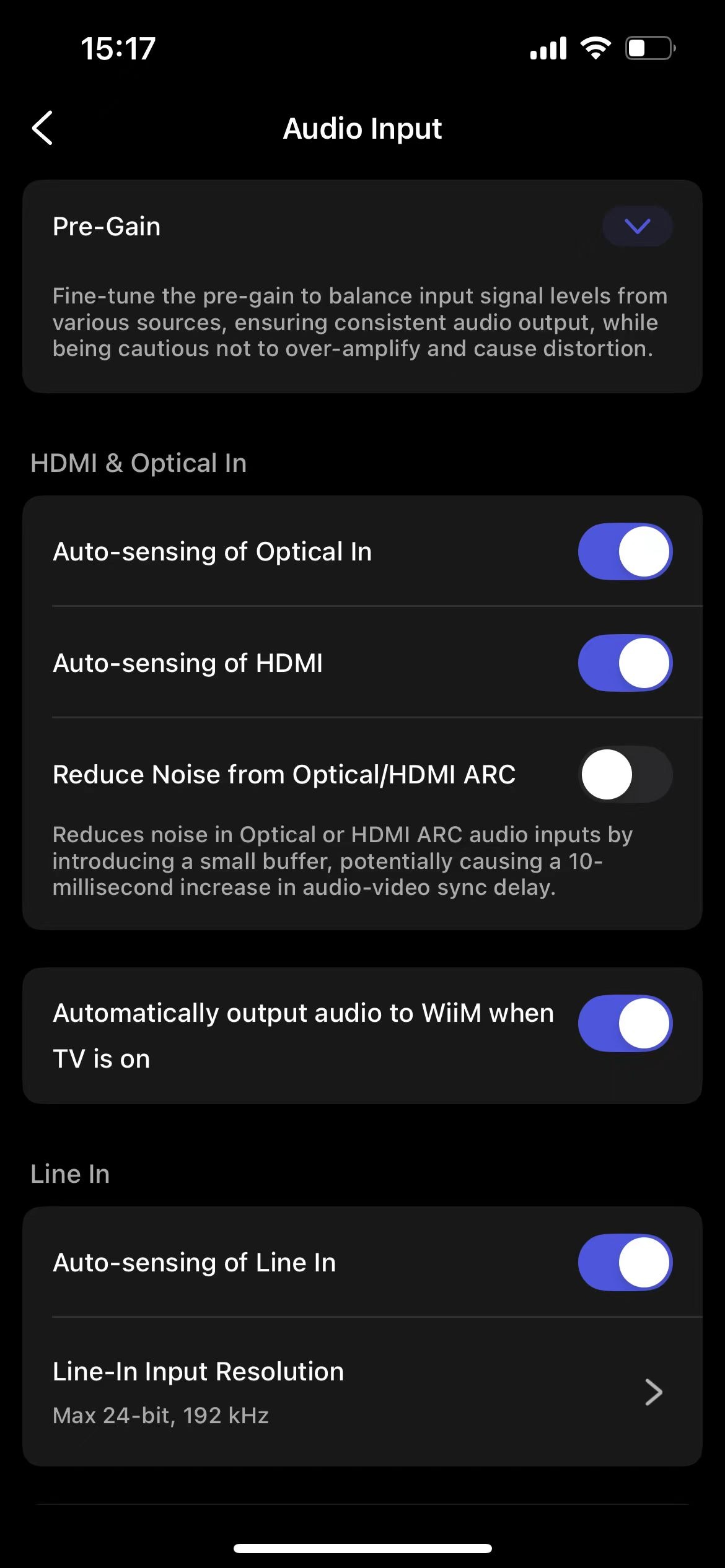
By enabling auto-sensing, your WiiM device will automatically switch to the active audio input, offering a seamless and convenient listening experience.
- Scenario 1: If HDMI ARC input is selected or an HDMI cable is connected, Optical auto-sensing won't work.
- Scenario 2: If the device is playing from the Optical input and you connect an HDMI cable, it will switch to the HDMI ARC input.
Manually Select Audio Input
You can also manually select the desired audio input on your WiiM Amp or WiiM Amp Pro in the following ways.
- Method 1: From Audio Input in Device Settings of the WiiM Home App
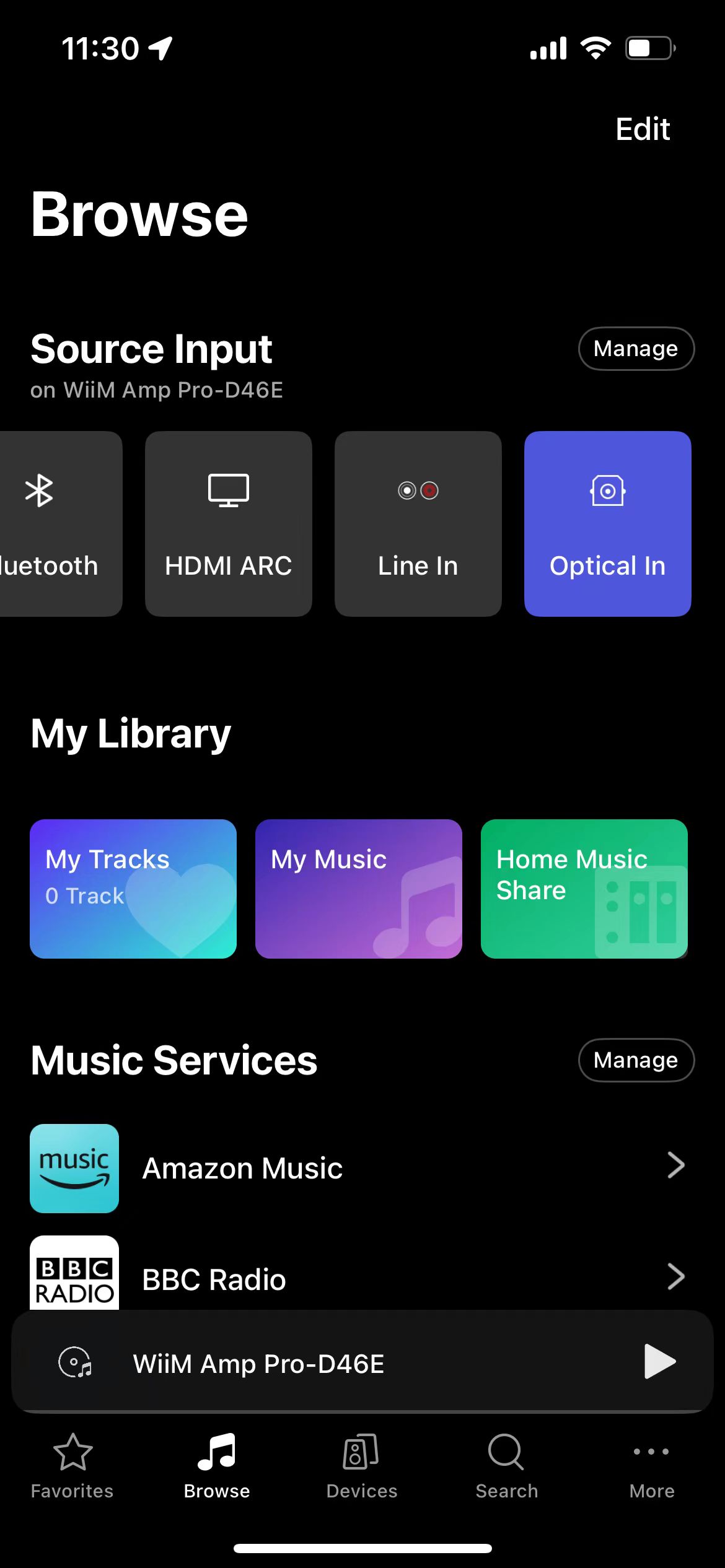
- Method 2: From the Source Input section in the Browse tab of the WiiM Home App
- Method 3: Pressing the
 Button on the WiiM Voice Remote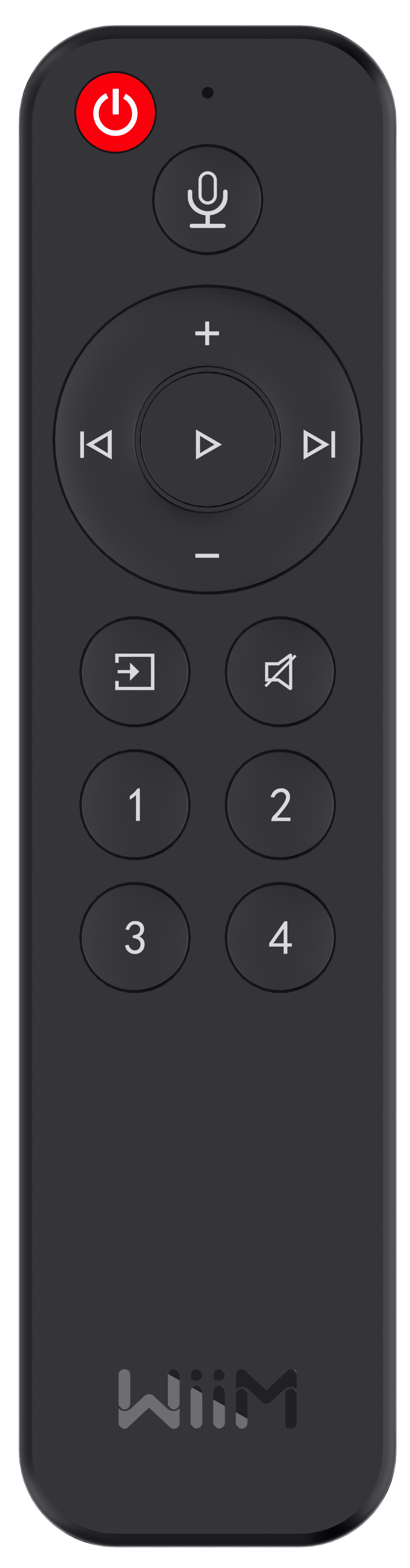
Edit Input Sources
To make switching between input sources more convenient, you can manage which sources are visible—keeping your most frequently used inputs easy to access.
For detailed instructions, see Manage Input Sources in the WiiM Home App's Browse Tab.
HDMI ARC Troubleshooting
- When connecting your TV to your WiiM Amp or WiiM Amp Pro via an HDMI cable, ensure you use the HDMI ARC/eARC port on your TV or Blu-ray player. Other HDMI ports won't transmit sound to the WiiM devices.
- If you experience no sound, ensure that the HDMI ARC output on your TV is activated. For details, see Troubleshooting No Sound Issues with HDMI TV Input on WiiM Devices.
- If there are control issues between your TV and your WiiM Amp or WiiM Amp Pro, verify that HDMI-CEC control is enabled on your TV.
- If your TV lacks an HDMI ARC port, connect the Optical Out port of your TV to the Optical In port of your WiiM Amp or WiiM Amp Pro.