
TABLE OF CONTENTS
WiiM devices support both automatic and manual firmware updates, ensuring your device always has the latest features, improvements, and bug fixes.
Automatic Firmware Updates
By default, WiiM devices automatically check for new firmware. When a new version is detected, you will see an icon  next to your WiiM device. The device will automatically update within 24 hours when it enters standby mode.
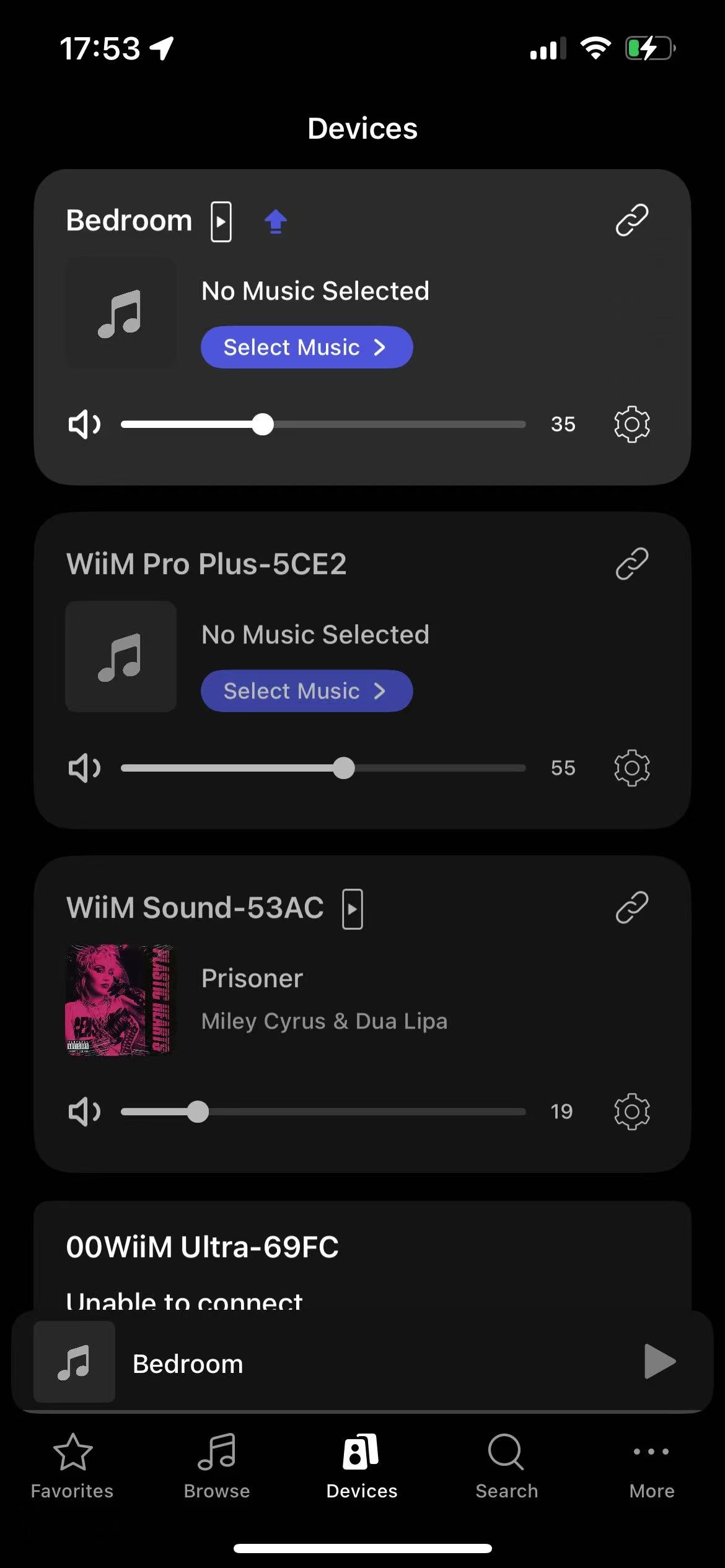
You can also tap the  icon to update immediately instead of waiting for the automatic update.
Control Automatic Updates
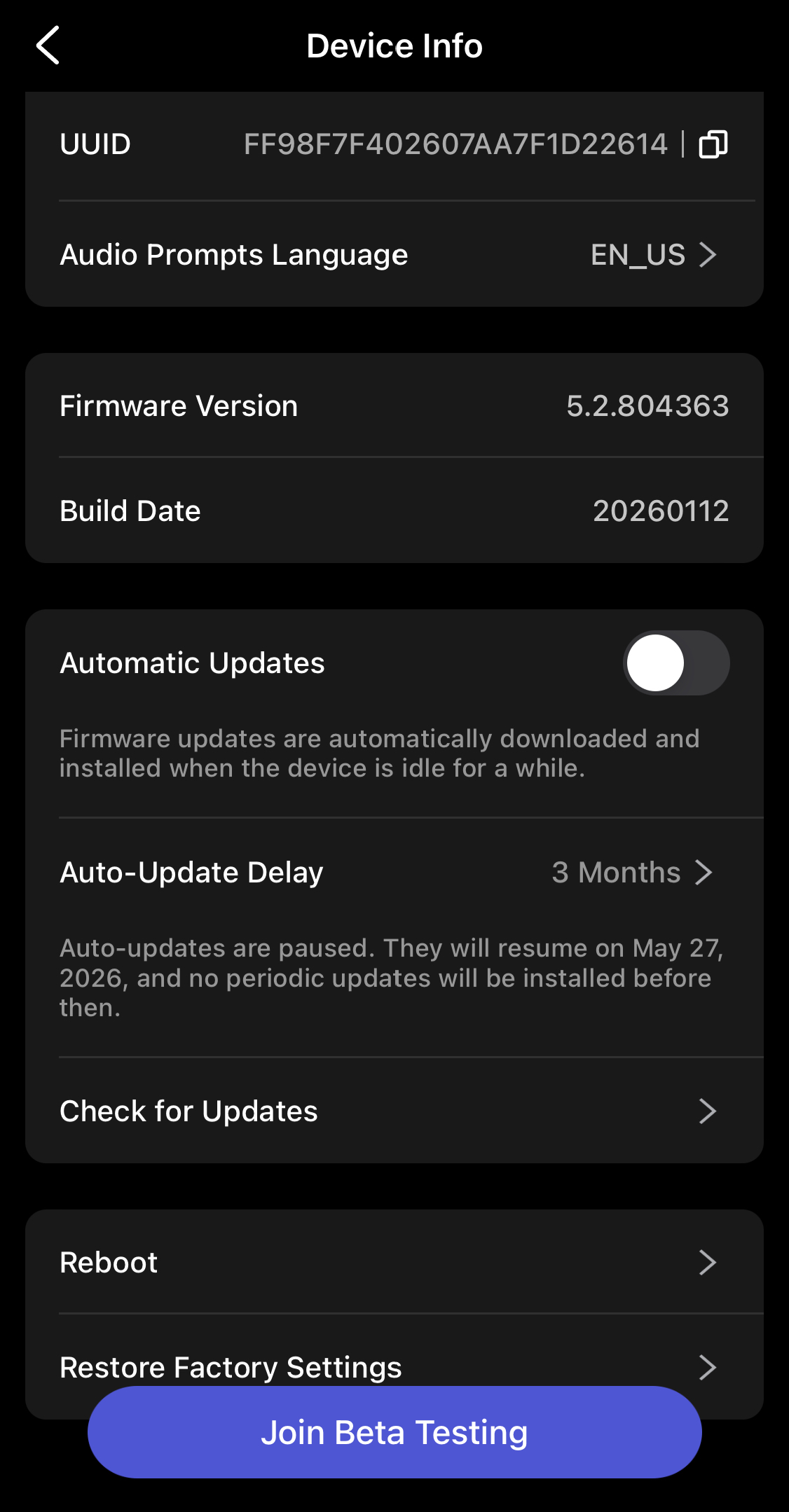
If you want to maintain a stable system and avoid changes during regular use, you can disable automatic updates in the WiiM Home app. You can also choose how long to pause automatic updates.
- Open the WiiM Home app.
- Go to the Devices tab > Device Settings > Device Info.
- Toggle off Automatic Updates.
Once disabled, the Auto-Update Delay option will become available below.
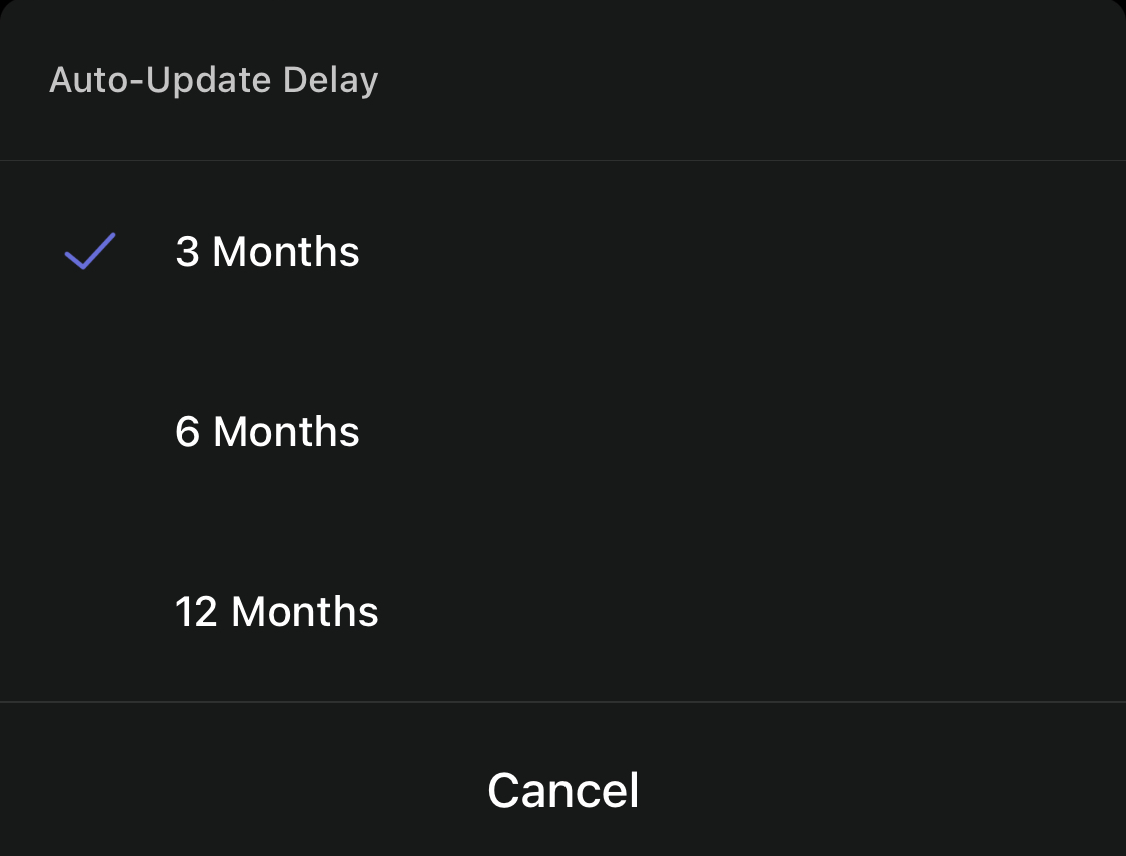
- Tap Auto-Update Delay, then select how long you want to pause automatic updates.
Manual Firmware Updates
If you don’t want to wait for the automatic update, you can manually check for firmware updates and install them immediately. Select the method below that best fits your setup.
Method 1: Update a Specific WiiM Device
This method is useful when you want to update one specific device.
- Open the WiiM Home app.
- Go to the Devices tab.
- Tap the Device Settings icon of the WiiM device you want to update.
- Select Device Info, then tap Check for Updates.
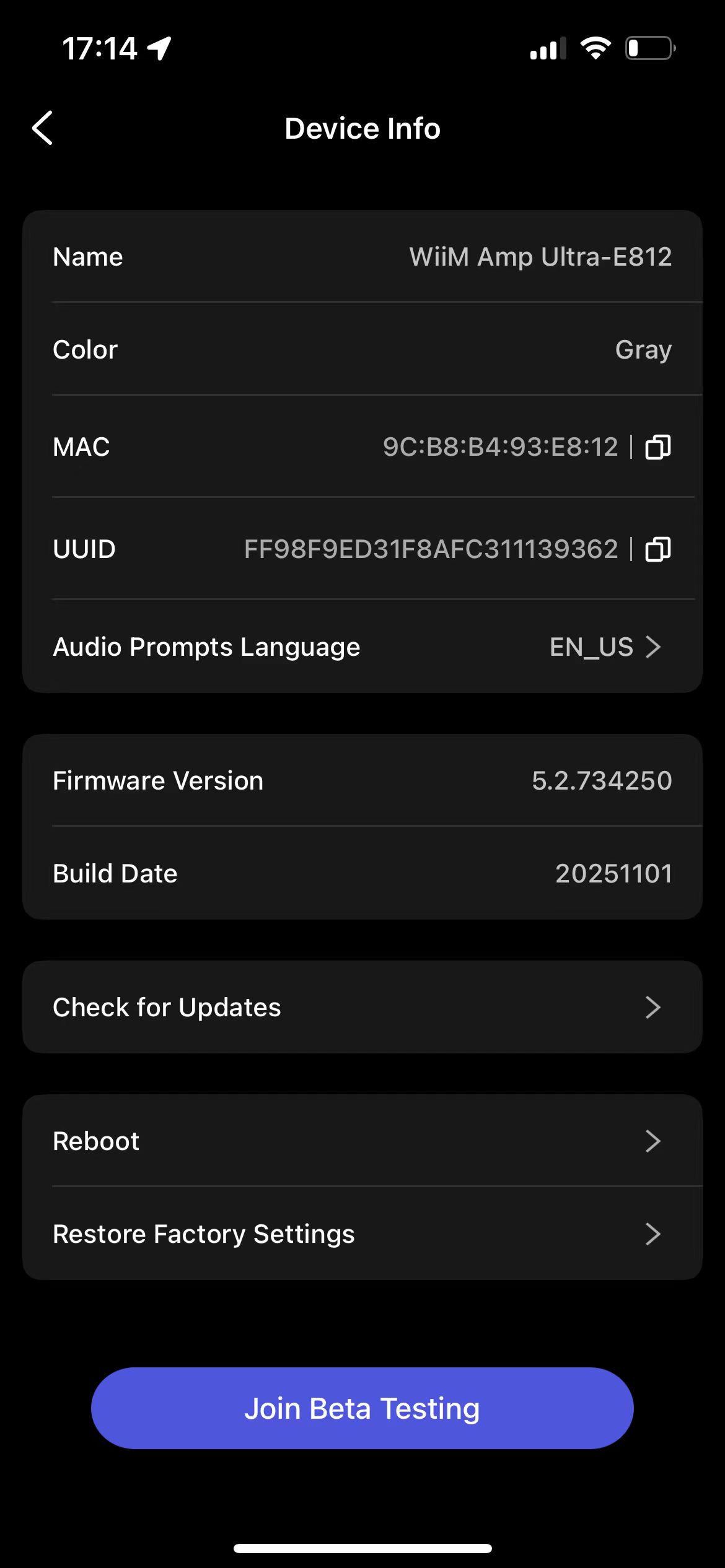
- Follow the on-screen instructions to update (if available).
Method 2: Update All WiiM Devices at Once
Recommended if you have multiple WiiM devices to update.
- Open the WiiM Home app.
- Go to More > Firmware Updates.
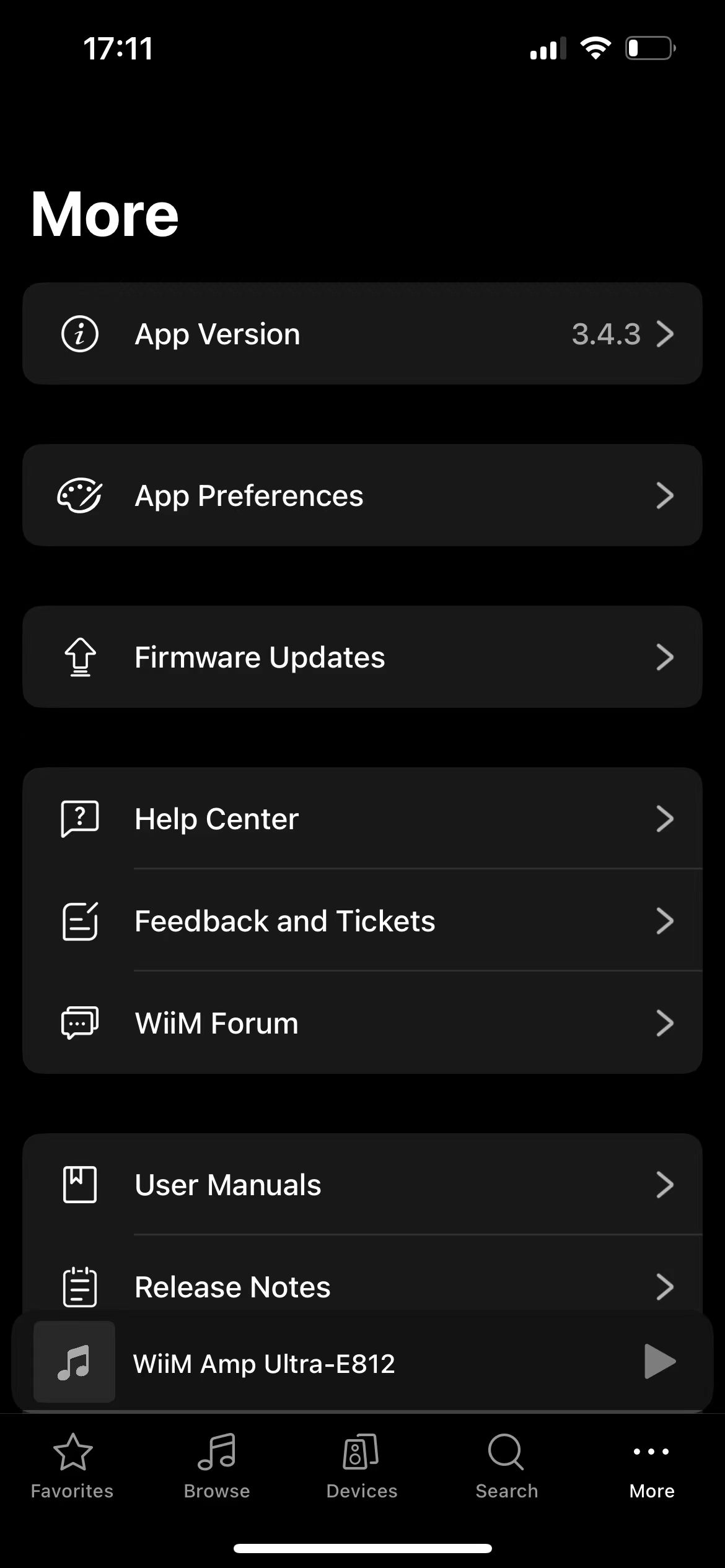
- Tap Check for Updates.

- Follow the on-screen instructions to update any devices.