
TABLE OF CONTENTS
Overview
You can use Alexa to control your WiiM device in two ways:
- WiiM Voice Remote: Use the Voice Control button for push-to-talk Alexa.
- Echo or Alexa built-in device: Use hands-free Alexa voice commands to control your WiiM device.
Before You Begin
Before using either option below, sign in to Amazon Alexa in the WiiM Home app.
- Open the WiiM Home app.
- Go to the Browse tab and tap Amazon Alexa.
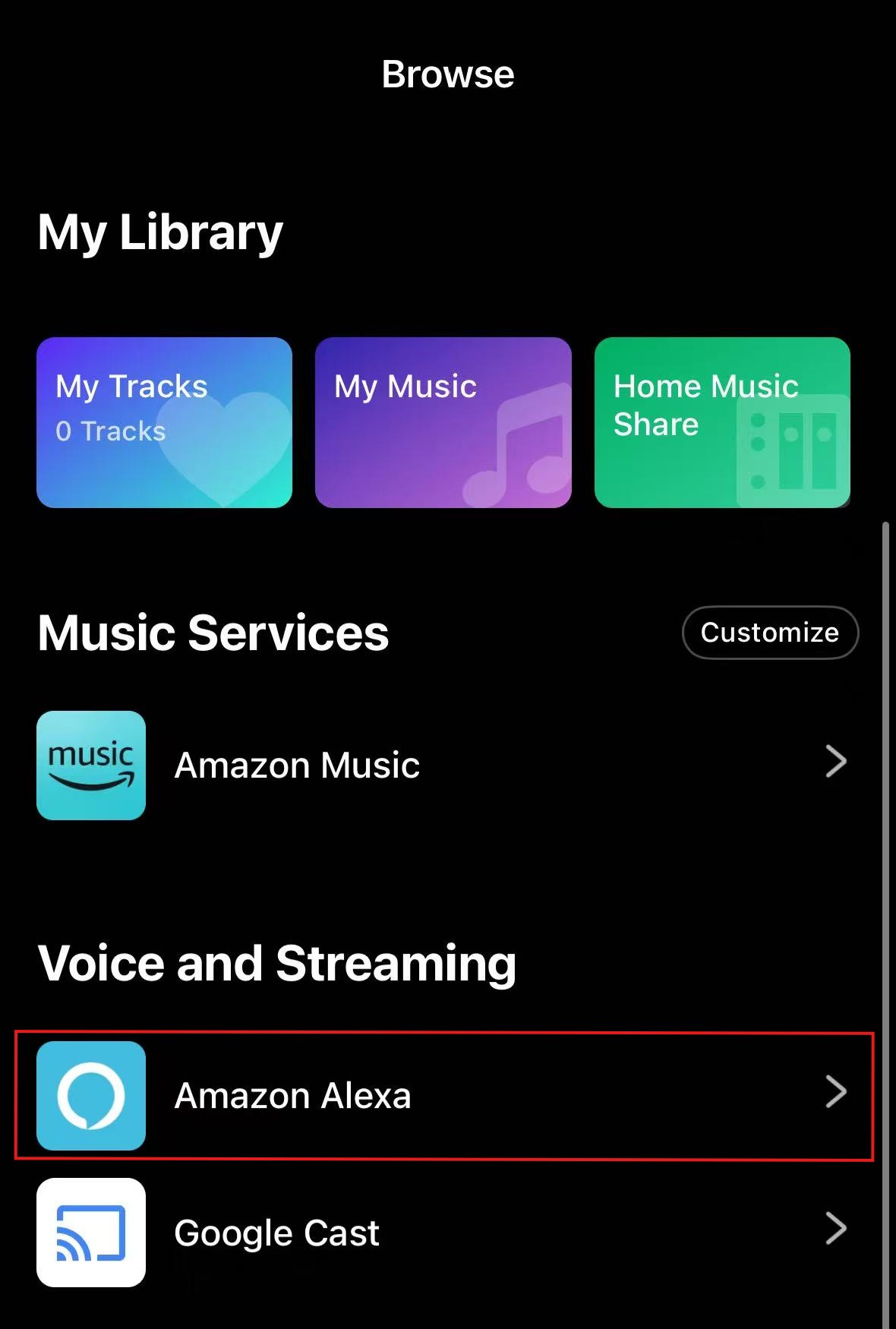
- Follow the on-screen instructions to sign in with your Amazon account.
Option 1: Use the WiiM Voice Remote
Set up the WiiM Voice Remote with your WiiM device to enjoy push-to-talk Alexa. Then, use the Voice Control button on the remote to give Alexa voice commands.
For setup instructions, see How to Set Up Your WiiM Voice Remote.
Option 2: Use an Echo or Alexa Built-in Device
Note: Make sure to sign in to both the WiiM Home app and the Alexa app with the same Amazon account.
- Open the Amazon Alexa app and go to the Devices tab.
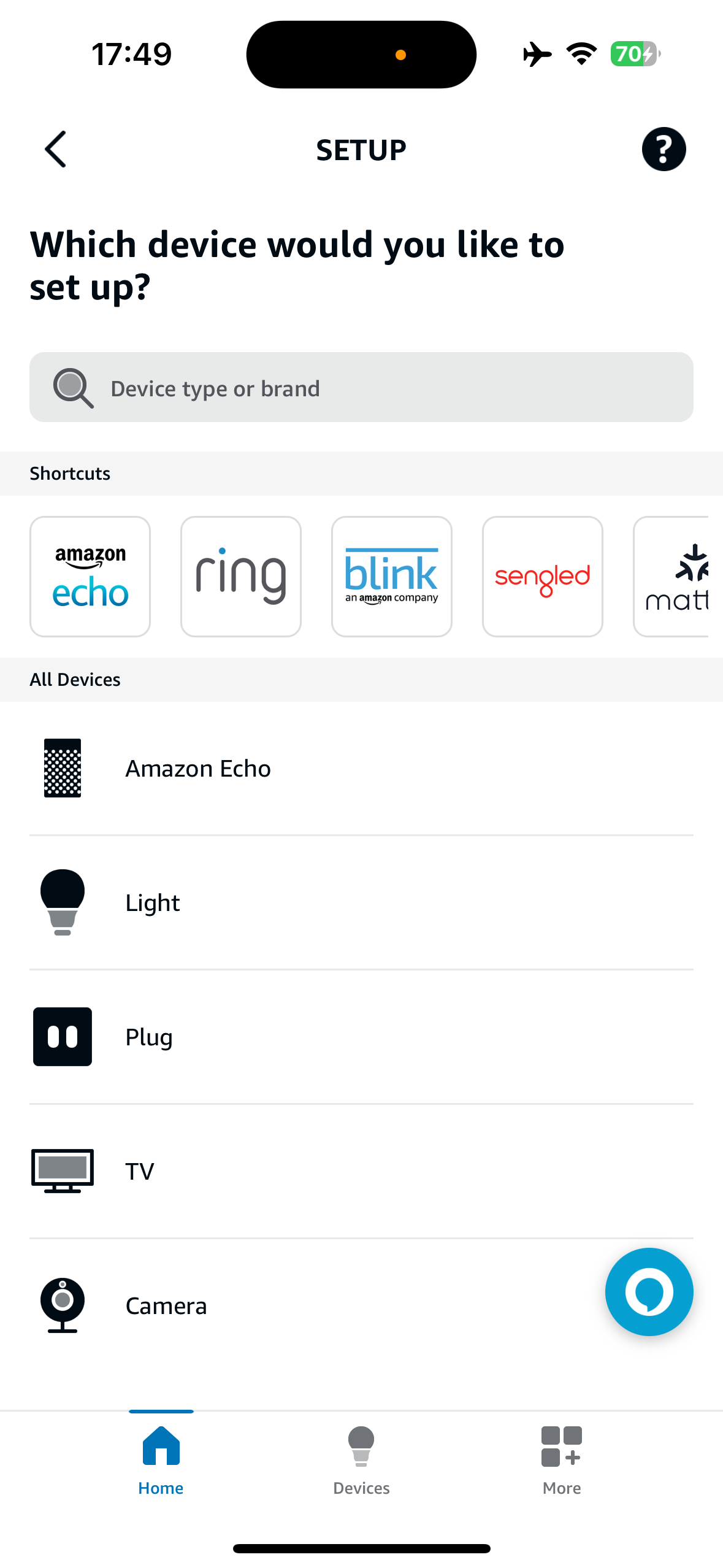
- Select your WiiM device and open its settings.
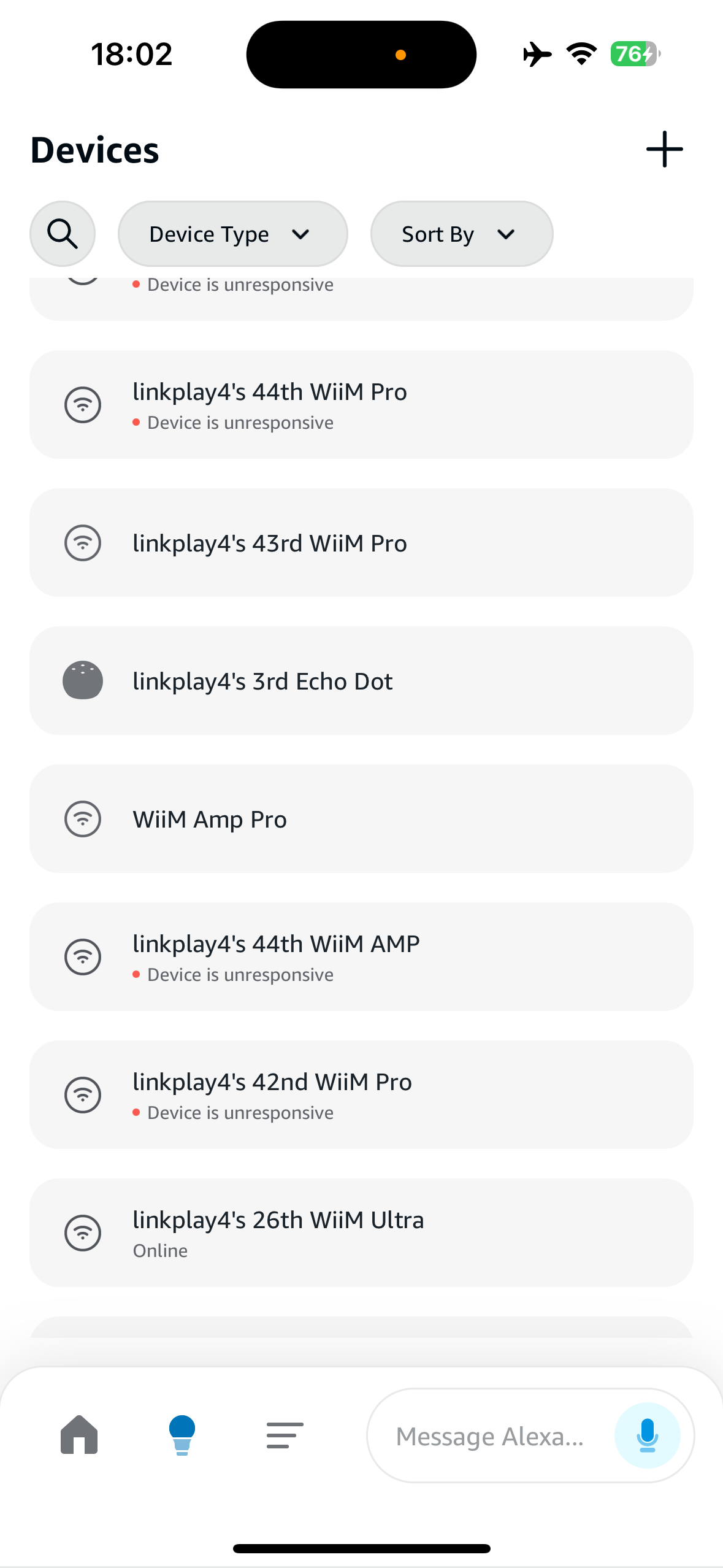
- Give your WiiM device a name that is easy to say, such as Kitchen.
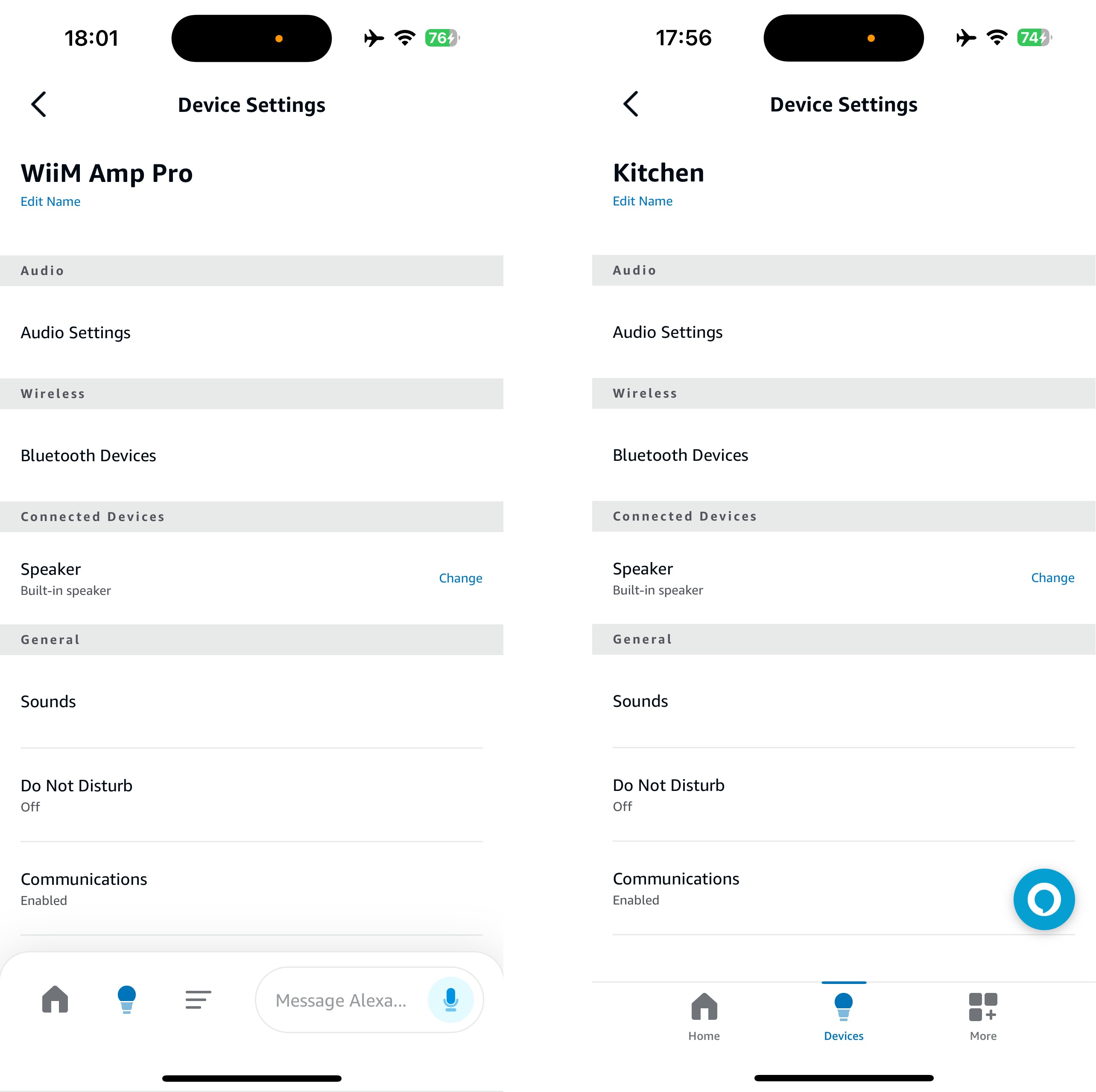
- Use your Echo or Alexa built-in device to control your WiiM device. Include the WiiM device name in your command.
For example, if you named it Kitchen, say: “Alexa, play music on Kitchen.”
Tip: Set your WiiM device as the Alexa preferred speaker to play music without saying the device name. For setup instructions, see Set Your WiiM Device as the Alexa Preferred Speaker.