
TABLE OF CONTENTS
Overview
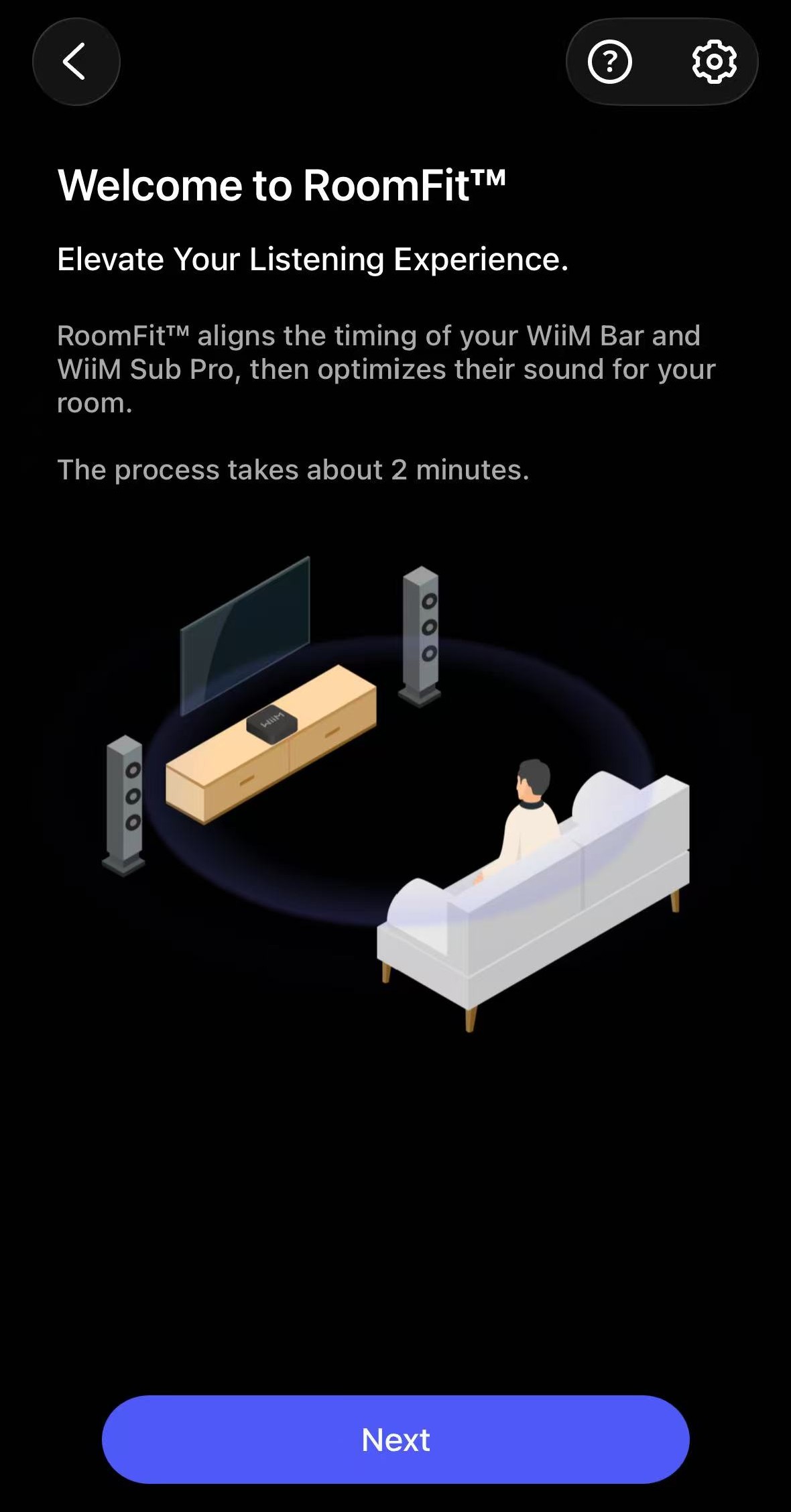
When the WiiM Bar and the WiiM Sub Pro are paired, you can use Joint RoomFit™ to optimize their combined sound for your room at your listening position.
Rather than treating each device separately, Joint RoomFit™ optimizes the paired devices as a unified audio system. It helps their sound arrive in sync at your listening position and optimizes the sound in your room, providing a more cohesive and balanced listening experience.
Note: Joint RoomFit™ is currently available only for the WiiM Bar and WiiM Sub Pro pair. Support for more WiiM products will roll out gradually.
What Can Joint RoomFit™ Do?
Joint RoomFit™ consists of two main stages, performed in the following sequence:
- Timing Alignment: Adjusts the timing between the WiiM Bar and the WiiM Sub Pro so their sound reaches your listening position in sync.
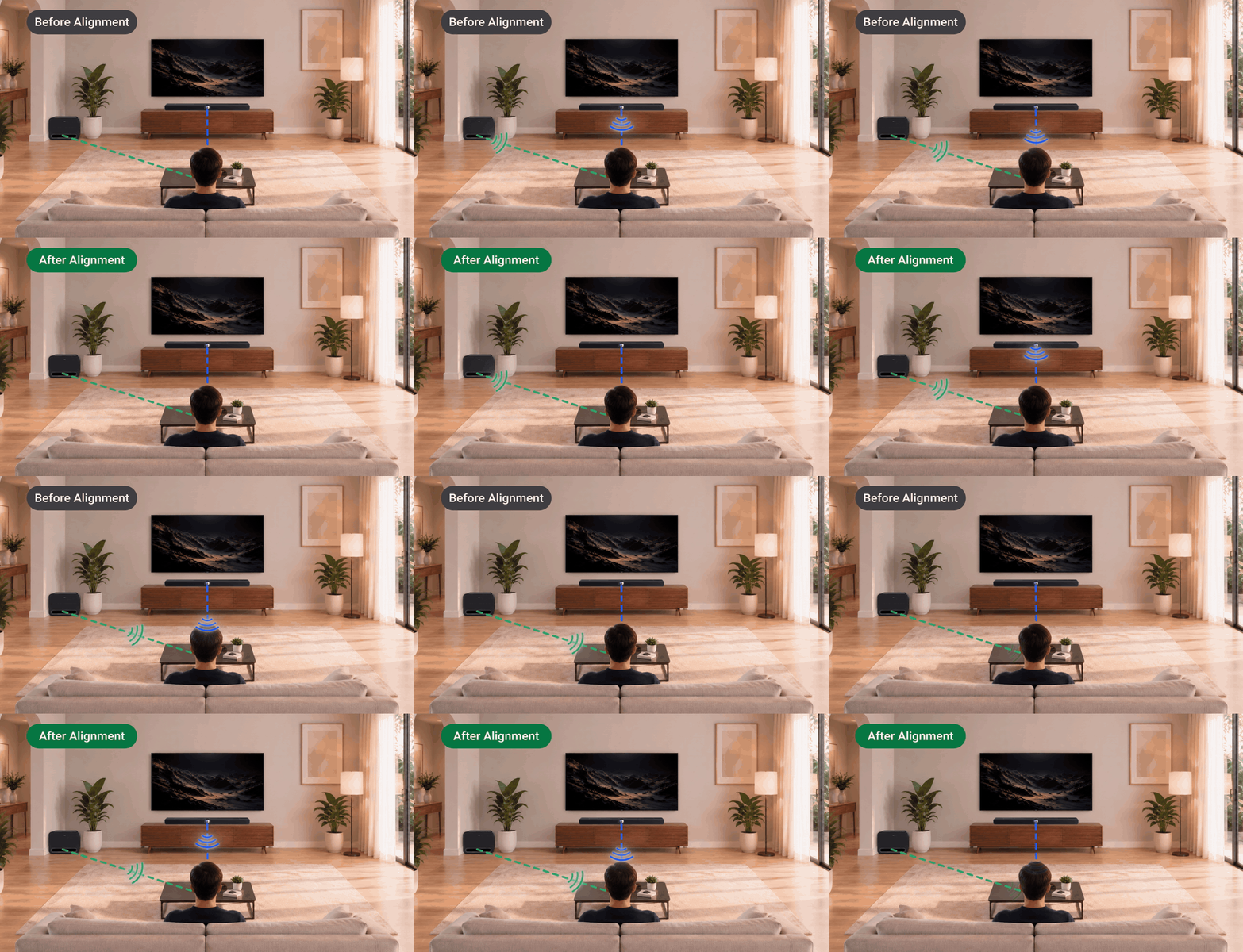
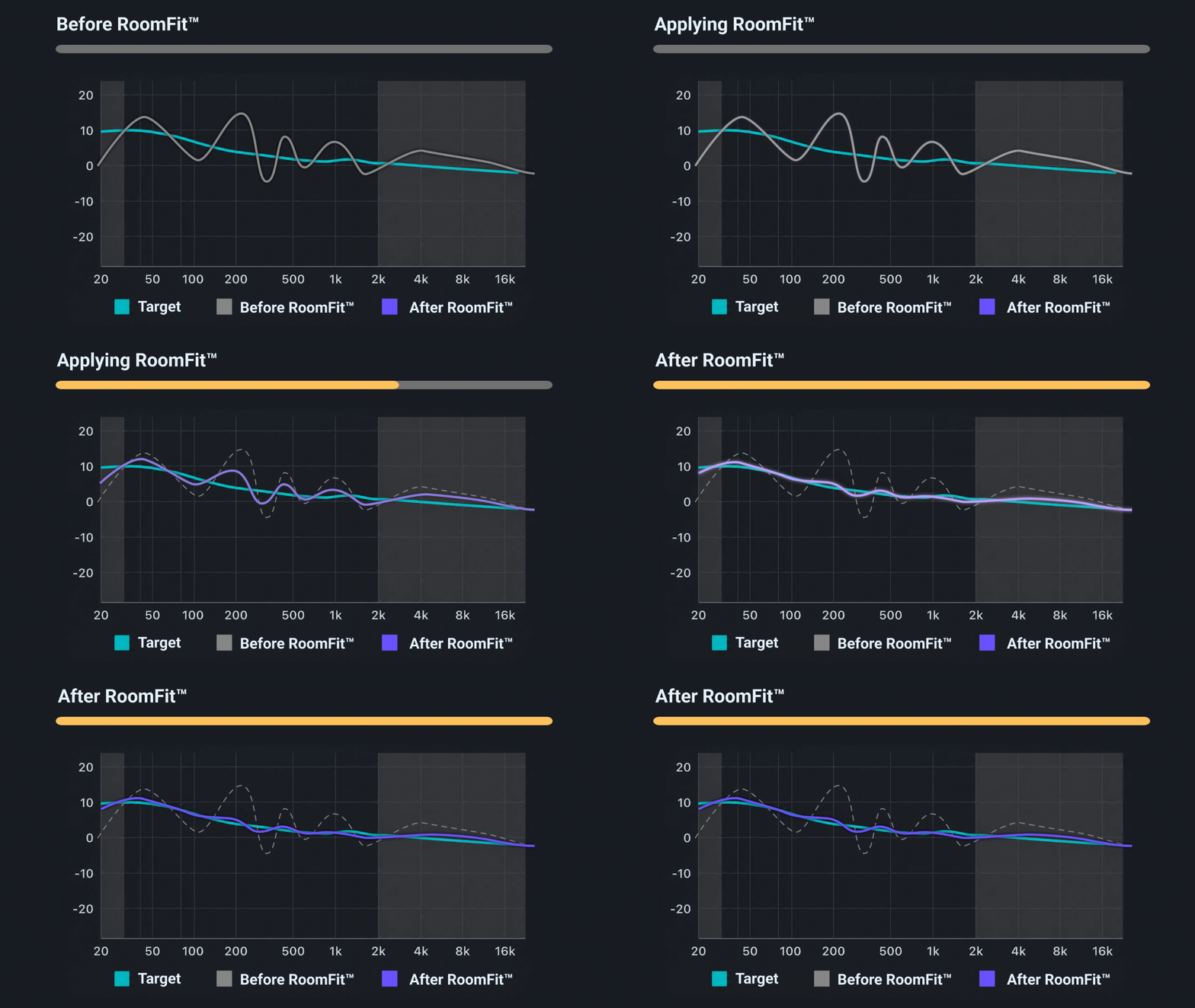
- WiiM Bar + Sub Pro RoomFit™: Measures the WiiM Bar and the WiiM Sub Pro together at your listening position and adjusts their combined frequency response to better match your target curve for balanced sound.
Preparations and Instructions
Before Joint RoomFit™ Measurement
- Avoid obstructions around the WiiM Bar and the WiiM Sub Pro.
- Set the volume of the WiiM Bar and the WiiM Sub Pro to moderate levels.
- Close doors and windows.
- Keep the room as quiet as possible.
During Joint RoomFit™ Measurement
- ALWAYS remove the protective case from your phone.
- ALWAYS hold the phone as far away from your body as possible.
- Follow the app instructions for microphone orientation.
- ALWAYS avoid obstructions between the microphone and the WiiM Bar or the WiiM Sub Pro.
- ALWAYS place the microphone at ear level (if you sit while listening, use the height of your ears when seated).
Step-by-Step Guide
Follow the steps below to complete the Joint RoomFit™ process.
| Steps | Details |
|---|---|
| 1. Open the WiiM Home app. | Open the WiiM Home app on your mobile device. |
| 2. Open Joint RoomFit™. |
Go to the Devices tab > WiiM Bar's Device Settings
Tip: Once you finish pairing the WiiM Bar and the WiiM Sub Pro in the app, the Joint RoomFit™ prompt automatically appears. |
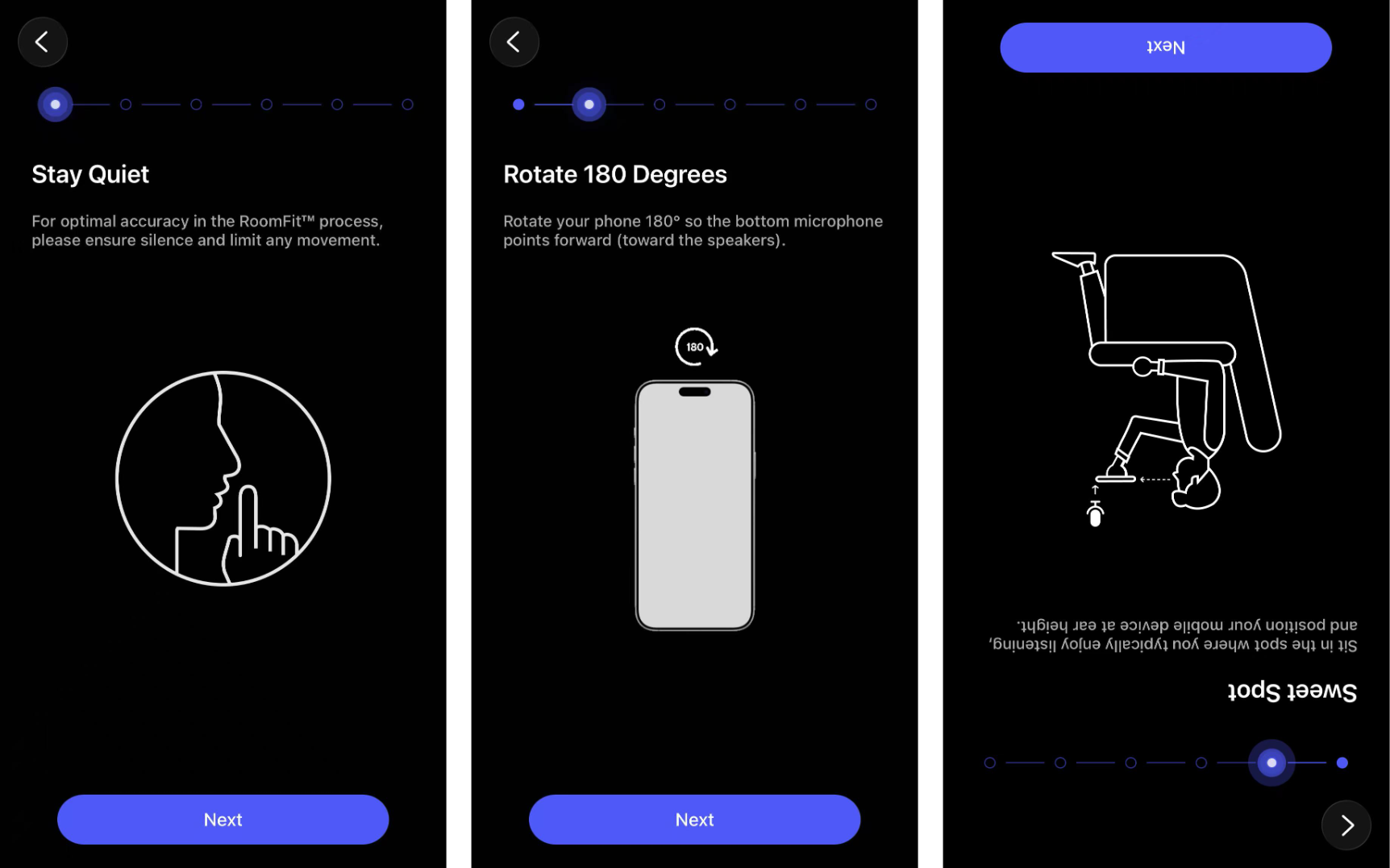
| 3. Start the Joint RoomFit™ process. | Tap Next to start the Joint RoomFit™ process.
Tip: Follow the prompt to rotate your phone 180° so the bottom microphone faces the speakers for accurate measurements.
 |
| 4. Audio check. | Tap Play Sound to perform an audio check.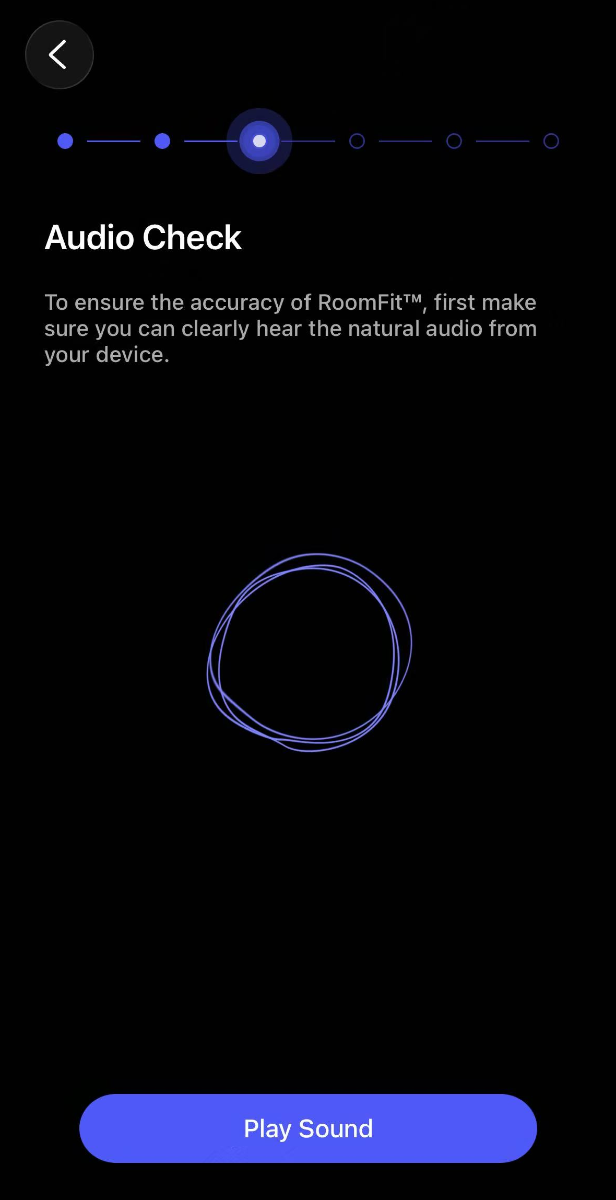 |
| 5. Align timing. | Tap Start Alignment to align the timing of the WiiM Bar and the WiiM Sub Pro.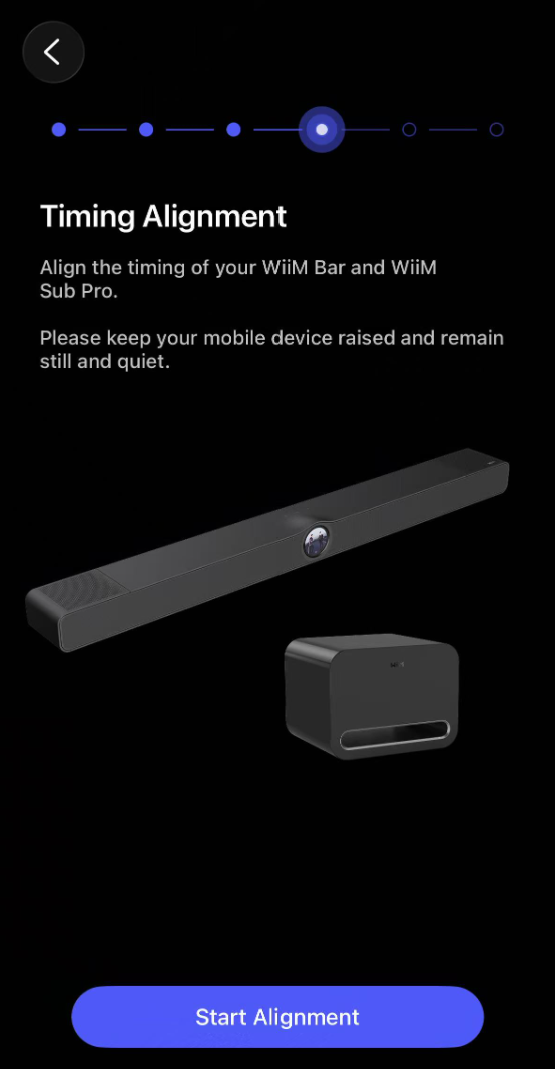 |
| 6. Start room measurement. | Tap Start to measure your room's acoustics.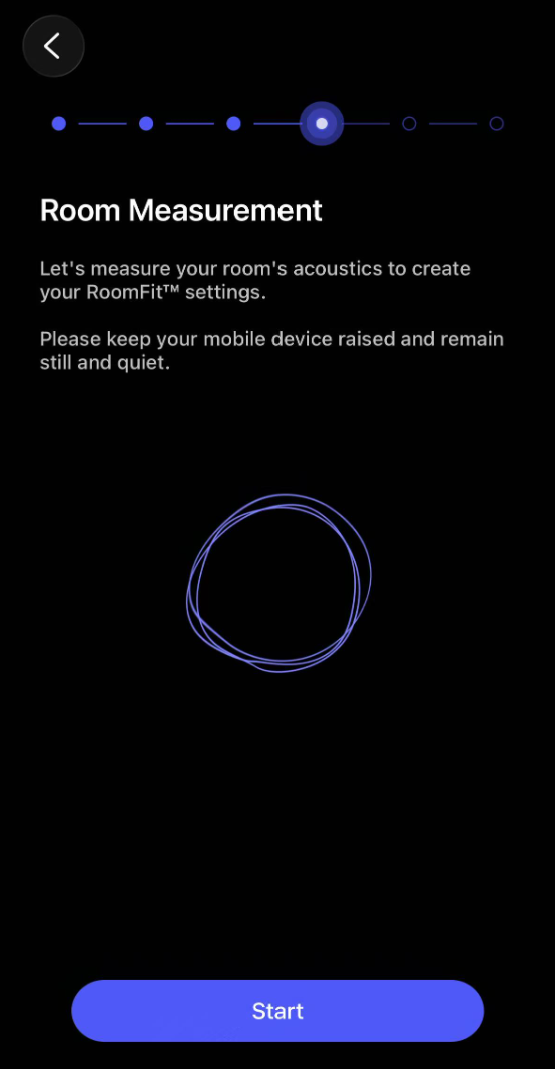 |
| 7. Review predicted results. | After measurement and analysis are complete, review the following Joint RoomFit™ curves:
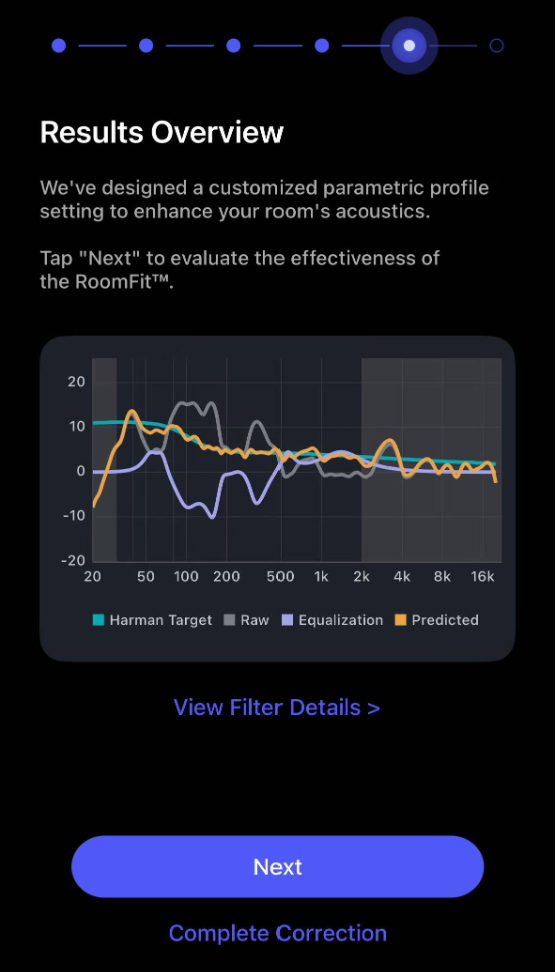 |
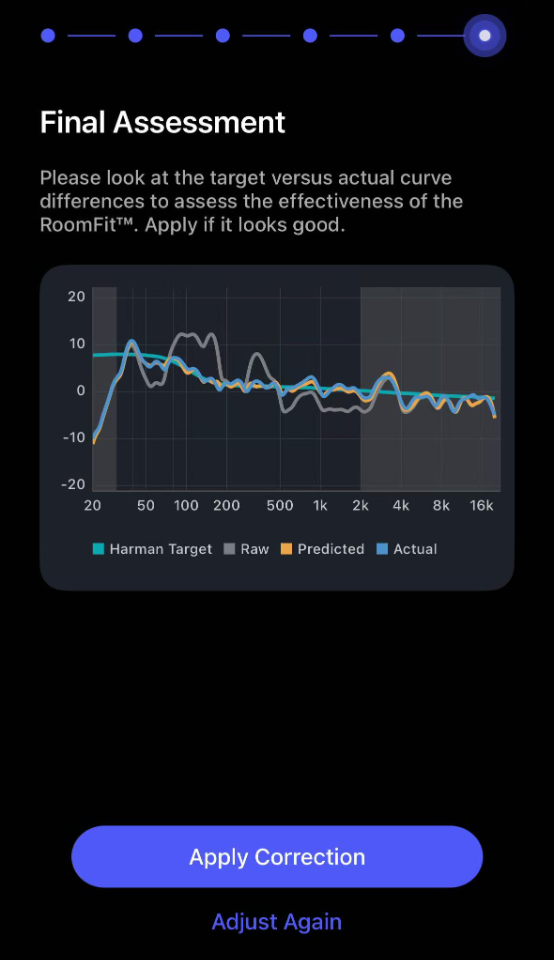
| 8. Evaluate correction results. | Review the Joint RoomFit™ result using the curves below:
If the Actual curve closely matches the Target curve within the selected correction frequency range, the Joint RoomFit™ result is effective. Tap Apply Correction to proceed. If there are large differences, tap Adjust Again to re-run Joint RoomFit™. |
| 9. Save and finish. | Save your Joint RoomFit™ profile, then finish the process. |
 > RoomFit™.
Tips
- Joint RoomFit™ settings: You can adjust Joint RoomFit™ settings to match your preferences. For details, see Introducing RoomFit™ Settings.
- External microphone: You can use a compatible external microphone to improve Joint RoomFit™ measurement accuracy. For details, see Using an External Microphone for RoomFit™.
Troubleshooting
If you encounter a Joint RoomFit™ error, see Troubleshooting RoomFit™ Errors for explanations and recommended solutions.