
When playing music through Roon Ready, WiiM multi-room playback in the WiiM Home App is not used.
To play music on multiple WiiM devices at the same time, please use Roon’s Zone Grouping feature directly in the Roon App.
Before You Start
Make sure that:
- Your WiiM devices are powered on.
- Your WiiM devices and the Roon Core are connected to the same network.
- Your WiiM devices are enabled as Roon audio zones.
- Playback is started from the Roon App.
Group WiiM Devices in Roon
1. Open the Roon App
Open the Roon App on your phone, tablet, or computer.
Start playing music to one of your WiiM devices or to an existing Roon zone.
2. Open the Zone Selector
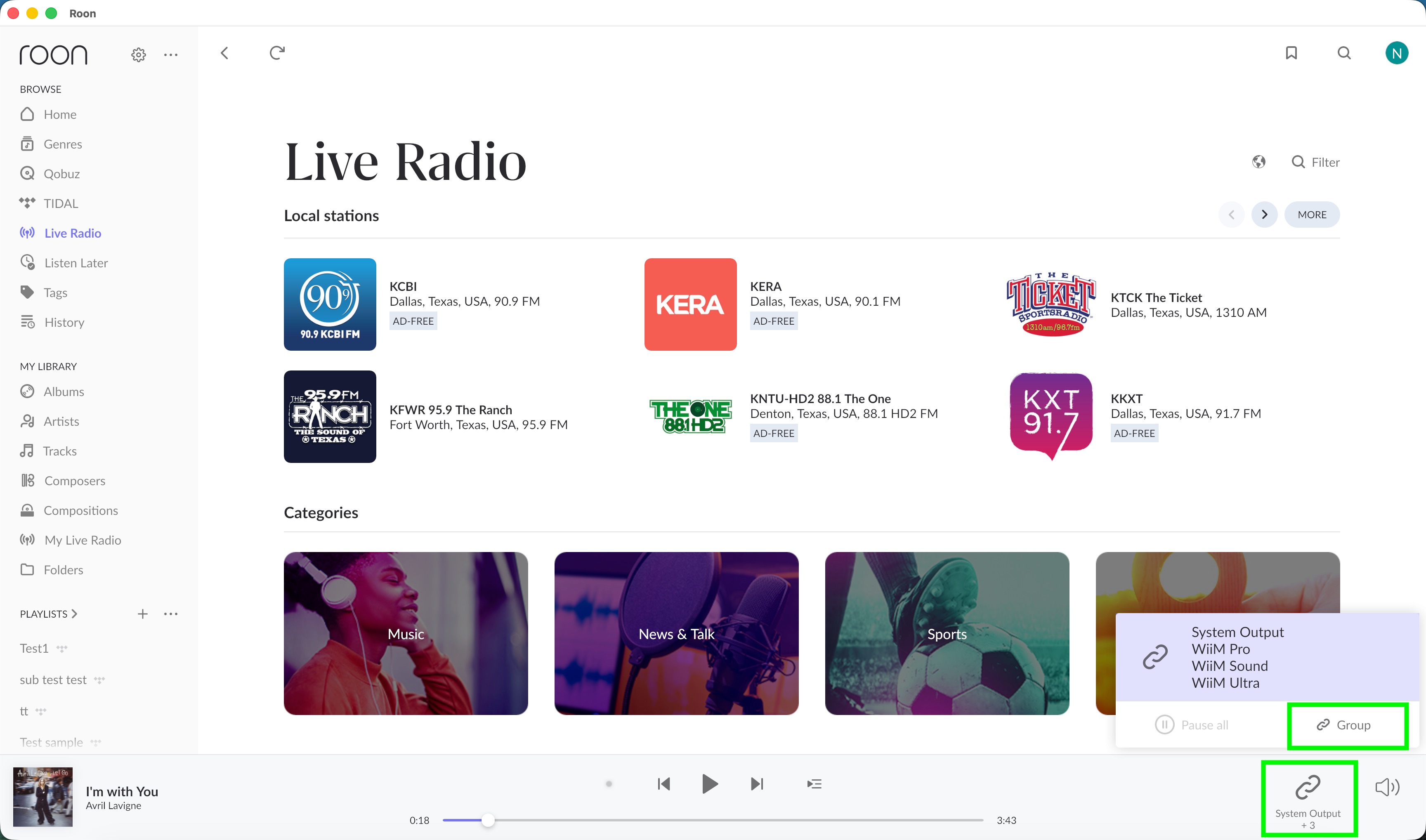
At the bottom-right corner of the Roon playback bar, tap the current audio zone.
3. Tap Group
In the zone pop-up, tap Group. This opens the Zone grouping window.
4. Select the WiiM Devices You Want to Add
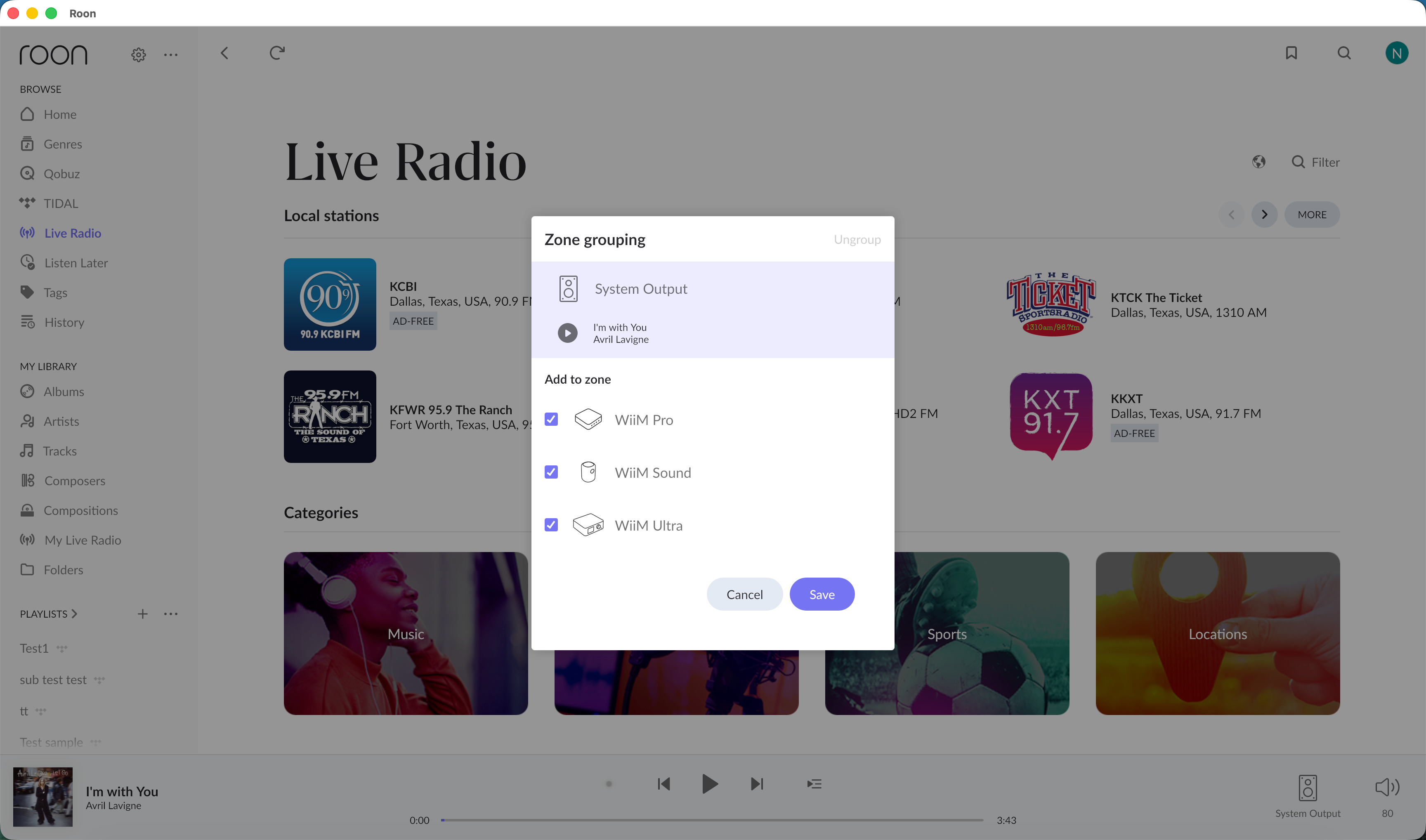
In the Zone grouping window, select the WiiM devices or other deviecs you want to play together.
For example:
- WiiM Pro
- WiiM Sound
- WiiM Ultra
Selected devices will show a check mark.
5. Tap Save
Tap Save to create the group.
Roon will now play music through the selected WiiM devices together.
Ungroup Devices
To remove devices from the group:
- Tap the current audio zone at the bottom-right corner.
- Tap Group.
- Uncheck the devices you want to remove.
- Tap Save.
You can also use Ungroup if you want to separate the grouped zones completely.
Notes
- Roon grouping is managed inside the Roon App.
- WiiM Home App multi-room grouping is not used during Roon Ready playback.
- Only zones supported by Roon for grouping can be grouped together.
- If a device does not appear in the Roon zone list, check whether it is enabled in Roon’s audio settings.