
TABLE OF CONTENTS
Overview
A 5.1.2 home theater system combines 5 main channels, 1 Low-Frequency Effects (LFE) channel, and 2 height channels for a cinematic experience. For details on channel layouts, see Understanding 5.1 and 5.1.2 Home Theater Audio.
The WiiM Bar provides 3.0.2-channel sound on its own. Add a WiiM Sub Pro and compatible Surround Left and Surround Right speakers to expand it into a complete 5.1.2 home theater system.
This guide shows you how to set up the system, adjust its sound, and manage your surround speakers in the WiiM Home app.
What You Need for a 5.1.2 Home Theater System
- 1 x WiiM Bar
- 1 x WiiM Sub Pro
- Choose one of these options for the surround channels:
- Option 1: 2 x WiiM Sound / Sound Lite speakers.
- Option 2: 1 x WiiM Pro / Pro Plus / Amp / Amp Pro / Amp Ultra / Ultra / Mini.
Tip: For example, use two WiiM Sound speakers as the Surround Left and Surround Right channels, respectively. Alternatively, connect two passive speakers to a WiiM Amp and use them as the surround channels. - A TV with an HDMI ARC/eARC port.
- A Wi-Fi/Ethernet network
- A mobile device with the WiiM Home app installed.
Set Up a 5.1.2 Home Theater System
Step 1: Place Speakers Properly
For optimal sound, place all speakers according to the diagram below.
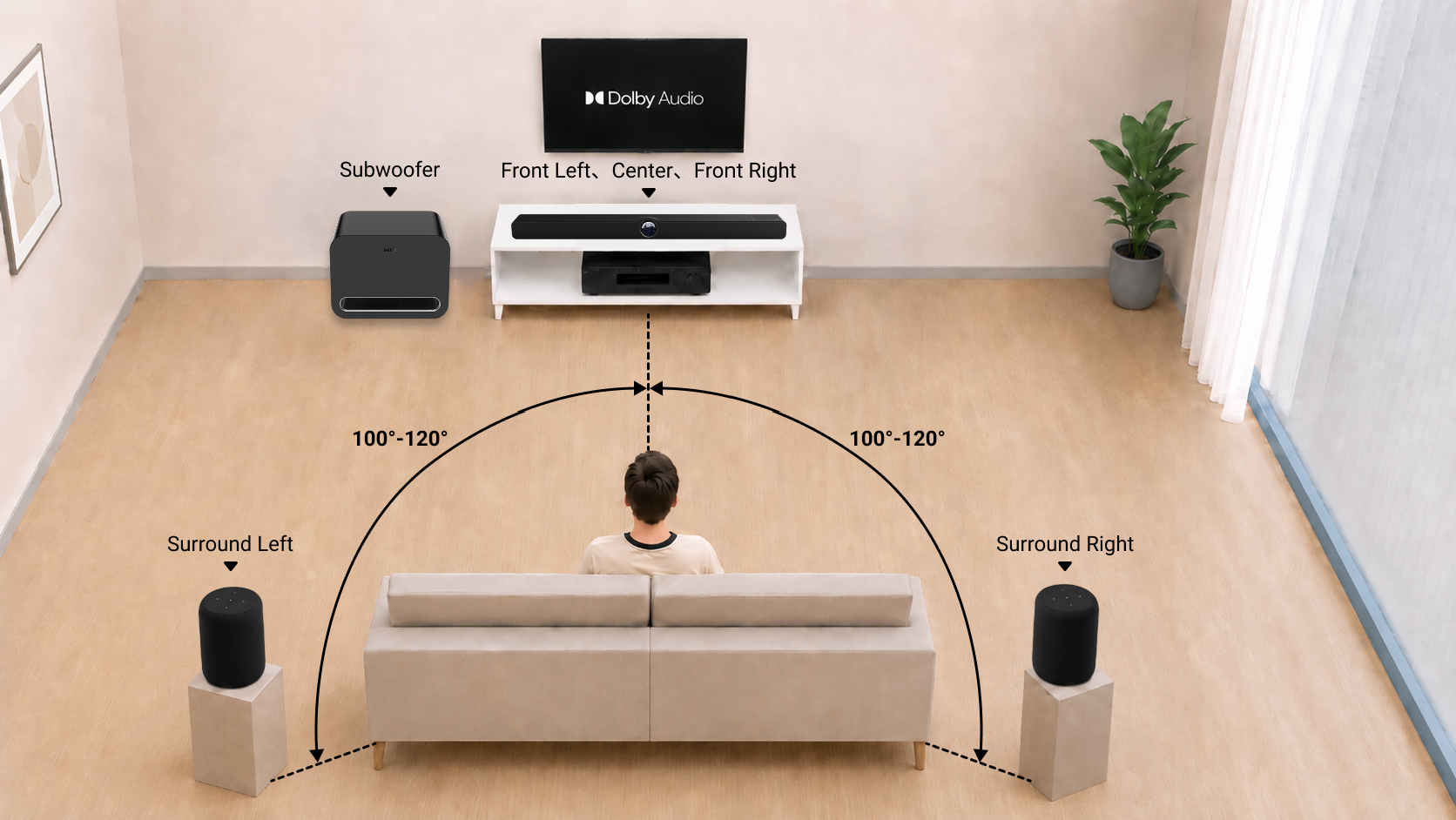
- Place the surround speakers at ear level, slightly behind or to the sides of your listening position.
- Low bass is generally non-directional, so you have flexible WiiM Sub Pro placement options. For fuller bass, try placing the WiiM Sub Pro in a corner.
Step 2: Connect the WiiM Bar to the TV
Connect the WiiM Bar to the TV via the HDMI ARC/eARC port. Make sure to use the HDMI port labeled "ARC/eARC". Using another HDMI port will not produce sound.
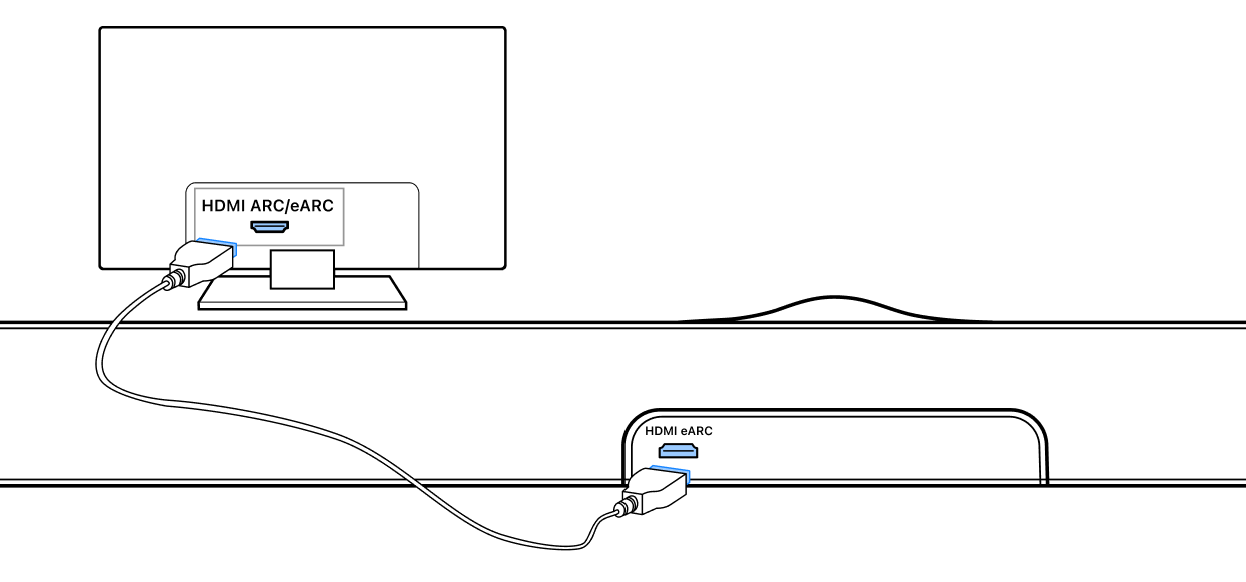
If the TV has no HDMI ARC/eARC, connect via the Optical port.
Step 3: Set Up the WiiM Devices
Set up the WiiM Bar, WiiM Sub Pro, and other WiiM devices using the WiiM Home app and connect them to the same network.
When setting up the WiiM Sub Pro, make sure to connect it to the WiiM Bar using either a wireless or wired connection. For details, see How to Set Up Your WiiM Sub Pro.
Step 4: Add Surrounds in the WiiM Home App
Instructions
- Go to the Devices tab > WiiM Bar's Device Settings
 > the Home Theater section.
- Tap the Surrounds setting.
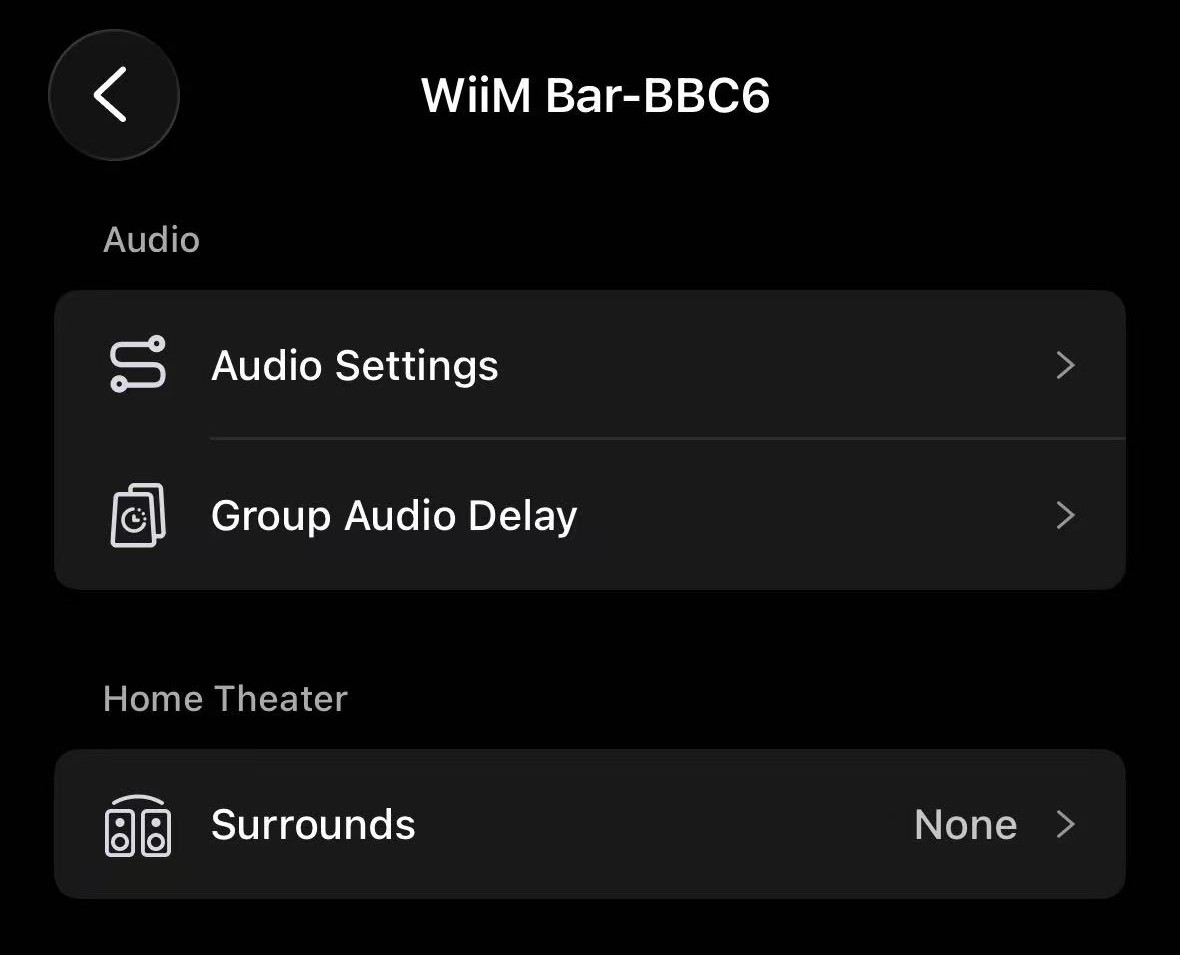
- Select the Surround Left (SL) and Surround Right (SR) speakers, then tap Next.
Tip:
- Choose two WiiM Sound/Sound Lite speakers or one WiiM streamer/streaming amplifier.
- Tap the volume icon
 next to each surround speaker to confirm you've selected the correct speaker.
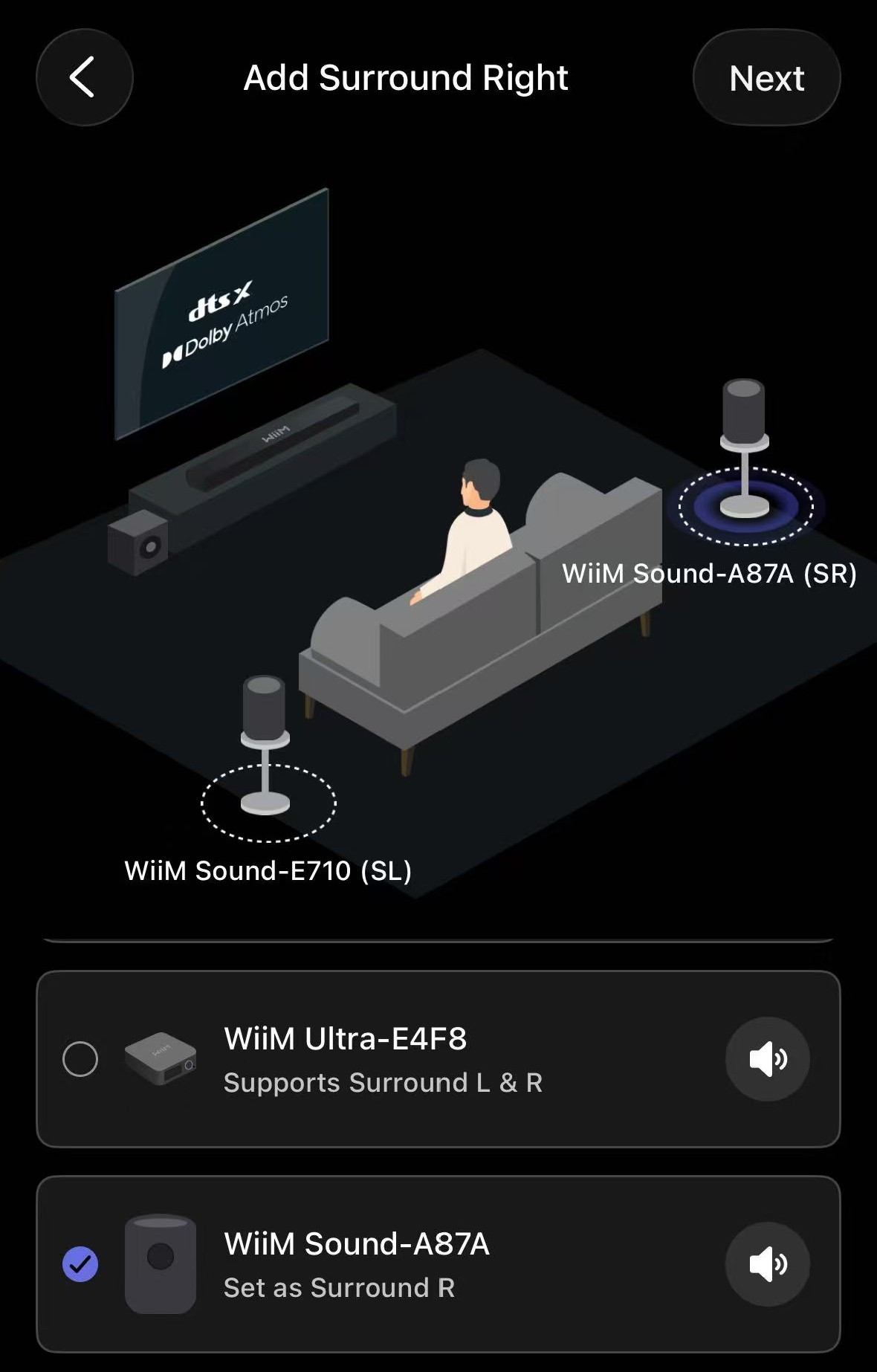
- Tap Next to complete the setup.
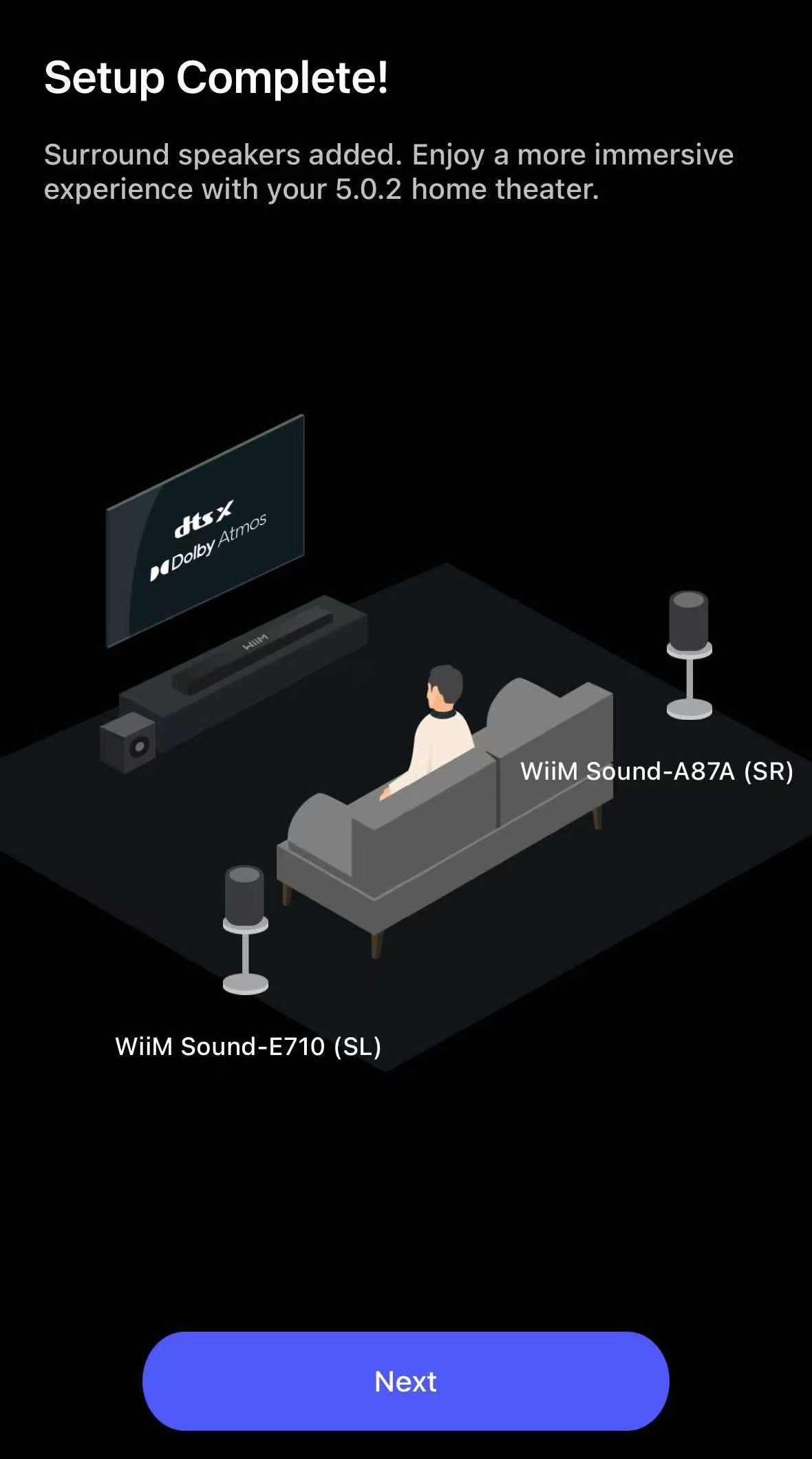
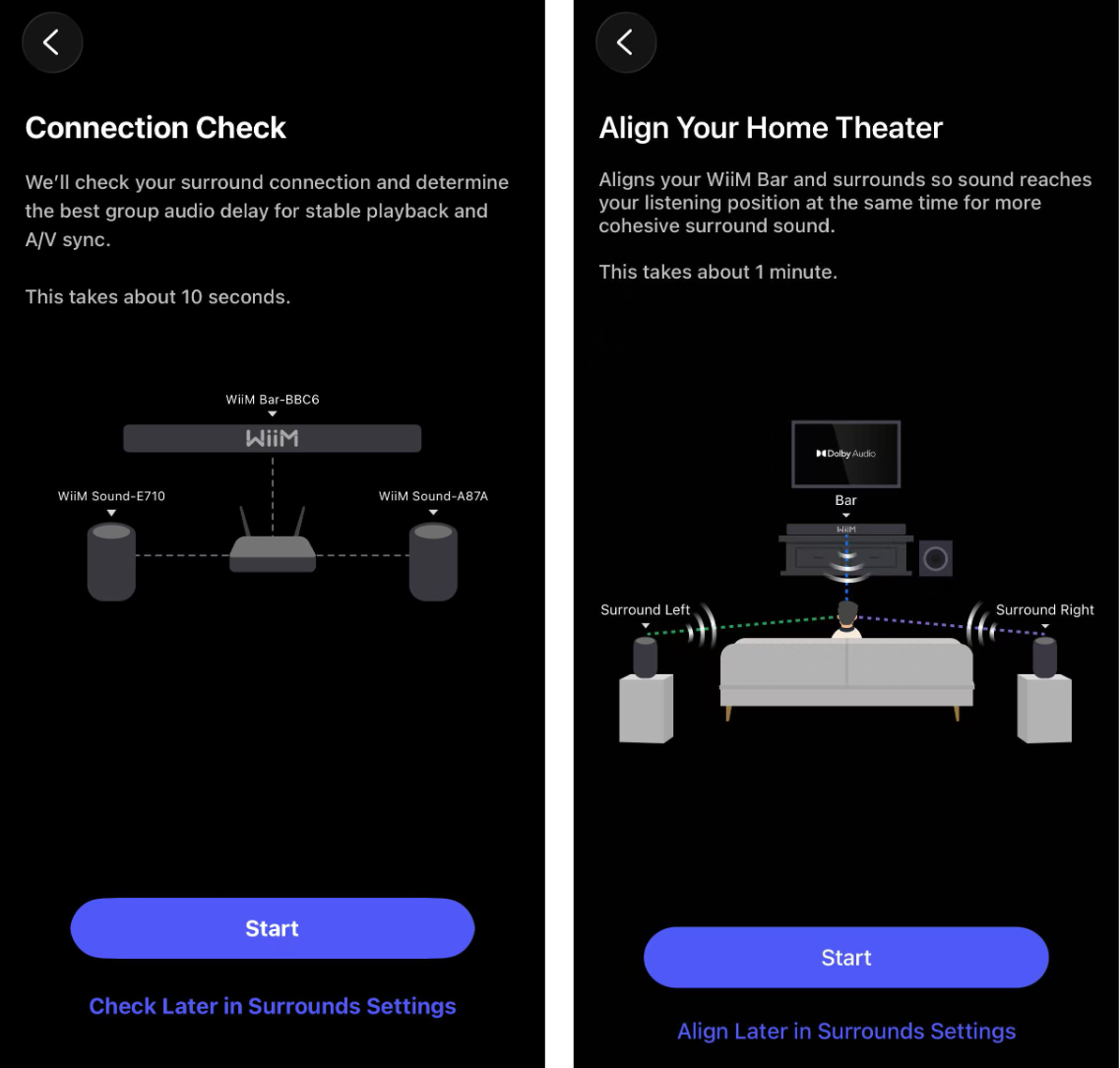
- Once setup is complete, you will be prompted to check surround connections and align your home theater for stable and cohesive playback. You can also skip these steps and perform them later.
Once the 5.1.2 home theater system is created, it is enabled automatically. Play audio on the TV and enjoy a truly cinematic experience.
Select a Sound Mode to Enhance Audio
The WiiM Bar offers four Sound Modes specifically for Dolby and DTS—Music, Movie, Voice, and Night—so you can quickly optimize audio for different content and listening environments. For details, see Understanding Dolby and DTS Sound Modes on Your WiiM Bar.
Simply select your preferred sound mode using the WiiM Bar Remote.
Adjust Surround Audio
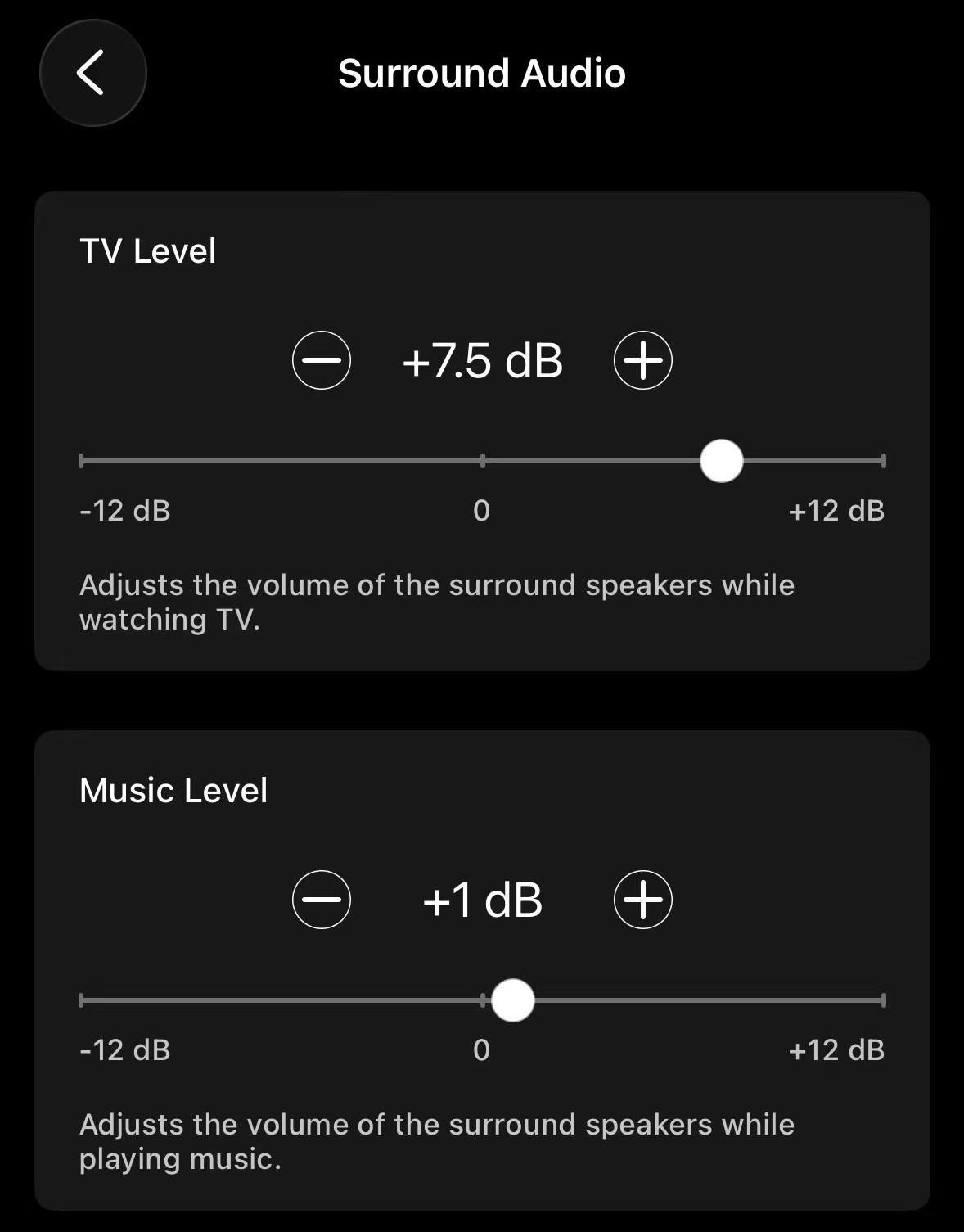
Surround Audio lets you adjust the volume of the surround speakers based on your listening preferences and content.
Use this setting when you want to:
- Enhance surround effects for a more immersive TV and movie experience.
- Adjust the surround speaker output level for music playback.
Instructions
- Open the WiiM Home app.
- Go to Devices > WiiM Bar's Device Settings > Surround Audio.
- Adjust TV Level or Music Level based on your preference.
Adjust Height Audio
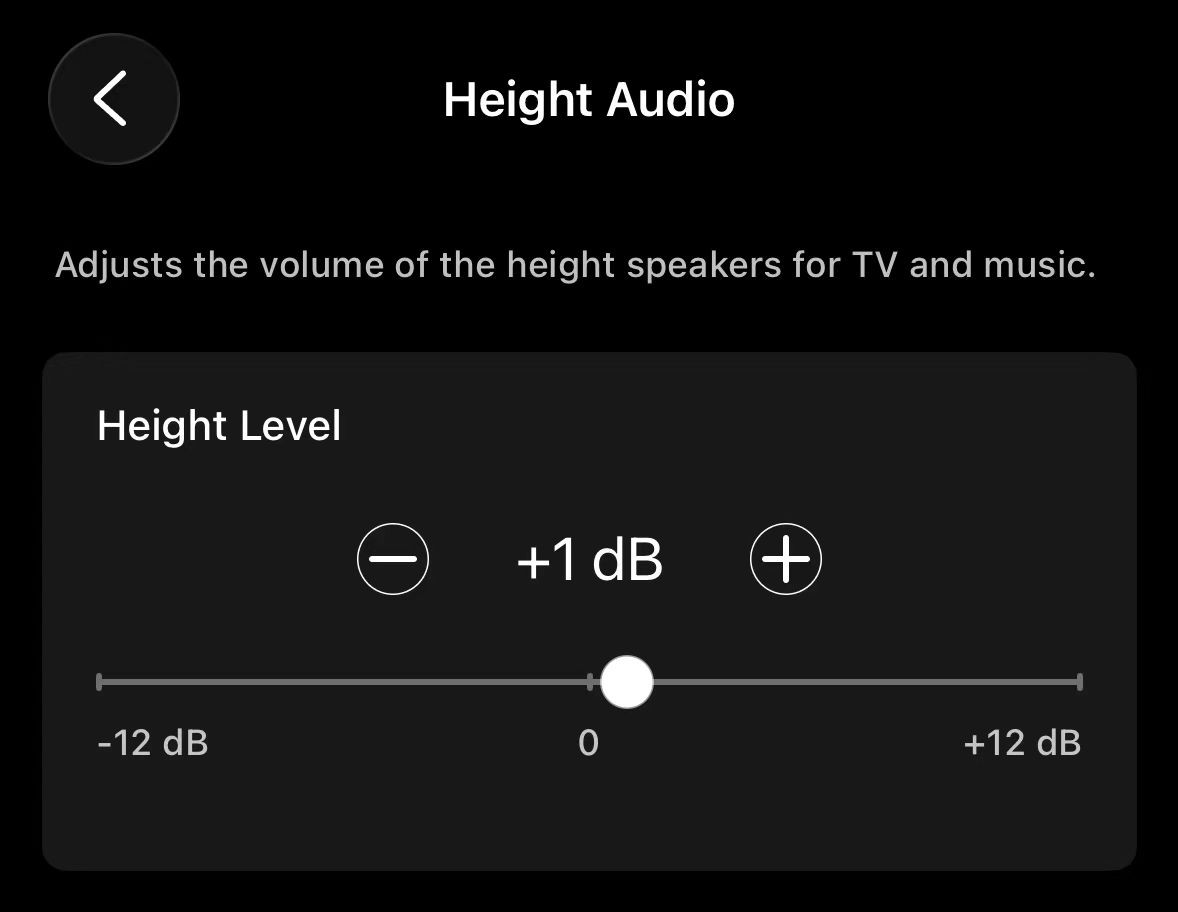
Height Audio lets you adjust the output level of the height channels on WiiM Bar for a more immersive home theater experience.
Instructions
- Open the WiiM Home app.
- Go to Devices > WiiM Bar's Device Settings > Height Audio.
- Adjust Height Level based on your preference.
Manage the Surround Speakers
Once the surround speakers have been added, you can go to the Surrounds settings anytime in the WiiM Home app to optimize or manage them.
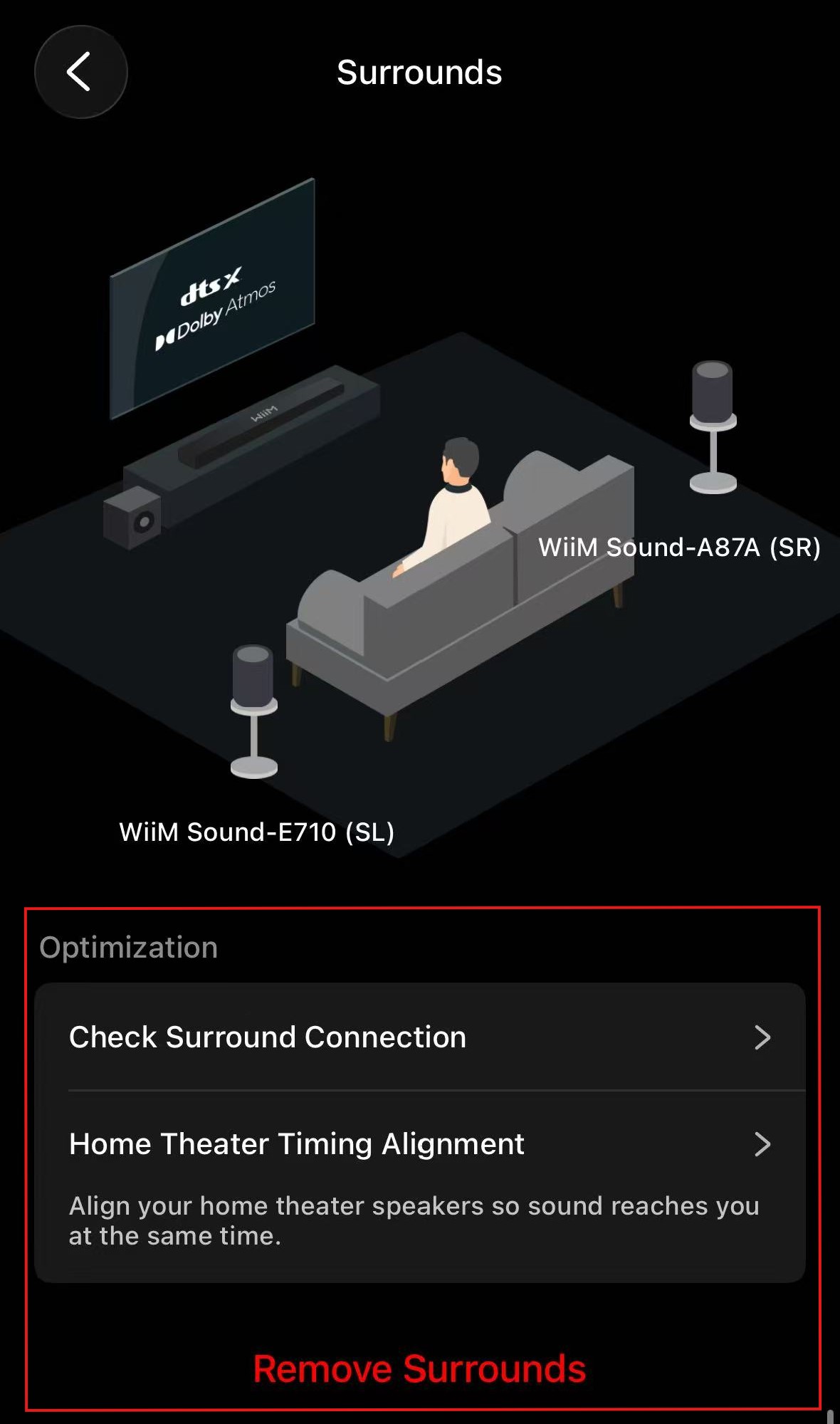
Check Surround Connections
We recommend checking the surround connections to ensure stable playback. If any connection is poor, refer to the recommended network setup in How to Keep Surround Playback Stable.
Align Home Theater Timing
This feature uses your phone's microphone at your listening position to measure the delay between your WiiM Bar and surround speakers and automatically align their playback for a more cohesive sound.
Remove Surround Speakers
If you want to remove paired surround speakers from the WiiM Bar, simply tap Remove Surrounds.
You can then select new WiiM devices as your surround speakers.
Troubleshooting
If you encounter surround playback issues, please refer to How to Keep Surround Playback Stable for solutions.