
Overview
WiiM Ultra, WiiM Amp Pro, and WiiM Amp Ultra support Dolby Digital Audio, making them ideal as the hub device for a Home Theater setup. Connect the hub device to your TV via HDMI ARC or Optical connection, and pair it with other WiiM devices to enjoy an immersive and cinematic experience.
These hub devices now feature the Surrounds setting, making it easier to add Surround Left (SL) and Surround Right (SR) speakers to a Home Theater setup.
Compatible SL and SR Speakers
- Option 1: Two WiiM Sound/Sound Lite) speakers
- Option 2: One WiiM streamer or streaming amplifier
Surround Speakers Setup
- Open the WiiM Home app.
- Go to Devices > your hub device’s Device Settings.
- Tap Surrounds in the Home Theater section.
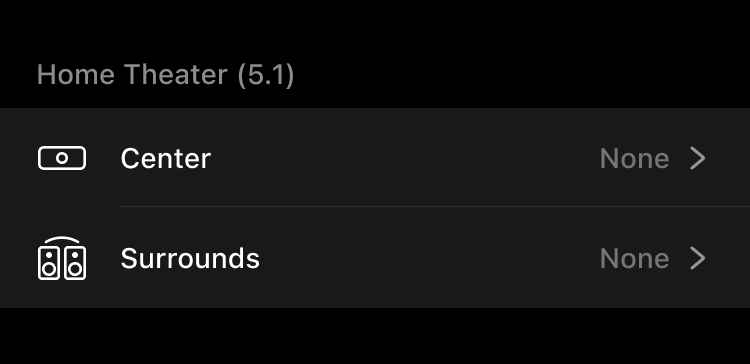
- Select your WiiM device(s) as the SL and SR speakers.
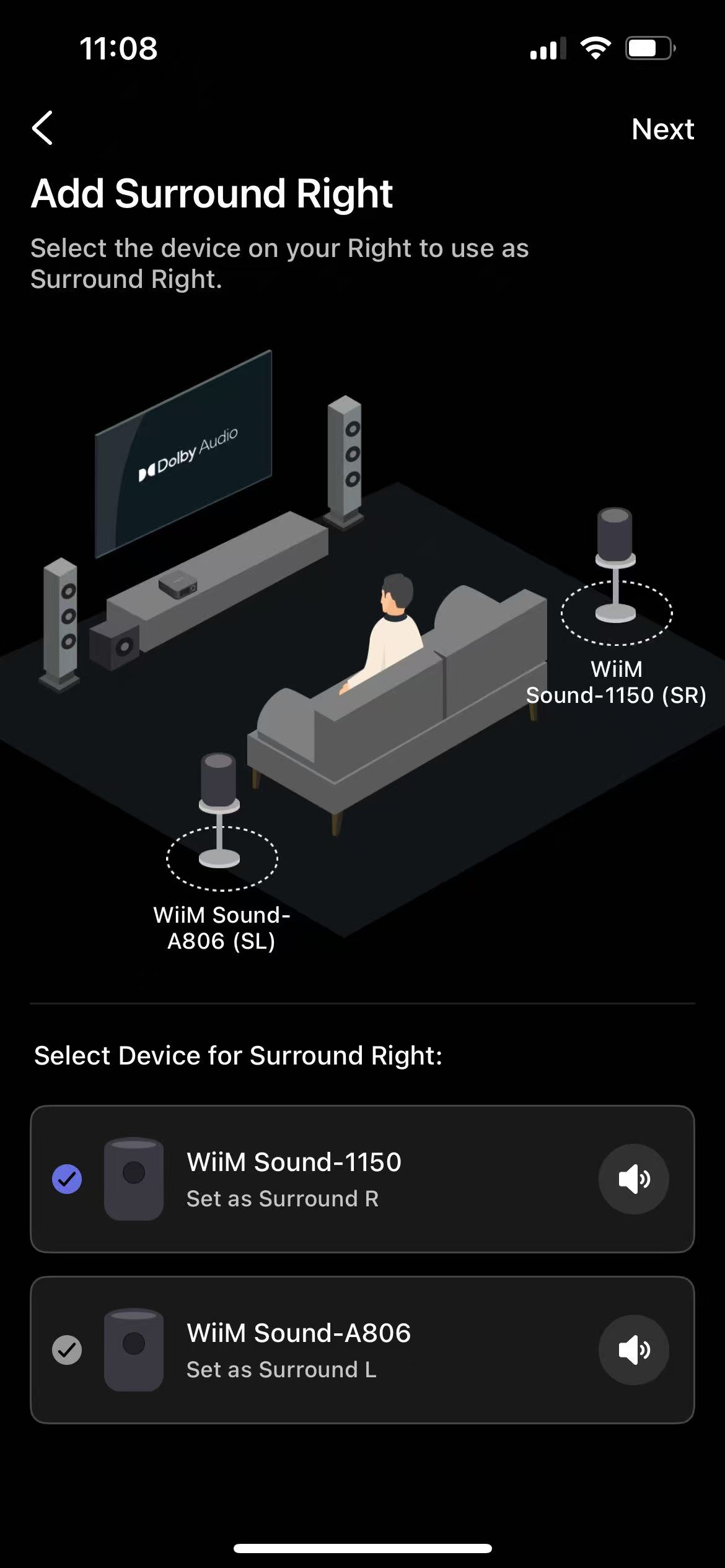 Tips:
Tips:- Choose either two WiiM Sound/Sound Lite speakers or one WiiM streamer/streaming amplifier.
- Tap the volume icon
 next to each surround speaker to confirm you've selected the correct speaker.
- Follow on-screen instructions to complete the setup .
Once the Surround speakers are added, the Home Theater system is enabled automatically. Play Dolby Digital content on the TV and enjoy an immersive audio experience.
Further Home Theater Setup
In addition to Surround speakers, you can expand your Home Theater system by adding a Center speaker for a more immersive experience.
For details, see How to Add a Center Speaker to Your Home Theater Setup.