
TABLE OF CONTENTS
- 1. Initial Checks
- 2. Check and Avoid Guest Network / Network Isolation
- 3. Restart Devices
- 4. Check and Disable VPN
- 5. Reset Mobile Device Network
- 6. Check NAS Settings (SMB / DLNA)
- 7. Check Wi-Fi Router Settings (Multicast / UPnP / Isolation)
- 8. Verify IP and Connectivity (NAS + WiiM)
- 9. Reach Out to WiiM Support
- Tips
If the WiiM Home app cannot find your NAS (SMB network share or DLNA media server), follow the steps below in order. Many discovery issues are caused by network isolation, multicast being blocked, or name-resolution failures.
1. Initial Checks
- Confirm the browsing mode in the WiiM Home app
If browsing Network Share / NAS: this usually uses SMB.
If browsing Media Server: this usually uses DLNA / UPnP.
- NAS power and network
Ensure the NAS is powered on and connected to the router.
Confirm the NAS is fully booted and not in sleep/hibernation.
- Same Wi-Fi / LAN
Ensure the phone/tablet and the WiiM device are on the same router network (same LAN/subnet).
Avoid mixing a phone on cellular + device on Wi-Fi during setup.
- App refresh
Close and reopen the WiiM Home app.
Ensure the latest version of the WiiM Home app is installed (update via the app store).
2. Check and Avoid Guest Network / Network Isolation
Guest networks commonly block LAN device discovery and peer-to-peer access.
Ensure the phone/tablet, WiiM device, and the NAS are not connected through these networks:
A Guest Wi-Fi SSID (often contains “guest”)
A separate IoT SSID that isolates clients
A different VLAN (common on prosumer routers)
- If using a mesh system, ensure the devices are not placed on an isolated “Guest” or “IoT” profile.
3. Restart Devices
Restarting clears temporary routing, multicast, and DHCP issues.
Power off the router for 60 seconds, then restart it.
Restart the NAS.
Restart the mobile device (phone/tablet).
4. Check and Disable VPN
VPNs often prevent local LAN discovery and block SMB/DLNA access.
Check the VPN settings on the mobile device and ensure the VPN is disabled (see the screenshot for an example).

If a work profile or security app enforces VPN, disable it temporarily for troubleshooting.
5. Reset Mobile Device Network
If your mobile device is connected to Wi-Fi but still cannot discover the devices, try resetting its network settings. Then, reconnect to Wi-Fi and try again.
Resetting network settings will remove saved Wi-Fi credentials, VPN profiles, and network preferences. 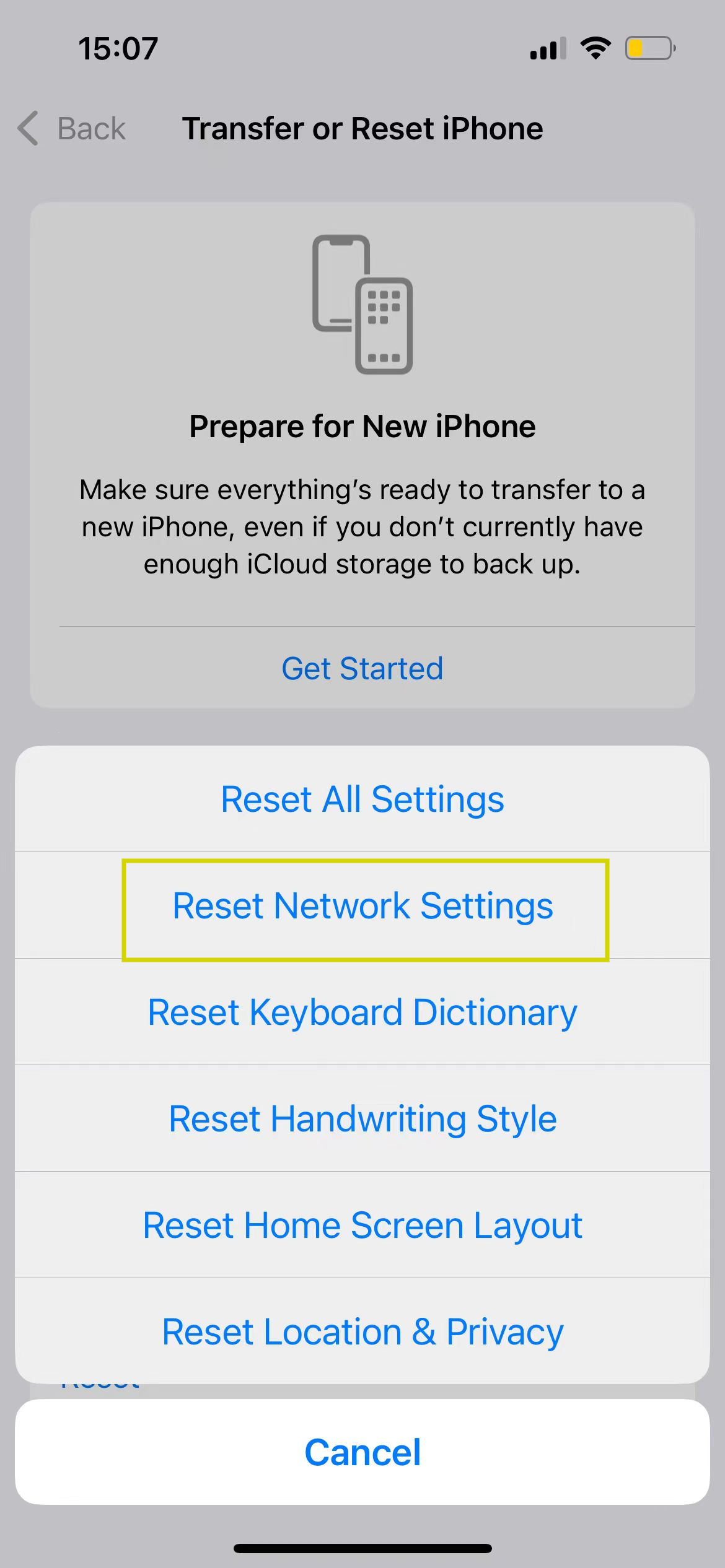
6. Check NAS Settings (SMB / DLNA)
Check the corresponding NAS settings, depending on the browsing mode (SMB or DLNA).
SMB (Network Share / NAS)Check the following SMB settings on your NAS:
|
DLNA (Media Server)Check the following DLNA settings on your NAS:
|
7. Check Wi-Fi Router Settings (Multicast / UPnP / Isolation)
Device discovery and browsing often rely on multicast and UPnP.
Please check the following router settings:
Disable AP Isolation / Wi-Fi Isolation / Client Isolation: Devices must be allowed to communicate on the LAN.
Enable Multicast / IGMP / IGMP Snooping (where applicable): DLNA discovery relies heavily on multicast.
Enable UPnP: Helps discovery and compatibility for DLNA/UPnP devices.
Firewall / Parental Controls / Security Filtering: Temporarily relax restrictions that may block LAN traffic.
If the NAS is behind a managed switch, confirm it is not blocking multicast or isolating ports.
Additional checks for Eero, Netgear Orbi/Nighthawk, BT Smart Hub, or similar routers:
These routers and mesh systems may block multicast or isolate clients by default:
- Recheck guest/IoT profiles.
- Recheck multicast/UPnP settings.
- Test with a simple topology (router + WiiM + NAS, no extenders) to isolate the cause.
8. Verify IP and Connectivity (NAS + WiiM)
Step 1: Confirm IP addresses of your NAS and WiiM
Go to the router's admin panel, find IP addresses of both your NAS and WiiM device.
Step 2: Test NAS reachability from a computer
Use a computer on the same network to perform the following checks:
Ping the NAS IP address
Confirm the SMB share is accessible (for SMB)
Confirm DLNA server is visible (for DLNA)
Step 3: Check subnet alignment
Ensure NAS and WiiM are on the same subnet (for example, both are
192.168.1.x).If they are on different subnets, discovery and SMB access may fail.
9. Reach Out to WiiM Support
If the issue continues, please submit a ticket via WiiM Home app > More > Feedback and Tickets.
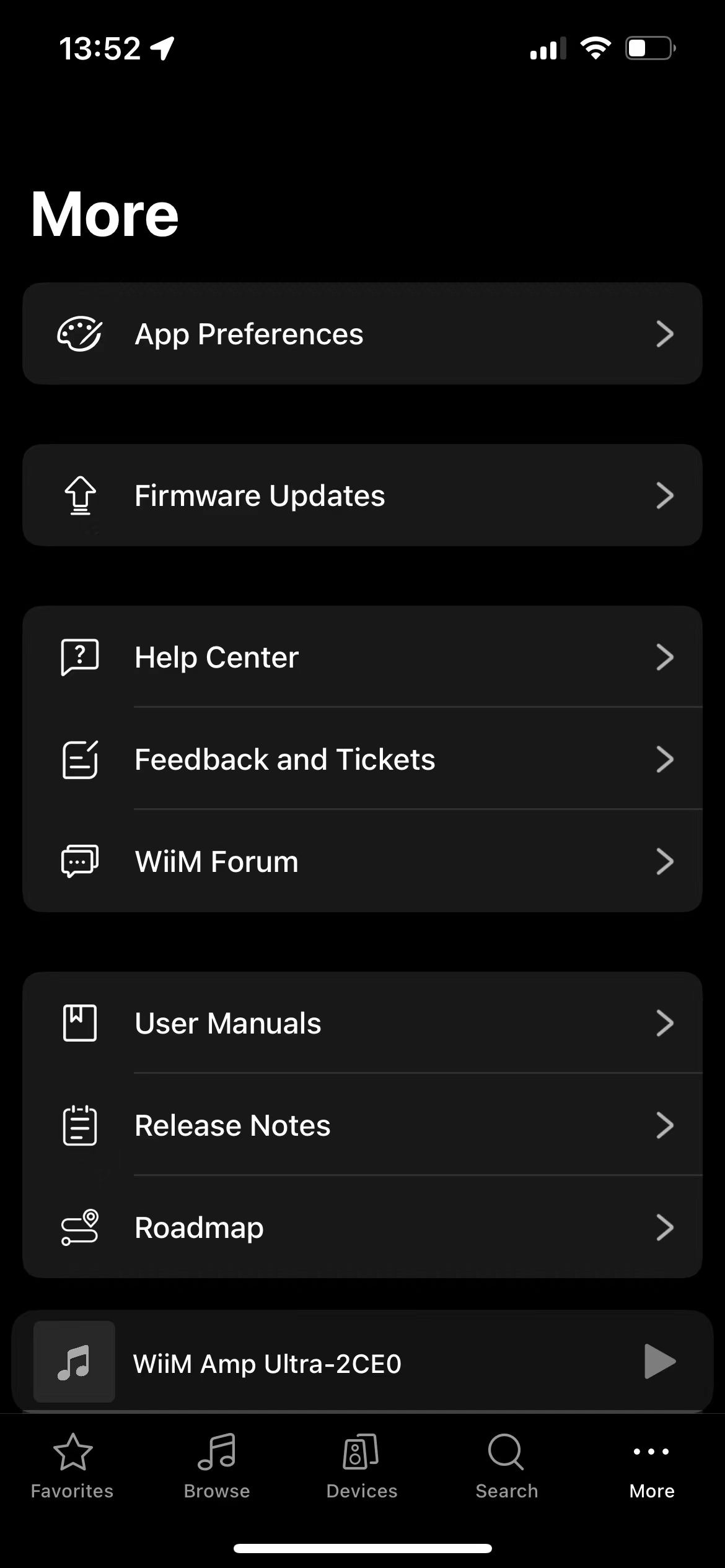
To help our team resolve your issue faster, please include the following details in your feedback:
- NAS brand/model
- Router brand/model
- Are you using SMB or DLNA?
- Did you add the NAS via IP address or hostname?
- Any error messages shown in the app
Tips
Prefer Ethernet for the NAS whenever possible; it improves stability and indexing performance.
If hostname discovery fails, use the NAS IP address and confirm the share name/path carefully.
Avoid guest/IoT isolation networks during setup.
Keep router firmware and NAS firmware up to date—many discovery issues are fixed through updates.
If only DLNA fails, focus on multicast/IGMP/UPnP settings. If only SMB fails, focus on SMB service, permissions, and name resolution.