
The WiiM Home app supports folder-based access to NAS music but does not provide direct indexing on a Synology NAS.
This guide explains how to install MinimServer on a Synology NAS and then use the WiiM Home app to build and browse an indexed music library via MinimServer.
Step 1: Install MinimServer on Your Synology NAS
- Make sure your Synology DSM is updated to version DSM 6.x or DSM 7.x.
- Log in to Synology DSM.
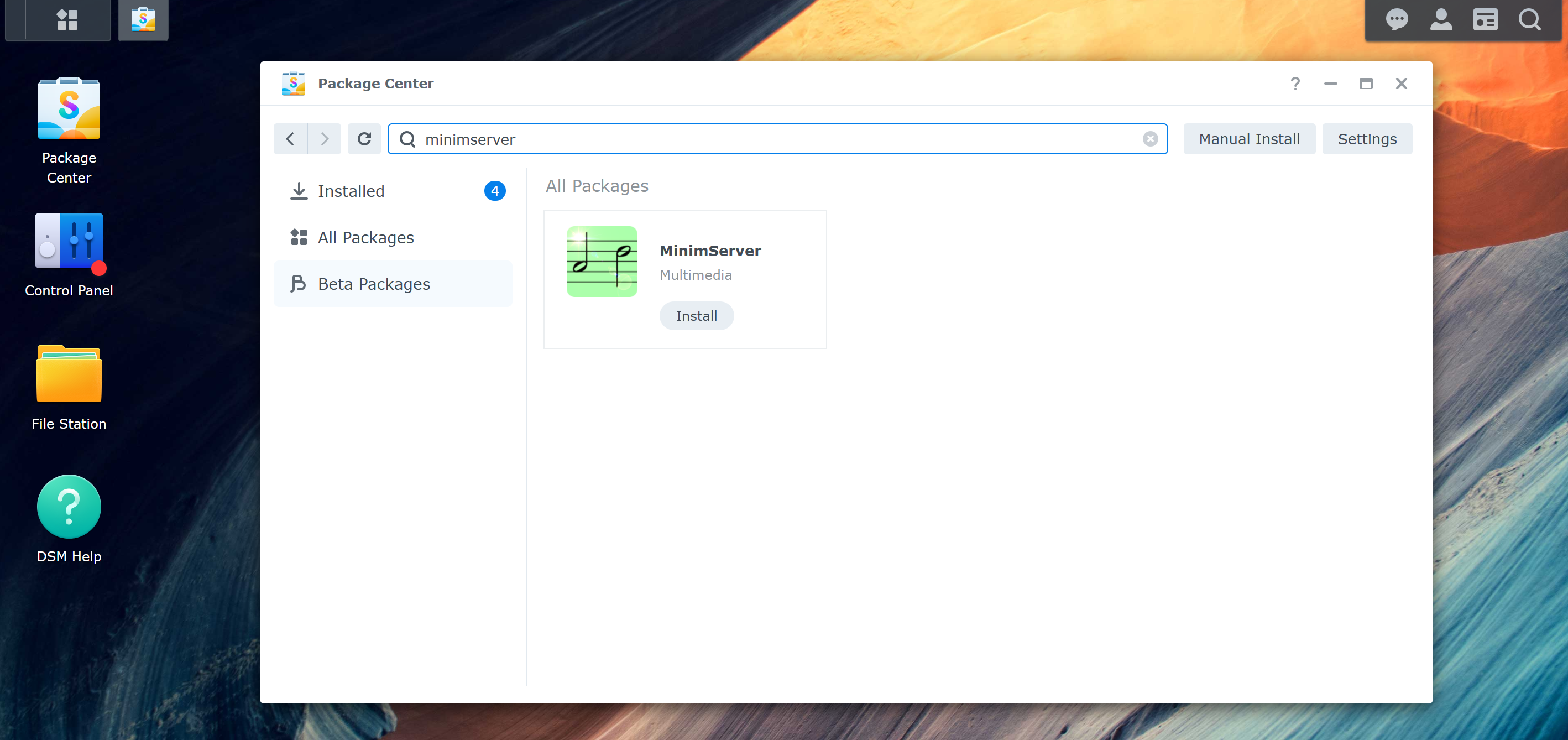
- Open Package Center from the DSM main menu, then search for "MinimServer" and install it.
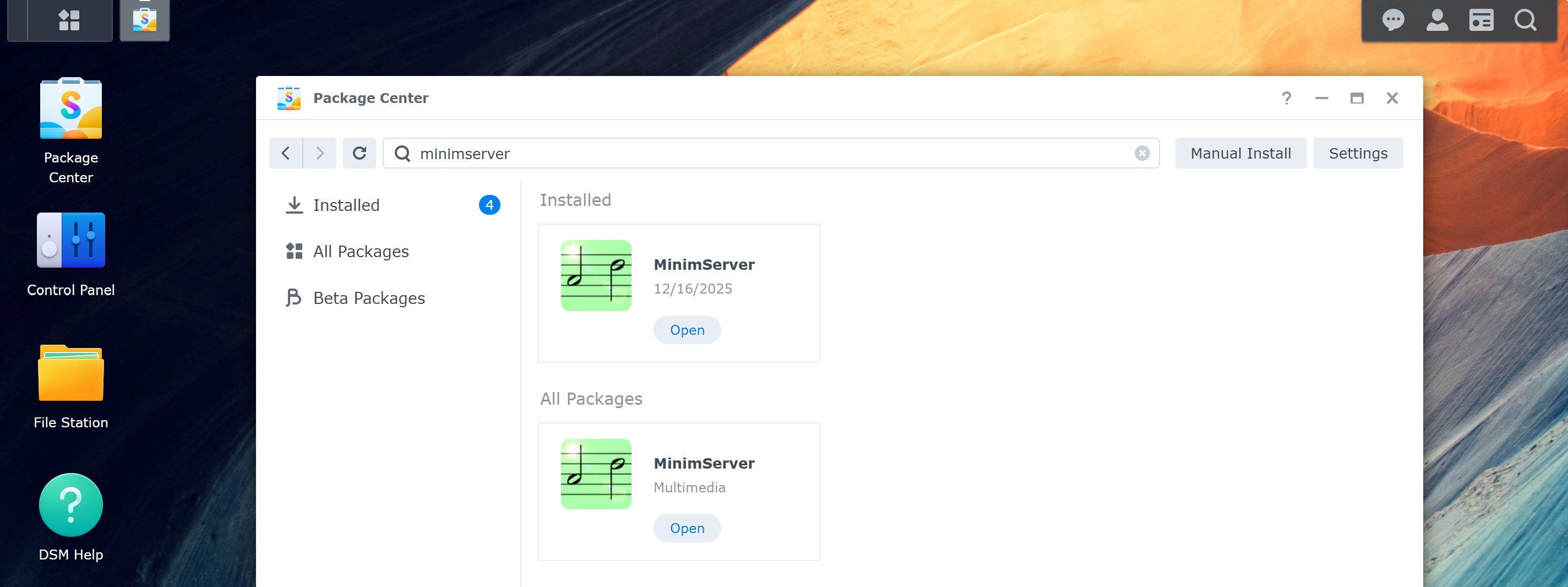
- Open MinimServer after successful installation.
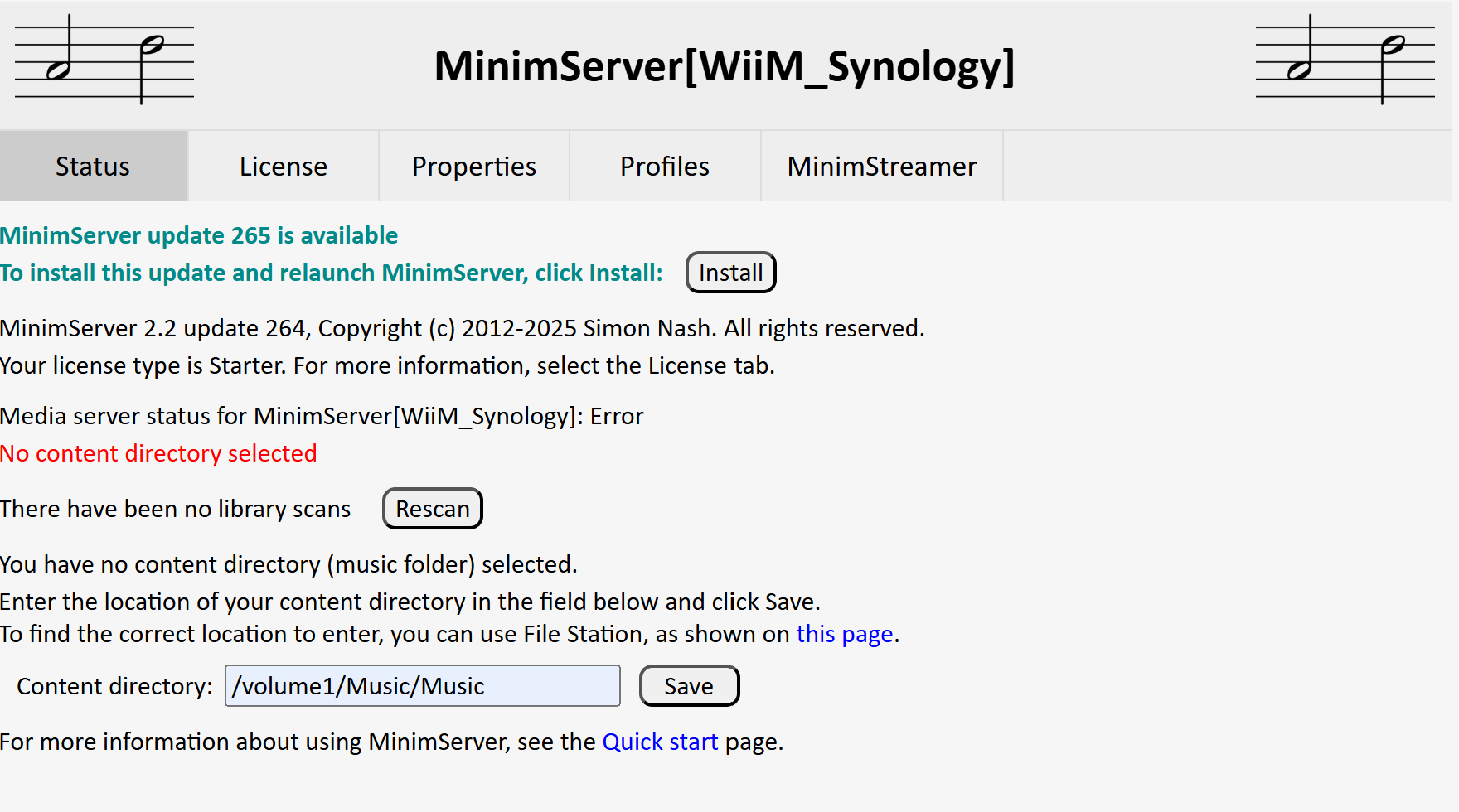
- Set the Content directory where your music is stored (for example, /volume1/Music/Music).
Step 2: Build Music Library Using the WiiM Home App
- Open the WiiM Home app.
- Navigate to the Browse tab > Home Music Share.
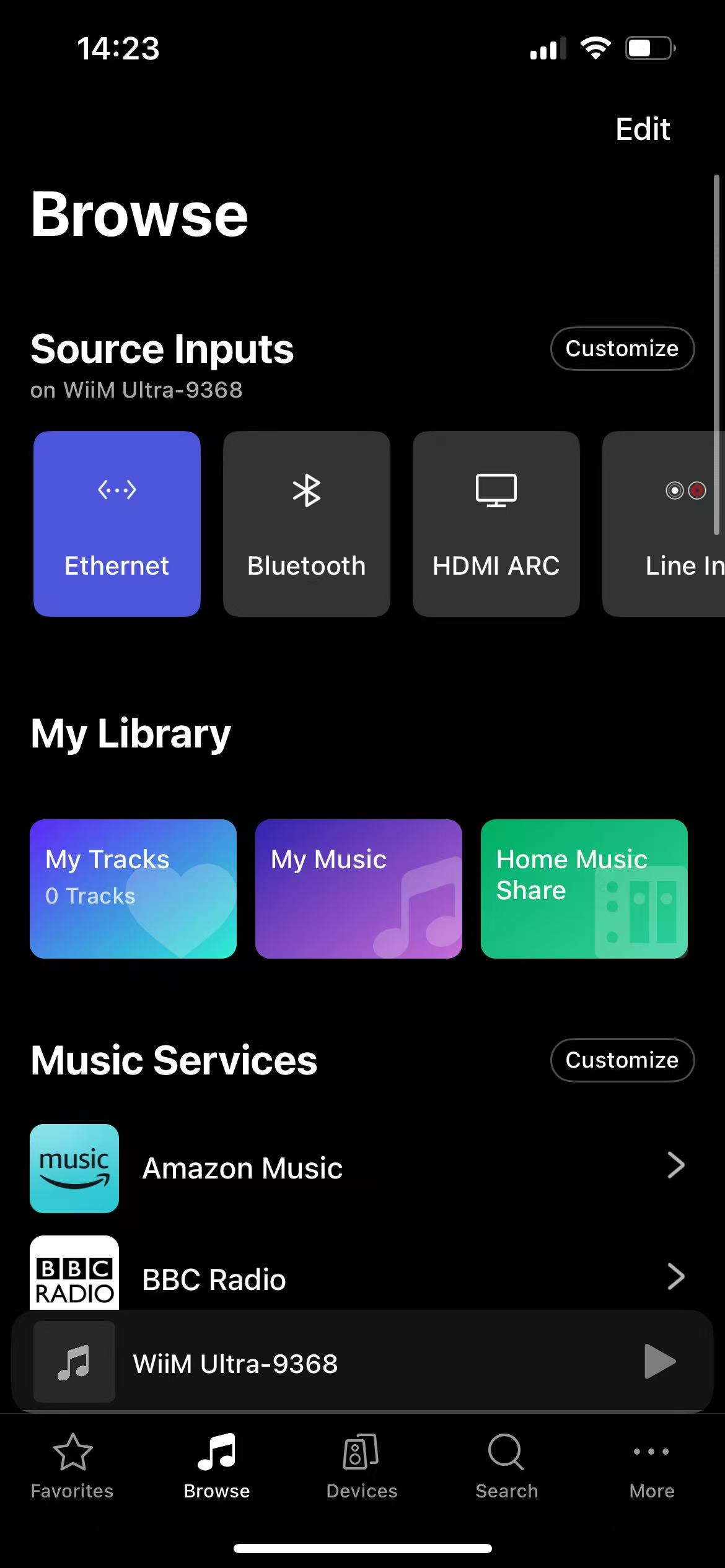
- Select your MinimServer in the Media Server section.
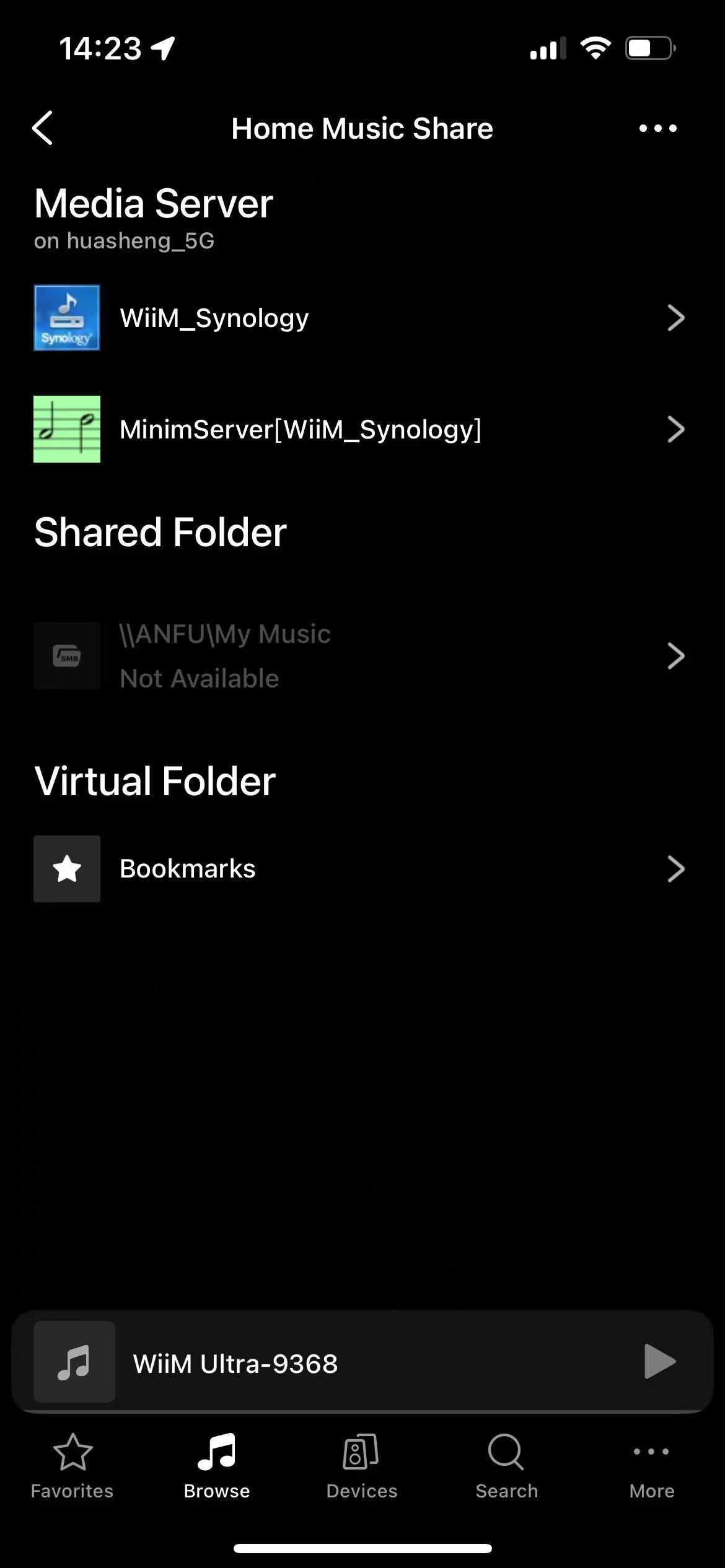
- When the following prompt appears, tap Go to Build to start building a music library.

- Once completed, tap Let's Get Started to browse and play the music library.
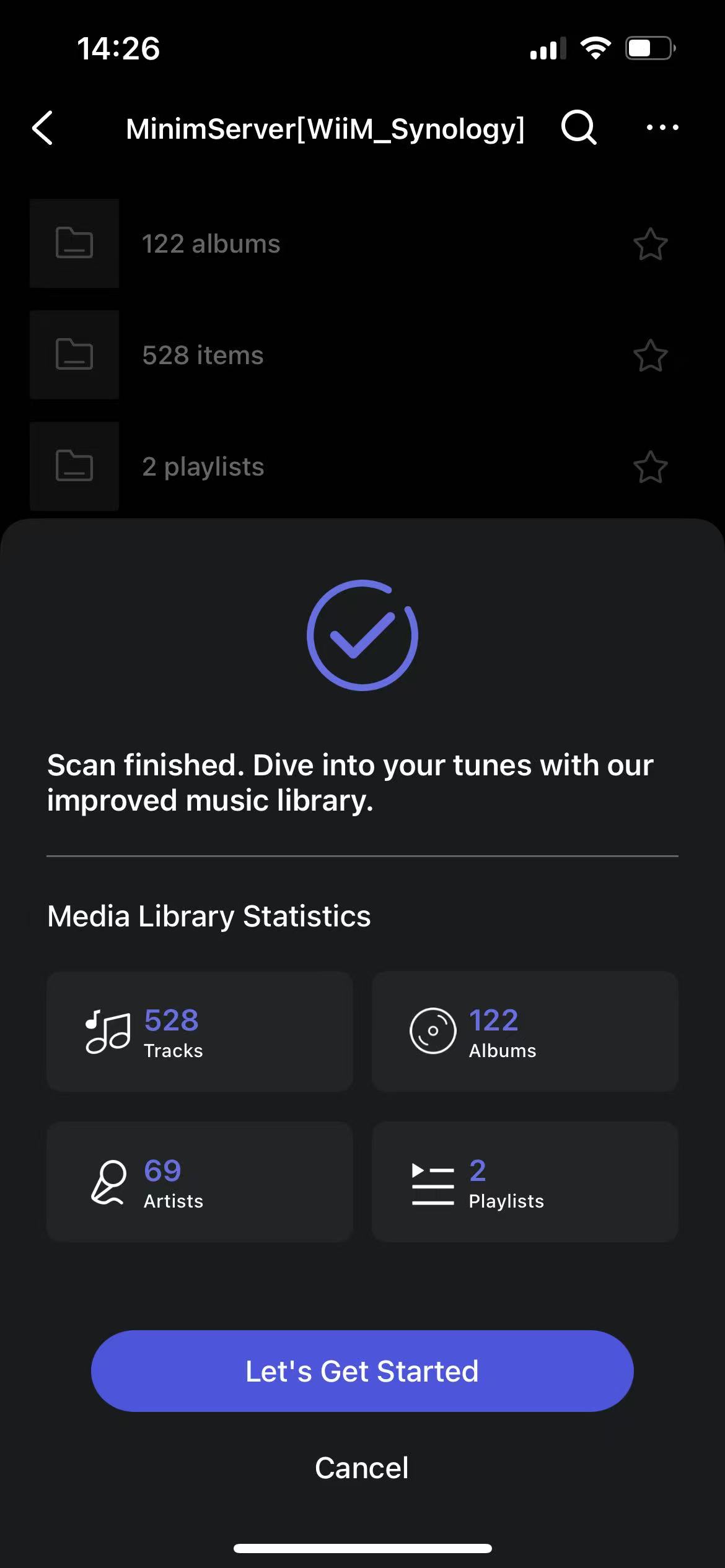
By following these steps, you can easily build a music library on your Synology NAS using the WiiM Home app.
For more details, see Building and Managing a Media Library from Your Media Server.