
TABLE OF CONTENTS
This article will help resolve the common issues you may encounter when streaming with TIDAL Connect.
Issue 1: TIDAL Connect Option Missing (iOS)
Issue Description
When using the TIDAL app on an iOS device, the TIDAL Connect option may be missing, and only the AirPlay option is available.
This issue occurs when the iPhone is already connected to the WiiM device through AirPlay. When AirPlay is active, the TIDAL app disables the TIDAL Connect option.
Solution
Follow these steps:
- Disconnect AirPlay in one of the following ways:
- Option 1: Tap the AirPlay icon
 at the top of the TIDAL app and select iPhone Speaker.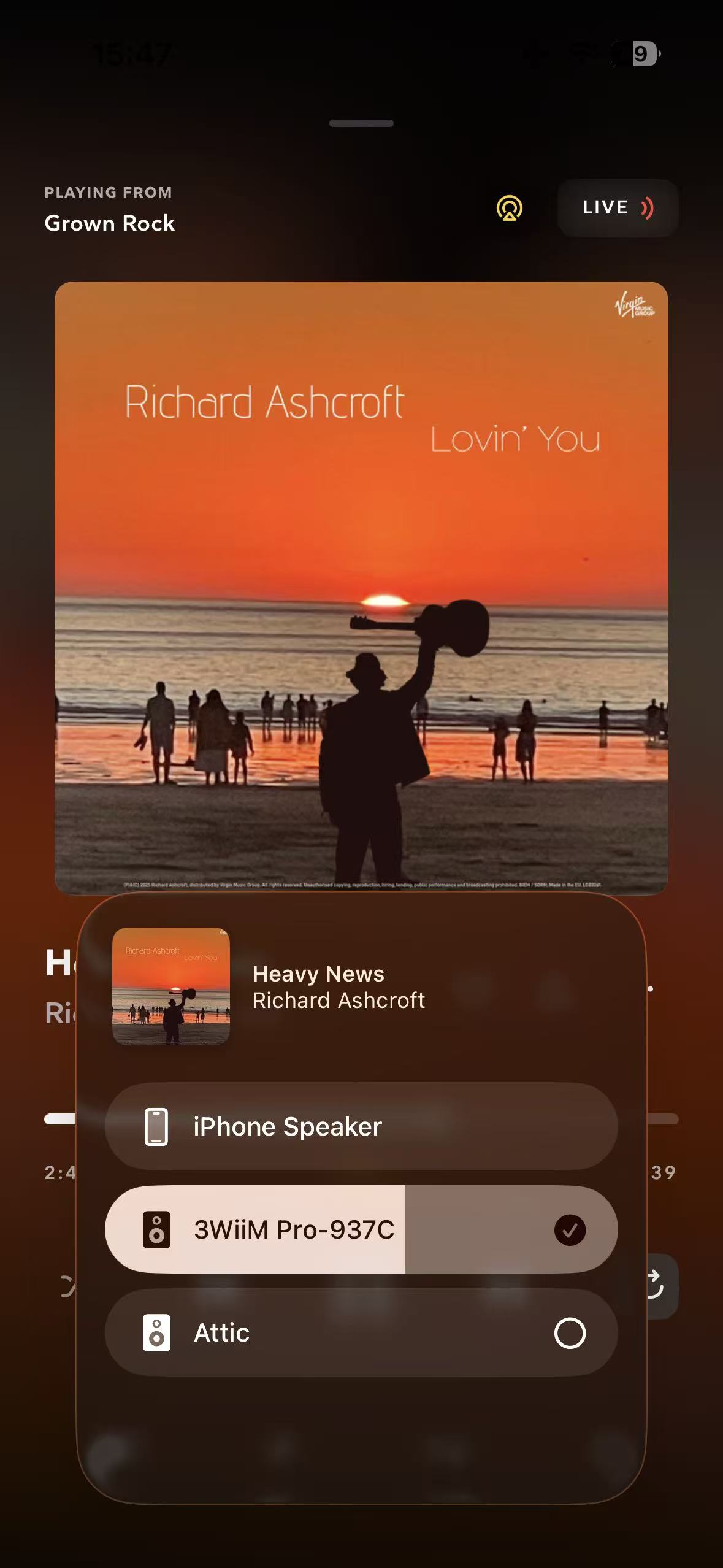
- Option 2: Open the Control Center on your iPhone, tap the AirPlay icon
 , and switch to iPhone Speaker.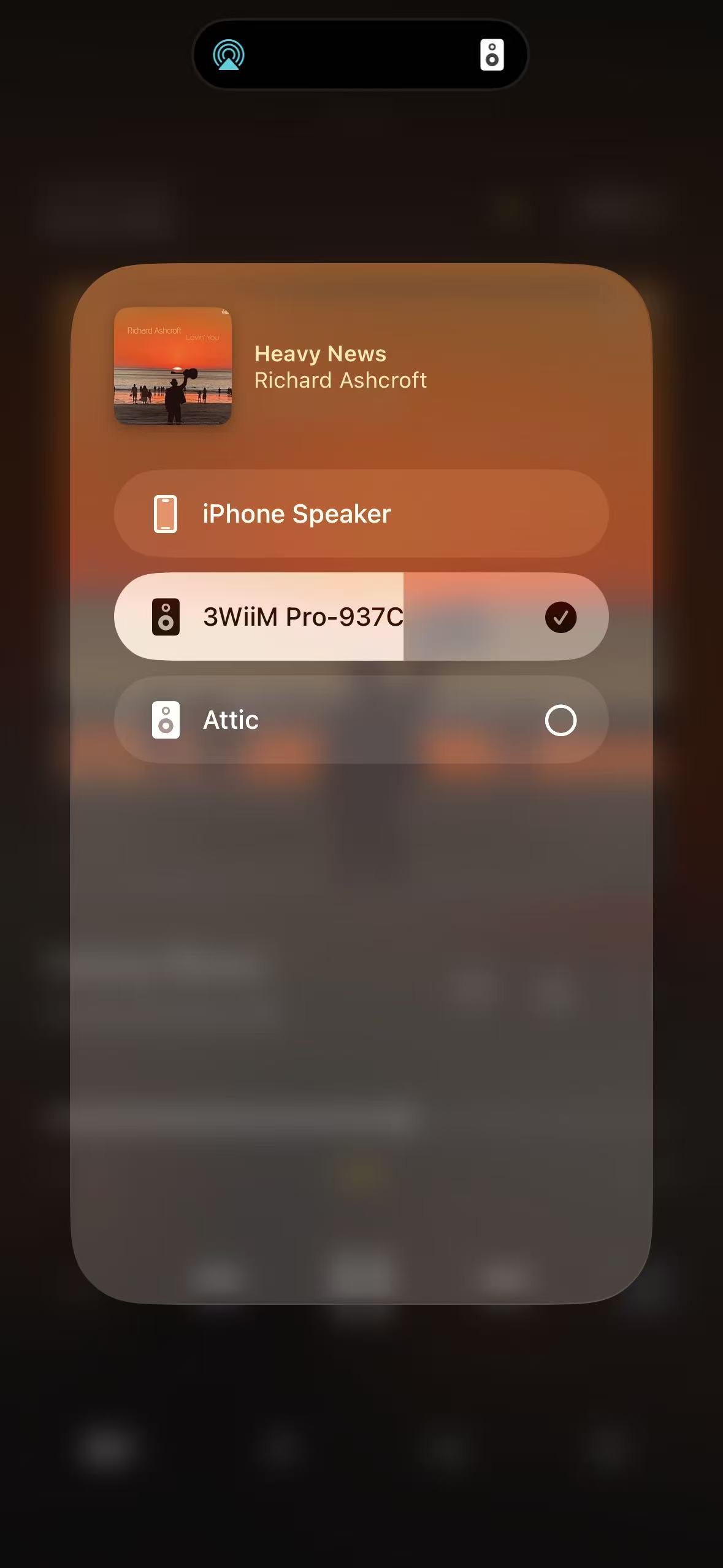
- Option 1: Tap the AirPlay icon
- Close the TIDAL app and then open it again.
- The TIDAL Connect option will now be available. Select your WiiM device to start streaming with TIDAL Connect.
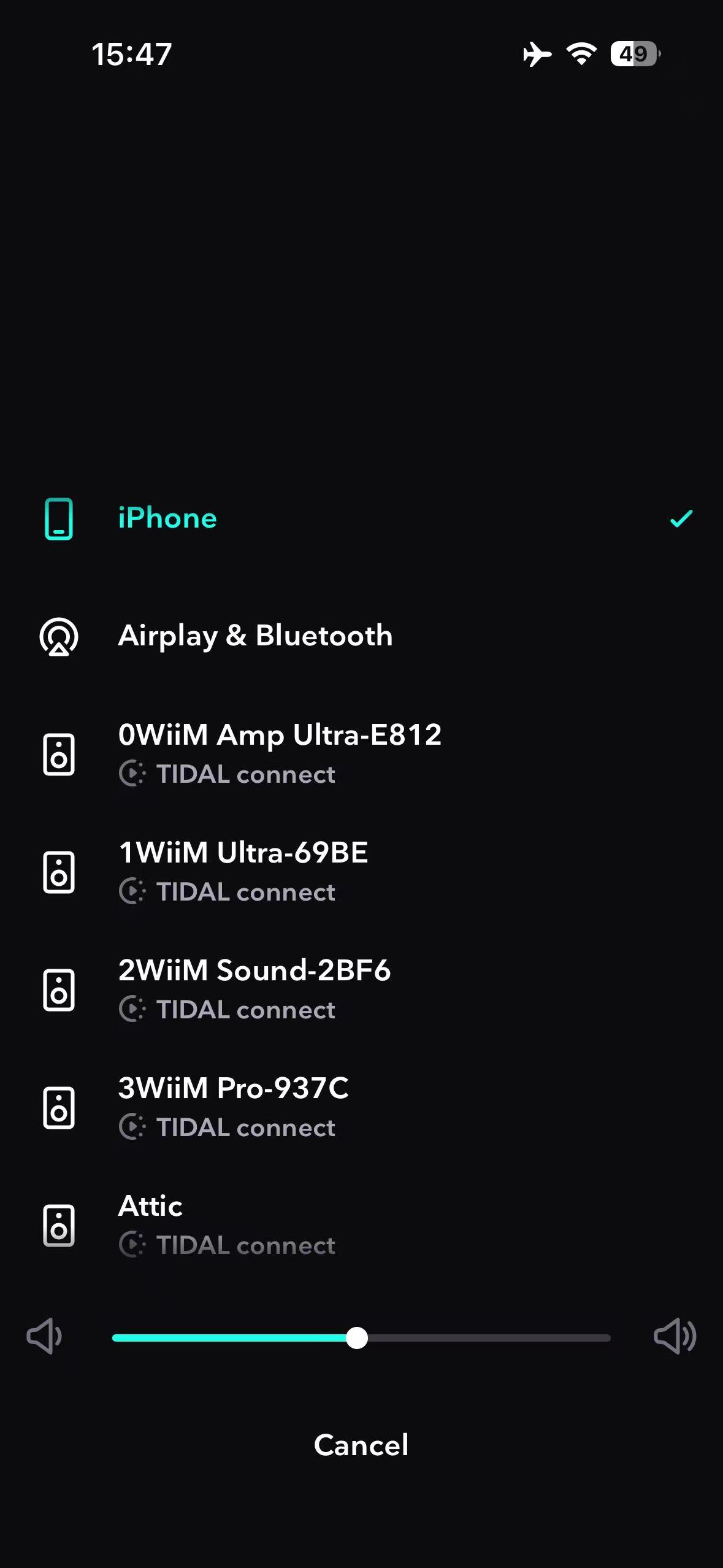
Issue 2: WiiM Device Not Found
Issue Description
After tapping the TIDAL Connect icon  , your device may not appear in the device list.
This issue usually happens in one of these situations:
- The TIDAL app's Local Network permission is turned off on your smart phone.
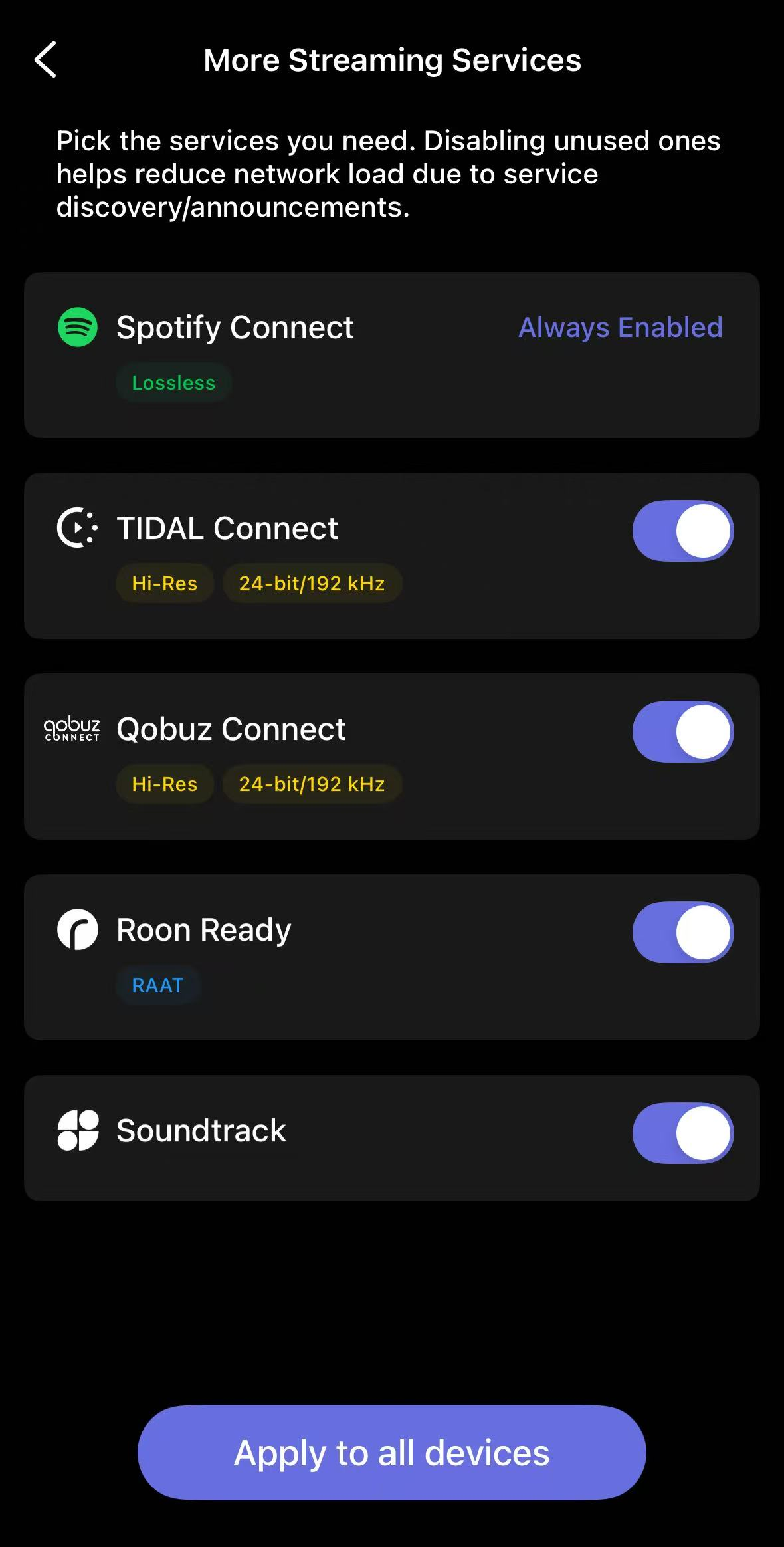
- TIDAL Connect is disabled on your WiiM device.
Solution
Check the following settings:
- Open your smartphone's Settings, navigate to TIDAL, and ensure Local Network access is enabled.
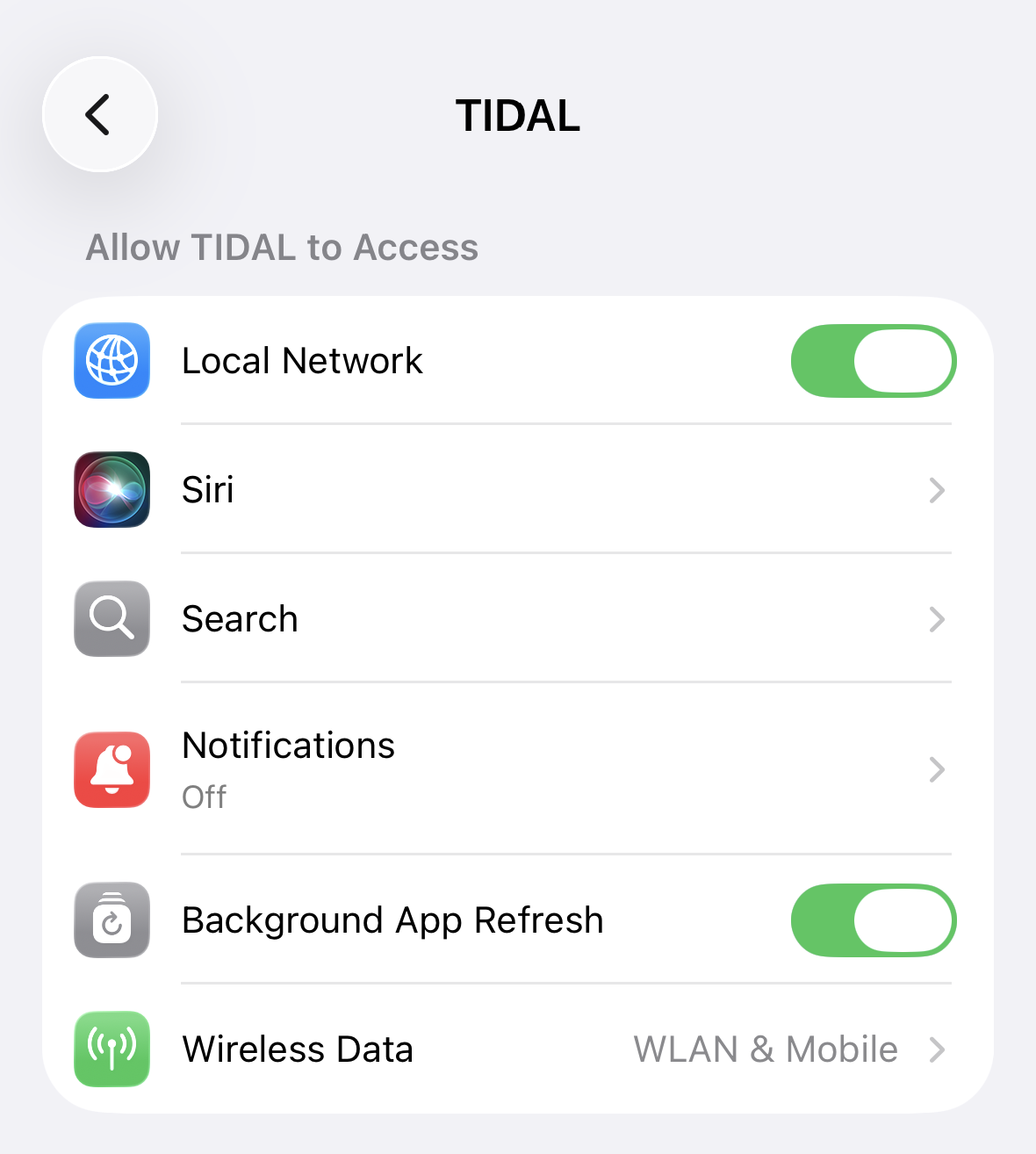
- Open the WiiM Home app, go to the Devices tab > Device Settings > More Streaming Services, and ensure TIDAL Connect is enabled.
Further Support
If your issue persists, feel free to contact WiiM Support for further assistance.