
Overview
WiiM devices support the DLNA Casting feature, allowing you to stream audio to DLNA-enabled speakers. This feature lets you easily enjoy music throughout your home, providing a flexible whole-home listening experience.
Note: Currently, only the WiiM Ultra, WiiM Pro, and WiiM Pro Plus support this feature. Other WiiM devices will support it in a future update.
Before You Begin
Make sure to connect your DLNA-enabled speakers to the same Wi-Fi network as your WiiM device.
Step-by-Step Instructions
- Open the WiiM Home app.
- Access the Audio Output settings using one of the following methods:
- Method 1: Go to Now Playing, select Audio Output at the bottom.
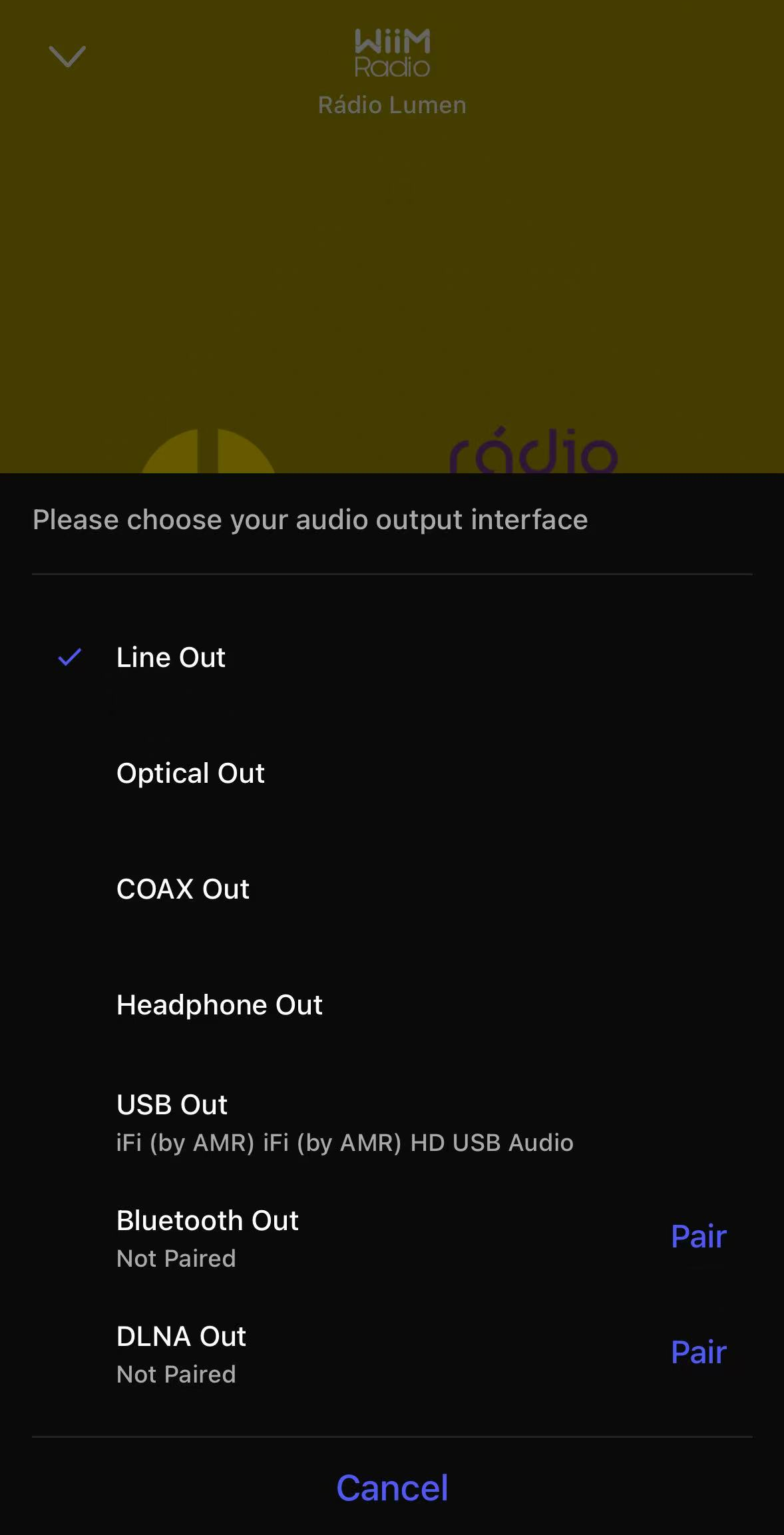
- Method 2: Go to the Devices tab > Device Settings > Audio Output.
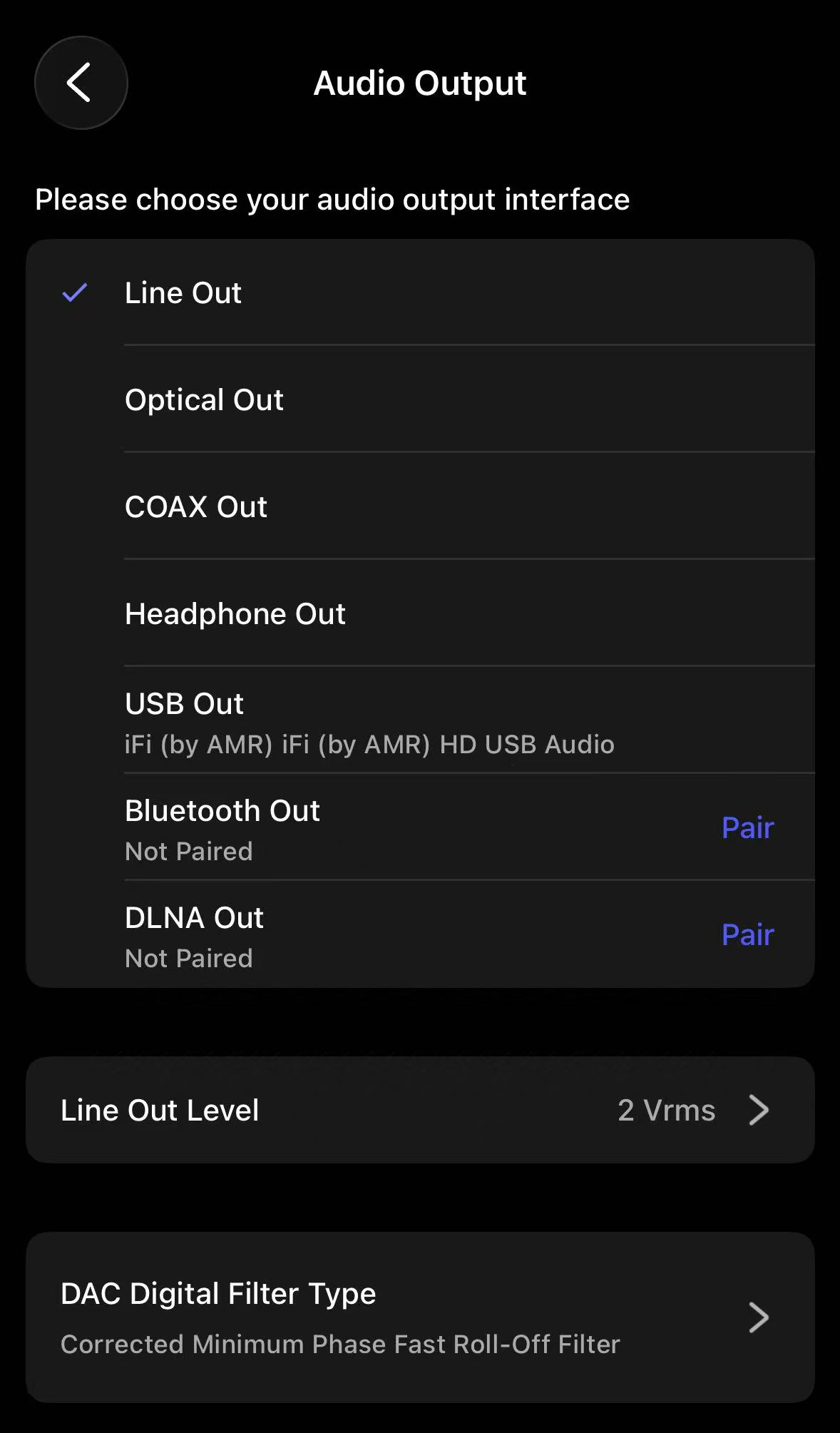
- Method 1: Go to Now Playing, select Audio Output at the bottom.
- Tap Pair next to DLNA Out to open the settings page.
- Enable DLNA Out, then choose your DLNA-enabled speakers from the list.Tip: You can adjust the Audio Transcoding and Playback Latency settings to reduce playback stuttering.
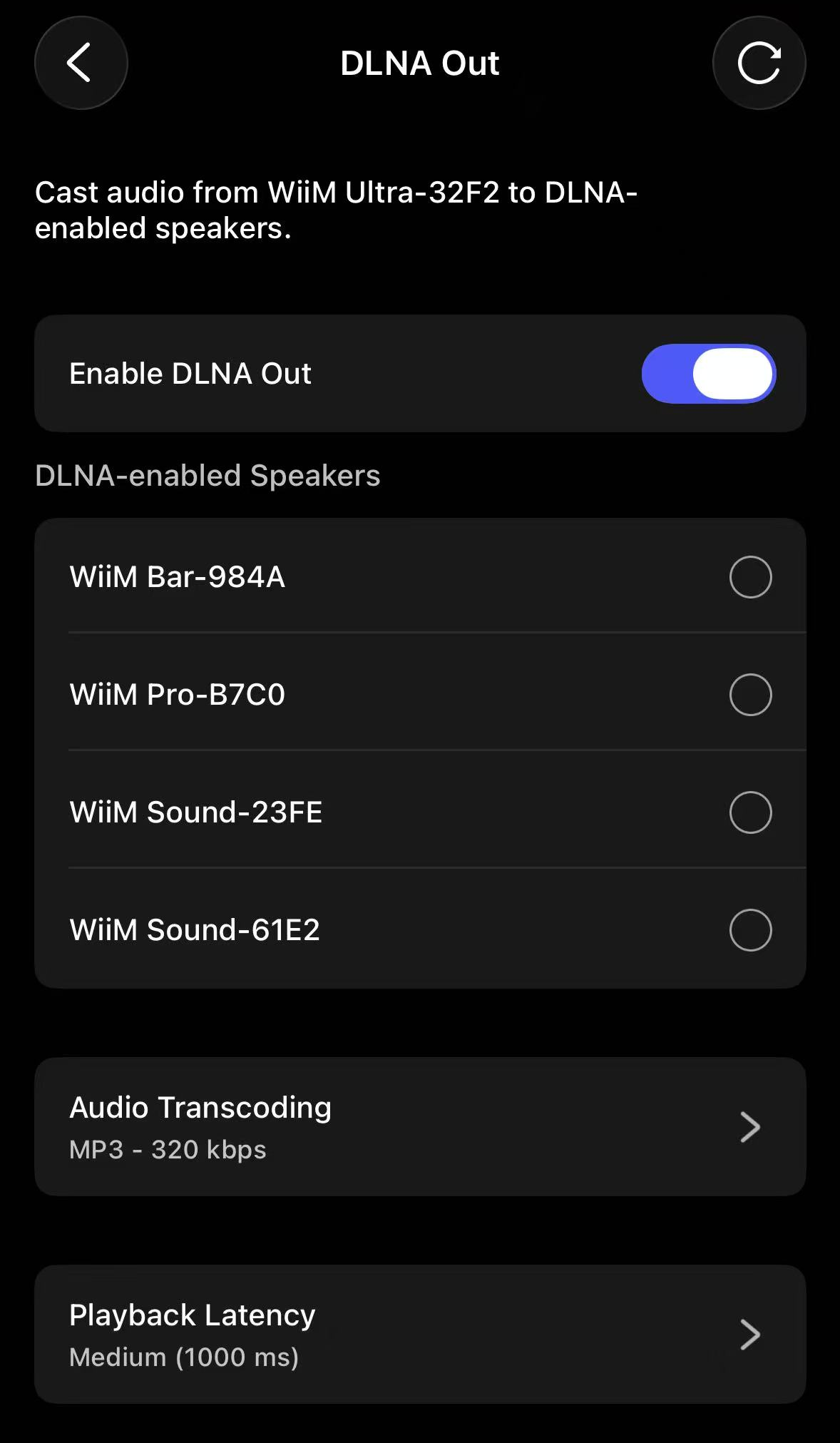
Once completed, the audio will stream to your DLNA-enabled speakers.
Known Issues
- When streaming audio to multiple speakers via DLNA Casting, playback may not be synchronized across these speakers.
- Pausing and resuming playback with DLNA Casting may result in a delay.
- Streaming TV audio via DLNA Casting may introduce a lip-sync delay.
- Switching from another output mode to DLNA Casting may cause playback stuttering.
- Streaming audio from LMS via DLNA Casting may cause playback stuttering.
Compatibility Issues
The DLNA Casting feature has compatibility issues with some DLNA-enabled speakers. If you encounter any problems, please contact WiiM Support for assistance.