
TABLE OF CONTENTS

Overview
A 5.1 home theater system uses five main channels (Front Left, Front Right, Center, Surround Left, and Surround Right) plus one Low-Frequency Effects (LFE) channel to deliver a cinematic experience. For details, see Understanding 5.1 and 5.1.2 Home Theater Audio.
The WiiM Amp Pro, WiiM Amp Ultra, and WiiM Ultra support Dolby Digital audio and can serve as your hub device. The hub receives 5.1 audio from your TV, plays the Front Left and Front Right channels, and sends the other channels to compatible devices.
This guide shows you how to build your system using one hub device and other compatible devices.
Device Requirements and Configurations
The 5.1 home theater system uses a modular design, so you can flexibly scale your system from 5.1 to 3.0, depending on whether a subwoofer is used and how the center and surround speakers are assigned.
| System | Front Left + Front Right | Center | Surround Left + Surround Right | LFE |
|---|---|---|---|---|
| 5.1 | 1 x WiiM Amp Pro / Amp Ultra / Ultra | 1 x WiiM Sound / Sound Lite / Pro / Pro Plus / Amp / Amp Pro / Amp Ultra / Ultra / Mini | 2 x WiiM Sound / Sound Lite OR 1 x WiiM Pro / Pro Plus / Amp / Amp Pro / Amp Ultra / Ultra / Mini | 1 x Subwoofer |
| 5.0 | ✓ | ✓ | ✓ | N/A |
| 4.1 | ✓ | N/A | ✓ | ✓ |
| 4.0 | ✓ | N/A | ✓ | N/A |
| 3.1 | ✓ | ✓ | N/A | ✓ |
| 3.0 | ✓ | ✓ | N/A | N/A |
✓ = Same device requirements as 5.1.
- WiiM Vibelink Amp is not supported in a 5.1 home theater system.
- If no dedicated center speaker is assigned, the Center audio channel will be automatically distributed between the Front Left and Front Right channels using an advanced algorithm, ensuring optimal audio reproduction.
Set Up Your 5.1 Home Theater System
Before You Begin
- Choose your devices based on the configuration table above and set them up.
- Prepare a TV with an HDMI ARC/eARC or Optical Out port.
- Connect all WiiM devices to the same Wi-Fi network.
Step 1. Place Speakers Properly
For optimal sound, place all speakers according to the diagram below.
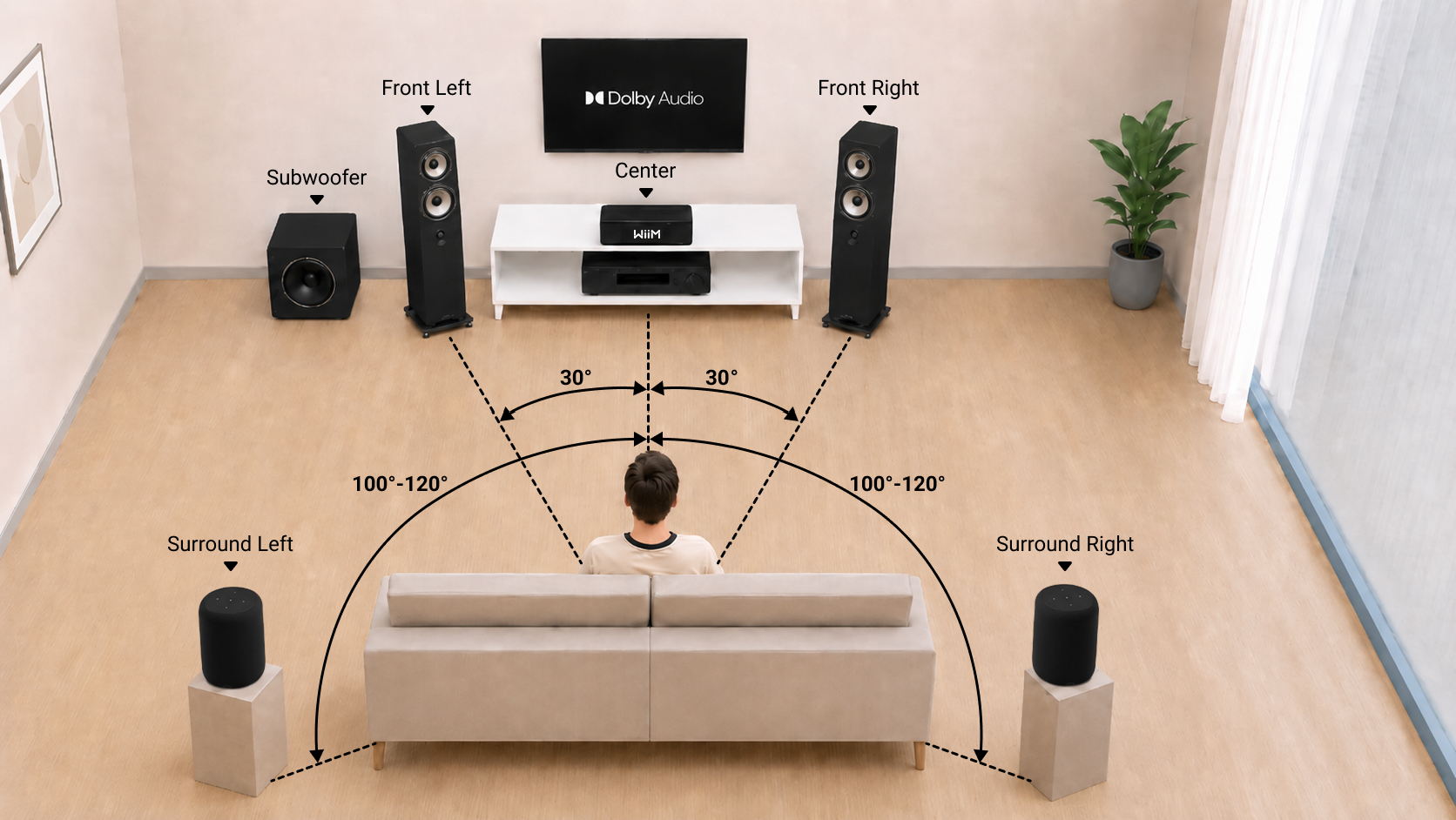
- Place the speakers around the listening area at ear level, with the front speakers near the TV and the surround speakers slightly behind or to the sides.
- Low bass is generally non-directional, so you have flexible subwoofer placement options. For fuller bass, try placing the subwoofer in a corner.
Step 2. Connect the Hub Device to Your TV
- Use an HDMI cable to connect the HDMI ARC port on your hub device to the HDMI ARC/eARC port on your TV.
Note: Make sure to use the HDMI ARC/eARC port on your TV. If your TV has no HDMI ARC/eARC port, connect the hub device to your TV via the Optical port.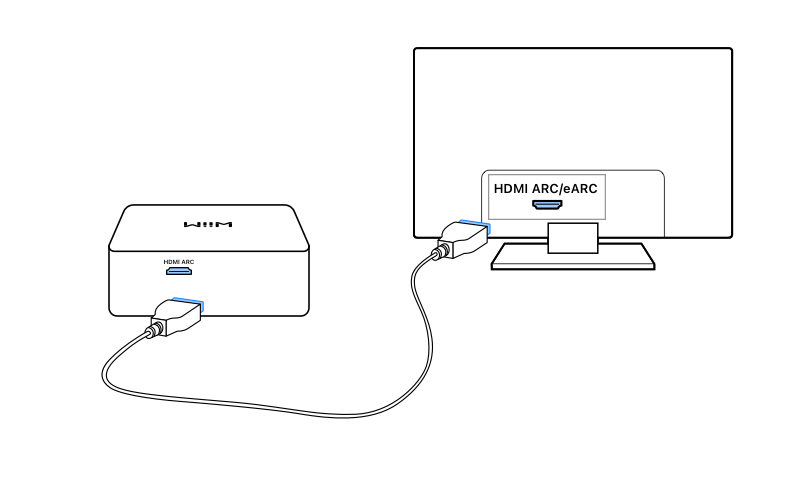
- Set your TV's audio output to your hub device.
- Set your TV's audio output format to Auto, Dolby Digital Audio, or a similar option.
Step 3. Connect the Hub Device to Your Subwoofer
Connect the hub device to your subwoofer using an RCA cable, then adjust the subwoofer settings in the WiiM Home app to match your preferences. For details, refer to the following articles:
- How to Connect Your Subwoofer with the WiiM Amp Pro
- How to Connect Your Subwoofer with the WiiM Amp Ultra
- How to Connect Your Subwoofer with the WiiM Ultra
If you have a WiiM Sub Pro, you can connect it wirelessly with the hub device via the WiiM Home app. For details, see How to Set Up Your WiiM Sub Pro.
Step 4. Assign Center and Surround Speakers in the WiiM Home App
- Open the WiiM Home app.
- Go to Devices, then tap your hub device's Device Settings
 .
- Scroll down to the Home Theater section, then select Center and Surrounds to assign the center speaker and surround speakers, respectively.
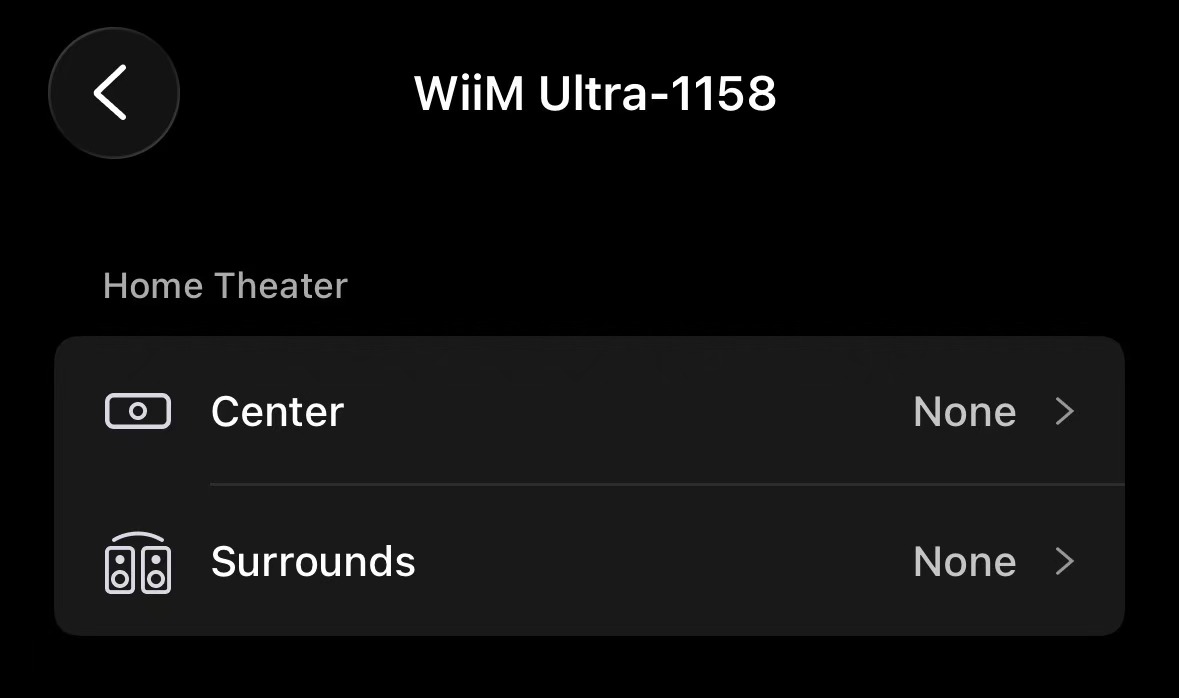
For details, see the following articles:
Your home theater system is now ready. Play Dolby Digital 5.1 content on your TV and enjoy immersive sound.
Adjust Group Audio Delay to Optimize Playback
If you experience A/V sync (lip-sync) issues, adjust Group Audio Delay to fix it:
- Open the WiiM Home app.
- Go to Devices, then tap your hub device's Device Settings.
- Select Group Audio Delay, then adjust the delay value for the TV input. A lower value improves A/V sync.
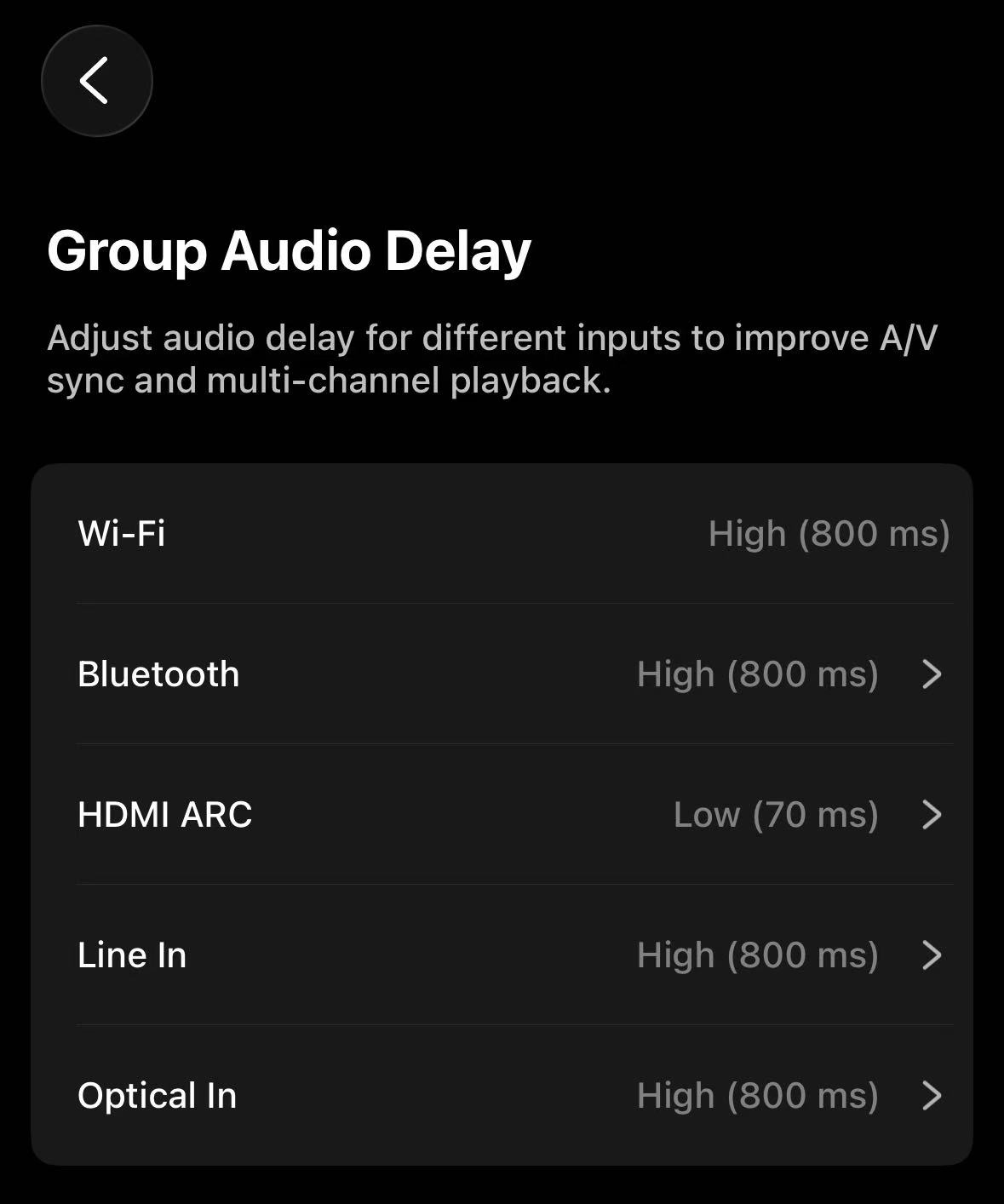
For details, see Adjust Group Audio Delay to Optimize Playback.