
TABLE OF CONTENTS
The WiiM Pro and WiiM Pro Plus feature two distinct audio input ports:
- Line In
- Optical In
You can connect devices like CD players, TVs, PCs, or turntables to your WiiM Pro or WiiM Pro Plus via these input ports for high-quality playback with reduced latency.
Supported Audio Format and Quality for Optical In
The following table shows the supported audio formats and quality for the Optical In port on both the WiiM Pro and WiiM Pro Plus:
| Device | Ports | Supported Audio Formats | Supported Audio Quality |
|---|---|---|---|
| WiiM Pro | Optical In | Stereo PCM | Up to 24-bit/192 kHz |
| WiiM Pro Plus | Optical In | Stereo PCM | Up to 24-bit/192 kHz |
Please note that neither the WiiM Pro nor the WiiM Pro Plus supports other TV audio formats like Dolby Digital, Dolby Atmos, or DTS.
To ensure proper sound output and compatibility, set the audio format to Stereo PCM in your TV or Blu-ray player's settings when using the WiiM Pro or WiiM Pro Plus.
How to Use the Line In Port
The Line In interface on the WiiM Pro and WiiM Pro Plus is typically used to connect to a CD player or PC to receive analog audio input.
This example shows how to use the Line In port to connect a CD player:
- Use an RCA cable to connect the Line In port on your WiiM Pro or WiiM Pro Plus to the Line Out port on a CD player.

- Select the source input as Line In in the WiiM Home app, or enable Auto-sensing of Line In. For details, see How to Select Audio Input on Your WiiM Device.
- Play music on the CD player. The music will stream to your WiiM Pro or WiiM Pro Plus.
Similarly, you can connect other audio devices to your WiiM Pro or WiiM Pro Plus via the Line In port in the same process.
How to Use the Optical In Port
The Optical In port on the WiiM Pro and WiiM Pro Plus is typically used to connect to a TV, CD player, or PC to receive digital audio input.
This example shows how to use the Optical In port to connect a TV:
- Use an optical cable to connect the Optical In port on your WiiM device to the Optical Out port on a TV.
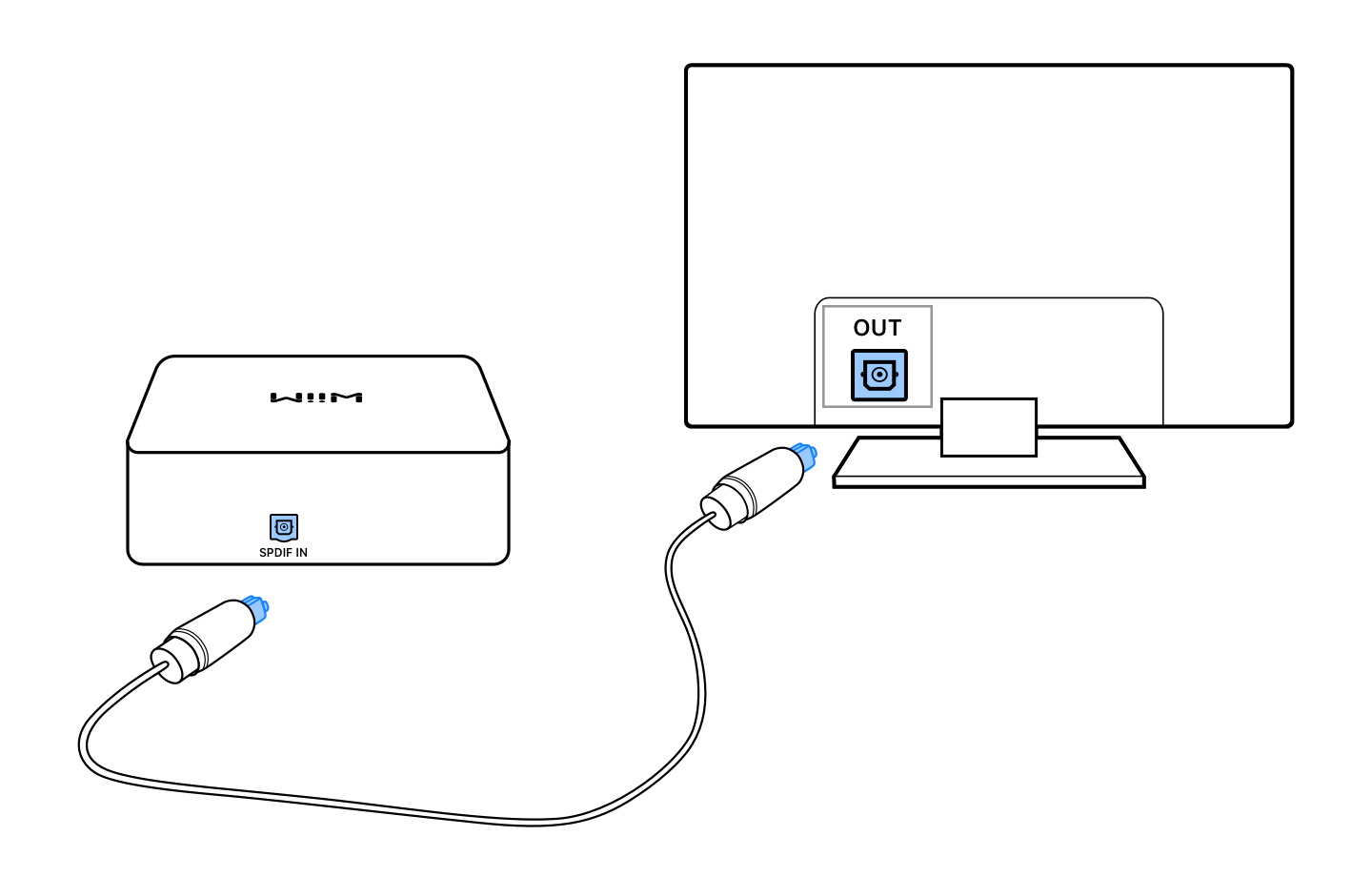
- Go to your TV's audio settings and select the optical or digital audio output. The exact setting names vary by TV model.
- Set the TV's digital output audio format to the Stereo PCM format. For instructions, refer to General Guide to Setting Digital Audio Output to PCM for Various TV Brands.Note: When using the Stereo PCM format, if your TV has a Digital Audio Out Volume setting (or a similar option), make sure to set it to Max. Otherwise, the connected WiiM device may output very low or no sound.
- Select the source input as Optical In in the WiiM Home app, or enable Auto-sensing of Optical In. For details, see How to Select Audio Input on Your WiiM Device.
- The audio on the TV will play on your WiiM Pro or WiiM Pro Plus.
Similarly, you can connect other audio devices to your WiiM Pro or WiiM Pro Plus via the Optical In port in the same process.
How to Use Audio Input Ports with Multi-room
The WiiM Pro and WiiM Pro Plus support all their audio inputs—Wi-Fi/Ethernet, Bluetooth, Line In, and Optical In—as sources for your multi-room system. By connecting an audio source device (e.g., a CD player or TV) to your WiiM Pro or WiiM Pro Plus, you can stream audio to any other WiiM devices on the same network.
For detailed instructions, refer to the following articles: