TABLE OF CONTENTS
Overview
WiiM now supports integration with Crestron Home through the Linkplay WiiM Platform Driver. This integration allows supported WiiM devices to become part of a Crestron Home audio system and be controlled directly from the Crestron Home interface.
System Requirements
The Linkplay WiiM Platform Driver requires a Crestron Home system using a Crestron 4-Series processor.
The minimum version requirements are:
- Processor firmware: 2.8000.00056
- Crestron Home: 4.004.0234
- Crestron Home SDK: 21.0100.0042
How to Add a WiiM Device to the Crestron System
Follow these steps to add a WiiM device to Crestron Home using the Linkplay WiiM Platform Driver.
Step 1: Connect to the Crestron Home Processor
- Open the Crestron Home Setup app on a mobile device or computer.
- Connect to the Crestron Home control processor.
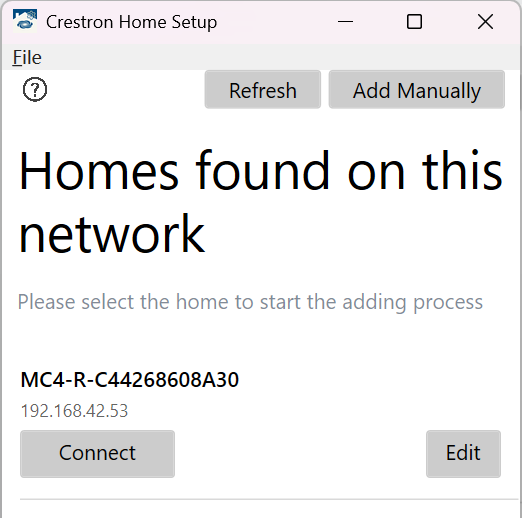
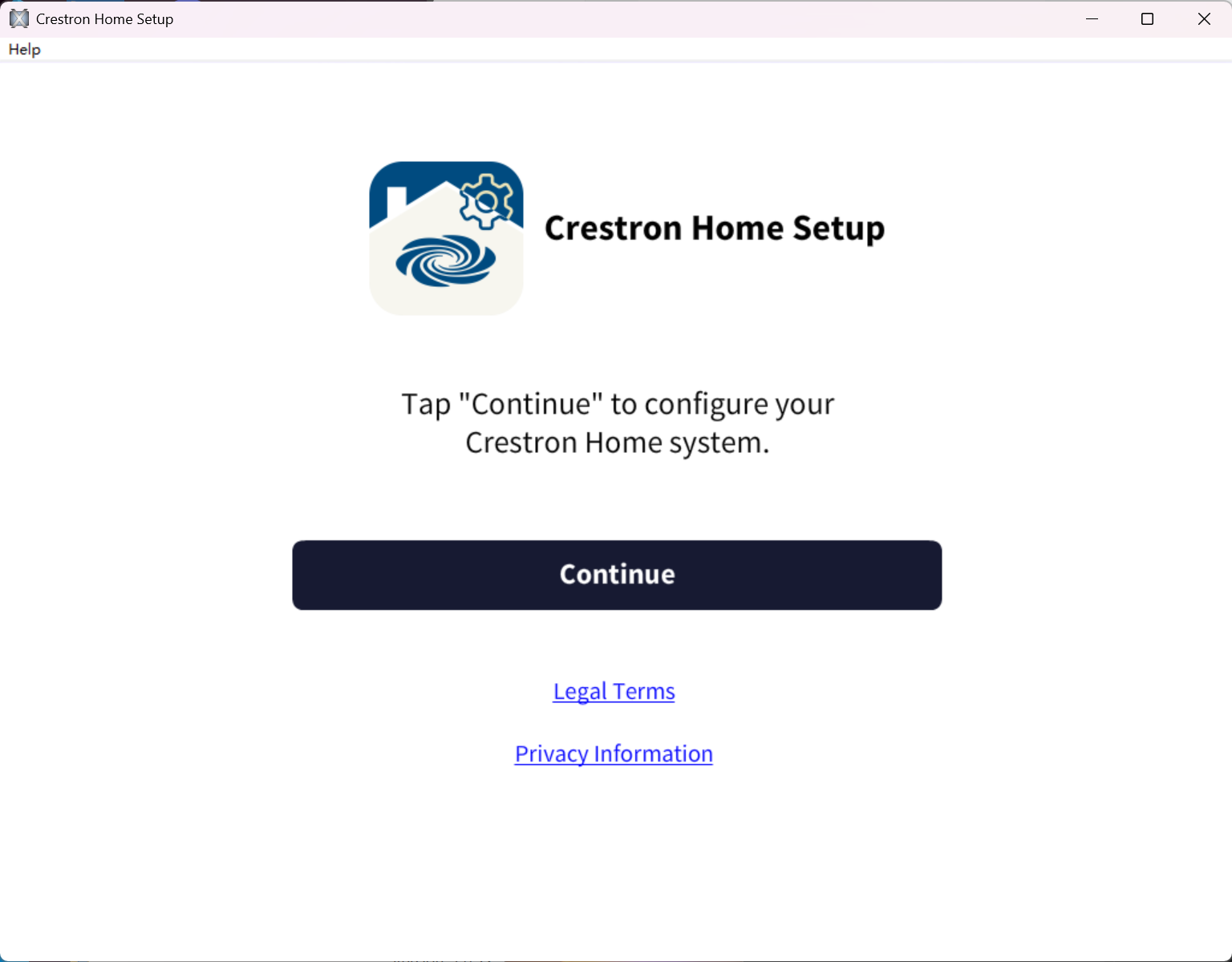
- When the setup app opens, click Continue, then sign in with the Crestron Home administrator credentials.
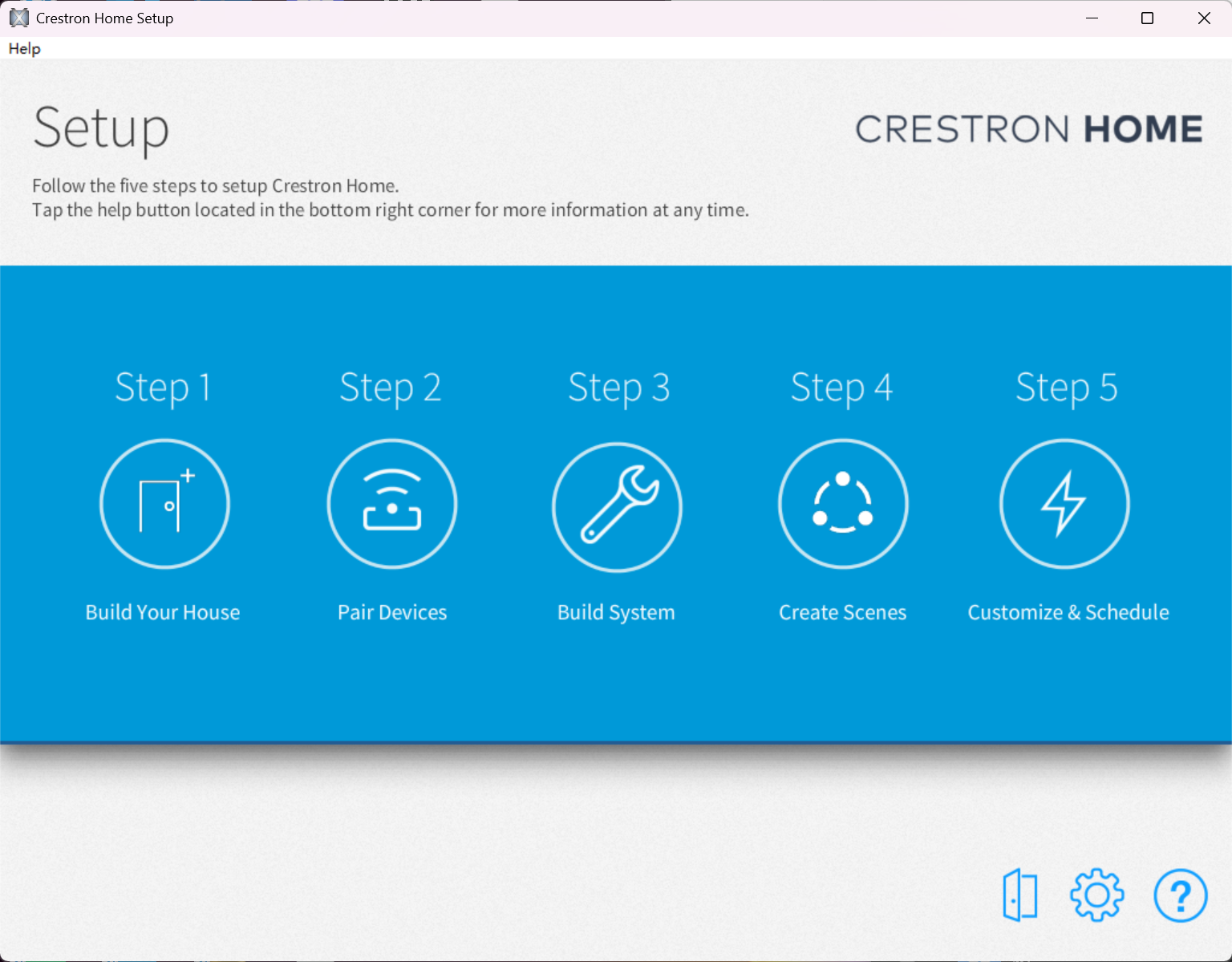
- Once logged in, the Setup page will be displayed.
Step 2: Create a Room
If this is the first time the Crestron Home system is being configured, create a room where the WiiM device will be used:
- Select Build Your Home in the Setup page.
- Scroll through the list of available rooms and press the Plus Sign (+) to add the room to your configuration. A custom room name can be added by typing in the name field next to the Plus Sign.
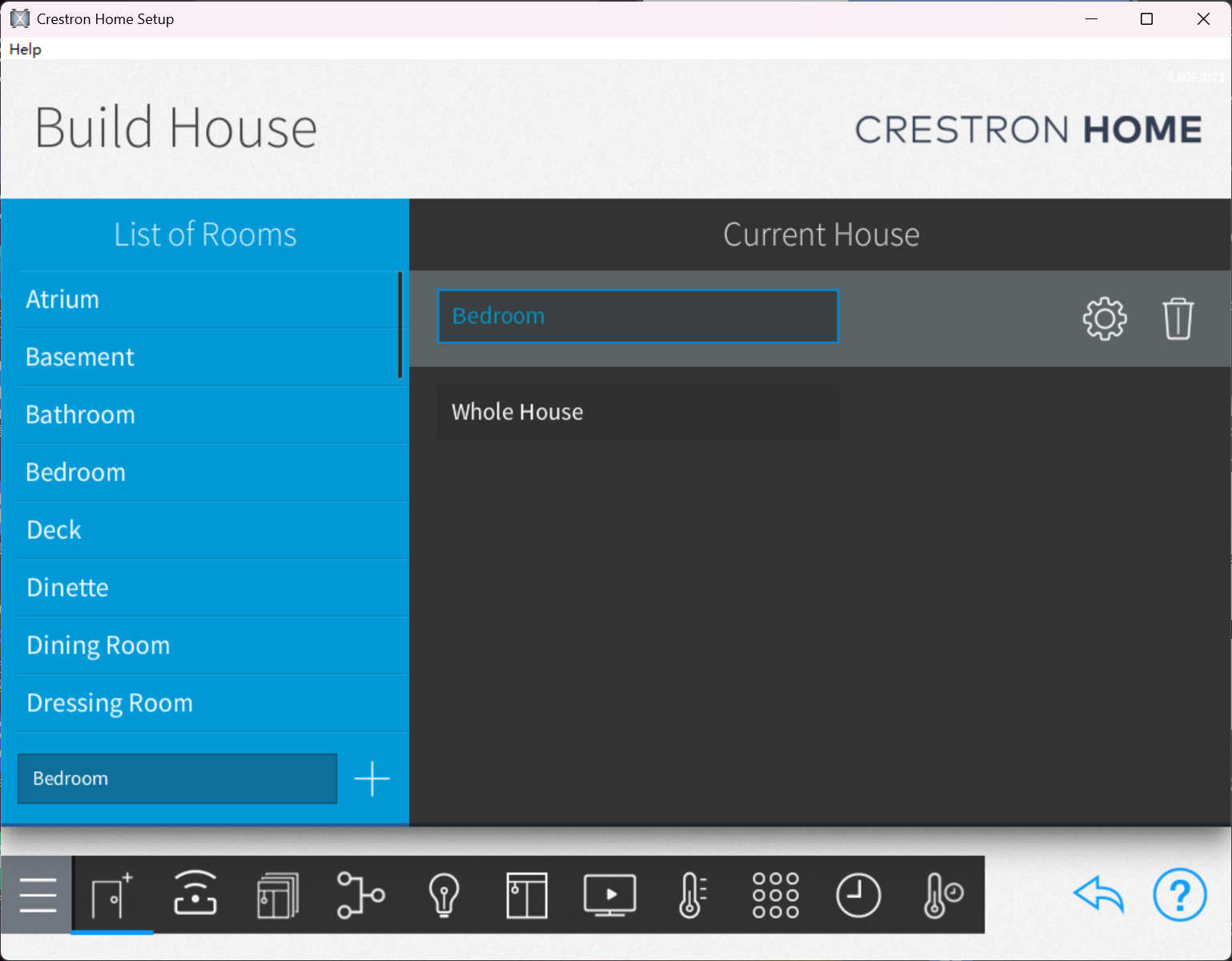
If the room has already been created, skip to the next step.
Step 3: Add and Configure the WiiM Platform Driver
- From the Setup page, select Pair Devices.
- Select the target room to which the driver will be added from the right side of the screen.
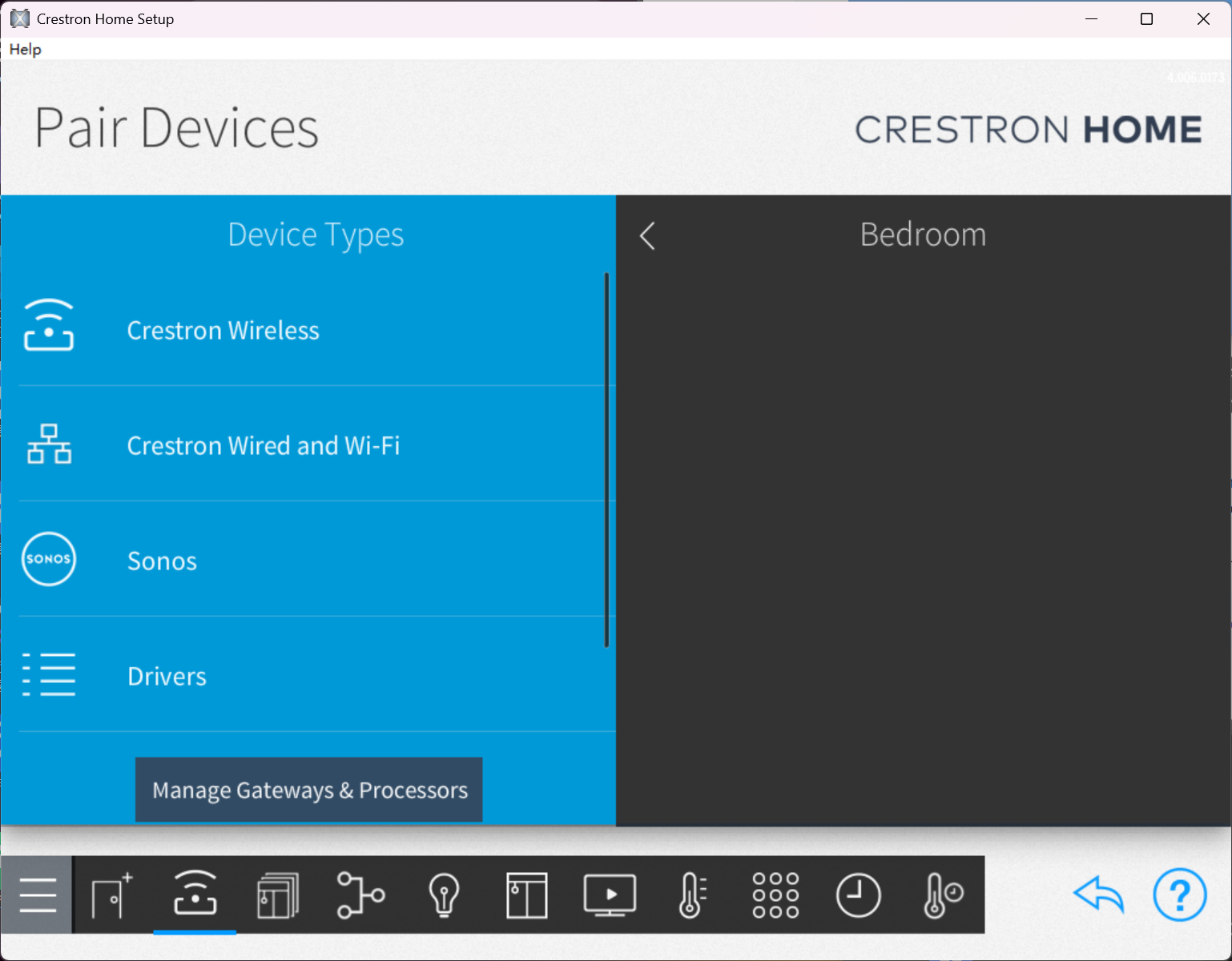
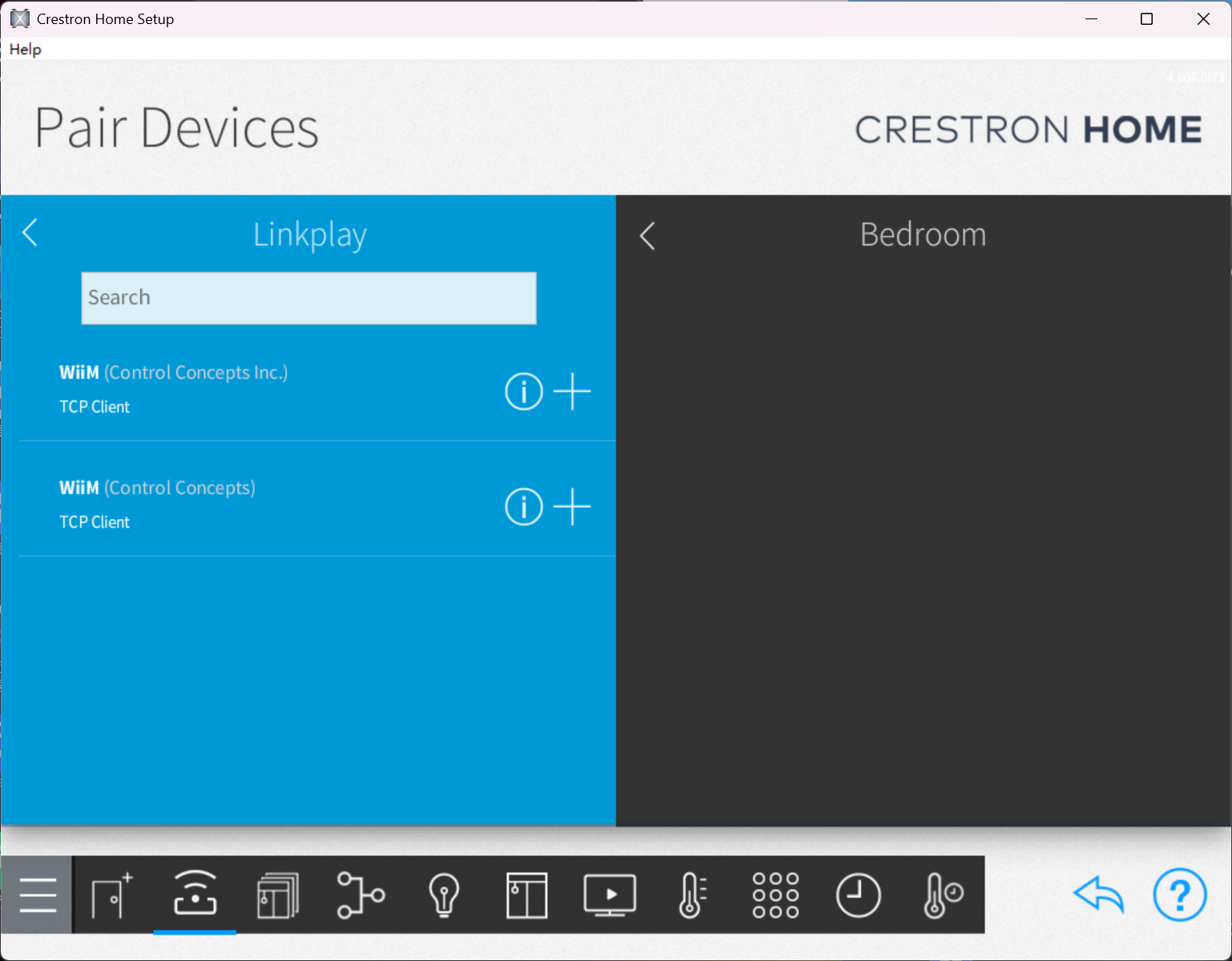
- From the menu on the left, locate the Platform driver category, select Linkplay as the manufacturer, then select the Plus (+) icon to add the Linkplay WiiM Platform Driver to the project.
- Enter a friendly name for the driver and enter the IP address of the WiiM device to connect to.Tip: Just use the default IP port as it is handled internally within the driver.
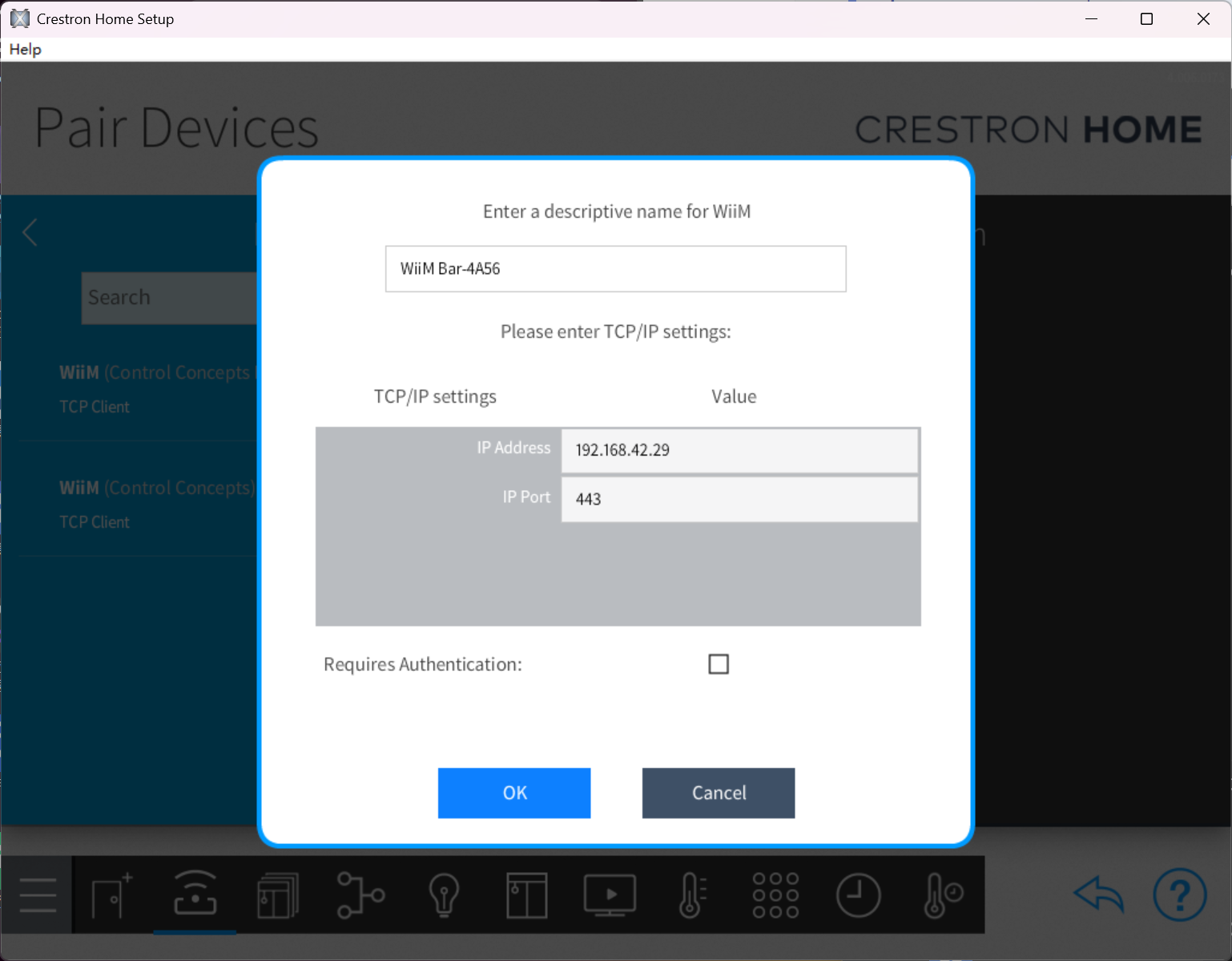
- Press OK. The driver will then make a connection to the lead WiiM device. It may take a couple of minutes for the driver to initialize.
Step 4: Add the Detected Device Drivers to a Room
After the connection is established, a Paired Devices folder will appear under Managed Platforms. The folder name will match the friendly name assigned to the Platform Driver.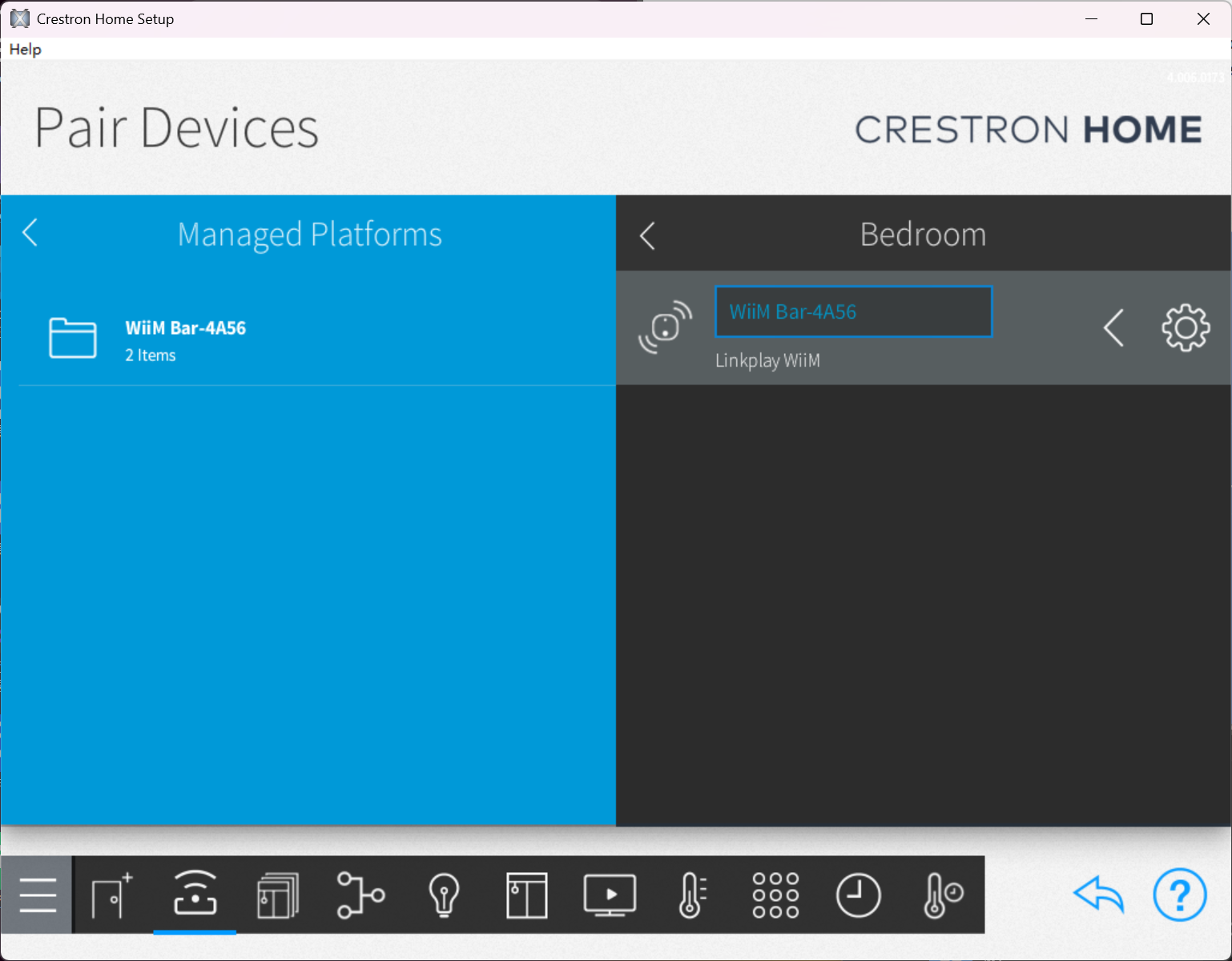
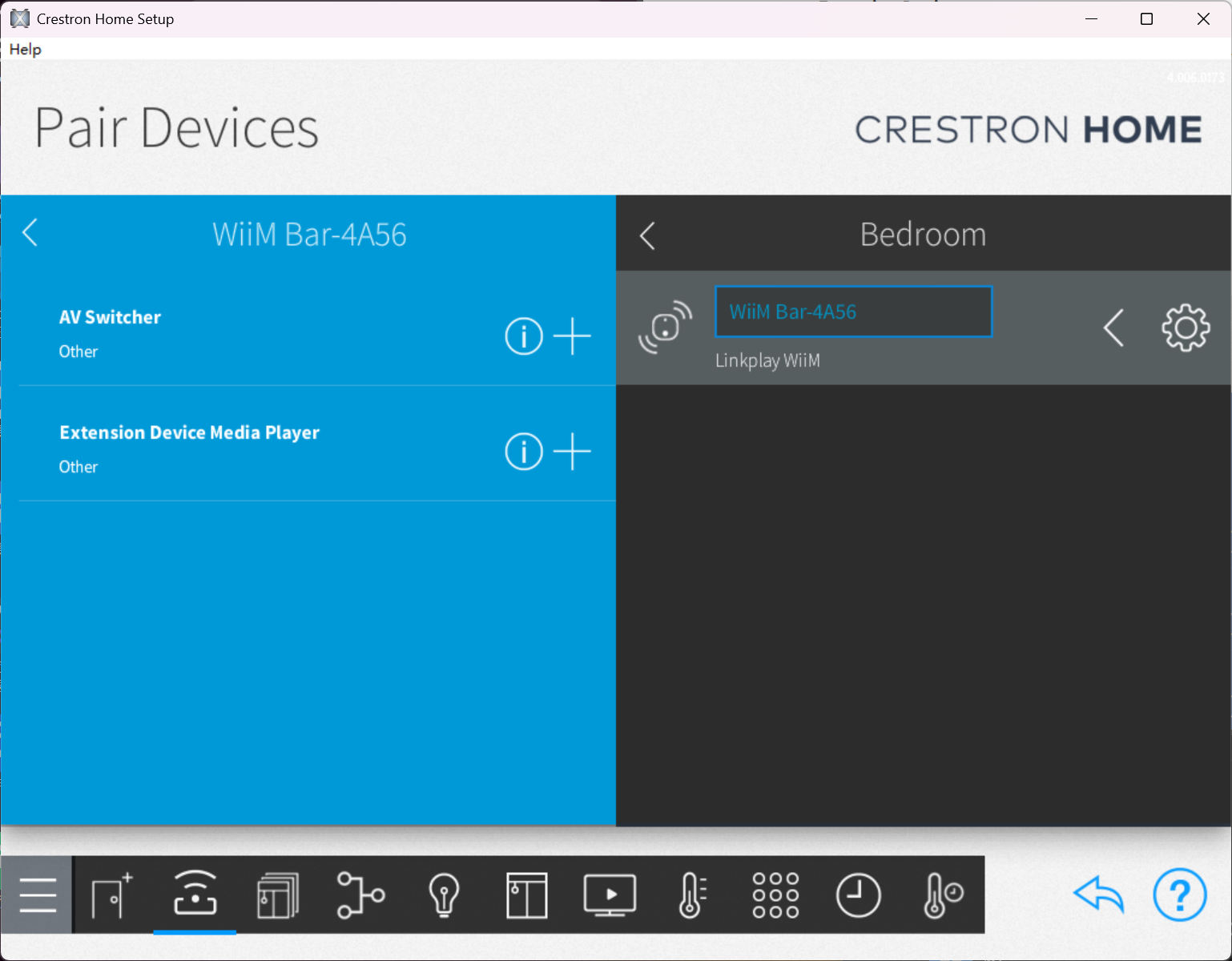
The drivers in the Paired Devices folder are dynamically detected. The list of device drivers will contain an AV Receiver and an Extension Device Media Player.
Follow these steps to add the detected device drivers to a room:
- Open the Paired Devices folder.
- Select the appropriate room on the right.
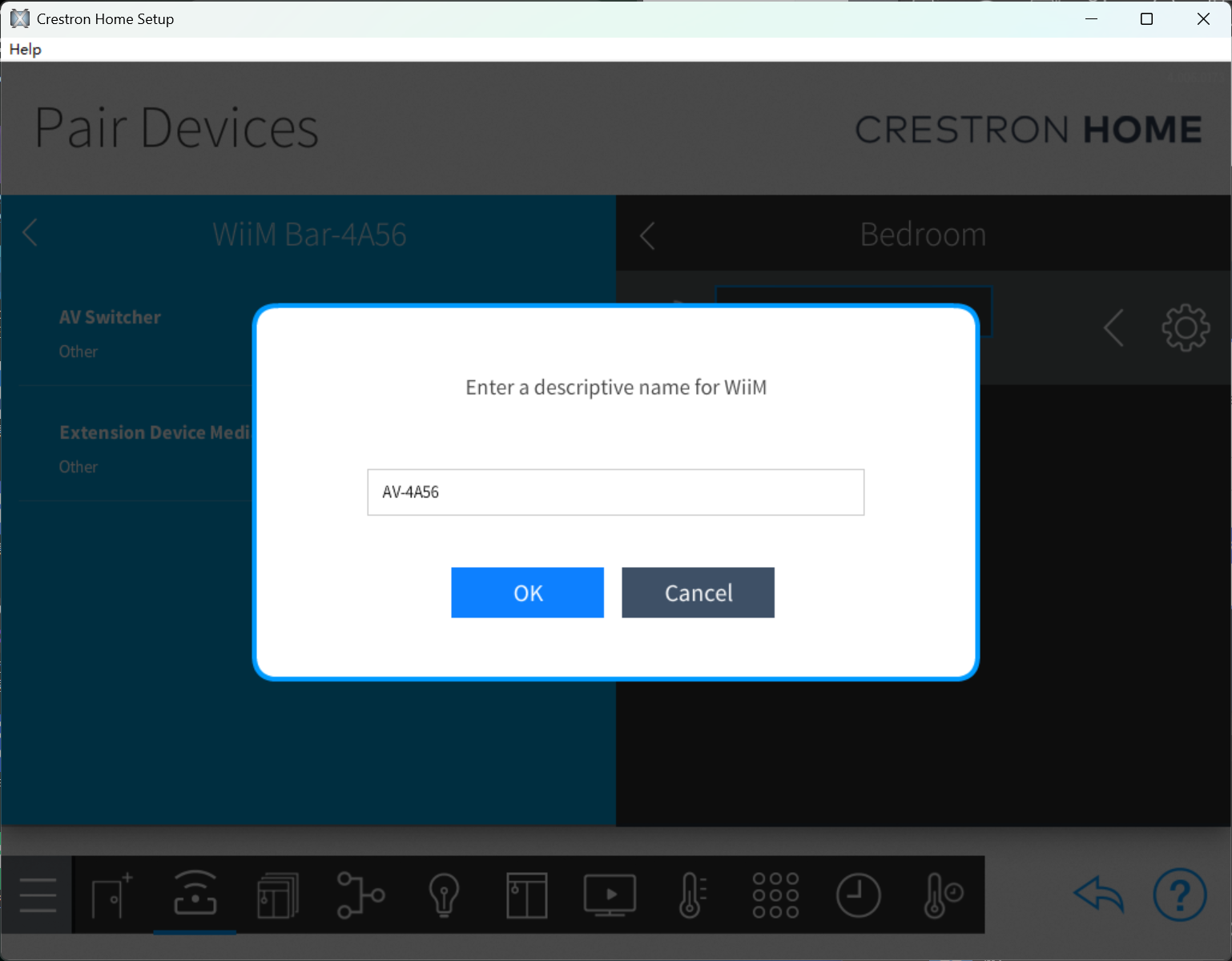
- Click the Plus (+) icon next to each driver.
- Enter a friendly name for the driver.
WiiM Controls
Once the WiiM device has been successfully added to the Crestron system, you can control it through the Crestron Home app.
Open the Crestron Home app. The added WiiM device appears in the selected room.
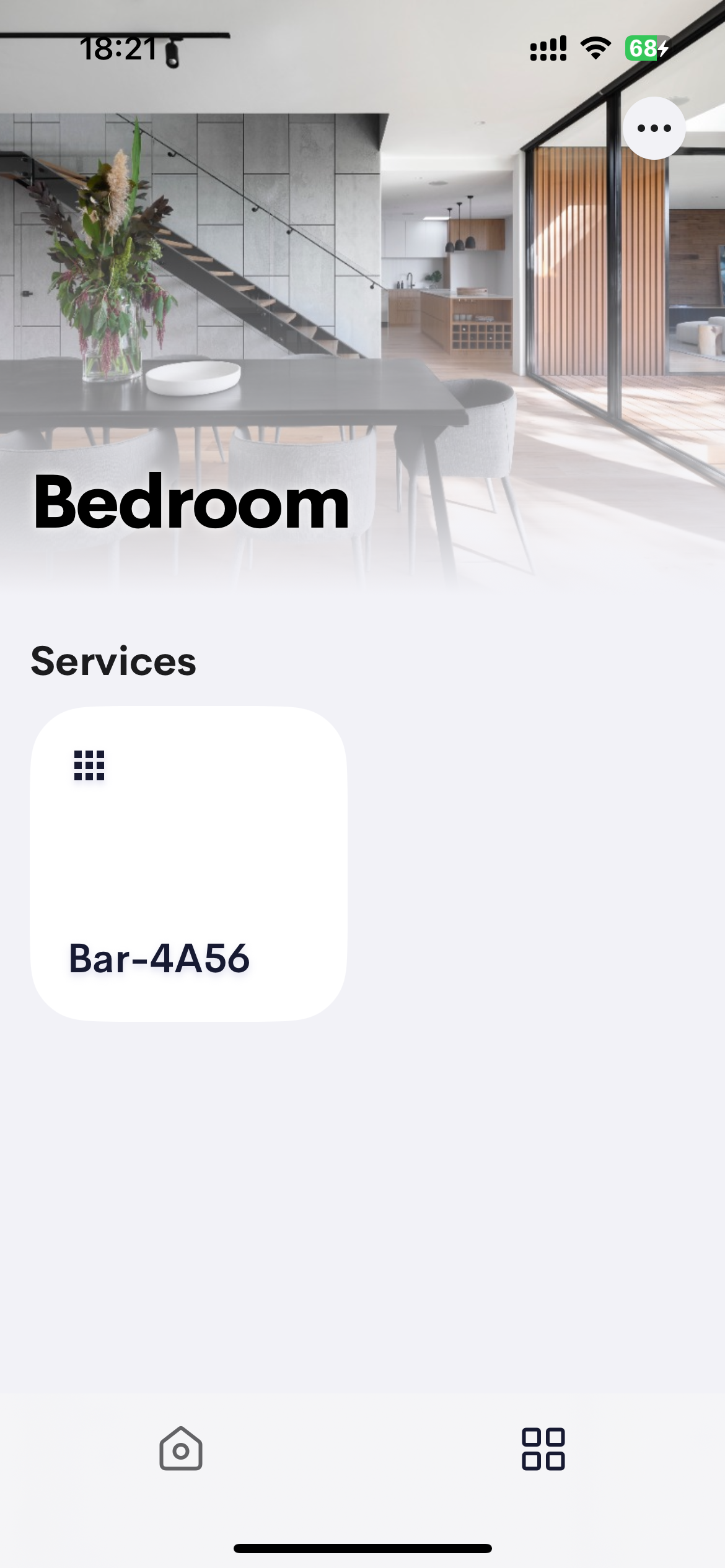
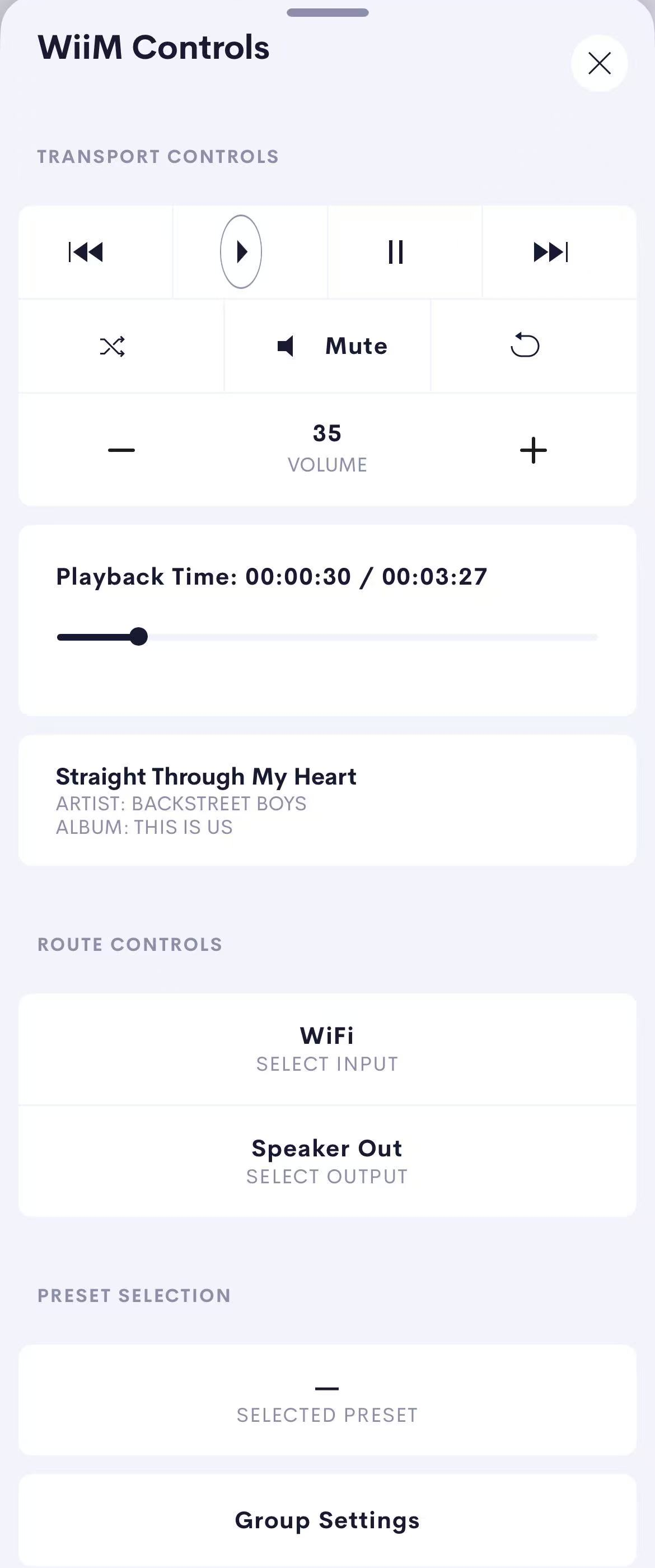
Tap the WiiM device to open the WiiM Controls page, where you can access the following controls:
- Transport Controls: Allows you to play, pause, skip tracks, adjust volume, and mute audio.
- Now Playing Information: Displays playback details, such as the title, artist, and album of the current track.
- Route Controls: Enables the selection of available audio inputs and outputs.
- Preset Selection: Allows you to select a saved preset, if available.
- Group Settings: Lets you add discovered WiiM devices to an audio group or remove them from a group.