
TABLE OF CONTENTS
The WiiM Home app for PC now features seamless device grouping. This allows you to group WiiM devices for a synchronized multi-room music experience throughout your home.
Create a WiiM Group
Steps:
- Open the WiiM Home app on your PC.
- Access the Devices page on the top-left corner.
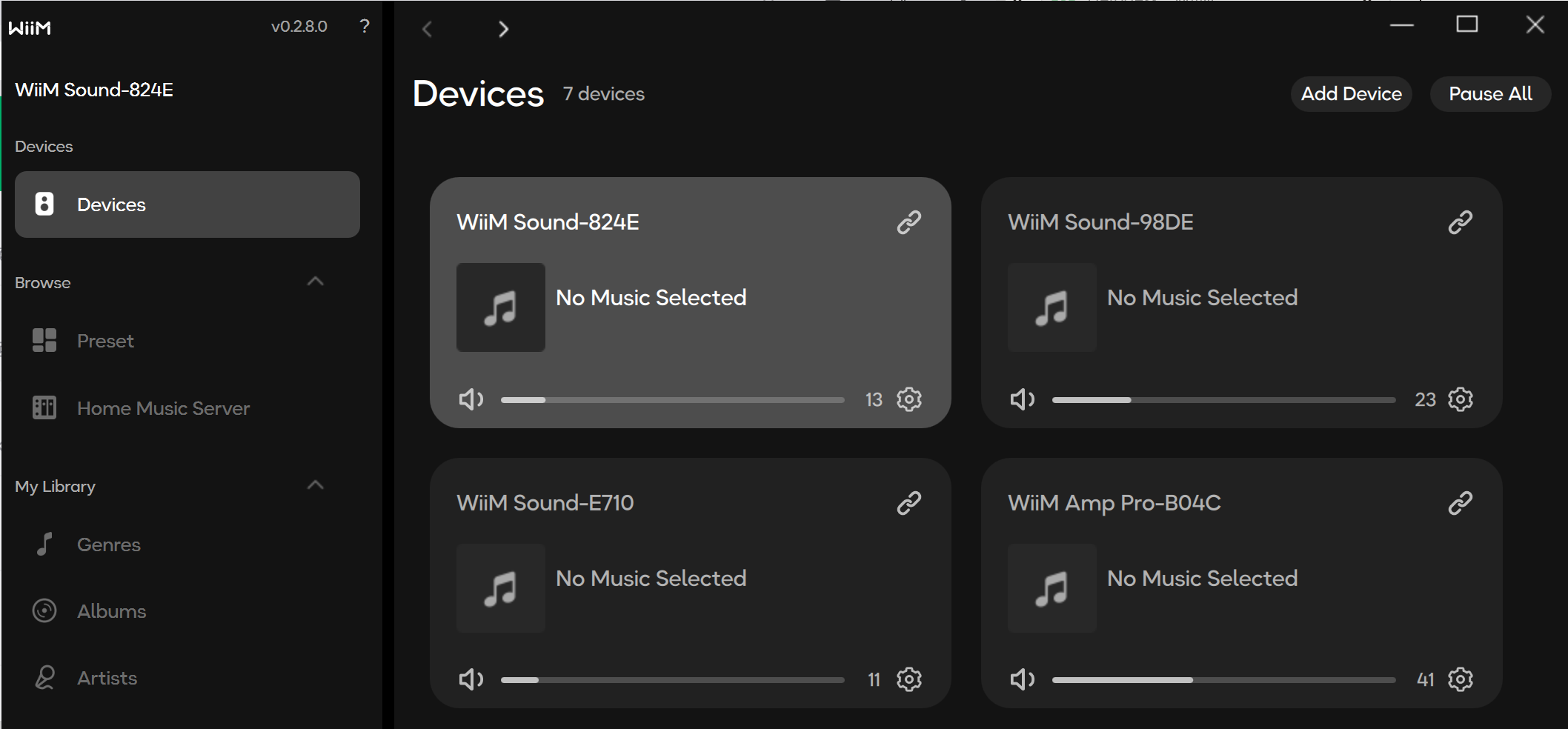
- Click the
 icon in the top-right corner of a WiiM device.
 - From the list, tick the WiiM devices you want to add to the group.
- Click Done to complete the setup.
Tip: You can also click the  icon on the Now Playing bar to create a group for multi-room music playback.
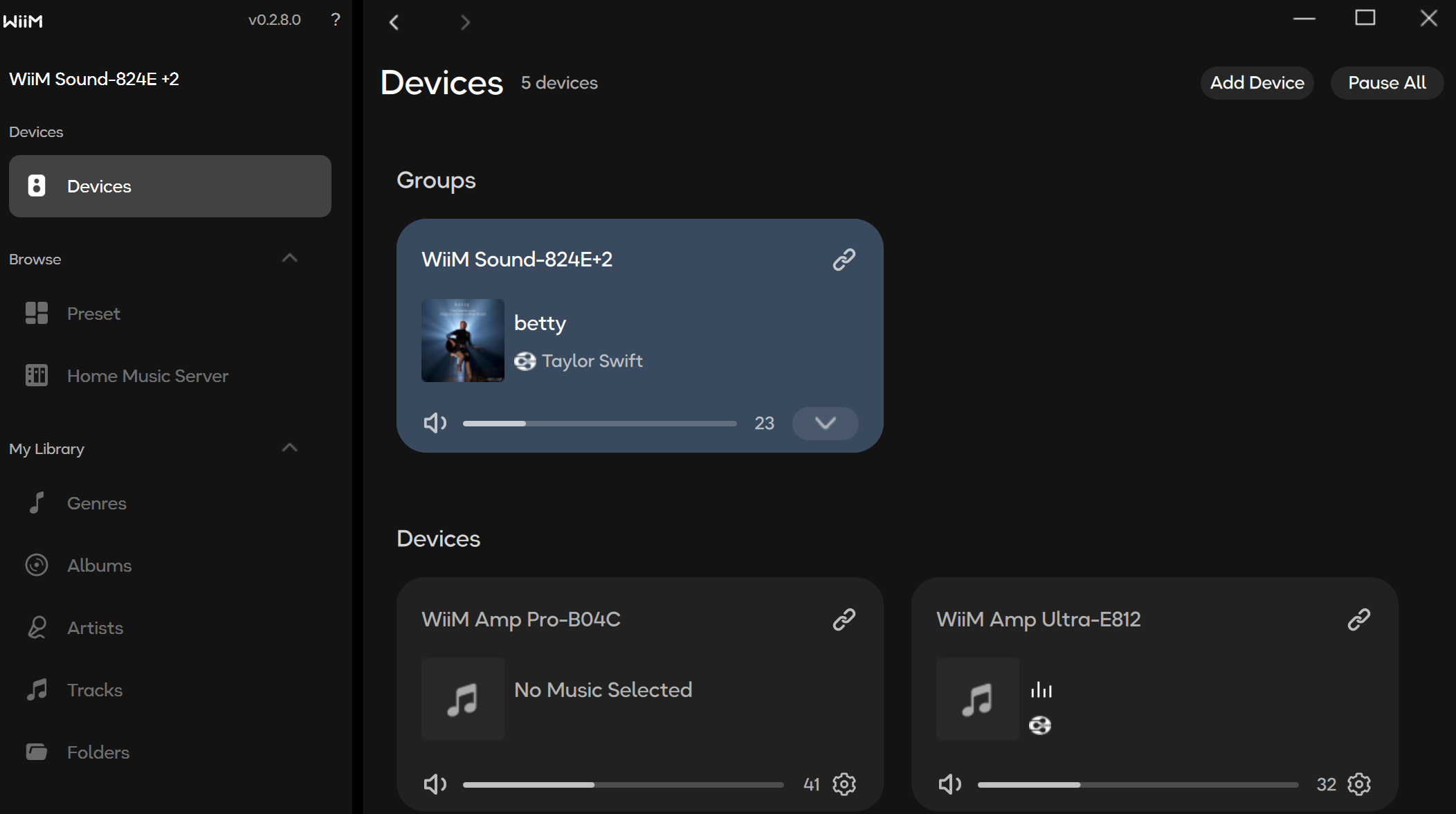
icon on the Now Playing bar to create a group for multi-room music playback.Once a group is created, it is displayed on the top of the Devices page. Now, you can play music on this group directly via the WiiM Home app or a third-party app (e.g., Spotify).
Note: The group name follows this format: "<group lead device name> + <the number of follower devices>".
For example, if you create a group where the group lead device name is "WiiM Sound-824E" and there are 2 follower devices, the group name is "WiiM Sound-824E+2".
For example, if you create a group where the group lead device name is "WiiM Sound-824E" and there are 2 follower devices, the group name is "WiiM Sound-824E+2".
Control Multi-room Playback
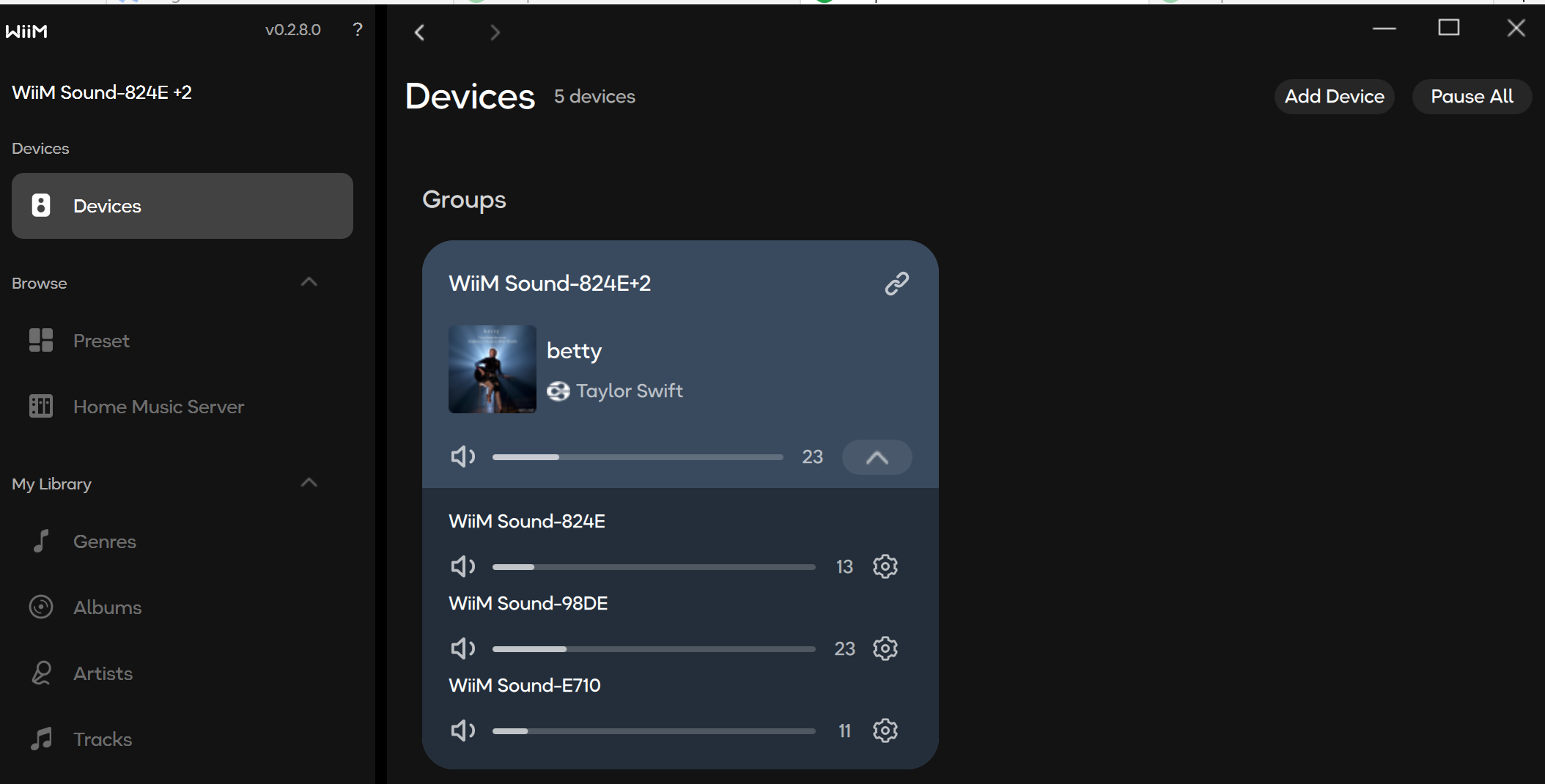
During multi-room playback, you can simply adjust the group volume or adjust the volume of an individual device.
Modify a WiiM Group
If you want to modify a group, for example, adding more devices, or removing devices, follow these steps:
- Go to the Devices page.
- Click the icon in the top-right corner of a group.
- From the list, tick the WiiM devices you want to add or untick the devices you want to remove.
- Click Done to complete the modification.
Note: A WiiM group must include at least two devices. If only one device remains in the group after modification, the group will automatically disband.