
TABLE OF CONTENTS
Overview
When using subwoofer output on your WiiM device, differences in speaker distance and internal processing can cause the subwoofer and main speakers to become out of sync.
Now, with a single tap, the Subwoofer Calibration feature measures sound at your listening position and automatically adjusts the time delay and volume level between the main speakers and subwoofer for balanced, synchronized sound.
The following animations illustrate the effect of subwoofer calibration.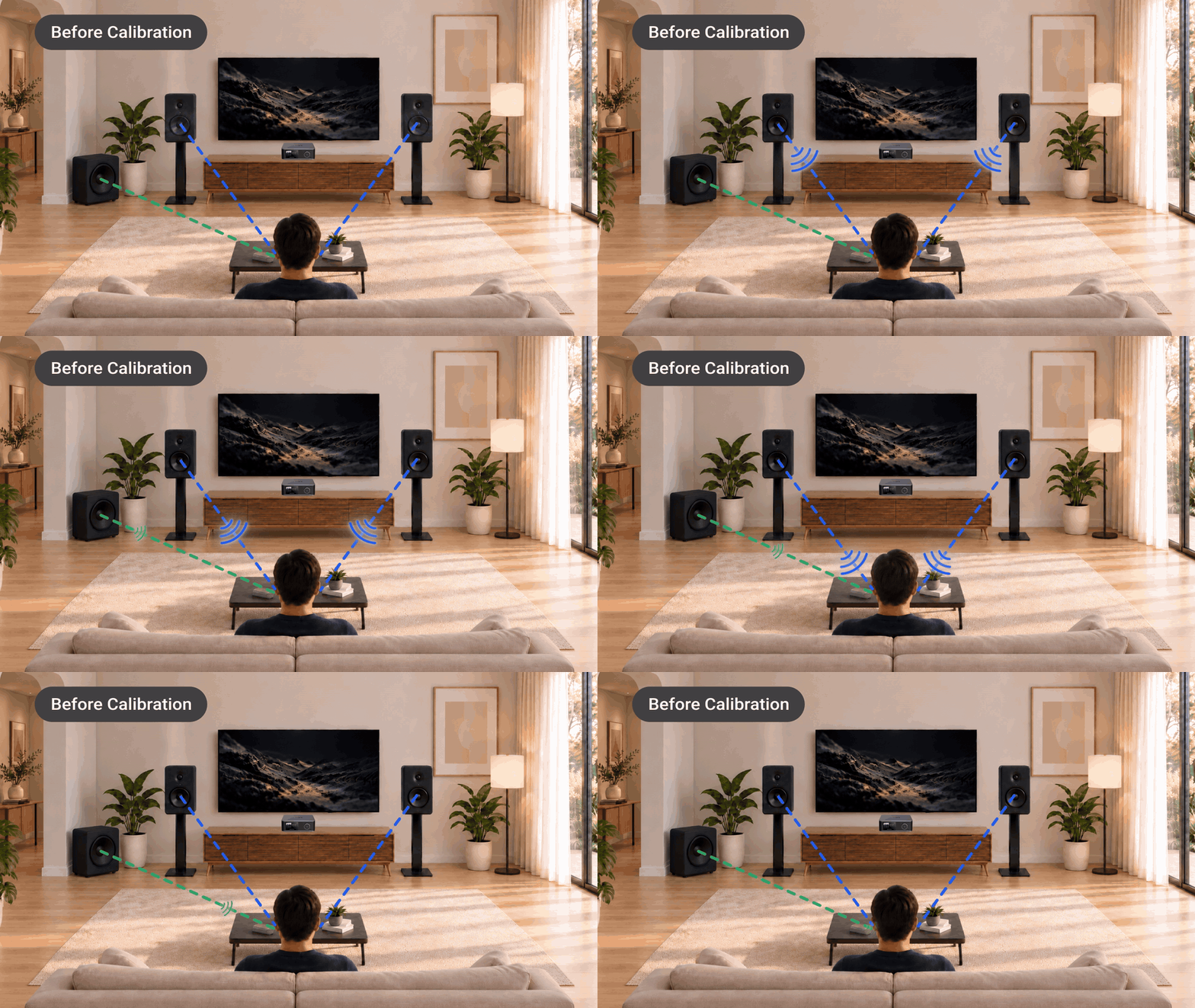
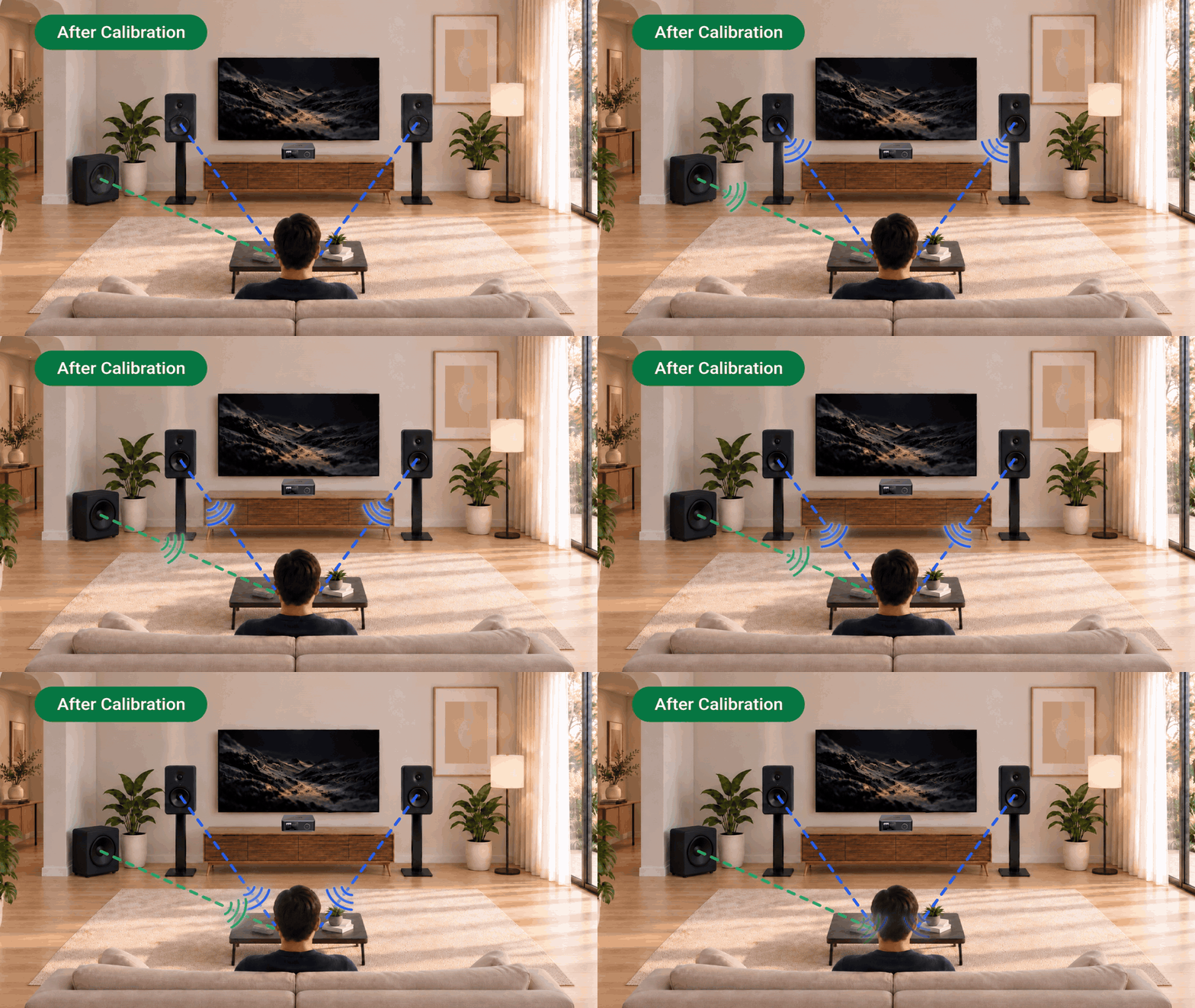
Understanding Subwoofer Delay
Subwoofer delay can mainly come from DSP processing or speaker placement:
- DSP processing: Some subwoofers use digital signal processing (DSP), which can add a small amount of delay. This processing delay is inherent in the subwoofer and usually cannot be eliminated.
- Speaker placement: If the subwoofer is placed farther from the listening position than the main speakers, its sound takes longer to reach you.
Preparations
- Keep the area around the main speakers and subwoofer clear of obstructions.
- Remove the protective case from your mobile phone to avoid blocking the microphone.
- Set the main speakers and subwoofer to a moderate volume level.
- Close doors and windows, and keep the room as quiet as possible.
Subwoofer Calibration Guide
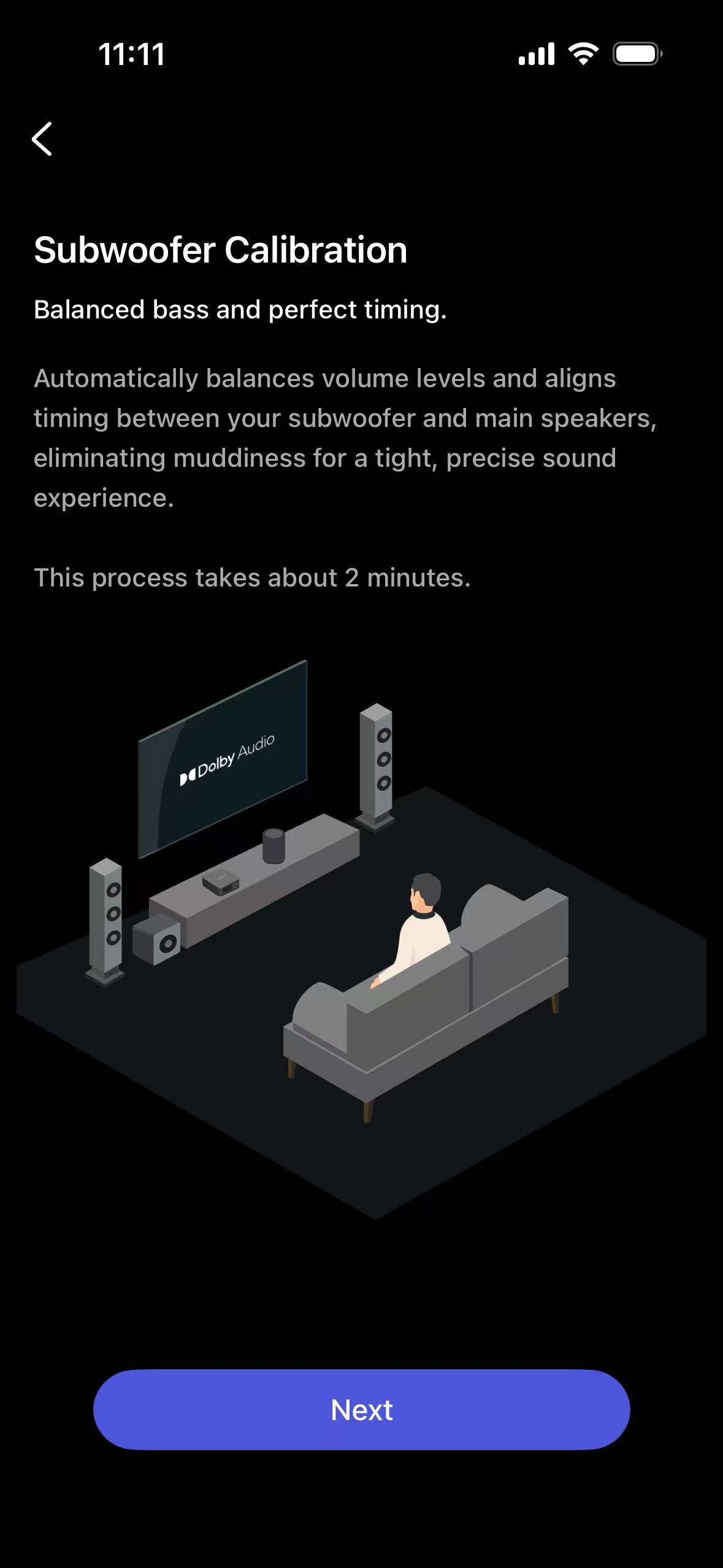
The calibration process uses your phone's microphone to automatically measure and align the time delay and volume level.
- Open the WiiM Home app.
- Go to the Devices tab > Device Settings > Sub Out > Subwoofer Calibration.
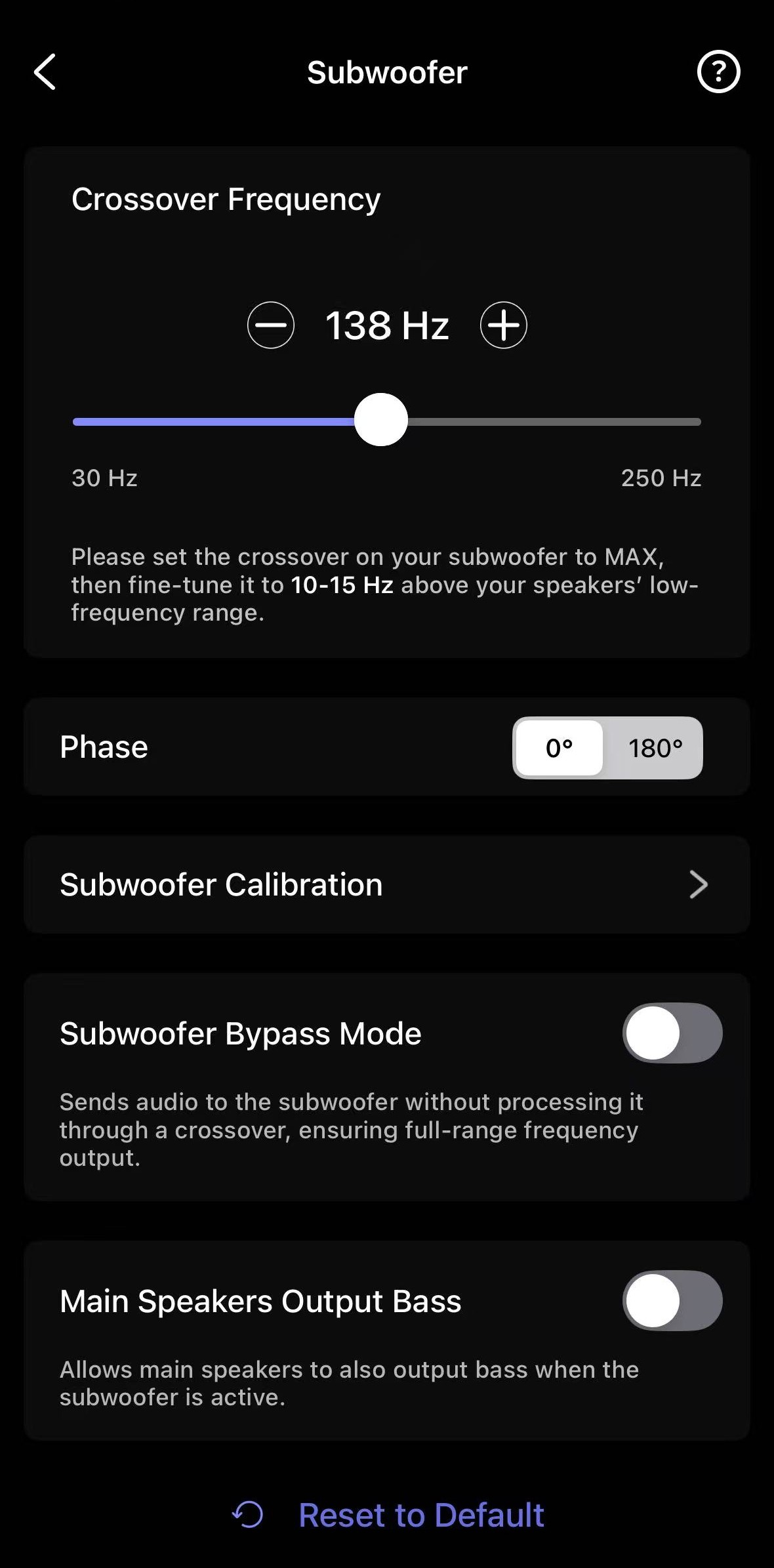
- Tap Next to start the calibration process.During the process, make sure to follow these instructions:
- Ensure the room is quiet.
- Rotate the phone 180° (microphone pointing toward speakers).
- Hold it at ear height.
- Sit in the sweet spot.
- Review the calibration results, then tap Done to complete.
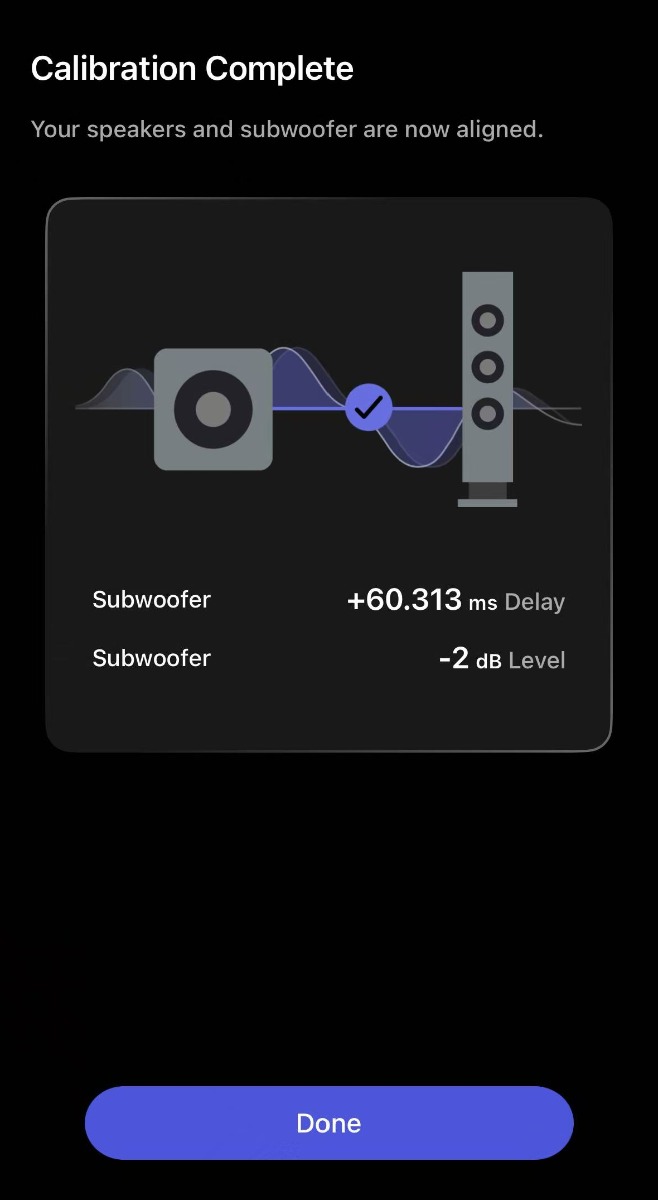
The calibrated delay and level values will be automatically applied.
Further Adjustment
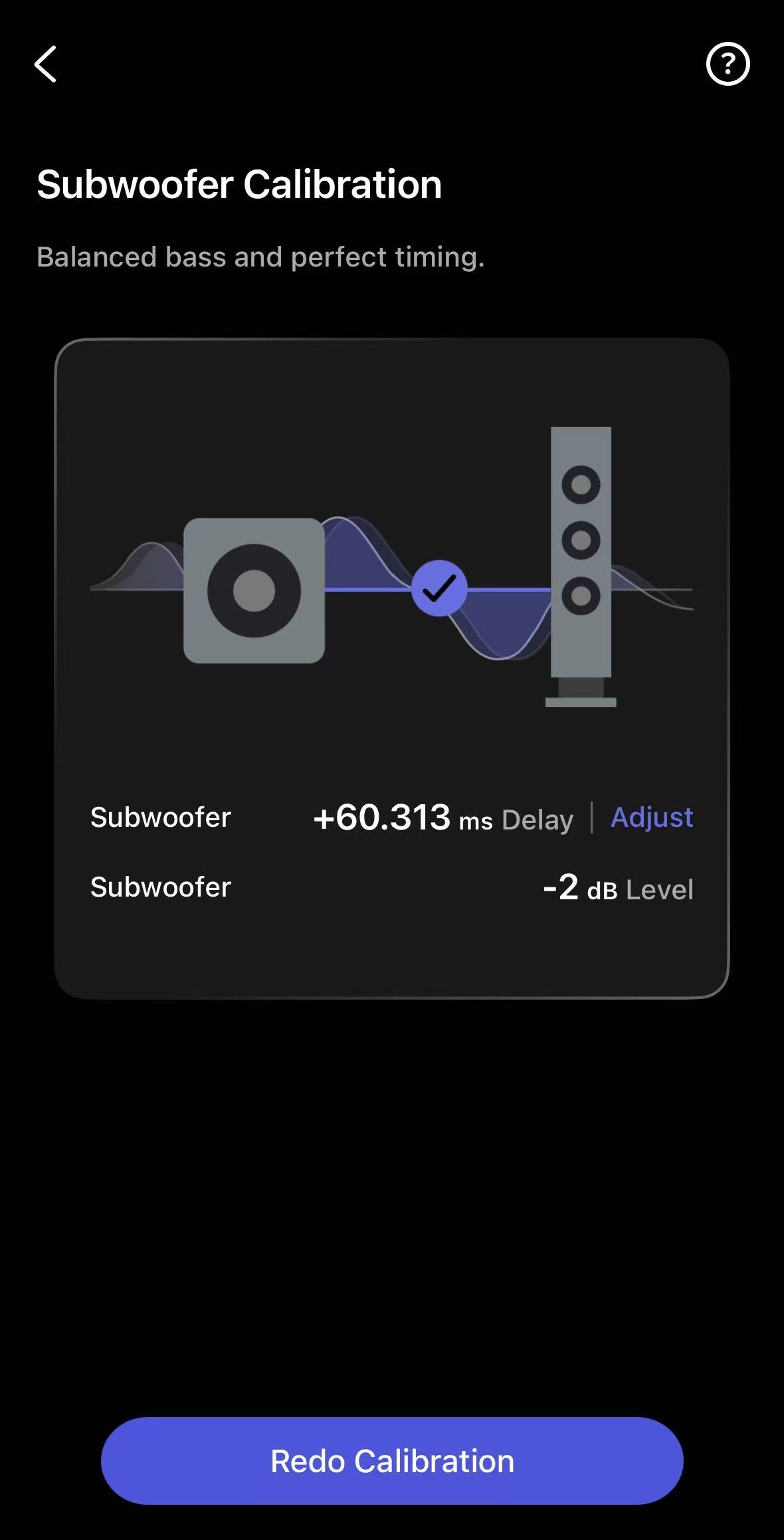
If you are not satisfied with the calibration results, redo the calibration or fine-tune the settings manually.
- Option 1: Redo Calibration
Tap Redo Calibration to calibrate both time delay and level again.
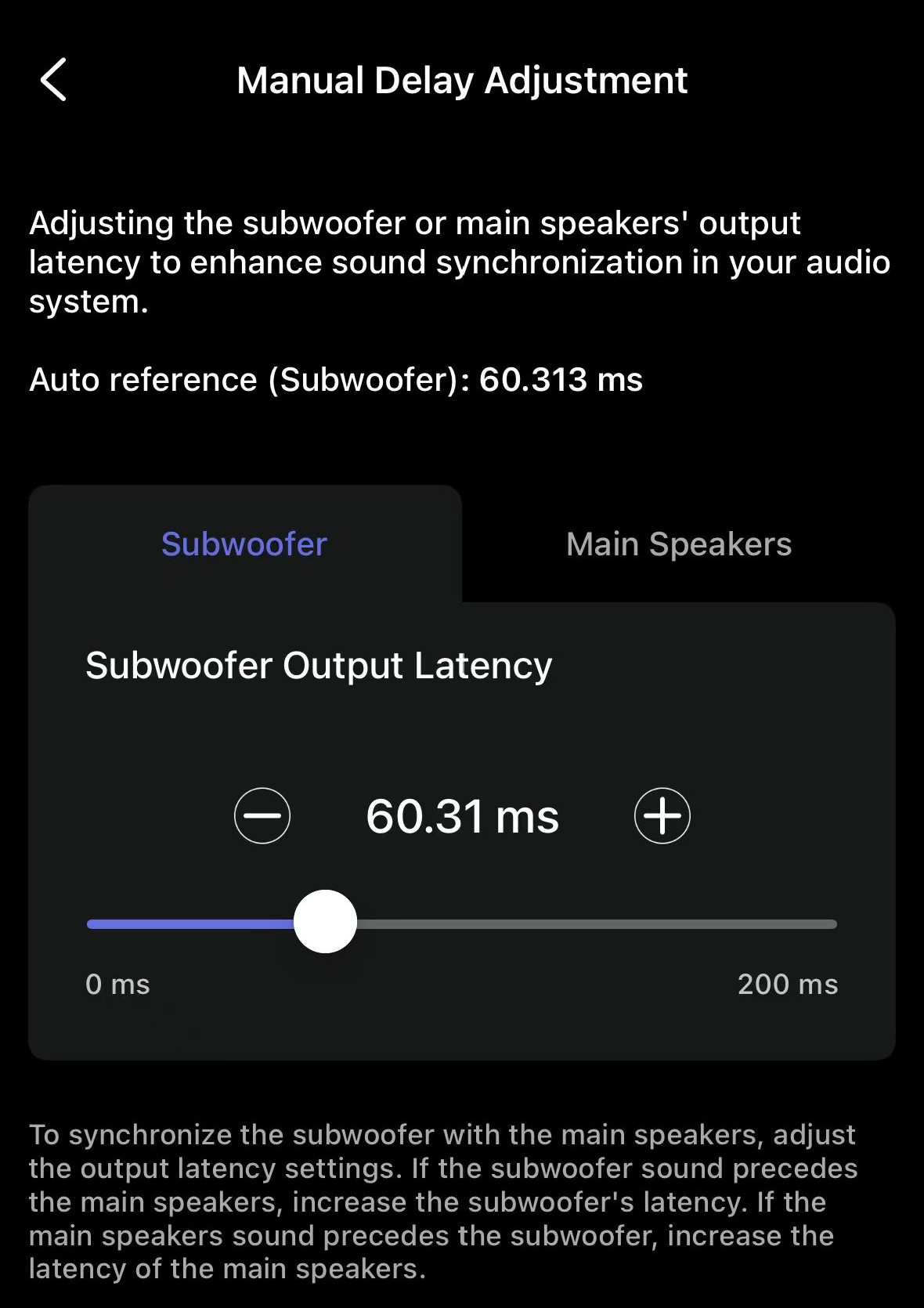
- Option 2: Adjust Delay Manually
Tap Adjust next to the delay value to manually adjust it.
Tips:- If you hear the bass ahead of the main speaker sound, increase the subwoofer delay.
- If you hear the main speaker sound ahead of the bass, increase the main speaker delay.
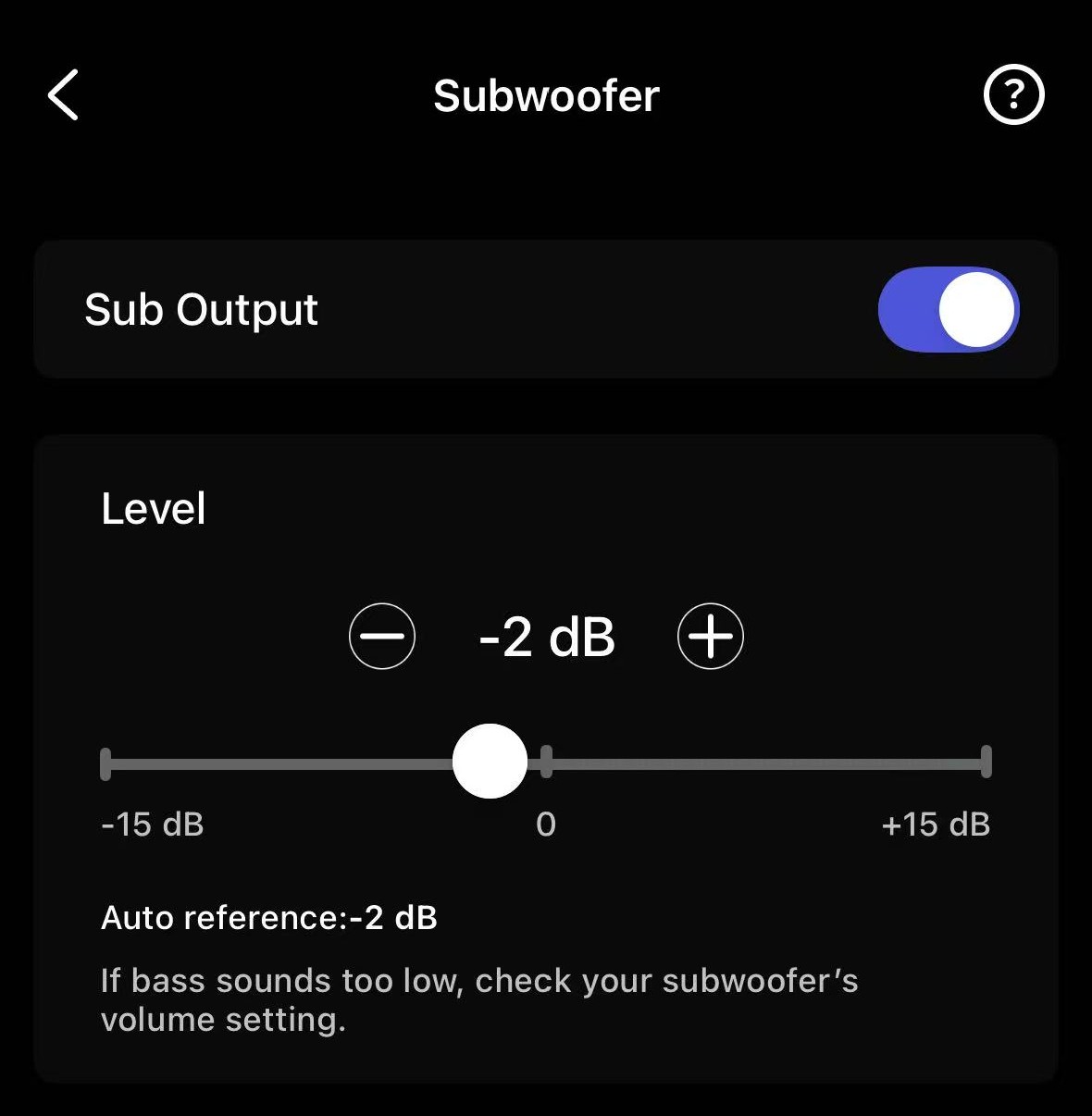
- Option 3: Adjust Subwoofer Level
Go to the Sub Out settings and adjust the subwoofer level.
Troubleshooting
If you encounter an error during the subwoofer calibration process, refer to Troubleshooting Subwoofer Calibration Errors to resolve the issue.