
Overview
WiiM now features input-based screen display control.
With this feature, you can choose whether the screen turns on or stays off depending on the active input (such as Wi-Fi, Bluetooth, HDMI ARC, Line In, or Optical In).
This allows you to customize screen behavior for different usage scenarios—for example, keeping the screen on while streaming music via Wi-Fi, but turning it off when using TV via HDMI ARC to avoid distractions.
How to Configure Screen Display Per Input
You can customize the screen behavior for each individual input source directly in the WiiM Home app.
Steps:
- Open the WiiM Home app.
- Go to the Devices tab > Device Settings
 > Screen Settings > Screen Display.
 - Toggle on or off the screen display for each input to match your preference.
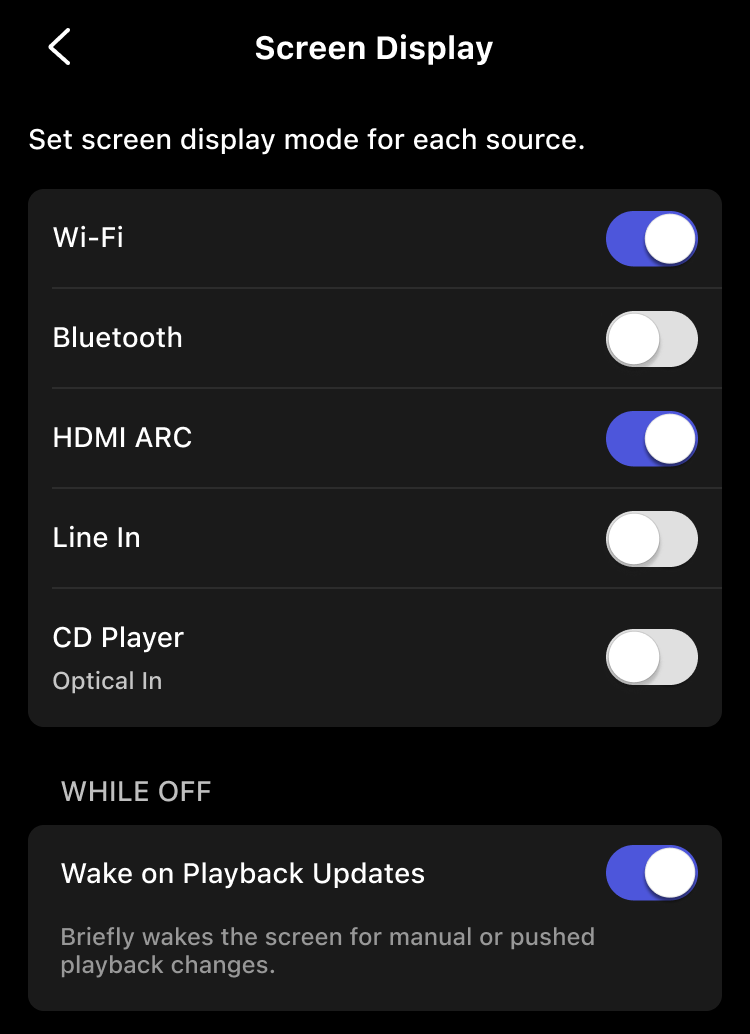
Note: You can enable Wake on Playback Updates to briefly wake the screen during playback actions or track changes, even if it is set to off.