
TABLE OF CONTENTS
Overview
With the WiiM Home app, you can effortlessly control your WiiM Vibelink Amp—manage sleep mode, switch audio inputs, and upgrade firmware.
This tutorial will guide you through each step in the WiiM Home app.
Initial Setup
Before you can manage your WiiM Vibelink Amp, you must set it up in the WiiM Home app.
Follow these steps to set up your WiiM Vibelink Amp:
- Turn on Bluetooth on your mobile device.
- Open the WiiM Home app on the mobile device. It will automatically scan for your WiiM Vibelink Amp.Note: Keep the mobile device close to your WiiM Vibelink Amp to ensure it is detected successfully.
- When a setup window as below appears, tap Set Up to start the process.
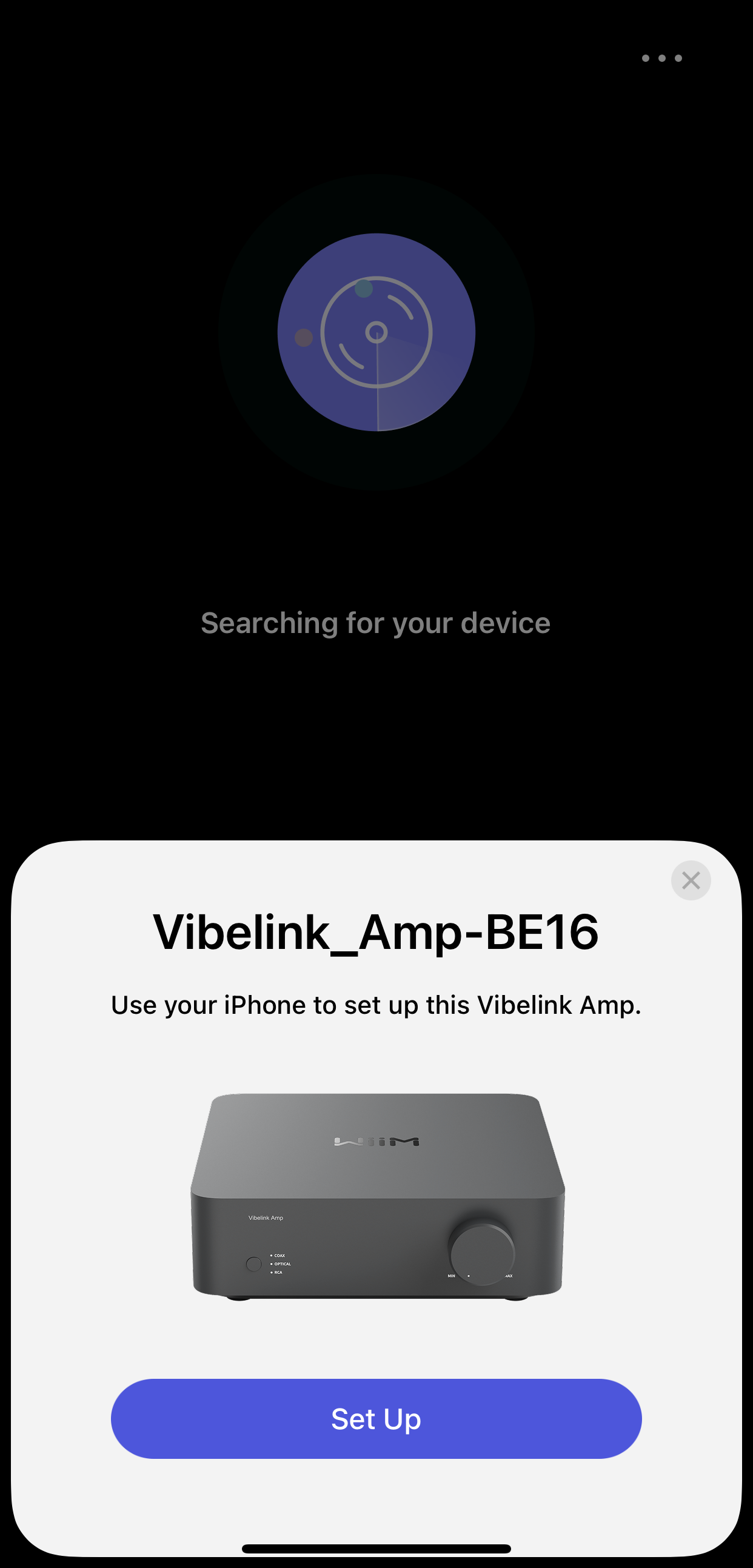
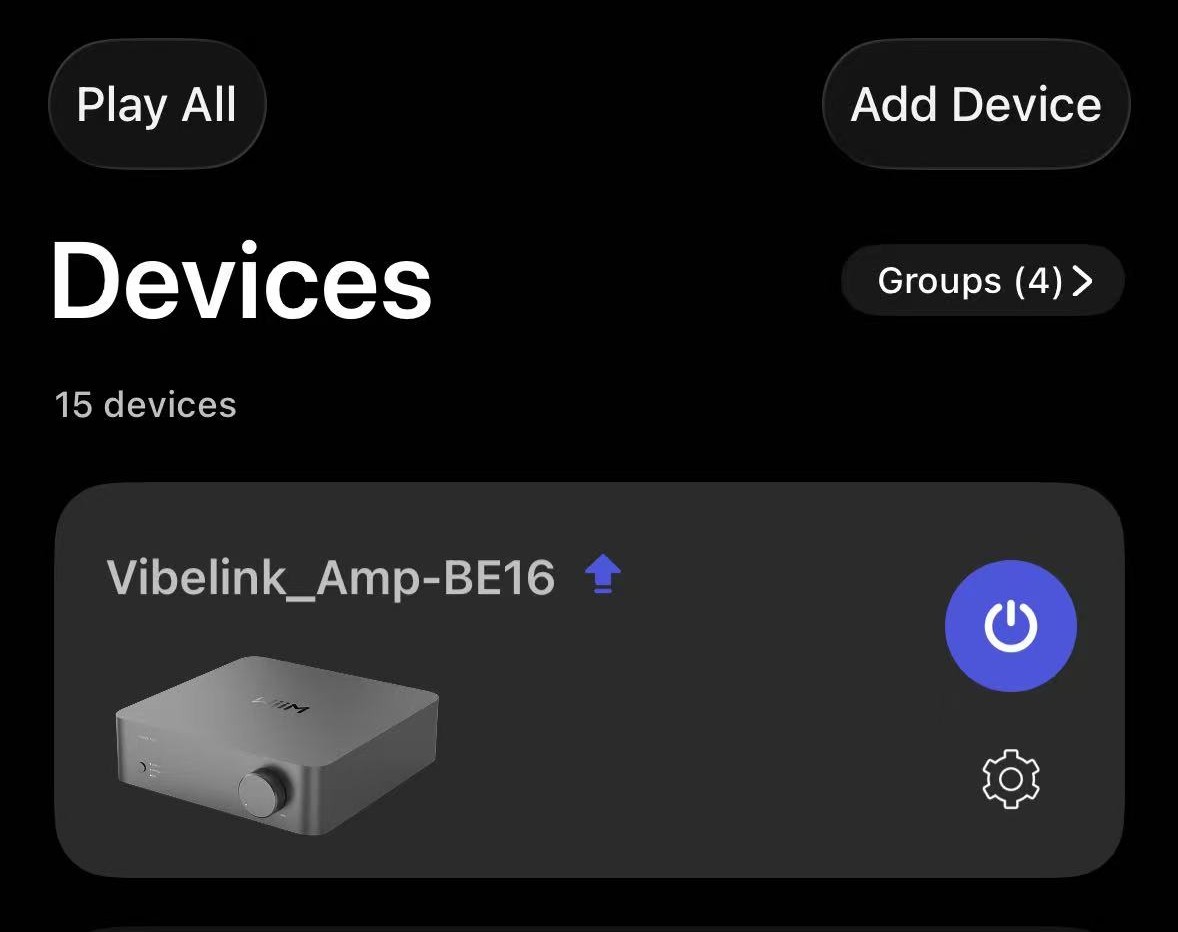
- Follow on-screen instructions to complete setup. Once completed, your WiiM Vibelink Amp will appear in the Devices tab.
Manage the WiiM Vibelink Amp
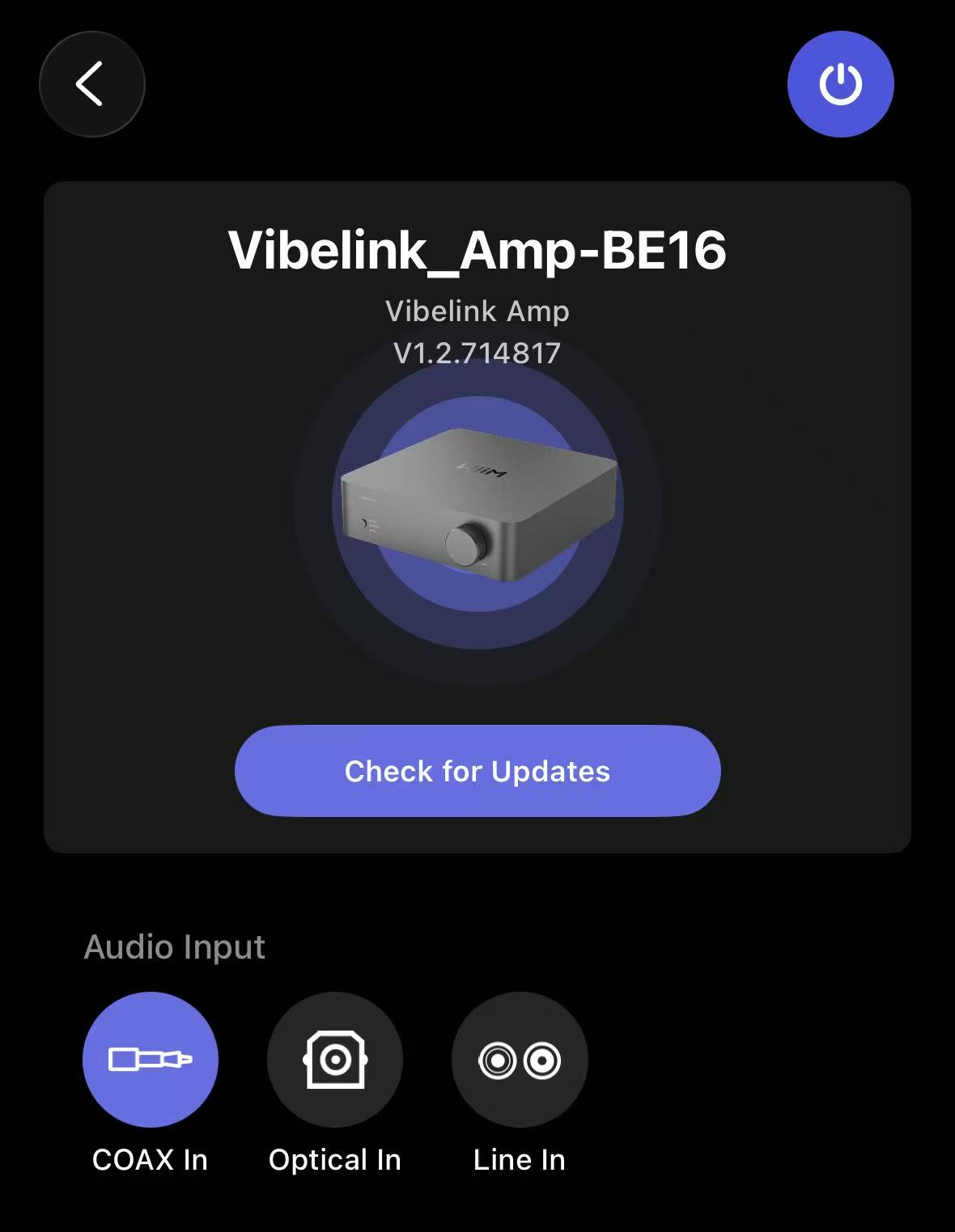
Tap the  icon next to your WiiM Vibelink Amp to access the Device Settings page. From here, you can manage your WiiM device.
Sleep Mode Management
You can toggle between active and sleep modes by tapping the power icon in the top-right corner of the Device Settings page.
- Active mode
 : The power icon is blue. Tap it to put your WiiM Vibelink Amp into sleep mode.
 - Sleep mode
 : The power icon is gray. Tap it to wake your WiiM Vibelink Amp from sleep mode.
Check for Updates
Tap Check for Updates in Device Settings to check for new firmware. If available, follow the on-screen prompts to install it.
 next to your device name on the Devices tab to update directly.
Audio Input Switching
In the Device Settings page, you can easily select your desired audio input from the following options:
- COAX In
- Optical In
- Line In