
TABLE OF CONTENTS
Overview
Use the Quick Network Switch feature in the WiiM Home app to connect your WiiM device to a different Wi-Fi network without pressing any buttons on the device.
Step-by-Step Instructions
Open the WiiM Home app on your phone.
Go to Devices > your WiiM device's Device Settings
 > Network Status.
Tap Change next to your Wi-Fi name, then tap Continue to confirm.
Note: Once you tap Continue, your WiiM device will disconnect from the current Wi‑Fi network.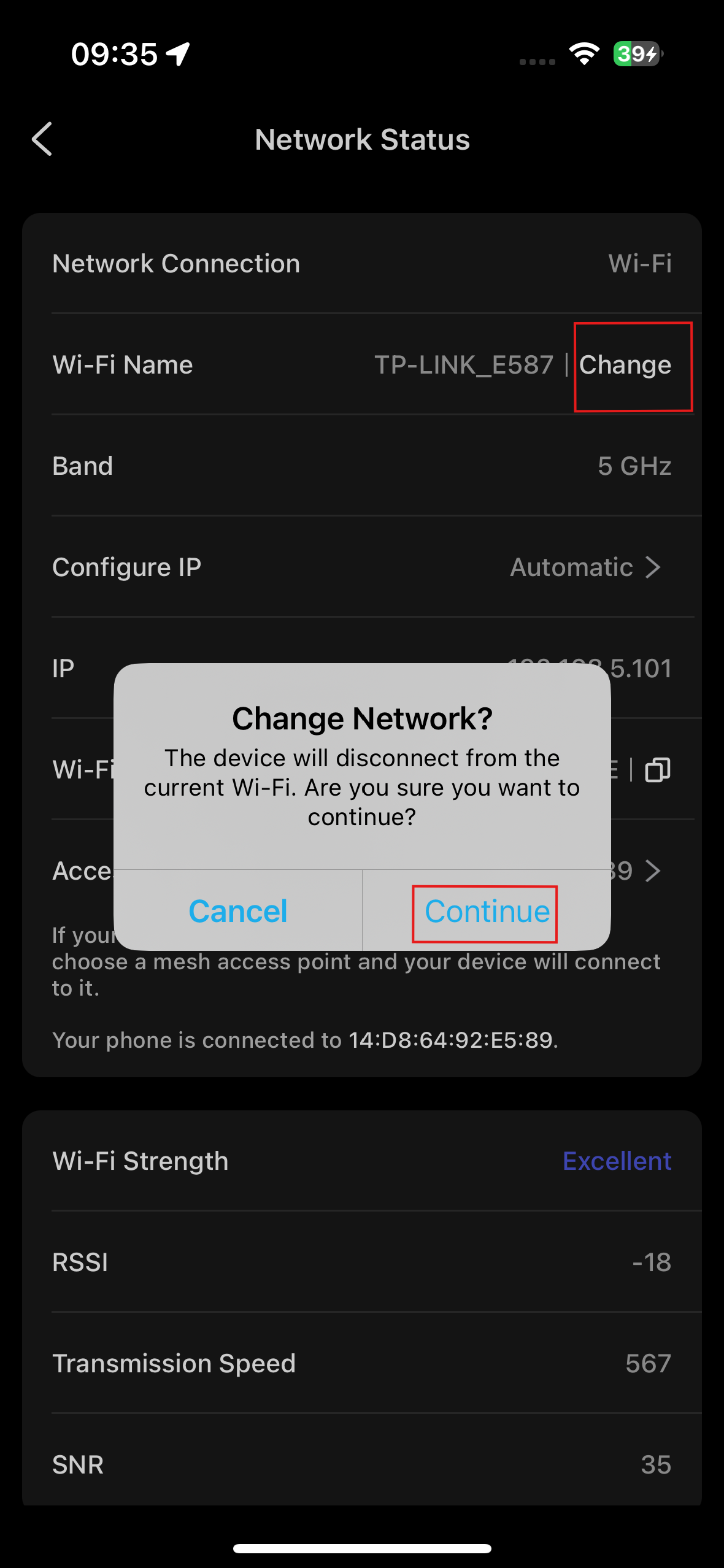
When the list of available Wi-Fi networks appears, choose your preferred Wi-Fi network.

Enter the network password and follow the on-screen instructions to continue.

Switch your phone's Wi-Fi.
Note: Make sure to connect your phone to the same Wi-Fi network as your WiiM device. Otherwise, you won't be able to find your WiiM device in the WiiM Home app.- For iOS: When prompted, tap Join to automatically switch your phone's Wi-Fi.

- For Android: If prompted, tap Go to Settings to manually switch your phone's Wi-Fi. Once completed, return to the WiiM Home app.

- For iOS: When prompted, tap Join to automatically switch your phone's Wi-Fi.
Now you've successfully changed your Wi-Fi network.

By following these steps, you can easily switch the Wi-Fi network on your WiiM device using the Quick Network Switch feature. Enjoy the simplicity of managing your device's connection with just a few taps.
Troubleshooting
If your WiiM device fails to connect to the new network during the switch, you might see the following error message:

Follow these steps to resolve the issue:
- Tap Retry to try again.
- If the issue persistent, tap Cancel Change Network to reconnect your WiiM device to the previous Wi-Fi network.
- Restart both your router and your WiiM device, then try network switch again.