
TABLE OF CONTENTS
Overview
The WiiM Voice Remote is a Bluetooth remote, designed to control WiiM devices. It offers 360° wireless control from anywhere in the room, with Alexa voice commands and intuitive playback buttons.
This tutorial will show you how to use it with your WiiM devices.
Compatible WiiM Devices
The WiiM Voice Remote is compatible with all WiiM devices, except the following models:
- WiiM Vibelink Amp
- WiiM Sub Pro
- WiiM Bar
- A10 MKII WiiM Edition
- C10 MKII WiiM Edition
WiiM Voice Remote Controls
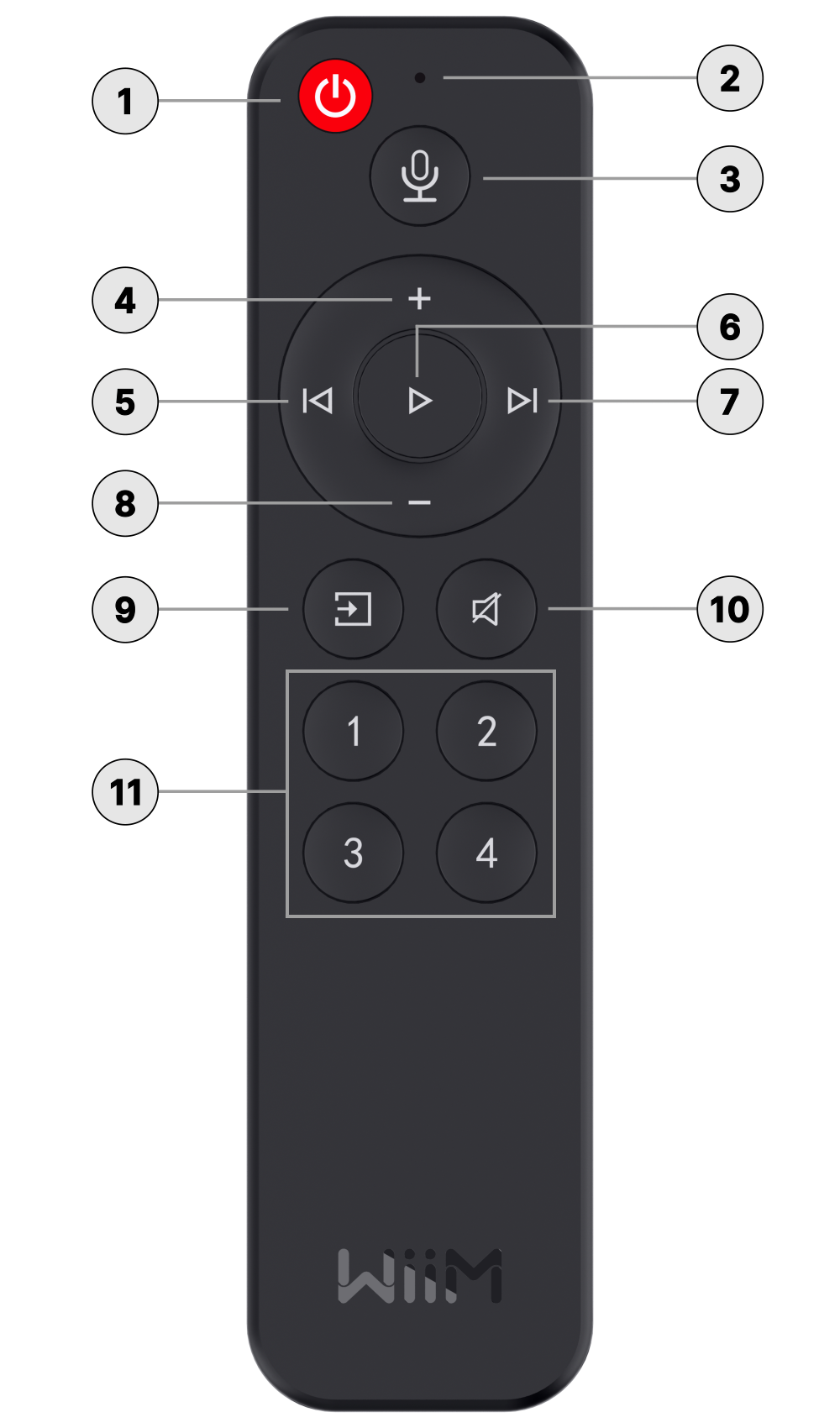
Each numbered control on the WiiM Voice Remote 2 is explained below:
 | Standby | Press to put the WiiM device into standby mode. |
 | Microphone | Capture Alexa voice commands. |
 | Alexa Voice Control | Press and hold to give Alexa voice commands. When finished, release the button. |
 | Volume Up | Press to increase the speaker volume. |
 | Previous | Press to return to the previous playback or restart the current playback. |
 | Play/Pause | Press to start or pause the current playback. |
 | Next | Press to skip to the next playback. |
 | Volume Down | Press to decrease the speaker volume. |
 | Source Switch | Press to change the input source. |
 | Mute/Unmute | Press to mute or unmute the speakers. |
 | Preset Shortcuts | Press buttons 1~4 to play presets. A single press plays presets 1~4. A quick double press plays presets 5~8 (e.g., a quick double press of button 1 plays preset 5, button 2 for preset 6, etc.). |
WiiM Voice Remote Setup Instructions
You can follow our quick video tutorial below, or read the step-by-step written instructions.
Video Tutorial
Step-by-Step Instructions
- Remove the back cover of your WiiM Voice Remote, then insert two AAA batteries.Note: WiiM Voice Remote package doesn't include two AAA batteries. You will need to provide your own.
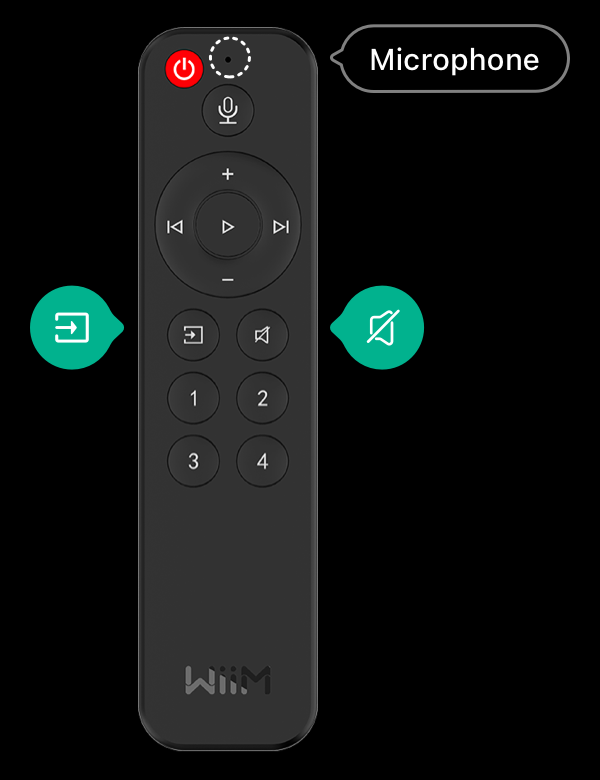
- Press and hold the Source Switch and Mute buttons simultaneously for 2 seconds, then release them to enter pairing mode.
- Open the WiiM Home app on your smartphone or tablet.
- Go to the Devices tab > Devices Settings
 > Remote.
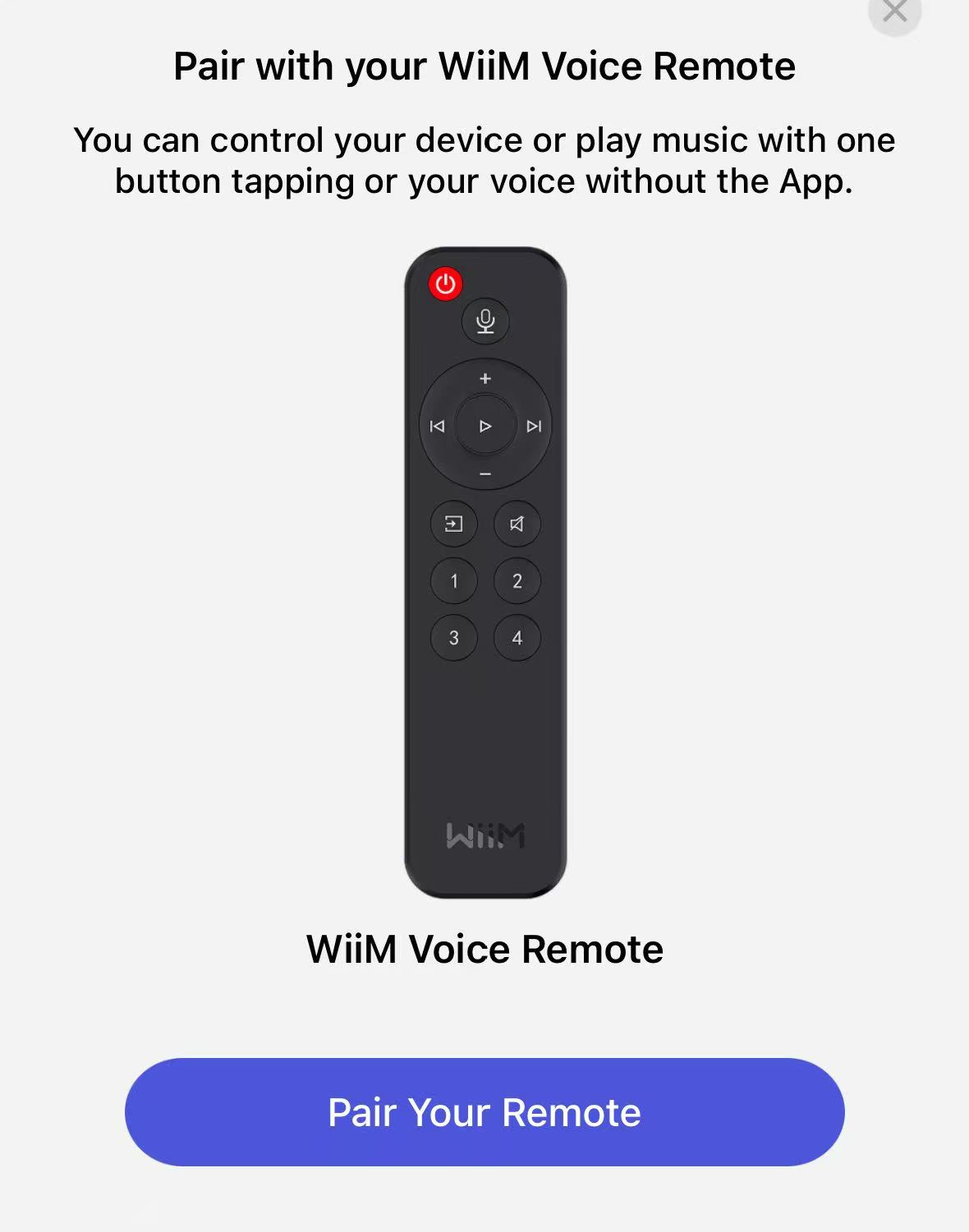
 - When the pop-up window as shown below appears, tap Pair Your Remote to start the pairing process.
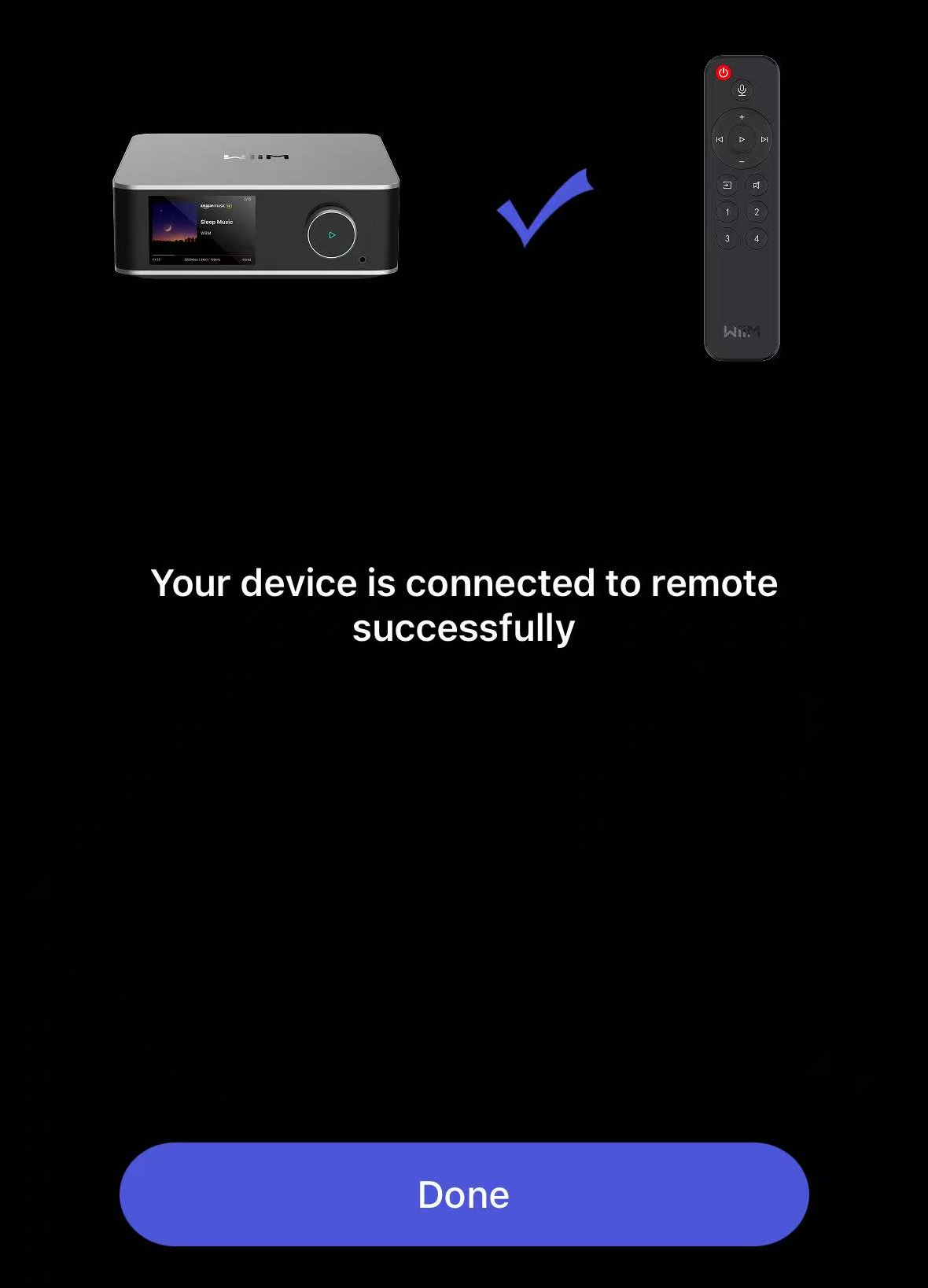
- Follow the on-screen instructions to complete.
Use the WiiM Voice Remote for Alexa Voice Control
Follow these steps to use Alexa voice commands with the WiiM Voice Remote for music playback control:
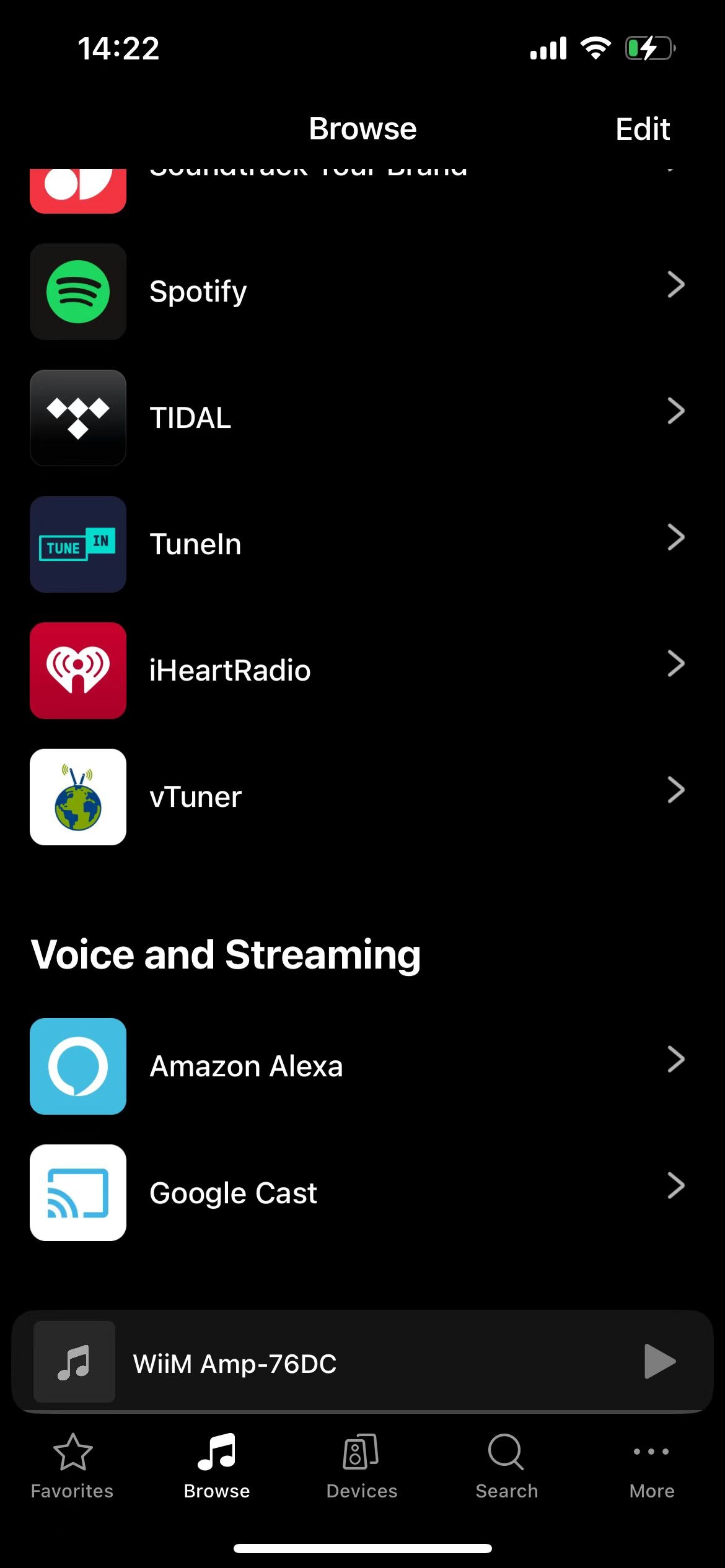
- Sign in to Amazon Alexa from the WiiM Home app. For details, see How to Use Alexa with Your WiiM Device.
- Press and hold the Alexa Voice Control button
 to give Alexa voice commands. For more details, please check the tutorial here.
For example, you can try any of the following Alexa commands:- "Play daily lift from Spotify"
- "Play my soundtrack from Amazon Music"
- "Volume 5"
- "My daily brief"
- "Play ESPN radio"
- "Play Pandora"
- Once you've finished giving your command, release the Alexa Voice Control button
 , and Alexa will process your command.
FAQ
- What can I do if my WiiM Home app can't find the Remote?
- Remove the battery from your WiiM Voice Remote, then reinsert it.
- Try pairing the Remote with your WiiM device again.
- What can I do if my device does not respond to voice commands?
- Please make sure other buttons on the Remote work.
- Make sure you've signed in to your Alexa account in the WiiM Home app.
- Move closer to the paired WiiM device.
- Try issuing some short Alexa commands to test if it responds.
- Besides Alexa, does it support Siri or Google voice assistant?
No. The Remote only supports Alexa. - Can one Remote be paired with multiple WiiM devices at the same time?
No. The Remote can only be paired with one WiiM device at a time. To use it with a different WiiM device, you have to re-pair the remote. - How can I re-pair the Remote?
Press and hold the Source Switch and Mute buttons simultaneously for 2 seconds to enter pairing mode. Then, repeat the pairing process in the WiiM Home app.
Troubleshooting
If you are experiencing pairing failures or control issues with your WiiM Voice Remote, see WiiM Voice Remote Troubleshooting.