
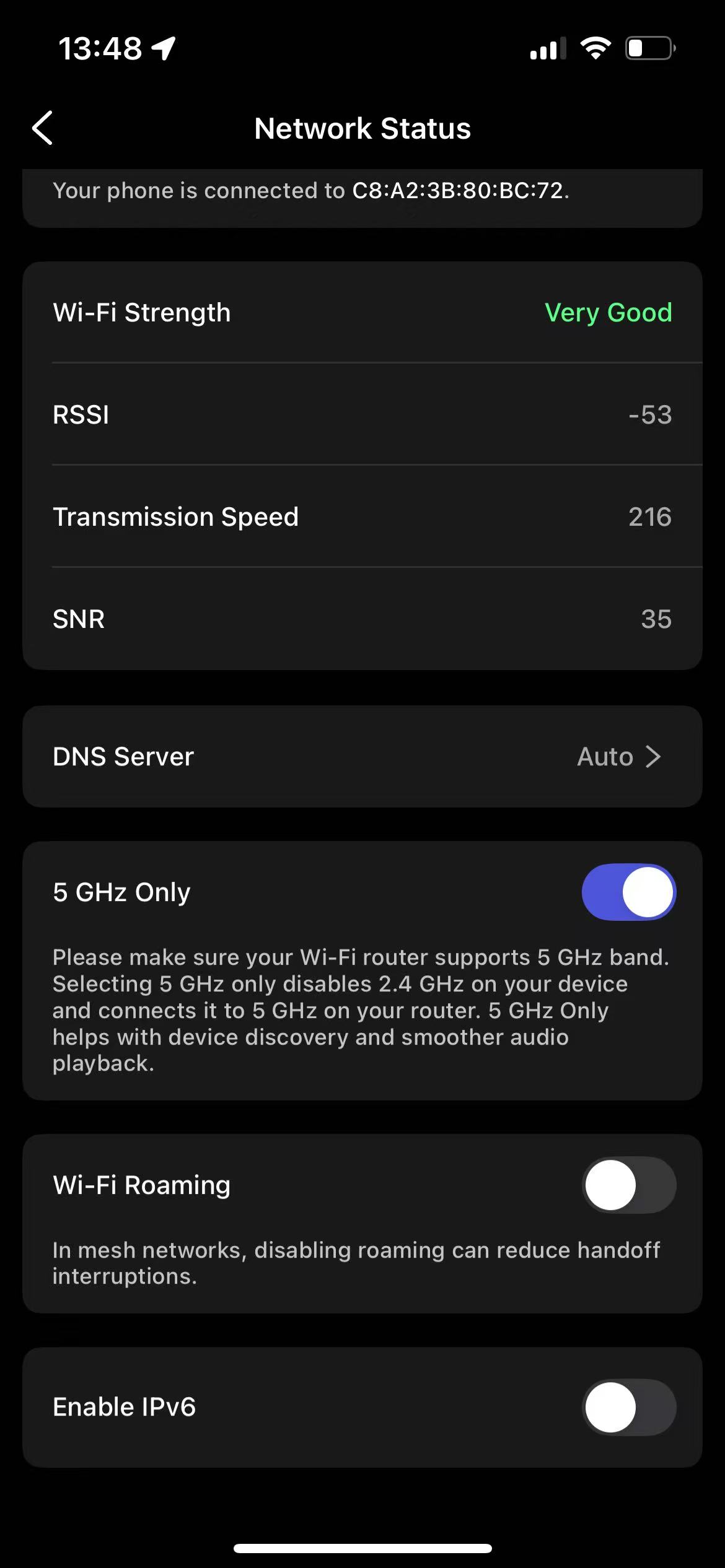
The "5 GHz Only" feature forces your WiiM device to connect to the 5 GHz band for faster discovery and smoother audio playback.
Applying Scenario
This feature is essential for Dual-Band networks where 2.4 GHz and 5 GHz share the same network name.
In such environments, your WiiM device may automatically switch to the slower 2.4 GHz band, which can cause audio stuttering or "device not found" issues in the app.
Step-by-Step Guide
Open the WiiM Home app.
Go to the Devices tab > Device Settings
 > Network Status.
Toggle on 5 GHz Only.
Important Details
- Constant Connection: Once enabled, the device will exclusively use 5 GHz and will not fall back to 2.4 GHz after a reboot or while roaming.
- The Switchover: If currently on 2.4 GHz, the device will disconnect and reconnect to the 5 GHz band. This usually takes about 2 minutes.
Troubleshooting
If your device fails to reconnect, please:
- Ensure it is close enough to the router (5 GHz has a shorter range).
- Perform a factory reset, then set it up again.
Tip
Split Dual-Band Networks: You can also split the network into two different names (e.g., MyHome_2.4G and MyHome_5G) via your router settings to manage connections manually.