
TABLE OF CONTENTS
Smart Preset Overview
The Smart Preset feature in the WiiM Home app enhances your preset list by allowing you to customize individual settings for each preset, providing a more personalized configuration for the music playback.
The Smart Preset feature will bring the following benefits:
- Convenience: Quickly access playback configurations for different presets.
- Personalization: Fine-tune your music experience with specific volume, EQ, and playback settings for each preset.
- Control: Manage audio output preferences and control playback duration for seamless listening.
Step-by-Step Guide
Follow these steps to save playback settings as a preset:
- Open the WiiM Home app.
- Open the preset list using either of the following options:
- Option 1: Navigate to the Favorites tab, and tap See All next to Presets to view the preset list.
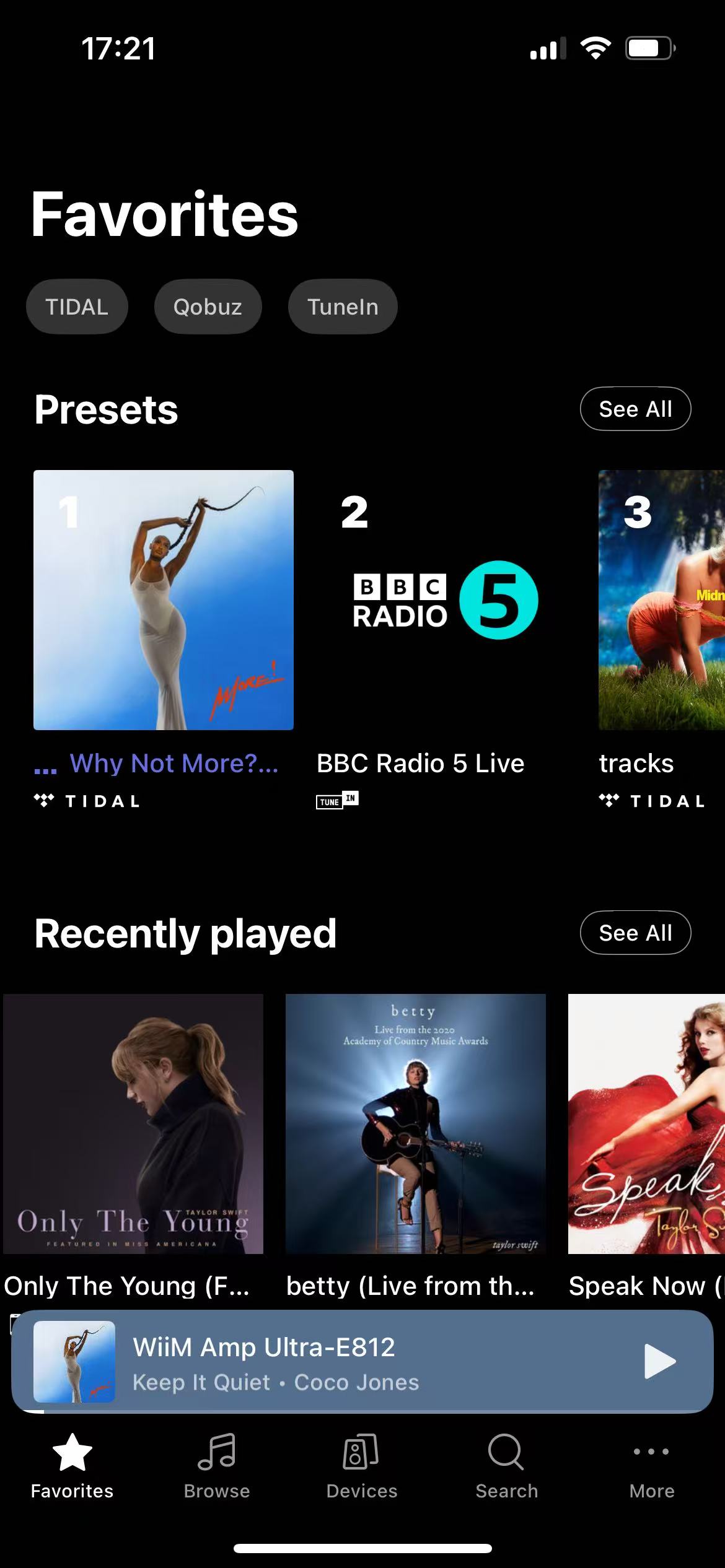
- Option 2: Navigate to the Device tab, tap the Device Settings icon
 of your device, and then select Presets.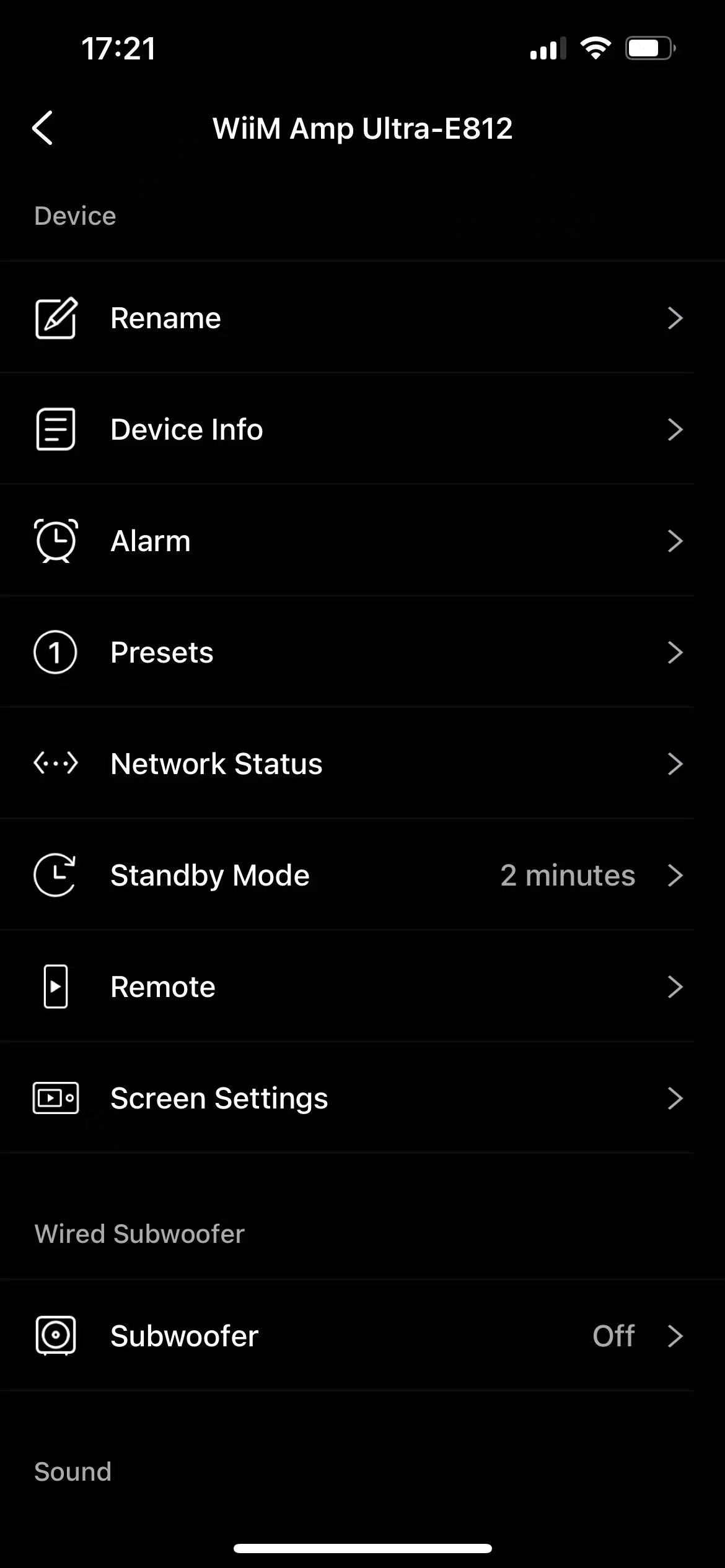
- Option 1: Navigate to the Favorites tab, and tap See All next to Presets to view the preset list.
- Tap the three-dot icon (...) next to a preset playback to enter the smart preset settings.
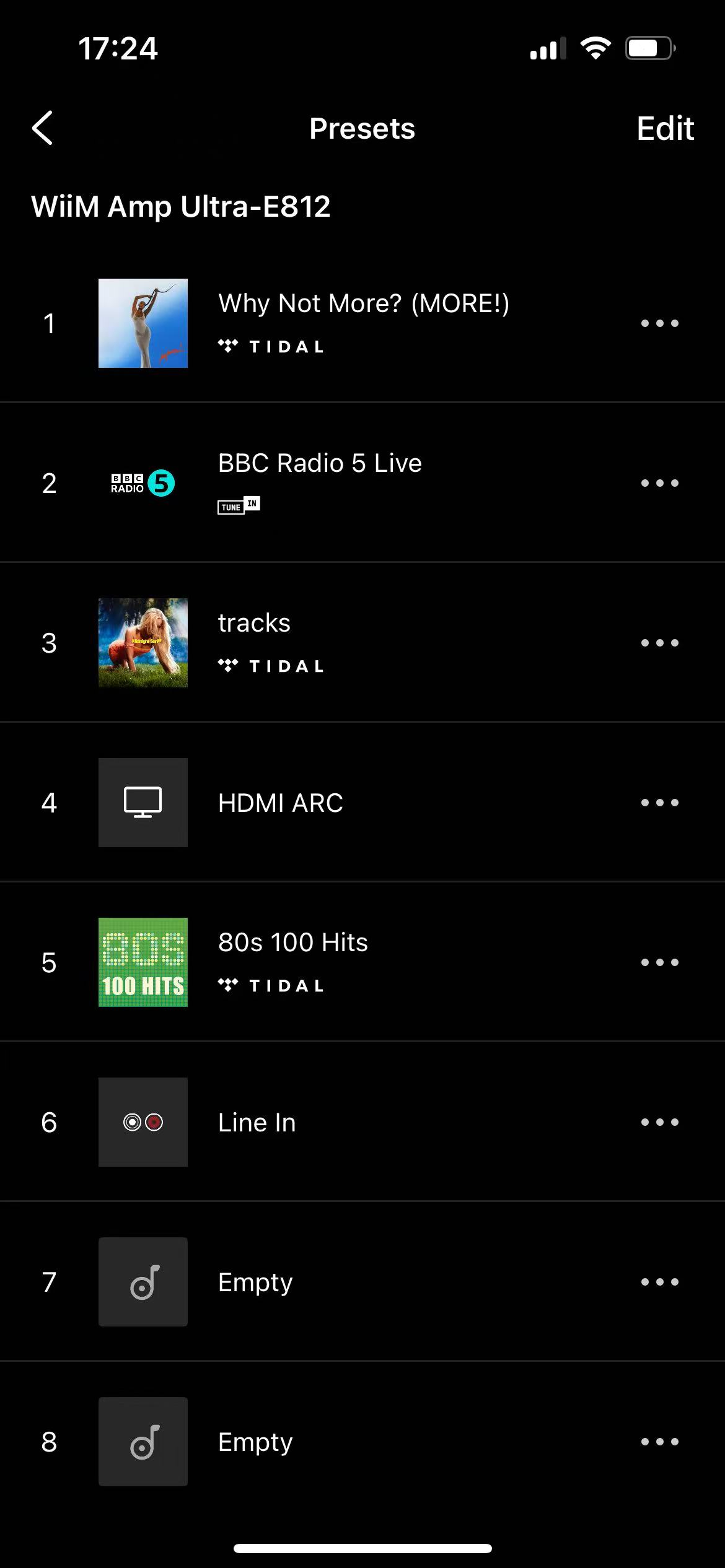
- Customize any of the following settings:
- Name: Specify a name for the preset.
- Repeat: Enable or disable repeat mode.
- Shuffle: Enable or disable shuffle mode.
- Volume: Specify the volume level settings for this specific preset.
- Audio Output: Configure the audio output interface (e.g., Line Out, Optical Out) supported by your device.
- Sub Output: Specify if the preset playback is output to the subwoofer or not.
- EQ: Customize the EQ setting for the preset playback.
- Duration: Set a playback time duration for the preset playback. By default, there is no duration limit, meaning the current preset will continue to play until the content finishes.
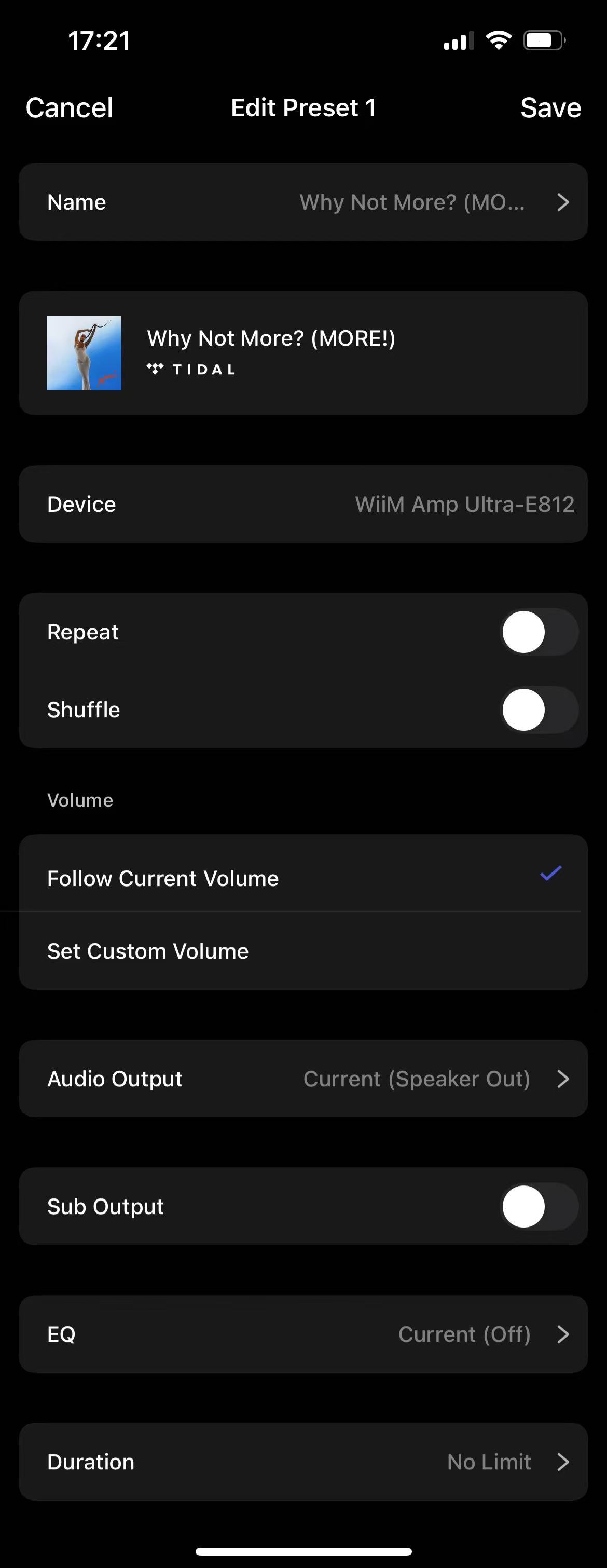
- Tap Save in the top right corner to apply all the customizations.
- Repeat Step 3 to Step 5 to customize other presets in the list if needed.
By following these steps, you can easily personalize a preset for a more tailored listening experience.